How to assign more permissions to delegated admin users
When the first user of your organization signs up and logs on to NetScaler Console, this user is assigned the super admin privileges. Every subsequent user that logs on is assigned a delegated admin role by default. A delegated admin does not have the permission to view and perform any tasks related to user administration or RBAC settings.
However, you can assign super admin privileges or specific non-super admin roles to a delegated admin so that the admin is able to perform tasks related to user administration.
For detailed information about role-based access control see Configuring Role-Based Access Control.
Related information
Assigning Super Admin Permissions to a Delegated Admin
To assign super admin permissions to a delegated admin, a super admin has to assign the default admin group to a delegated admin user. Perform the following tasks:
-
Log on to NetScaler Console as the super admin.
-
Navigate to Account > User Administration > Users.
-
Select the user name of the delegated admin and click Edit.
-
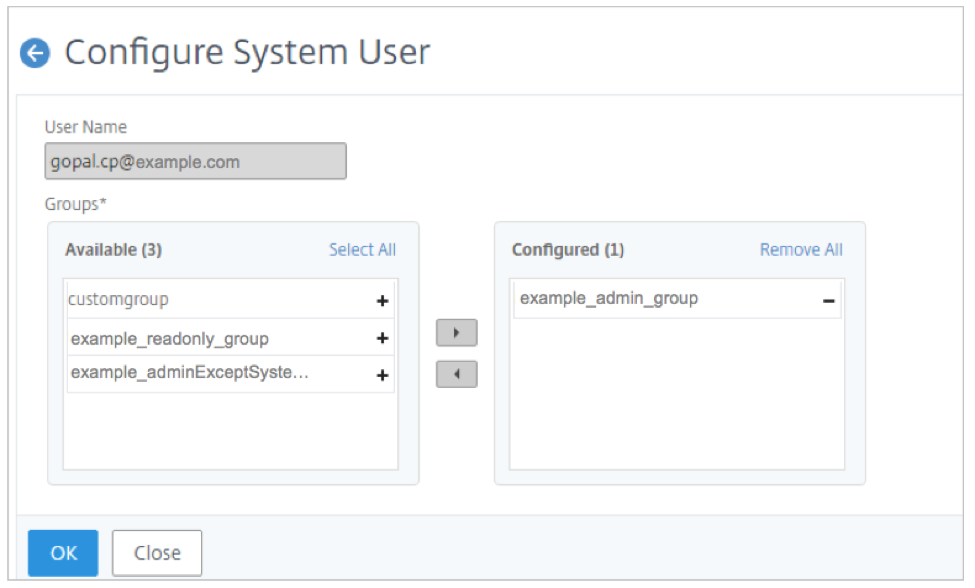
Assign the group \<tenant\_name\>\_admin\_group to the delegated admin and click OK. For example, in the following image, "example\_admin\_group" is assigned to a delegated admin user.
Assigning Custom Role to a Delegated Admin
To assign any custom role to a delegated admin, the super admin has to create a group, role, and policy and assign to the delegated admin user. This ensures that the delegated admin has only the required permissions. Perform the following tasks:
-
Log on to NetScaler Console as the super admin.
-
Navigate to Account > User Administration > Access Policies. Select Add to create an access policy with the required permissions for the delegated admin. In this example, an access policy
custompolicyis created that allows view access to User Administration settings.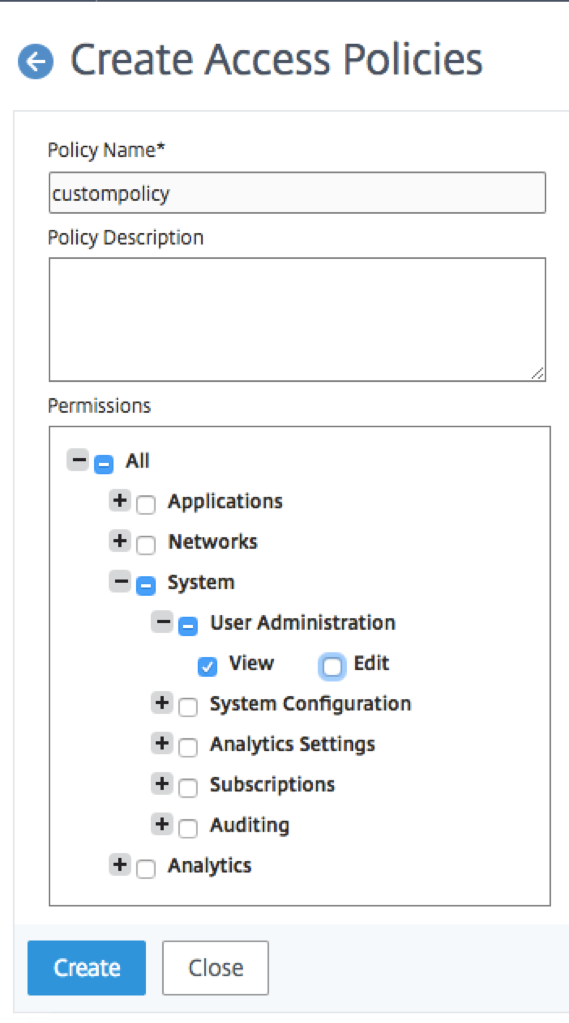
-
Navigate to Account > User Administration > Roles. Select Add to create a role and bind this role to the access policy that you created in the previous step. In this example, a role
customroleis created and bound to thecustompolicyaccess policy.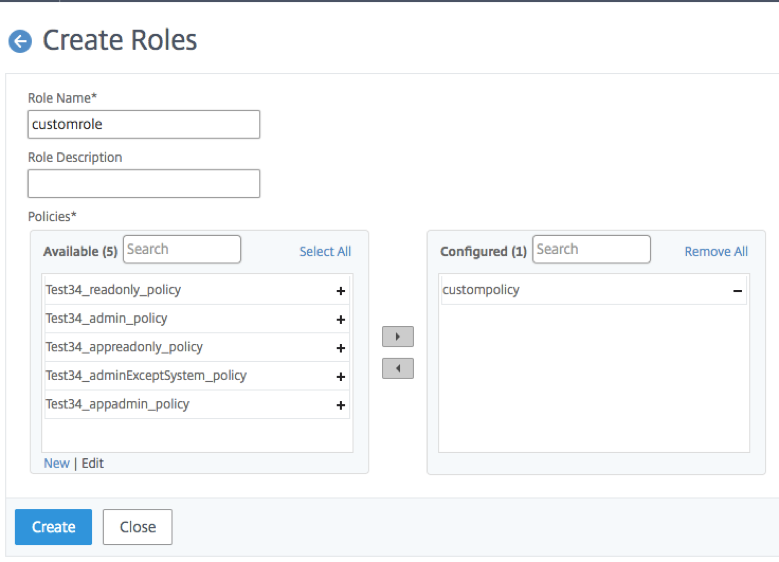
-
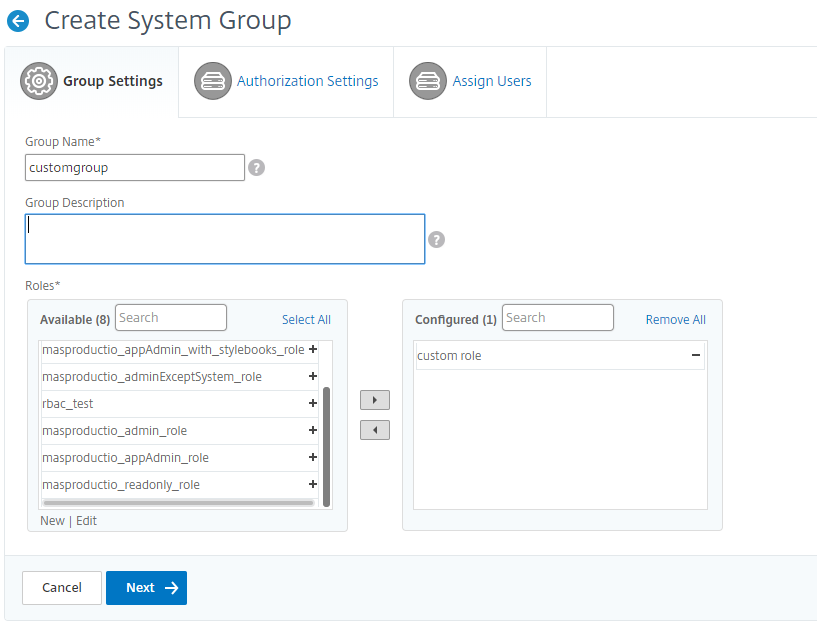
Navigate to Account > User Administration > Groups. Select Add to create a group and bind this group to the role you created in the previous step. In this example, the group "custom group" is created and bound to the role "custom role."
-
Navigate to Account > User Administration > Users
-
Select the user name of the delegated admin and click Edit.
-
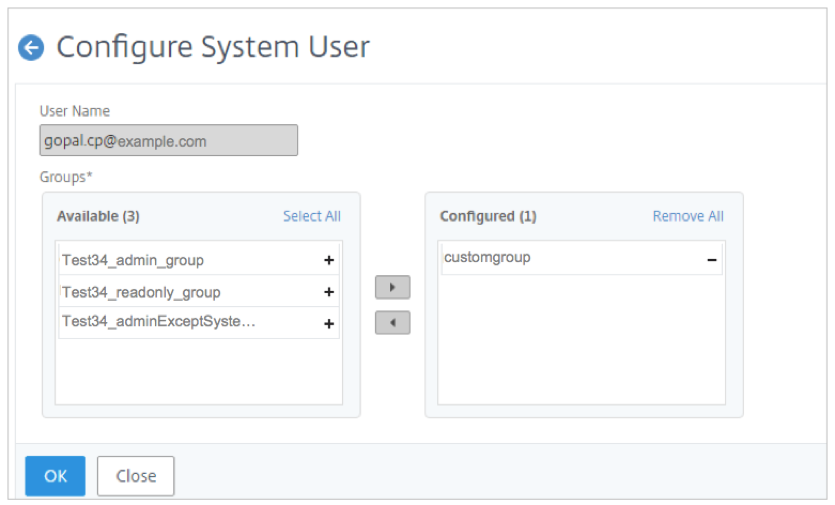
Assign the group you created in the previous step to the delegated admin user. In this example, the delegated admin user is assigned the group
customgroup.