
Enable data collection to monitor {{page.citrix-adc-generic}}s deployed in transparent mode
When a {{page.citrix-adc-generic}} is deployed in transparent mode the clients can access the servers directly, with no intervening virtual server. If a {{page.citrix-adc-generic}} appliance is deployed in transparent mode in a {{page.cvad-onprem-product-name}} environment, the ICA traffic is not transmitted over a VPN.
After you add the {{page.citrix-adc-generic}} to the {{page.adm-product-name-short}} inventory, you must enable AppFlow for data collection. Enabling data collection depends on the device and the mode. In that case, you have to add {{page.adm-product-name-short}} as an AppFlow collector on each {{page.citrix-adc-generic}} appliance, and you must configure an AppFlow policy to collect all or specific ICA traffic that flows through the appliance.
Note
-
You cannot enable data collection on a {{page.citrix-adc-generic}} deployed in transparent mode by using the {{page.adm-product-name-short}} configuration utility.
-
For detailed information about the commands and their usage, see Command Reference.
-
For information on policy expressions, see Policies and Expressions.
The following image shows the network deployment of a {{page.adm-product-name-short}} when a {{page.citrix-adc-generic}} is deployed in a transparent mode:
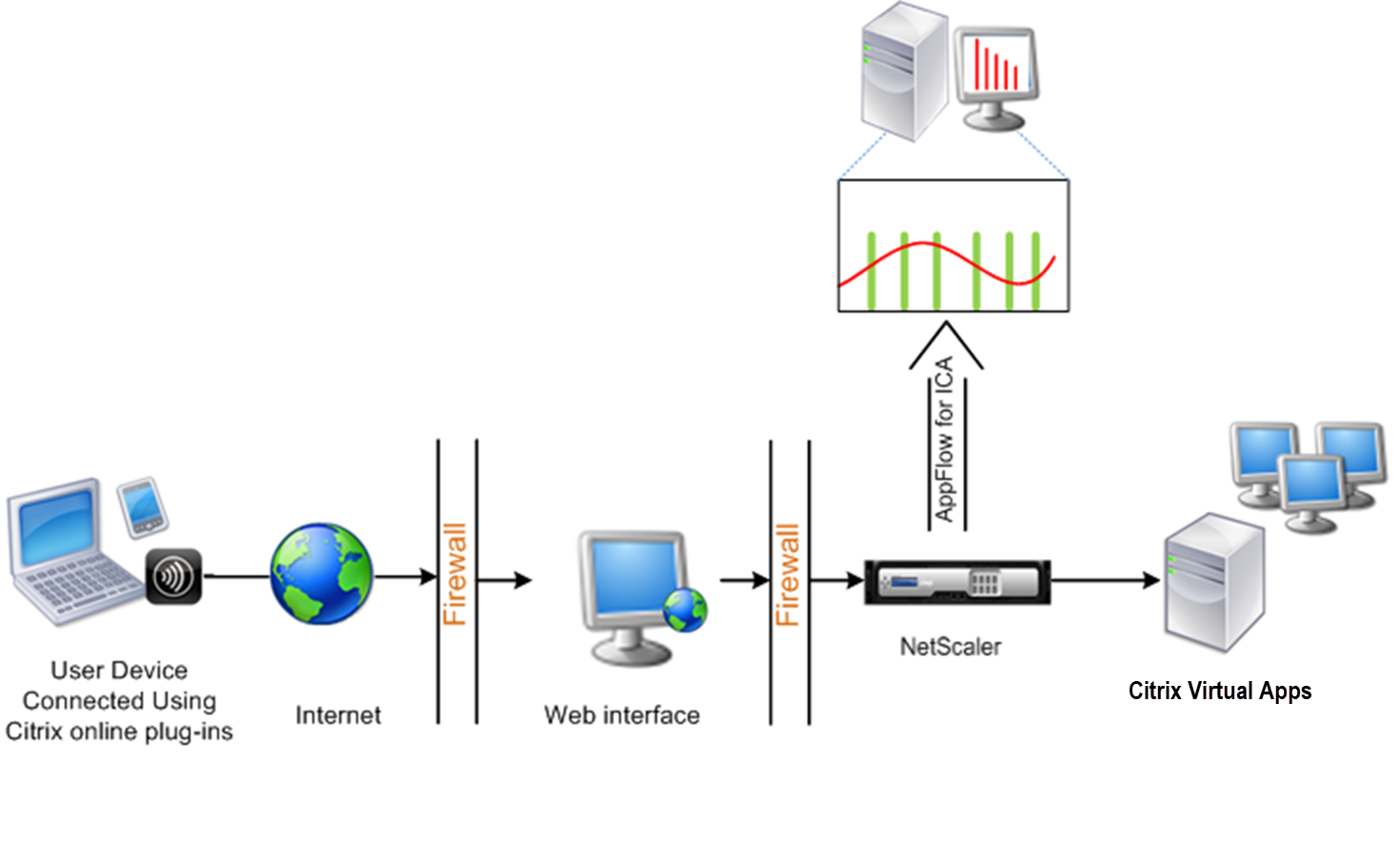
To configure data collection on a {{page.citrix-adc-generic}} appliance by using the command line interface:
At the command prompt, do the following:
-
Log on to an appliance.
-
Specify the ICA ports at which the {{page.citrix-adc-generic}} appliance listens for traffic.
set ns param --icaPorts \<port\>...Example:set ns param -icaPorts 2598 1494Note-
You can specify up to 10 ports with this command.
-
The default port number is 2598. You can modify the port number as required.
-
-
Add NetScaler Insight Center as an AppFlow collector on the {{page.citrix-adc-generic}} appliance.
add appflow collector <name> -IPAddress <ip_addr>Example:add appflow collector MyInsight -IPAddress 192.168.1.101NoteTo view the AppFlow collectors configured on the {{page.citrix-adc-generic}} appliance, use the show appflow collector command. -
Create an AppFlow® action and associate the collector with the action.
add appflow action <name> -collectors <string> ...Example:add appflow action act -collectors MyInsight -
Create an AppFlow policy to specify the rule for generating the traffic.
add appflow policy <policyname> <rule> <action>Example:add appflow policy pol true act -
Bind the AppFlow policy to a global bind point.
bind appflow global <policyname> <priority> -type <type>Example:bind appflow global pol 1 -type ICA_REQ_DEFAULTNoteThe value of type must be ICA_REQ_OVERRIDE or ICA_REQ_DEFAULT to apply to ICA® traffic. -
Set the value of the flowRecordInterval parameter for AppFlow to 60 seconds.
set appflow param -flowRecordInterval 60 -
Save the configuration.
save ns config
Related information