Best Practices for monitoring your LAS transitioned NetScaler Console service environment
This document focuses on the best practices that you can follow to monitor your NetScaler environments that use LAS. This document applies to deployments that use LAS with Console service.
Related information
Prerequisites
-
Read the LAS for NetScaler page, including the FAQ for LAS with Console service.
-
Read the License Activation Service and complete your LAS migration.
-
Ensure that you set up the relevant notifications, and monitor the NetScaler GUI and CLI regularly.
Note:
We intend to make continuous improvements to notifications and keep this documentation updated accordingly.
Monitoring LAS activation blob expiry
For NetScaler Console service, the LAS activation blob is provided directly by LAS to the NetScaler instances that use NetScaler Console service as their licensing server. The blob is valid for 30 days or until the license entitlement expires, whichever comes first and is refreshed every eight hours.
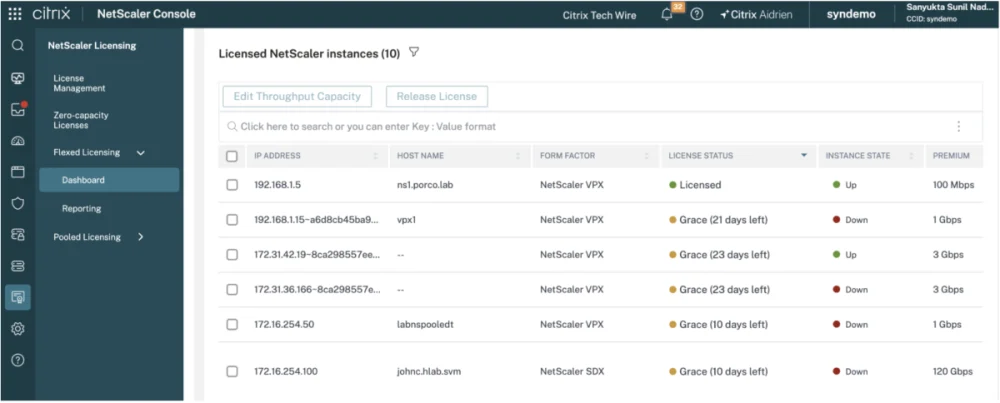
If connectivity between NetScaler and NetScaler Console service breaks, NetScaler Console service cannot refresh the NetScaler instance's LAS activation blob. NetScaler Console service retries every eight hours, and after three failed attempts (8 hours x 3 = 24 hours), NetScaler goes into Grace status. The NetScaler Console service GUI then shows such NetScaler instances in the grace status.
This section details the notifications triggered when a LAS activation blob is nearing expiry (less than 30 days), which indicates that the deployment requires attention. To resolve this, verify and repair any connectivity issues, or contact Citrix Support for assistance.
View NetScaler instances by using the GUI
To view NetScaler instances that are in grace status, navigate to Console Service GUI > NetScaler Licensing > Flexed Licensing > Dashboard.
View NetScaler instance status by using the CLI
To view NetScaler instances in Grace status and the remaining grace period duration, run the
sh licenseserver command.
Example:
> sh licenseserver
      License Server: 10.102.123.31 Status: Disconnected
         Grace: Yes         Grace Time Left: 652
 Done
Notifications
Banner on NetScaler Console service:
The NetScaler Console service GUI displays a banner listing NetScaler instances whose LAS activation blob expires in x days, where x is less than 30 days.

Banner on NetScaler GUI:
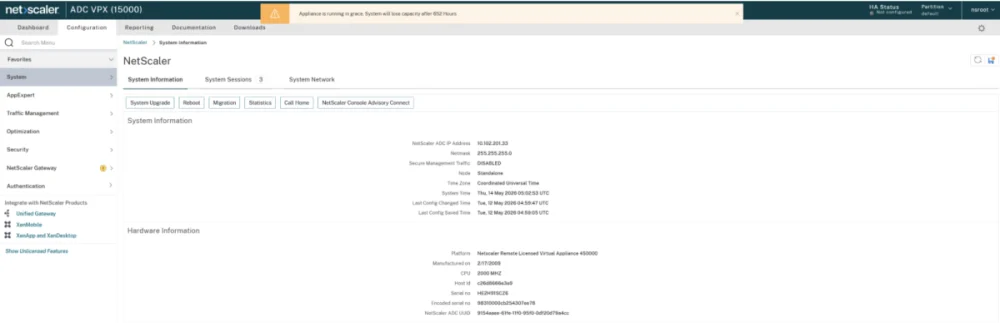
The NetScaler Console service GUI displays a banner if the NetScaler instance is in grace status.
SNMP traps generated by NetScaler for grace status:
If NetScaler instances are in grace status, NetScaler generates the following SNMP traps:
-
pooledLicenseGraceStarted: Triggered when the instance has entered the grace period. -
pooledLicenseGraceNormal: Triggered when the grace period of 30 days ends, which means that the deployment is impacted and the instance becomes unlicensed. -
pooledLicenseGracePeriodOver: Triggered when the grace period is over.
Example:
May 15 05:17:21 <local0.info> 10.102.201.33  05/15/2026:11:17:21 GMT  0-PPE-2 : default SNMP TRAP_SENT 0 0 :  pooledLicenseGraceStarted (nsPartitionName = default)
 May 15 05:17:21 <local0.info> 10.102.201.33  05/15/2026:11:17:21 GMT  0-PPE-2 : default SNMP TRAP_SENT 0 0 :  pooledLicenseGraceNormal (nsPartitionName = default)
 May 15 05:17:21 <local0.info> 10.102.201.33  05/15/2026:11:17:21 GMT  0-PPE-2 : default SNMP TRAP_SENT 0 0 :  pooledLicenseGracePeriodOver (nsPartitionName = default)
Monitoring license entitlement expiry
The License entitlement expiry date refers to the customer license entitlement or contract expiry date.
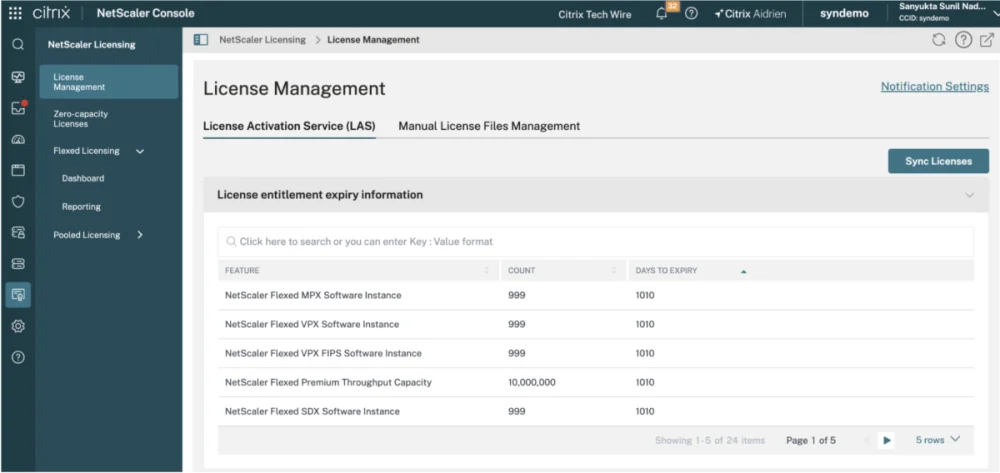
To view license entitlement expiry information by using the GUI, navigate to Console Service GUI > NetScaler Licensing > License Management > LAS.
The Days to expiry shows entitlement expiry date for the corresponding license.
Notifications
NetScaler Console service GUI banner:
The NetScaler Console service GUI shows a banner indicating that the license entitlement is nearing expiry in x days.

Email-based notifications:
To configure notifications for license entitlement expiry:
-
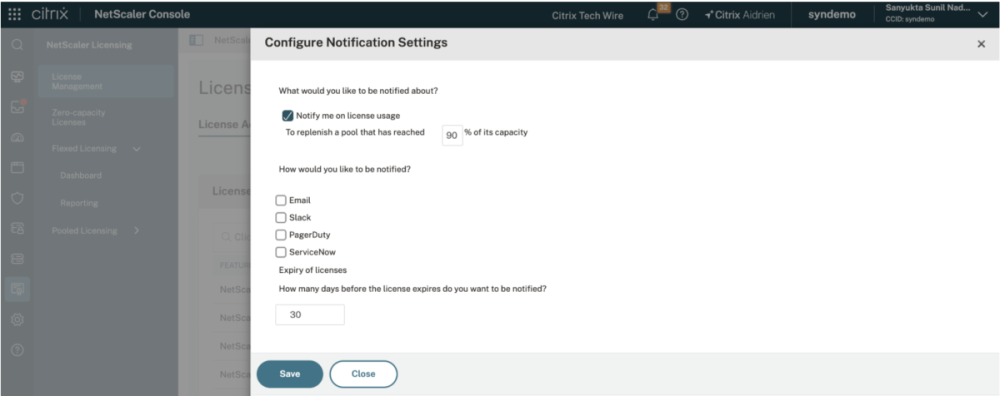
Navigate to Console Service GUI > NetScaler Licensing > License Management > Notification Settings.
-
Enter the required value in How many days before the license expires do you want to be notified?.