Suppress syslog messages
When configured as a syslog server, {{page.adm-product-name-short}} receives all syslog messages from the configured Citrix Application Delivery Controller ({{page.citrix-adc-generic}}) instances. There might be many messages that you might not want to see. For example, you might not be interested in seeing all the informational-level messages. You can now discard some of the syslog messages that you are not interested in. You can suppress some of the syslog messages coming into {{page.adm-product-name-short}} by setting up some filters. {{page.adm-product-name-short}} drops all messages that match with the criteria. These dropped messages do not appear on the {{page.adm-product-name-short}} GUI and these messages are also not stored in the customer's {{page.adm-product-name-short}} database.
You can suppress some of the logged syslog messages coming into {{page.adm-product-name-short}} by setting up some filters. The two filters that can be used for suppressing syslog messages are severity and facility. You can also suppress messages coming from a particular {{page.citrix-adc-generic}} instance or multiple instances. You can also provide a text pattern for {{page.adm-product-name-short}} to search and suppress messages. {{page.adm-product-name-short}} drops all messages that match with the criteria. These dropped messages do not appear on the {{page.adm-product-name-short}} GUI and these messages are also not stored in the customer database. Therefore, a good amount of space is saved on the storage server.
Some use cases for suppressing syslog messages are as follows:
-
If you want to ignore all information level messages, suppress level 6 (informational)
-
If you only want to record firewall error conditions, suppress all levels other than level 3 (errors)
Related information
Suppressing syslog messages by creating filters
-
In {{page.adm-product-name-short}}, navigate to Infrastructure > Events > Syslog Messages.
-
Click the gear icon to display the Suppress Filters page.
-
In the Suppress Filters page, click Add.
-
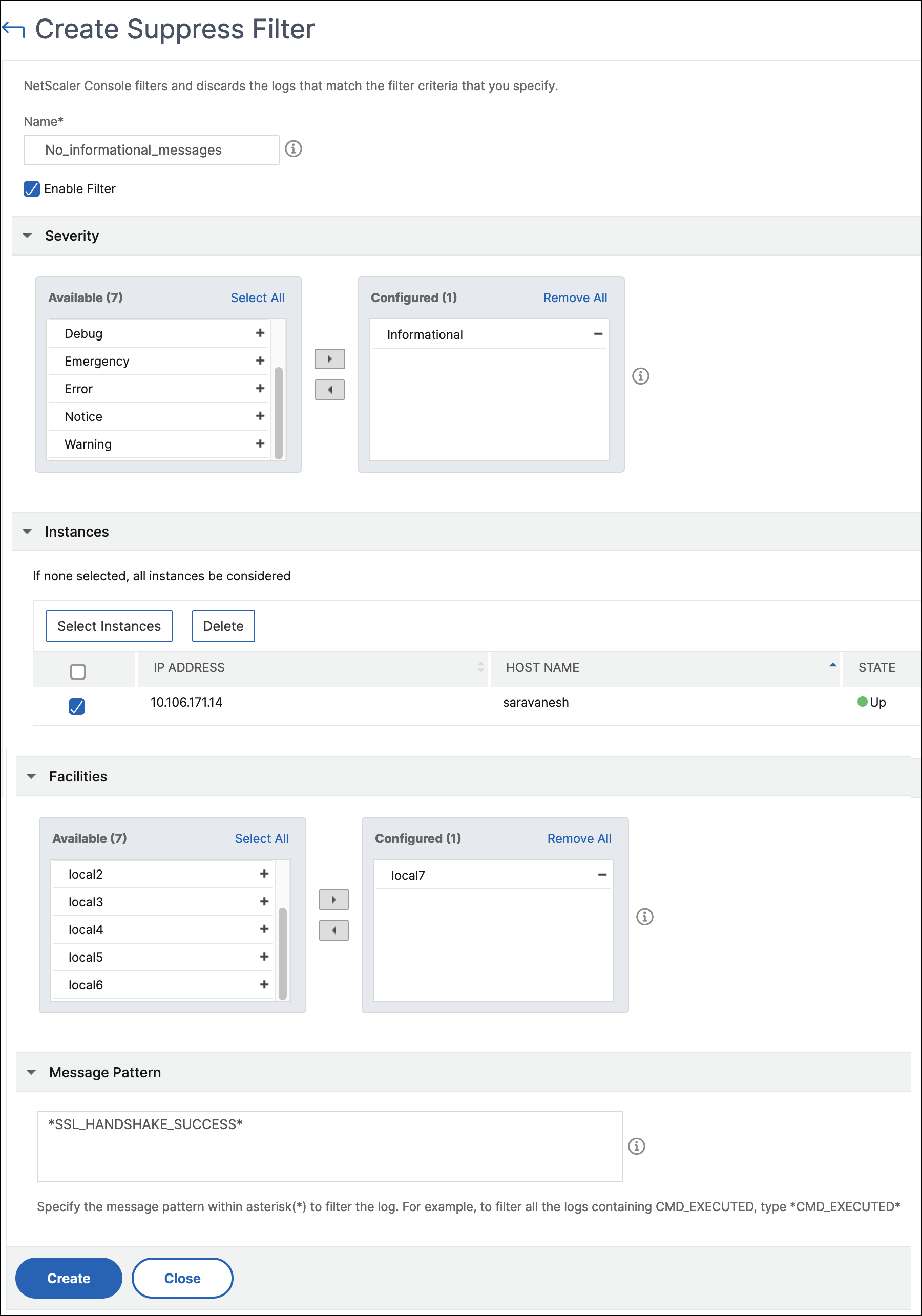
In Create Suppress Filter, update the following information:
-
Name - type a name for the filter.Note:If different users have different access to multiple {{page.citrix-adc-generic}} instances, different filters must be created for different instances as users can see only those filters in which they have access to all the instances.
-
Severity - Select and add the log levels for which you must suppress the messages.For example, if you do not want to view any informational messages coming in, you can select Informational to suppress those messages.
-
Instances - Select the {{page.citrix-adc-generic}} instances on which the syslog messages have been configured.
-
Facilities - Select the facility to suppress messages based on the source that generates them.
-
Message Pattern - You can also type a text pattern surrounded by asterisks (*) to suppress the messages. The messages are searched for the text pattern string and those messages that contain this pattern are suppressed.
-
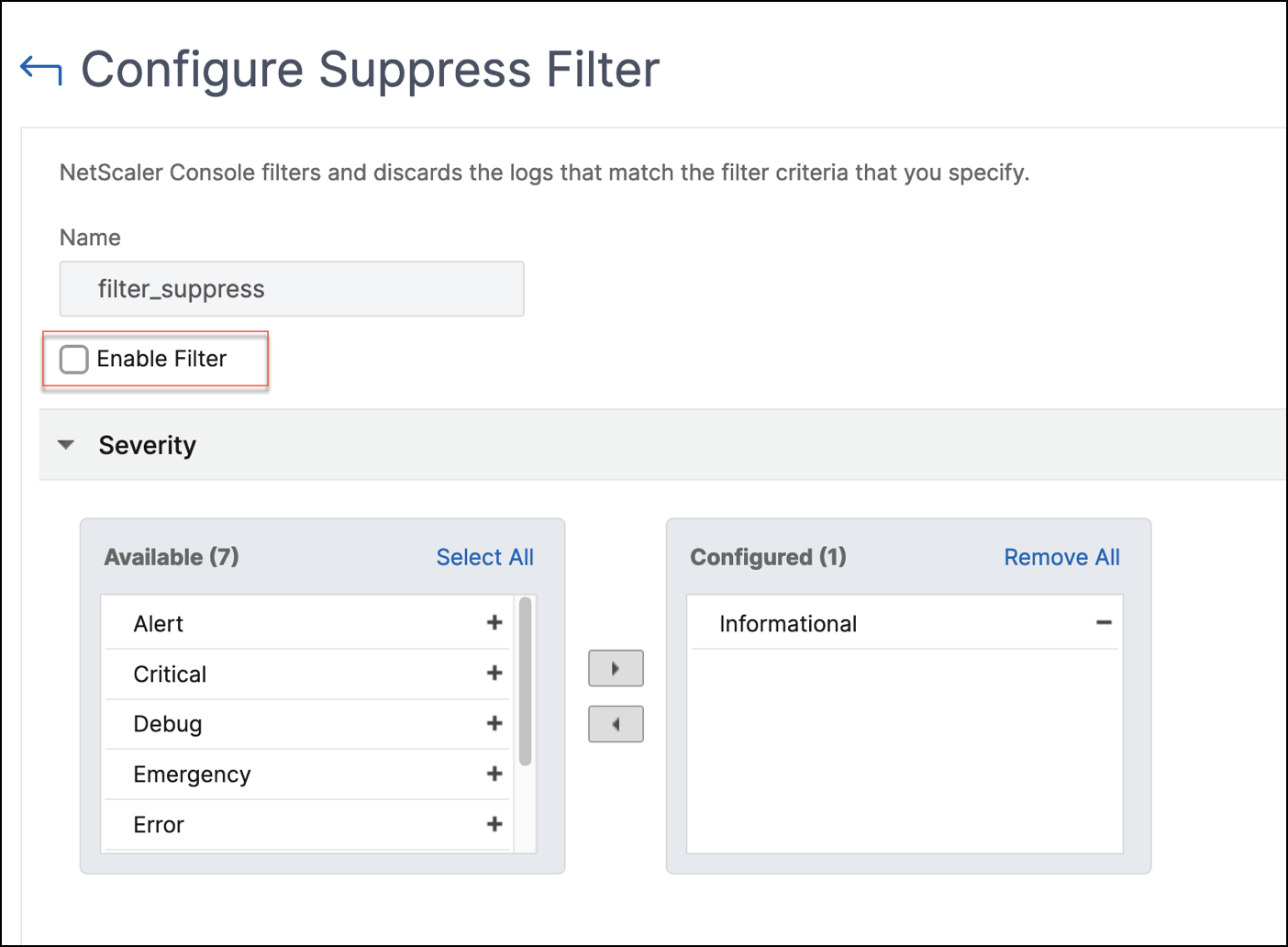
Disabling the filter
To allow the messages to be viewed on {{page.adm-product-name-short}}, you must disable the filter.
-
Navigate to Infrastructure > Events > Syslog Messages.
-
Click the gear icon to display the Suppress Filters page.
-
In the Suppress Filters page, select the filter and click Edit.
-
On the Configure Suppress Filter page, clear the Enable Filter check box to disable the filter.