
License Activation Service
Important:
File-based licensing system (also referred to as manually managed entitlements), traditionally used for activating various on-premises components, will be End of Life (EOL) on April 15, 2026. License Activation Service (LAS) is the next generation technology for product activations across the suite of Citrix products. LAS will be the only way to activate and license NetScaler instances after April 15, 2026, supporting NetScaler Flexed licenses (Citrix Platform License/Universal Hybrid Multi-Cloud), legacy NetScaler Pooled licenses, and NetScaler Fixed term Bandwidth licenses. To remain supported, your {{page.citrix-adc-generic}} and {{page.adm-product-name-long}} deployments must be on a LAS compatible version.
The minimum required NetScaler versions that are LAS compatible are:
-
NetScaler ADCs: 14.1-51.x, 13.1-60.x, 13.1-37.246 (FIPS), 14.1-66.68 (FIPS)
-
NetScaler SVM: 14.1-51.x, 13.1-60.x
-
NetScaler Console Service: Supported from early September 2025.
-
NetScaler Console on-prem: 14.1-51.xNote: LAS support for Console on-prem is from release 14.1-51.x onwards. However, file-based licensing is deprecated as of April 15 2026 from Console on-prem releases 14.1-51.x onwards and 13.1-60.x onwards. If you upgrade to Console on-prem release 14.1-51.x or release 13.1-60.x or later, you can continue using file-based licensing until 15th April 2026. However you must upgrade to Console on-prem release 14.1-51.x or later, and switch to LAS before 15th April 2026 because Console on-prem 13.1 does not support LAS.
All the other forms of legacy {{page.citrix-adc-generic}} licenses such as {{page.citrix-adc-generic}} virtual CPU licensing (Pooled vCPU), {{page.citrix-adc-generic}} VPX Check-In and Check-Out (CICO), perpetual will not be supported with LAS. {{page.citrix-adc-generic}} instances leveraging perpetual licenses without an active maintenance will become unlicensed upon upgrade to the above mentioned software versions.
LAS-based licenses may not be available to customers where prohibited by law or regulations.
If you have questions or concerns, contact Customer Care. Citrix may limit or suspend your Citrix Maintenance for non-compliance with these requirements without liability in addition to any other remedies Citrix may have at law or equity. These requirements don’t apply where prohibited by law or regulation.
Before starting your transition to LAS, we recommend reading LAS for NetScaler. This ensures that you understand the general prerequisites, the supported or unsupported license types, the accurate workflow for your specific license and deployment types along with other important information.
License Activation Service (LAS) is a cloud-based licensing solution that replaces traditional file-based licensing. LAS introduces new modules to activate Citrix and {{page.citrix-adc-generic}} products, providing a streamlined, modern approach to license management.
Notes:
-
LAS is a license mechanism, not a license type.
-
File-based licensing refers to the older method of licensing using manual entitlements. In this document, ‘File-based licensing’ and ‘manually managed entitlements’ are used interchangeably as they describe the same concept.
The following are the key benefits of LAS:
-
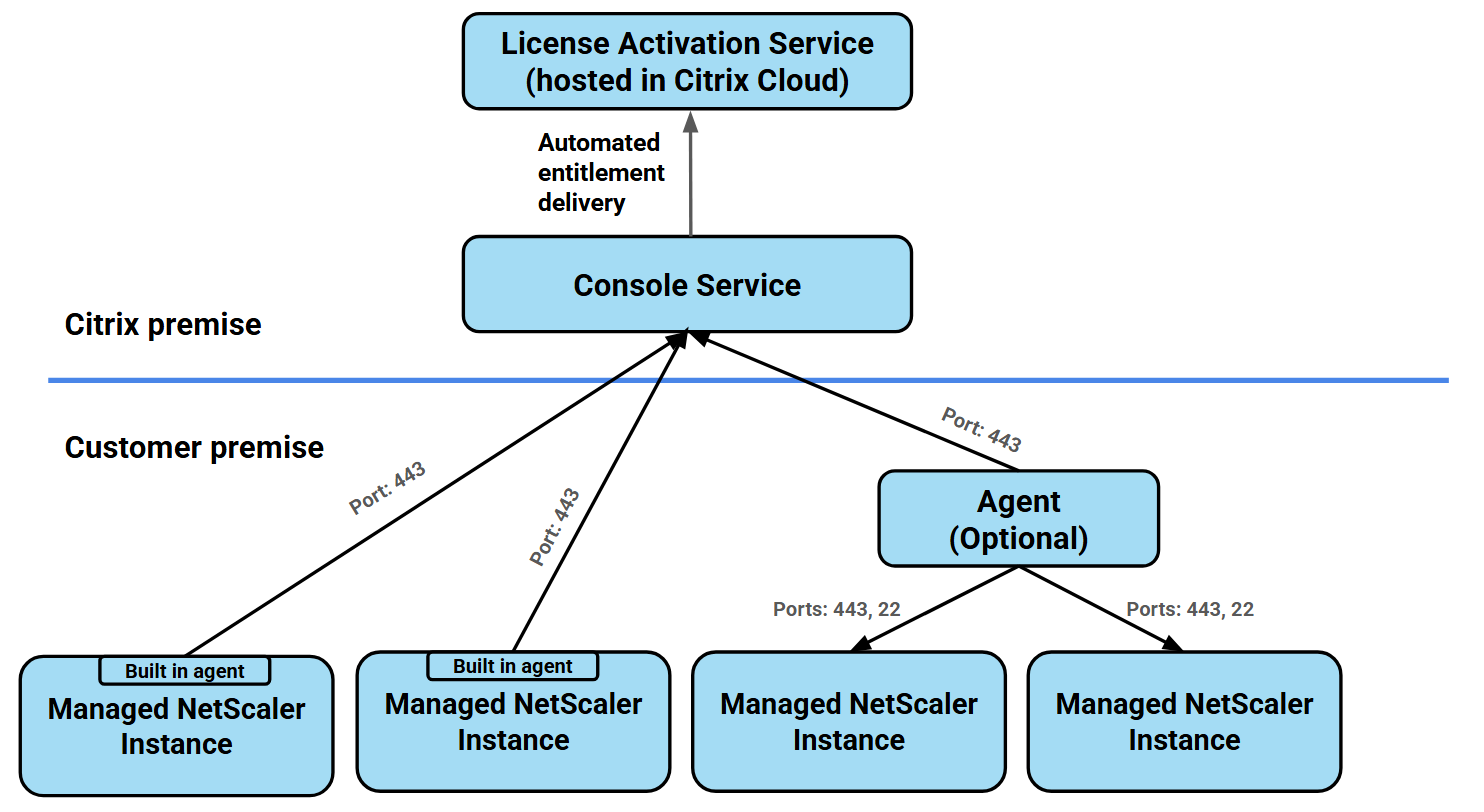
Automated entitlement delivery through an entitlement blob.
-
An external agent for licensing communication is optional.
-
LAS eliminates the need for Z-Cap software license files on the {{page.netscaler-mpx-long}}™ and SDX instances.
Note:
If you are new to {{page.adm-product-name-long}}, begin with Getting Started.
The following diagram is for LAS with Console service.
Prerequisites
To use LAS, ensure that you have completed the following prerequisites:
-
You must have a valid Citrix Cloud account. For more information about existing cloud accounts or to onboard new cloud accounts, see Account Management.
-
The Organization ID (Org ID) linked to the Citrix Cloud account used for the LAS activation workflow must possess valid purchased entitlements. To view the current entitlements, see Entitlements.
-
The {{page.citrix-adc-generic}} instance is running a LAS-compatible version.
-
The {{page.citrix-adc-generic}} instance is added as a managed instance in {{page.adm-product-name-long}}.
Automatic enablement and compatibility
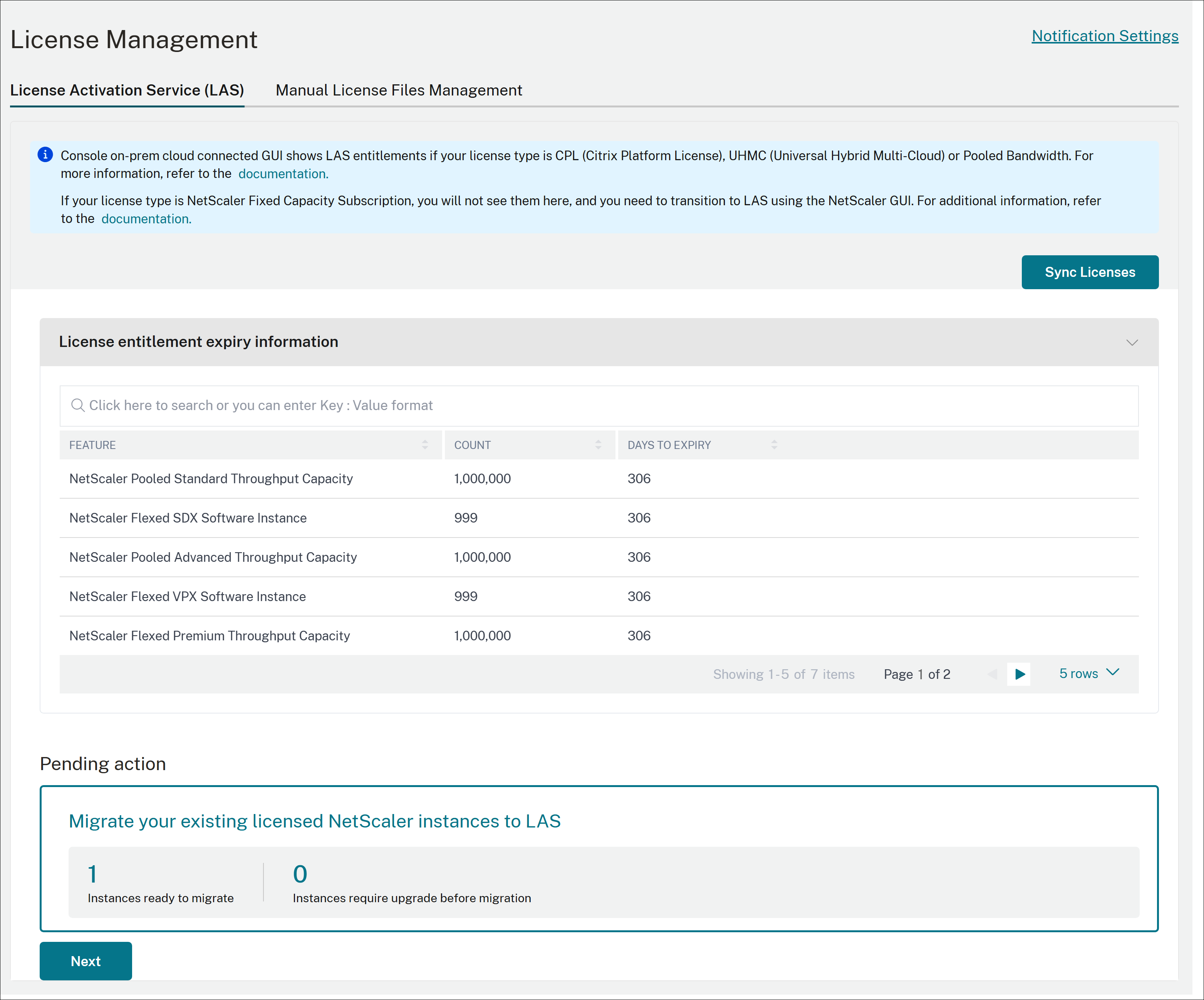
LAS is automatically enabled on the {{page.adm-product-name-long}} service. Once enabled, all {{page.citrix-adc-generic}} Flexed and Pooled license entitlements appear in the {{page.adm-product-name-long}} GUI.
You can view your entitlements by navigating to NetScaler Licensing > License management > License Activation Service (LAS) tab.
Notes:
-
The new Sync Licenses option allows you to manually trigger this synchronization on demand, ensuring entitlements are up to date immediately.
-
The default frequency for entitlement synchronization is once every 8 hours if LAS entitlements have not been synchronized with NetScaler Console service and once every 24 hours there after. For on-demand synchronization, click
Sync Now.
NetScaler version compatibility for LAS
To use LAS, your {{page.citrix-adc-generic}} instances must be running one of the following minimum versions:
-
{{page.citrix-adc-generic}}: 14.1-51.x, 13.1-60.x, 13.1-37.246 (FIPS), 14.1-66.68 (FIPS)
-
{{page.citrix-adc-generic}} SVM: 14.1-51.x, 13.1-60.x
-
{{page.adm-product-name-long}} service: Supported from early September 2025.
-
{{page.adm-product-name-long}} on-prem: 14.1-51.x
Notes:
-
To use LAS, ensure that you have completed the following prerequisites:
-
The {{page.citrix-adc-generic}} instance is running a LAS-compatible version.
-
The {{page.citrix-adc-generic}} instance is added as a managed instance in {{page.adm-product-name-long}}.
-
-
For SDX appliances, upgrade the Management Service (SVM) to a LAS-supported build and transition to LAS-based licensing. The VPX build version does not impact LAS compatibility.
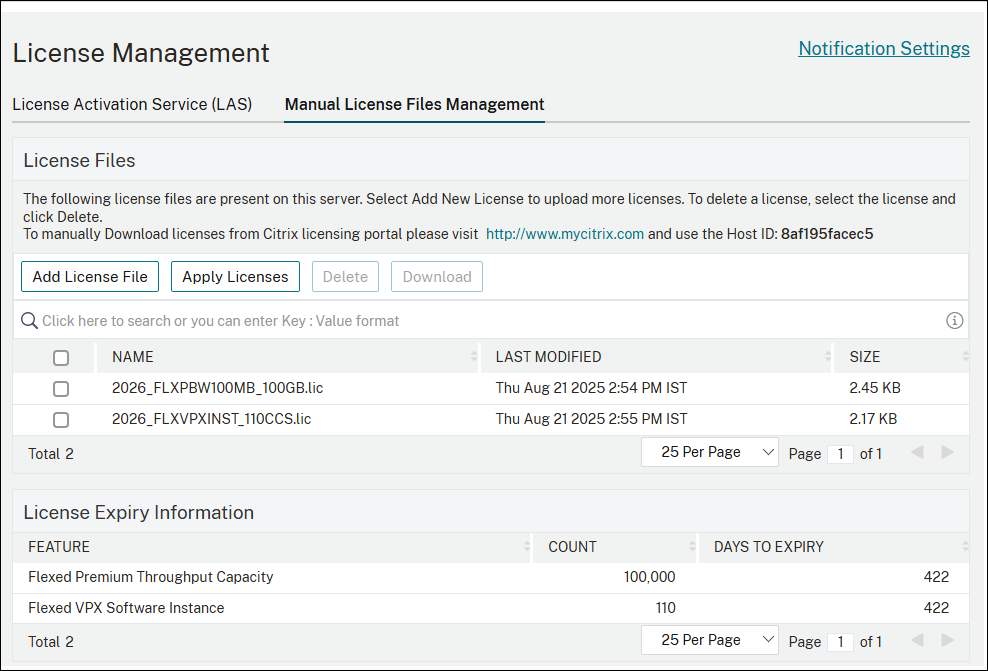
With file-based licensing, your applied entitlements and configurations are visible under NetScaler Licensing > License management> Manual License File management.
Note:
LAS supports Flexed licensing (UHMC/CPL), Pooled bandwidth licensing, and Fixed-term bandwidth licensing. All other forms of legacy {{page.citrix-adc-generic}} licenses, such as Pooled vCPU and CICO, are not supported with LAS.
Transition to LAS
When you navigate to NetScaler Licensing > License management > License Activation Service (LAS), the {{page.citrix-adc-generic}} GUI dynamically updates based on the compatibility of your {{page.citrix-adc-generic}} instances.
A message appears in the GUI if you do not have any {{page.citrix-adc-generic}} instances that are on LAS-compatible versions. The message prompts you to upgrade or add a {{page.citrix-adc-generic}} instance.
Note:
If some of your {{page.citrix-adc-generic}} instances are upgraded to a compatible version, you can use LAS for those specific instances.
When one or more {{page.citrix-adc-generic}} instances are compatible with LAS, they are categorized into one of two groups:
-
License {{page.citrix-adc-generic}} instances with LAS
-
Migrate the licensed {{page.citrix-adc-generic}} instances to LAS
The GUI adjusts dynamically depending on whether you are a first-time LAS user (with zero instances migrated) or an existing user (who has already moved some instances to LAS and is now adding more).
Note:
Delete the local file-based licenses on the SVM once licensing or migration to LAS is complete. The file-based licenses are located in the SVM folder
/mpsconfig/license and must be deleted from this folder using the shell prompt. This note applies to the License with LAS and Migrate to LAS workflows for both first-time and existing users.
First-Time LAS user
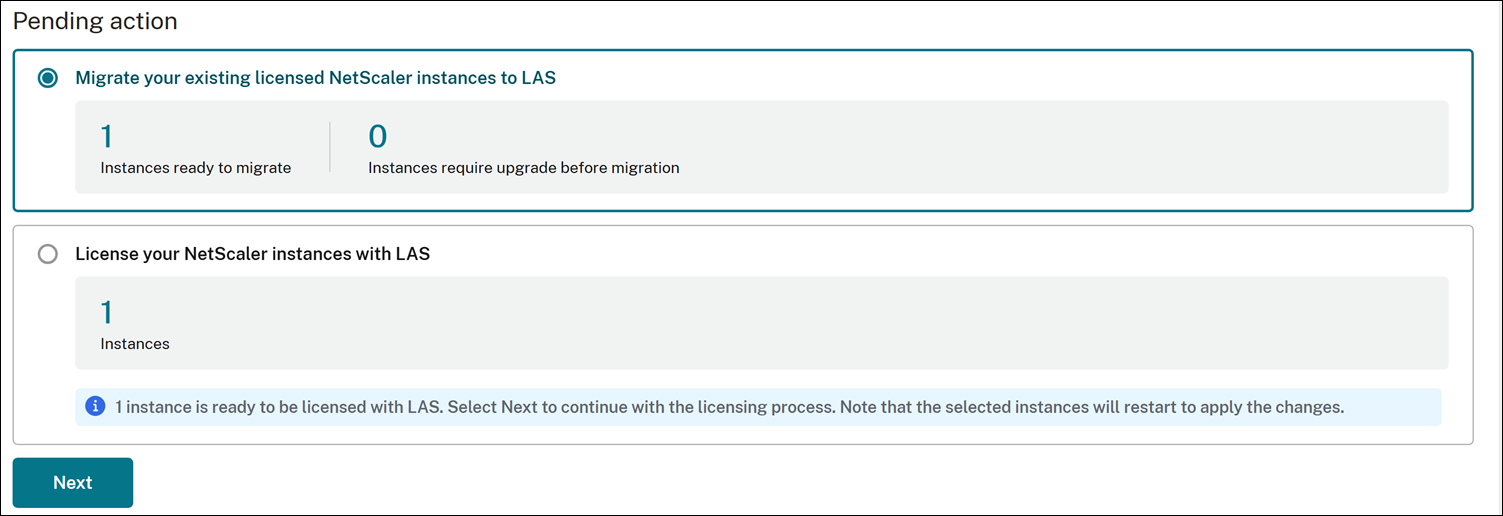
The following image is displayed for the first-time user:
License NetScaler instances with LAS
The License NetScaler instances with LAS section lists {{page.citrix-adc-generic}} instances that are currently unlicensed or that do not use a Flexed bandwidth or Pooled bandwidth file-based license.
To license an instance, perform the following steps:
-
Select License NetScaler instances with LAS, and click Next.
-
Select an instance, and click Continue.
-
Enter the details and click Submit. Repeat this process for each instance.
Note:
The selected instances restart for the license to take effect, except for SDX instances.
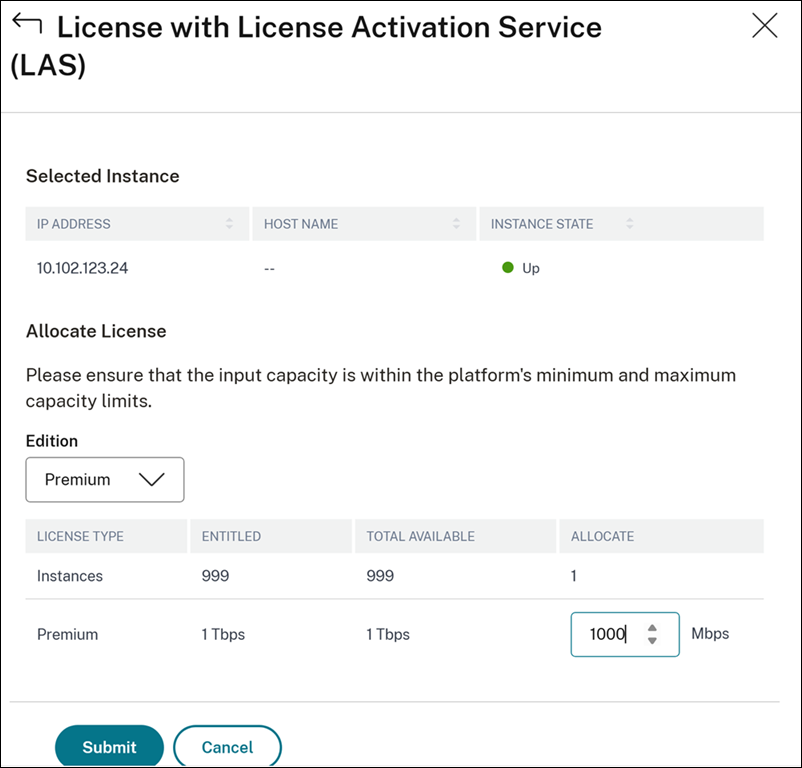
Migrate existing licensed instances to LAS
The Migrate your existing licensed instances to LAS section lists all {{page.citrix-adc-generic}} instances with Flexed or Pooled file-based licenses. They are categorized as follows:
-
Instances ready to migrate: Lists the instances that are on LAS-compatible versions or builds and are ready to be migrated to LAS.
To migrate, perform the following steps:
1.  Select **Migrate your existing licensed {{page.citrix-adc-generic}} instances to LAS** and click **Next**.
 2.  Select the instances and click **Migrate**.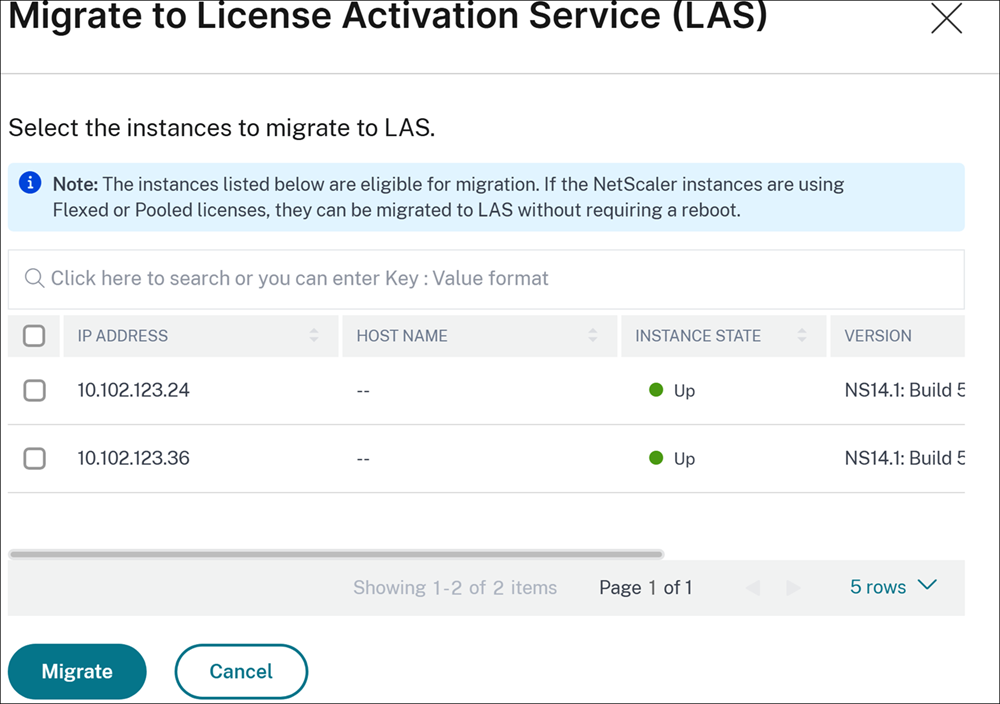
-
Instances require upgrade before migration: List the instances that are to be upgraded to a compatible version or builds before migration.Prerequisite:To use LAS-based licensing, the edition of your {{page.citrix-adc-generic}} instance must match the edition of your Pooled or Flexed file-based license. Ensure that you change the instance's edition to match the new license before you begin the migration.
-
Select Migrate your existing licensed NetScaler instances to LAS, click Upgrade.
-
In Upgrade NetScaler page, select the instance and upgrade the instances to versions or builds compatible with LAS.
-
Note:
For NetScaler instances in the "Migrate to LAS" workflow and are transitioning from legacy file-based to LAS-based Pooled bandwidth or Flexed licensing, reboot is not required.
Existing LAS user
The following image is displayed for the existing user:
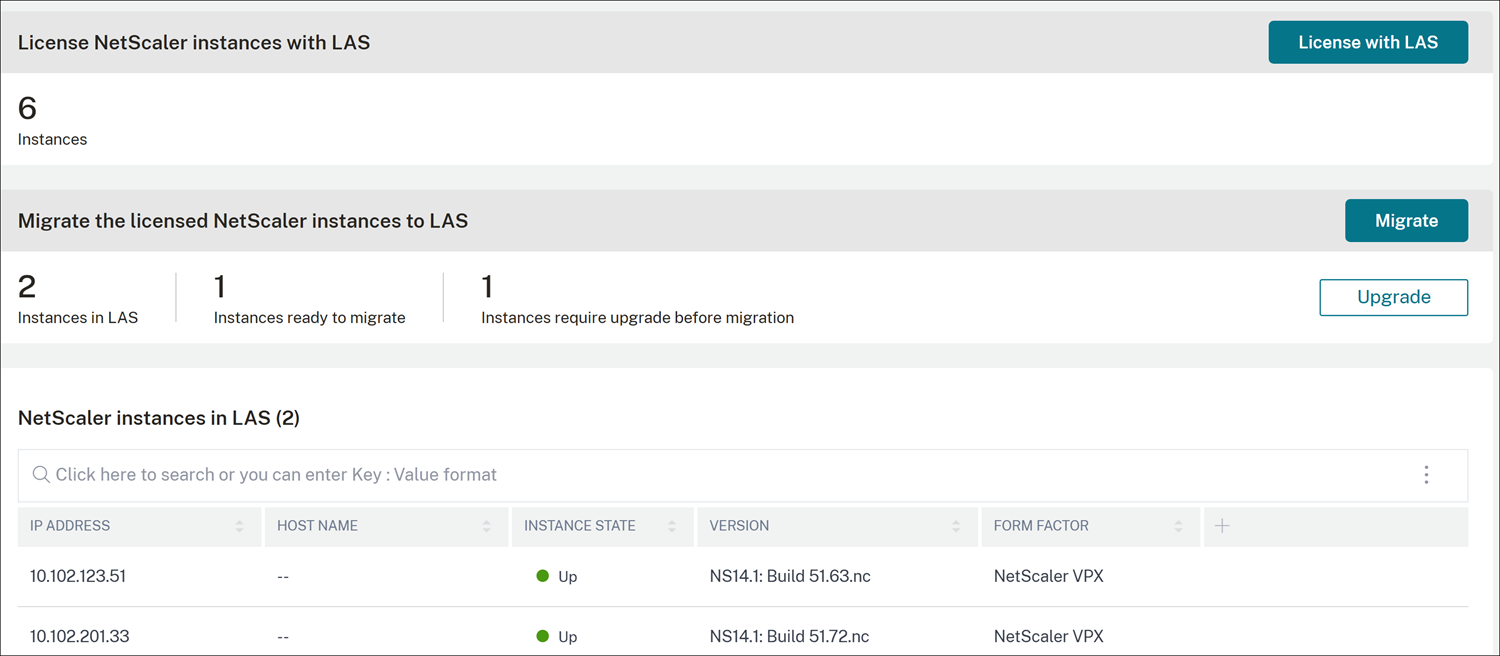
Note: To view the CPX instances licensed with LAS, see the Flexed Dashboard GUI. CPX instances are not listed under NetScaler instance with LAS.
License NetScaler instances with LAS
The License NetScaler instances with LAS section lists {{page.citrix-adc-generic}} instances that are currently unlicensed or use any license other than a Flexed bandwidth or Pooled bandwidth file-based license.
To license an instance, perform the following steps:
-
Under License with License Activation Service (LAS), click License with LAS.
-
Select an instance, and click Continue.
-
Enter the details and click Submit.Repeat the steps for each {{page.citrix-adc-generic}} instance you want to license with LAS.
Note:
The selected instances restart for the license to take effect.
Migrate the licensed NetScaler instances to LAS
The Migrate the licensed NetScaler instances to LAS section lists all {{page.citrix-adc-generic}} instances with a Flexed or Pooled file-based license. They are categorized as follows:
-
Instances in LAS: Lists the instances that are already using LAS-based licensing.
-
Instances ready to migrate: Lists instances that are compatible instances ready for migration.To migrate, perform the following steps:
-
Select Migrate the licensed NetScaler instances to LAS, click Migrate.
-
Select one or more {{page.citrix-adc-generic}} instances, and migrate the selected instances to LAS.
-
-
Instances require upgrade before migration: Lists instances that are to be upgraded to a compatible version. To upgrade, perform the following steps:Prerequisite:To use LAS-based licensing, the edition of your {{page.citrix-adc-generic}} instance must match the edition of your Pooled or Flexed license. Ensure that you change the instance's edition to match the new license before you begin the migration.
-
Select Migrate the licensed NetScaler instances to LAS, click Upgrade.
-
Select one or more {{page.citrix-adc-generic}} instances, and upgrade the instances to a compatible version or build.
-
Note:
For NetScaler instances in the "Migrate to LAS" workflow and are transitioning from legacy file-based to LAS-based Pooled bandwidth or Flexed licensing, reboot is not required.
Information sent to LAS during LAS licensing workflow
This section details all information sent as part of the request for an activation blob to LAS during every initial request and each LAS activation blob refresh request. The following table summarizes the parameters sent to LAS during the licensing workflow.
|Parameter|Description|Need for it in LAS workflow| |-|-|-| |lsguid|Unique ID of Console service tenant|LAS binding parameter| |lsid|Unique ID of Console service tenant|LAS binding parameter| |pubkey|Public key of Console service deployment|Ensures that LAS has authorized this Console| |ccid|Citrix Cloud ID that is used to onboard Console service|LAS binding parameter| |lsbuild|Build version or sample value|LAS activation requirement| |hostname|Console service hostname (POP name)|LAS activation requirement| |lpeid|Unique ID of {{page.citrix-adc-generic}} that is activated.|LAS binding parameter| |lpehostname|Hostname of {{page.citrix-adc-generic}} that is activated|LAS binding parameter| |burnin_date|Software burn-in date of {{page.citrix-adc-generic}}|LAS binding parameter| |products|The features that LAS validates to generate the activation license|LAS entitlement validation parameter|