
View audit reports
NetScaler Console allows you to view and download the configuration audit diff report in configuration audit section. The configuration audit section enables you to export the summary report across all instances and per instance, and also allows you to export granular diff report for each instance-template pair.
The audit templates that appear in the Audit Templates list are run at the scheduled time against the configurations in the specified instances. The NetScaler Config Drift chart on the Configuration Audit dashboard displays high-level details about configuration changes in saved against unsaved configurations. When you click NetScaler Config Drift chart, the ensuing Audit Reports page displays a list of instances that shows both "Diff Exists" and No Diff." You can download the diff reports displayed by NetScaler Console.
NetScaler Console also provides an option to schedule automatic export of diff report as a mail attachment. For more information on how to schedule export of reports, see Creating Audit Templates.
Related information
Export configuration audit reports
-
In NetScaler Console, navigate to Infrastructure > Configuration > Configuration Audit.
-
On the Configuration Audit page, click inside the NetScaler Config Drift chart.
-
The Audit Reports page lists instances that have a difference. The page also displays a list of instances that does not have any difference in their running configurations.
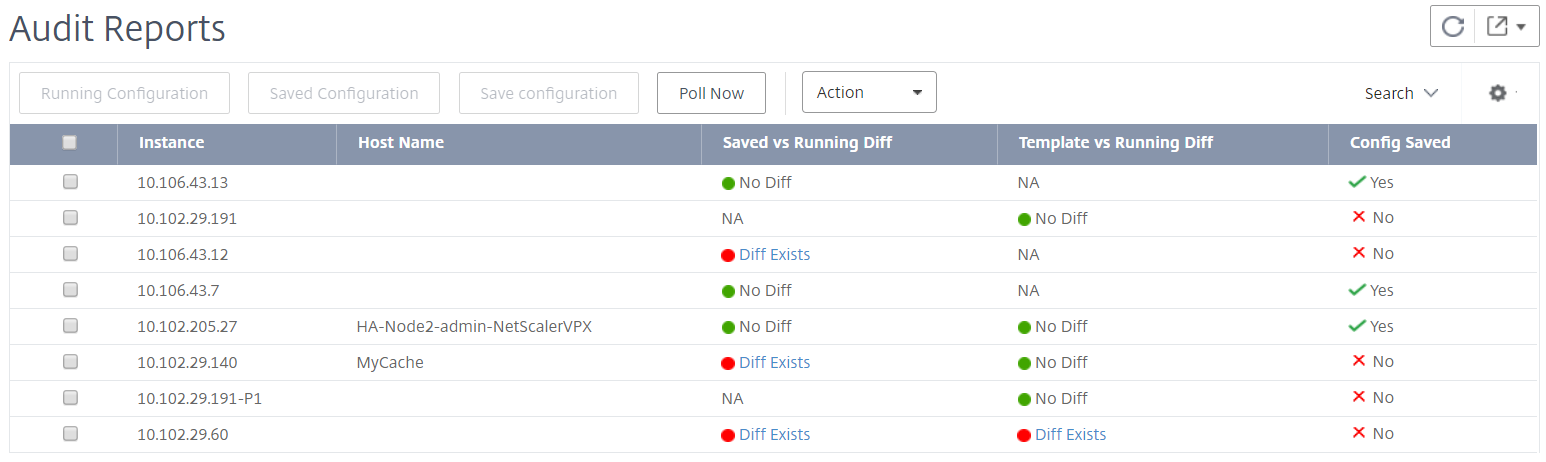 In the image you can see that for some instances a diff is present only in Saved Vs Running Diff and for some instances, a diff is present only in Template vs Running Diff. For some instances, differences exist in both Saved Vs Running Diff and Template vs Running Diff.
Saved Vs Running Diff:
You can view a report of the diff between the configuration saved on the instance and the configuration currently running on that instance. For example, click Diff Exists for an instance under Saved Vs Running Diff.
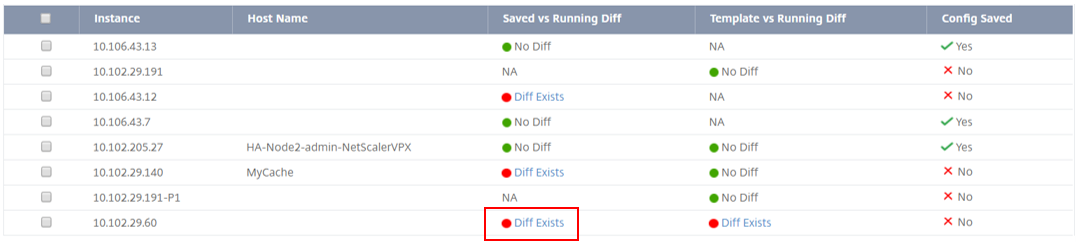
Here, you can see a report for saved configuration against running configuration diff for that instance.

Click Export diff report to download a .csv file of the diff report. You can also click Export corrective commands to export the commands to a .txt file. You can then run the commands on the associated NetScaler instance from configuration jobs to correct the configuration in that instance.
Template vs Running Diff:
The Template vs Running Diff includes all templates other than Saved Vs Running Diff which is the default template. You can view the difference that exists between the template and running configuration. For example, click Diff Exists for one of the instances under Template vs Running Diff.
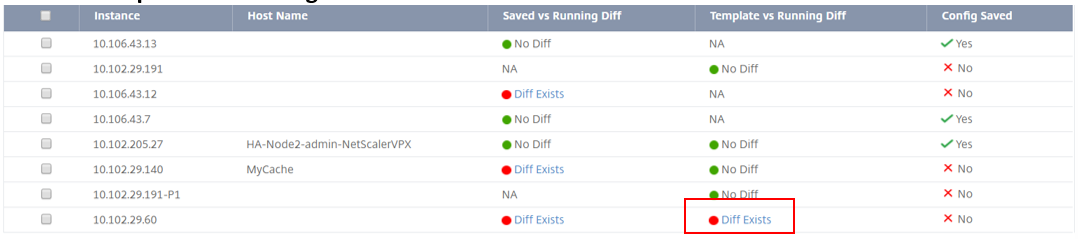
Now you can see that two templates show diff and the NetScaler instance has a different configuration from what the template is looking for.

Click Diff Exists again. The following image shows the configuration that the template is looking for and the running configuration that is blank, because no such commands has been configured or has been removed. You can also see the correction configurations or the commands to run to correct the configuration.
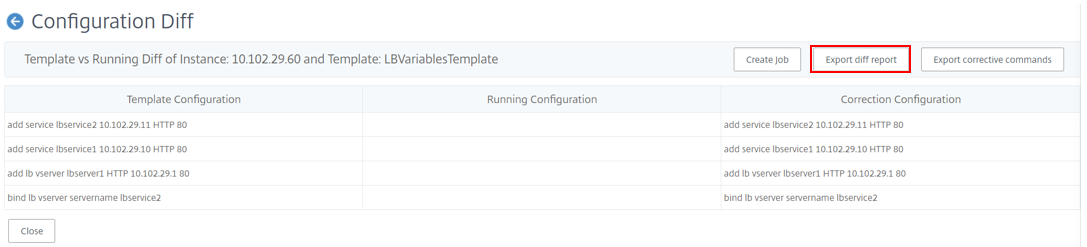
You can also use Template vs Running and Running vs template drift setting, to compare the configuration from both ways:
-
Compares the audit template configuration with the running configuration on the instance.
-
Compares the running configuration on the instance with the audit template.
By default, the Template vs. running drift setting is selected. To modify the drift setting, from the NetScaler Console GUI, select Settings in the Configuration Audit page.
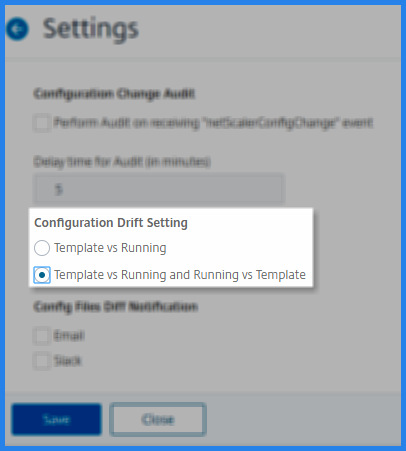
Click Export diff report to download a .csv file of the diff report. You can also click Export corrective commands to export the commands to a .txt file. You can then run the commands in CLI to correct the configuration in that instance.
The following image shows an example .csv diff file that is downloaded to your system:

View the file status audit reports
Using the NetScaler File Status chart, you can monitor whether any files are added, modified, or removed in the
nsconfig folder. For example: if the license file is updated on a NetScaler instance, you can check when this file was last updated and take actions appropriately.
To export the file status audit reports for the NetScaler instances:
-
In NetScaler Console, navigate to Infrastructure > Configuration > Configuration Audit.
-
On the Configuration Audit page, click inside the NetScaler File Status chart.The Audit Reports page lists instances with the Diff status.
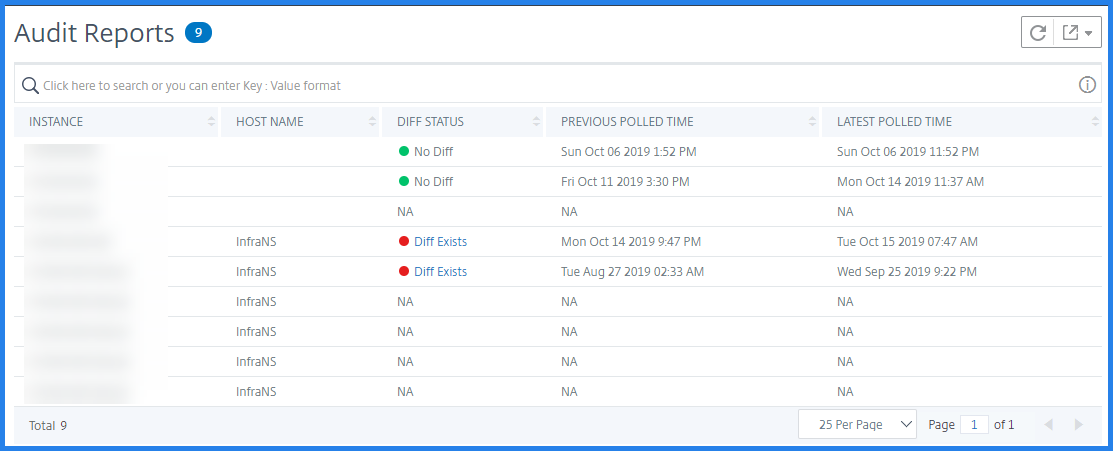 The Diff Status is calculated for the interval between the Previous Polled Time to the Latest Polled Time. The Diff Status can be one of the following:
-
Diff exists - This status indicates the files have changed in the
nsconfigfolder of an instance since the Previous Polled Time. To view what has changed on the file, click Diff Exists.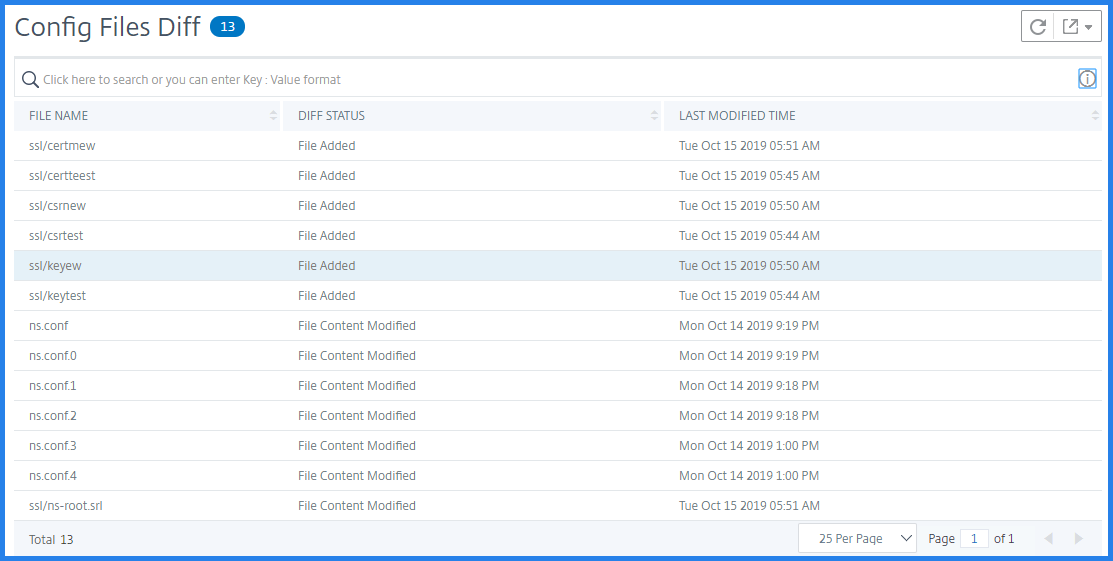
-
No Diff - This status indicates the files in the
nsconfigfolder hasn't changed since the previous polled time. -
NA - This status indicates monitoring the file status is not applicable. This status appears when the NetScaler Console doesn't poll the instance. For example, when an instance is added newly or instance state is inactive the polling of the instance doesn't occur.
-
Export the report of this dashboard
To export the report of this page, click the Export icon on the top right side of this page. On the Export page, you can do one of the following:
-
Select Export Now tab. To view and save the report in PDF, JPEG, PNG, or CSV format.
-
Select Schedule Export tab. To schedule the report daily, weekly, or monthly and send the report over email or slack message.
Note
-
If you select Weekly recurrence, ensure that you select the weekdays on which you want the report to be scheduled.
-
If you select Monthly recurrence, ensure that you enter all the days that you want the report to be scheduled separated by commas.
Exclude files from Config Audit
You can exclude specific files from Config Audit so that they are not monitored for change. Use exclusions for system-generated or frequently updated files (for example, files that change daily) to reduce noise and avoid false positives in audit results.
Examples for file name (or relative path) to exclude from Config Audit file diff:
-
Valid file name (or relative path)
-
ns.conf,ssl/ns.cert
-
-
Invalid file name (or relative path)
-
/ns.txt,\nsconfig\ns.conf(Excluded file name must be a relative path) -
ñs.conf(Excluded file name must contain only ASCII characters) -
C:/nsconfig/ns.conf(Excluded file name must not use drive-letter paths) -
ssl/../../ns.conf(Excluded file name must not contain parent-directory traversal..)
-
Notes:
-
All files under
/nsconfig/license/are excluded from Config Audit by default. NetScaler Console writes LAS files to this directory every 8 hours during token refresh cycles. Since these files are entirely NetScaler Console-managed and not part of the customer's NetScaler configuration, they trigger false-positive Diff Exists alerts. Thelicense/directory is now seeded as a default exclusion to prevent this false-positive. You can remove this exclusion if needed. -
File diff comparison is applicable only to files under the
/nsconfigdirectory. -
When excluding files from Config Audit, users must specify relative paths under
/nsconfig. For example, if there is ansslfolder under/nsconfig, exclusions can be provided as:ssl/abc.pem -
File differences outside
/nsconfigare not considered as part of the Config Audit diff.
To exclude files from Config Audit, perform the following steps:
-
Navigate to Infrastructure > Configuration > Configuration Audit.
-
Select Settings.
-
Under NetScaler Config File Settings, add the file paths you want to exclude from auditing.
-
Click Save.