
Update an installed certificate
After you receive a renewed certificate from the certificate authority (CA), you don't have to log on to individual {{page.citrix-adc-generic}} instances to update the certificates. You can update the existing certificates in {{page.adm-product-name-short}} with certificates from the certificate store.
To update an SSL certificate from {{page.adm-product-name-short}}:
-
In {{page.adm-product-name-short}}, navigate to Infrastructure > SSL Dashboard.
-
Click any of the graphs to see the list of SSL certificates.
-
In the SSL Certificates page, select a certificate and click Update. Alternatively, click the SSL certificate to view its details, and then click Update in the upper-right corner of the SSL Certificate page.
-
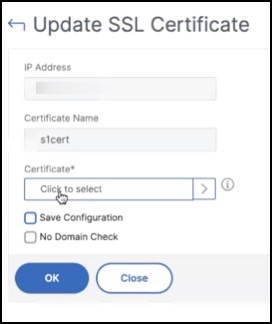
In the Update SSL Certificate page, select Certificate to display the Certificate Store page.
-
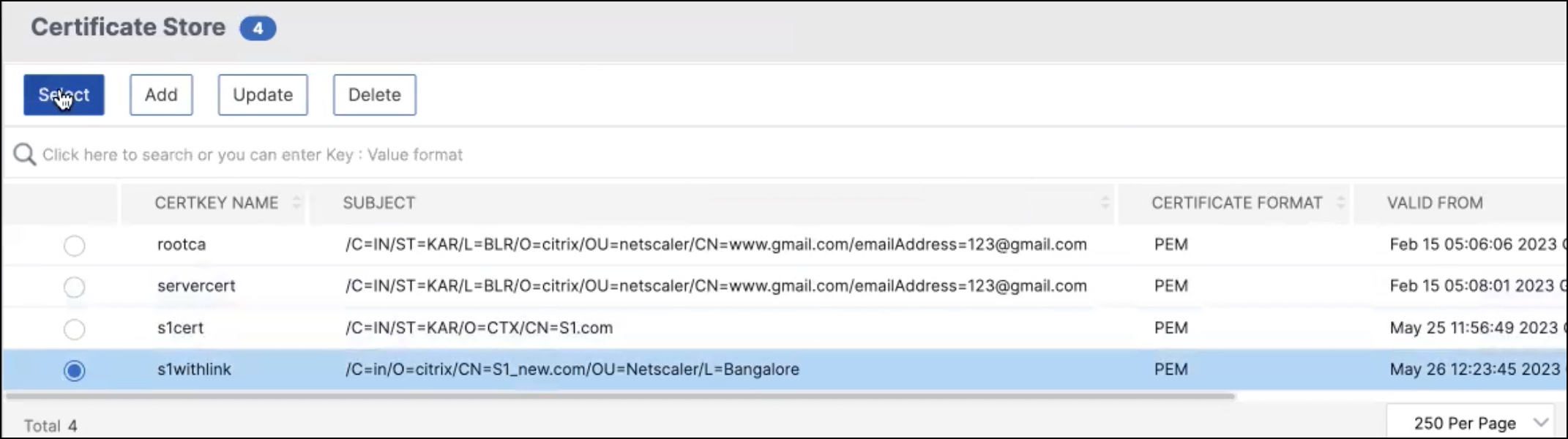
In the Certificate Store page, select the certificate file you want to add. Click Select.
-
If the domain name of the new certificate does not match the old certificate, and you want the server to host the new domain, select No Domain Check.
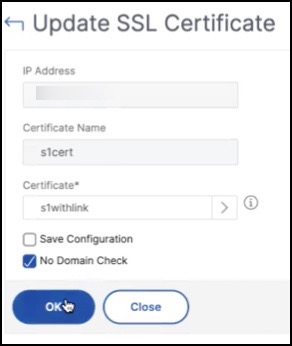 Click OK. All the SSL virtual servers to which this certificate is bound are automatically updated.When you update an existing SSL certificate with a certificate chain from the certificate store, the existing certificate is updated with the linked certificates.
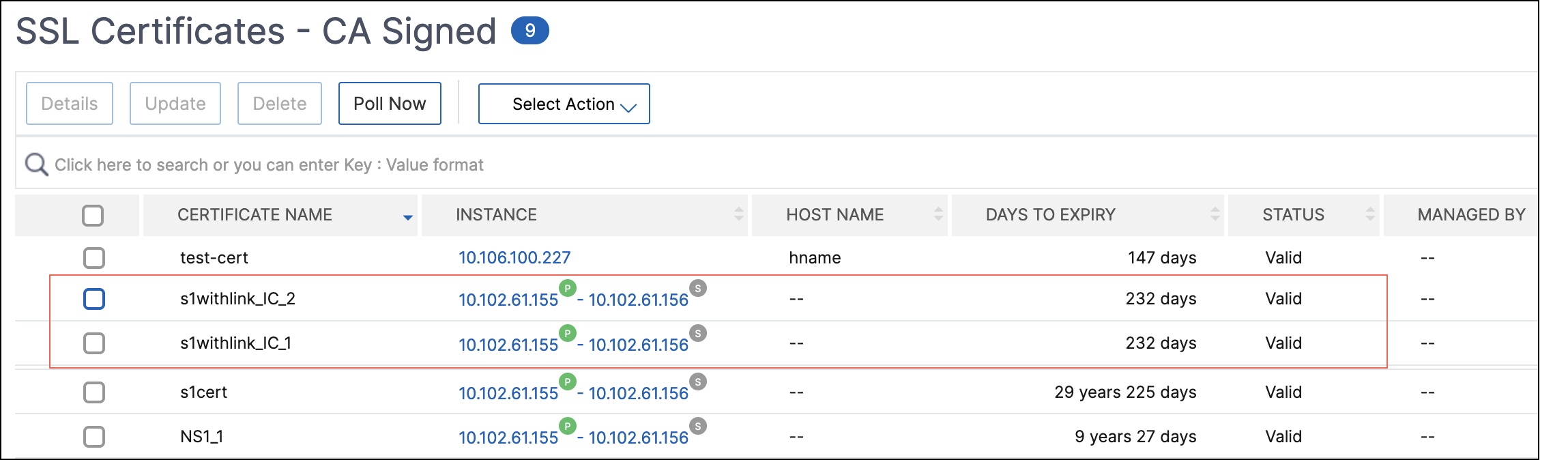 Select the certificate and click Details to view the certificate chain.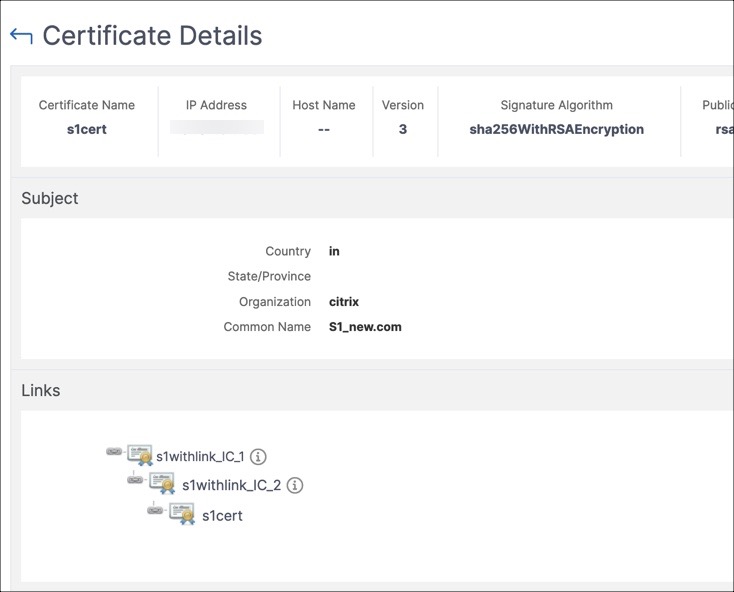
Related information