
Install SSL certificates on a {{page.citrix-adc-generic}} instance
Before installing SSL certificates on {{page.citrix-adc-generic}} instances, ensure that the certificates are issued by trusted CAs. Also, ensure that the key strength of the certificate keys is 2,048 bits or higher and that the keys are signed with secure signature algorithms.
To install an SSL certificate from another {{page.citrix-adc-generic}} Instance:
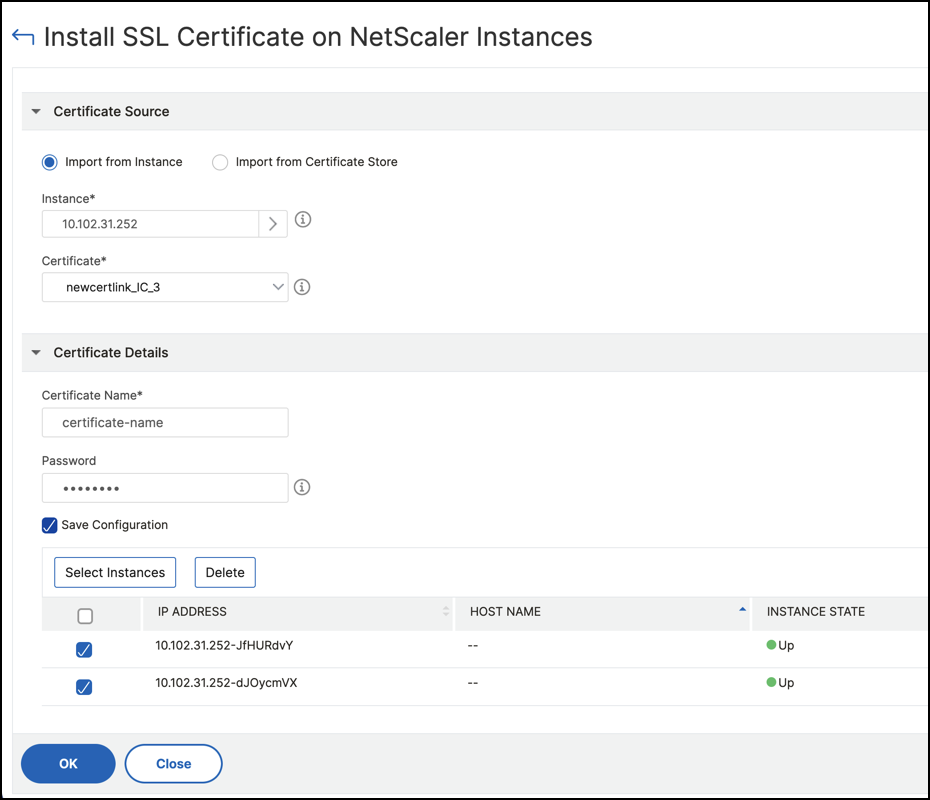
You can also import a certificate from a chosen {{page.citrix-adc-generic}} instance and apply it to other targeted {{page.citrix-adc-generic}} instances from the {{page.adm-product-name-short}} GUI.
-
Navigate to Infrastructure > SSL Dashboard.
-
In the upper-right corner of the SSL dashboard, click Install.
-
On the Install SSL Certificate on {{page.citrix-adc-generic}} Instances page, specify the following parameters:
-
Certificate SourceSelect the option to Import from Instance.
-
Choose the Instance that you want to import the certificate from.
-
Choose the Certificate from the list of all SSL certificate files on the instance.
-
-
Certificate Details
-
Certificate Name. Specify a name for the certificate key.
-
Password. Password to encrypt the private key. You can use this option to upload encrypted private keys.
-
-
-
Click Select Instances to select the {{page.citrix-adc-generic}} instances on which you want to install your certificates.
-
Click OK.
To install an SSL certificate from {{page.adm-product-name-short}}:
-
Navigate to Infrastructure > SSL Dashboard.
-
In the upper-right corner of the dashboard, click Install Certificate.
-
On the Install SSL Certificate on {{page.citrix-adc-generic}} Instance page, specify the following parameters:
-
Certificate File - Upload an SSL certificate file by selecting either Local (your local machine) or Appliance (the certificate file must be present on the {{page.citrix-adc-generic}} instance).
-
Key File - Upload the key file.
-
Certificate Name – Specify a name for the certificate key.
-
Password - Password to encrypt the private key. You can use this option to upload encrypted private keys.
-
Select Instances - Select the {{page.citrix-adc-generic}} instances on which you want to install your certificates.
-
-
To save the configuration for future use, select the Save Configuration check box.
-
Click OK.
Related information