
Enable data collection for {{page.citrix-adc-generic}} Gateway appliances deployed in single-hop mode
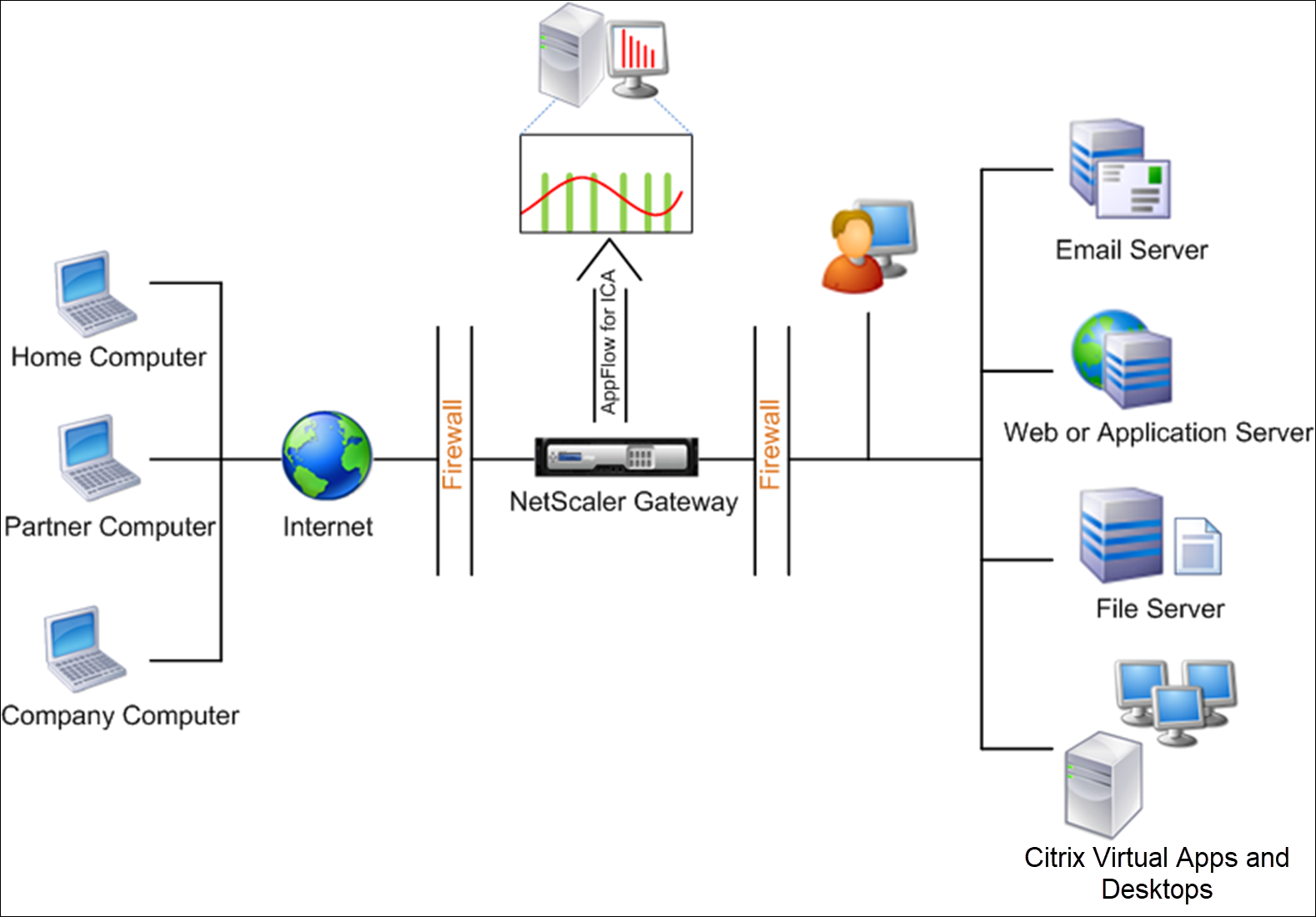
When {{page.citrix-adc-generic}} Gateway is deployed in single-hop mode, the {{page.citrix-adc-generic}} Gateway is at the edge of the network and proxies ICA connections to the desktop delivery infrastructure. This deployment is the simplest and most common deployment. This mode provides security if an external user tries to access the internal network in an organization. In single-hop mode, users access the {{page.citrix-adc-generic}} appliances through a virtual private network (VPN).
To start collecting the reports, you must add the {{page.citrix-adc-generic}} Gateway appliance to the {{page.adm-product-name-short}} inventory and enable AppFlow on {{page.adm-product-name-short}}. The following image illustrates a {{page.adm-product-name-short}} deployed in single-hop mode
Related information
Enable the AppFlow feature from
-
Navigate to Infrastructure > Instances, and select the {{page.citrix-adc-generic}} instance you want to enable analytics.
-
From the Select Action list, select Configure Analytics.
-
Select the VPN virtual servers, and click Enable Analytics.
-
Select Web Insight.
-
Click OK.
Note
The following commands start to run in the background when you enable AppFlow® in single-hop mode. These commands are explicitly specified here for troubleshooting purposes.
-
add appflow collector \<name\> -IPAddress \<ip\_addr\> -
add appflow action \<name\> -collectors \<string\> -
set appflow param -flowRecordInterval \<secs\> -
disable ns feature AppFlow -
enable ns feature AppFlow -
add appflow policy \<name\> \<rule\> \<expression\> -
set appflow policy \<name\> -rule \<expression\> -
bind vpn vserver \<vsname\> -policy \<string\> -type \<type\> >-priority \<positive\_integer\> -
set vpn vserver \<name\> -appflowLog ENABLED -
save ns config