Configuring Analytics settings
Before you start using the Analytics feature on {{page.adm-product-name-short}} to gain visibility into your instance and application data, it is recommended that you configure a few analytics settings to ensure optimal experience with this feature.
Creating Thresholds and Alerts for Analytics
You can set thresholds and alerts to monitor the analytics' metrics of the managed virtual servers configured on the discovered instances. When the value of a metric exceeds the threshold, {{page.adm-product-name-short}} generates an event to signify a threshold breach.
You can also associate actions with the set thresholds. Actions include displaying an alert on the GUI, sending Email as configured.
For example, you can set a threshold to generate an event for HDX™ insight if any user's ICA RTT value exceeds 1 second. You can also enable alerts for the generated event, and send the threshold breach information to a configured Email list.
To create thresholds and alerts for analytics:
-
Navigate to Settings > Analytics Settings > Thresholds.
-
On the Thresholds screen, click Add to add a new threshold and configure alerts for the set thresholds.
-
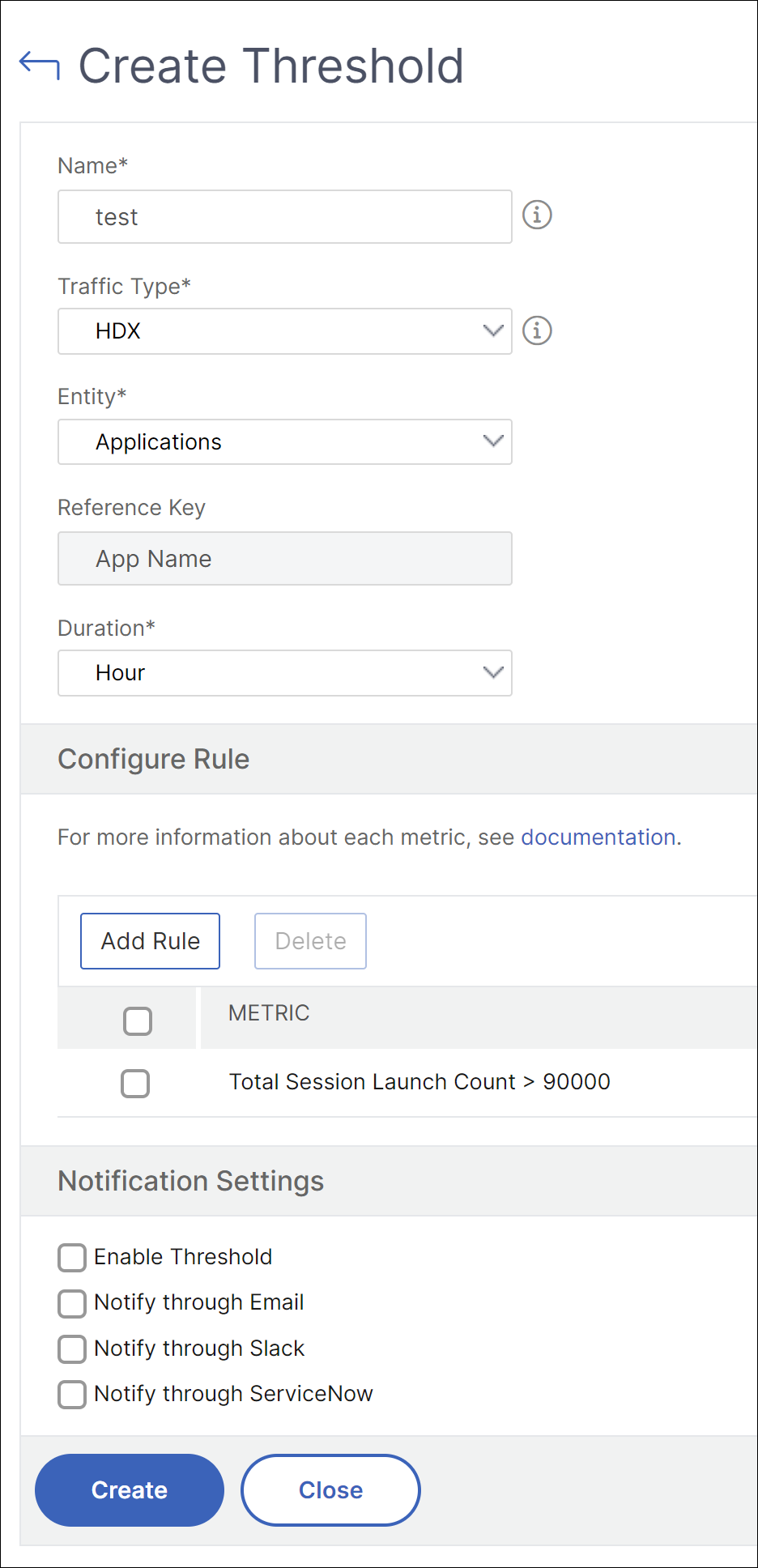
On the Create Thresholds and Alerts page, specify the following details:
-
Name – Name for configuring the threshold.
-
Traffic Type – Type of analytics traffic for which you want to configure the threshold. For example: HDX Insight, Security Insight.
-
Entity – Category or resource type for which you want to configure the threshold.
-
Reference Key – Automatically generated value based on the selected traffic type and entity.
-
Duration - Interval for which you want to configure the threshold.
-
-
To configure email notifications, select the check box for the set thresholds.
-
In the Rules section, specify the following:
-
Metric – Metric for the selected Traffic type to configure the threshold.
-
Comparator – Comparator to the selected metric (for example: \<, \>=).
-
Value – Value for the metric to set the threshold, and invoke alerts.
-
-
Click Create.