
Console on-prem upload
This page is applicable only for NetScaler® on-prem users who opted the manual mode to upload their telemetry data to NetScaler Console service. Ensure that you have downloaded the telemetry data from your NetScaler Console on-prem (click Download Telemetry from the NetScaler Telemetry homepage to download the bundle (.tgz) file that comprises the required telemetry data).
Starting from build 14.1-43.x, you must create a profile for each {{page.adm-product-name-long}} on-prem instance for uploading the telemetry file to the {{page.adm-product-name-long}} service. You might have multiple {{page.adm-product-name-long}} on-prem instances deployed globally. By creating a profile for each on-prem instance, you can upload the telemetry file for those on-prem instances and monitor the upload deadline separately.
To create a profile:
-
Navigate to Settings > Console on-prem telemetry upload and click Create Profile.
-
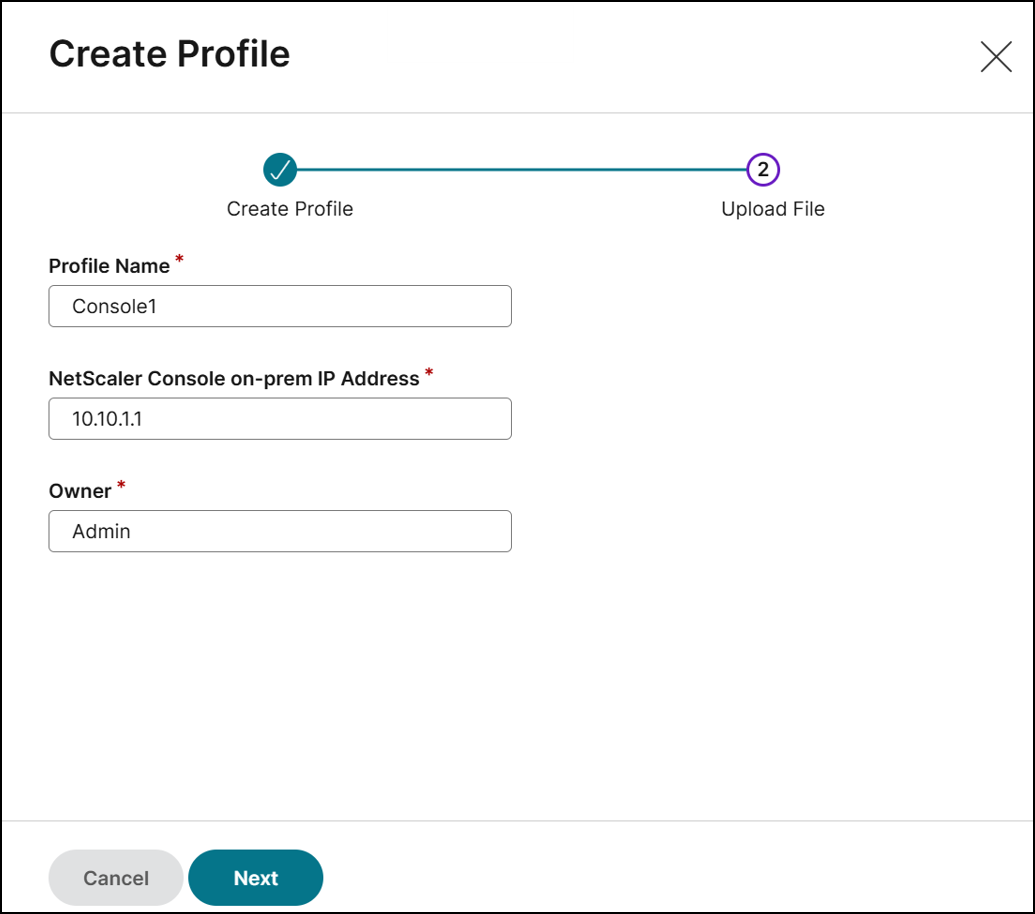
In the Create Profile page, specify the following:
-
A profile name of your choice.
-
The {{page.adm-product-name-long}} on-prem IP address.
-
The administrator name of the {{page.adm-product-name-long}} on-prem.
-
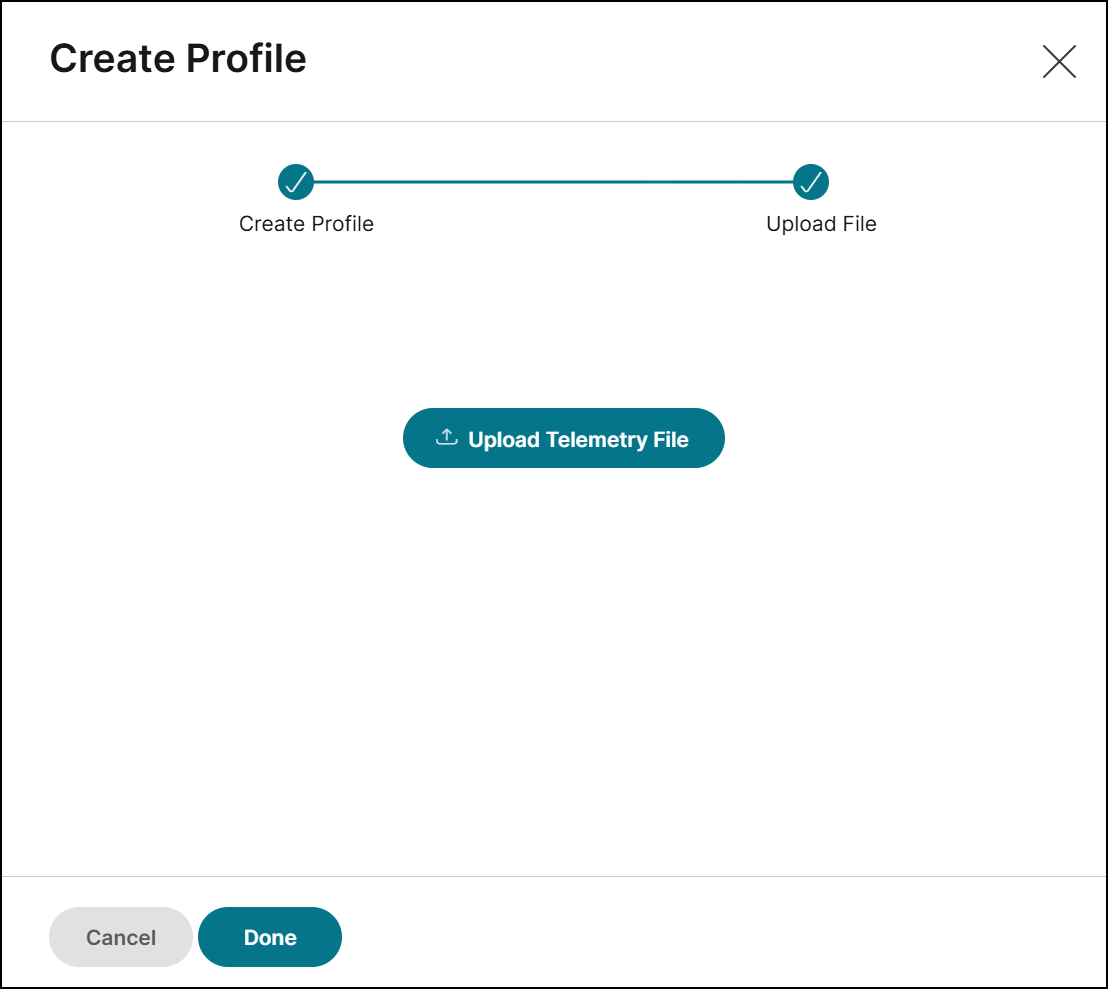
Click Next.The profile name is created. You can either upload the telemetry file and click Done or upload it later.
-
Repeat the procedure to create multiple profiles for all {{page.adm-product-name-long}} on-prem instances.
-
After you create profiles, you can view the created profiles:
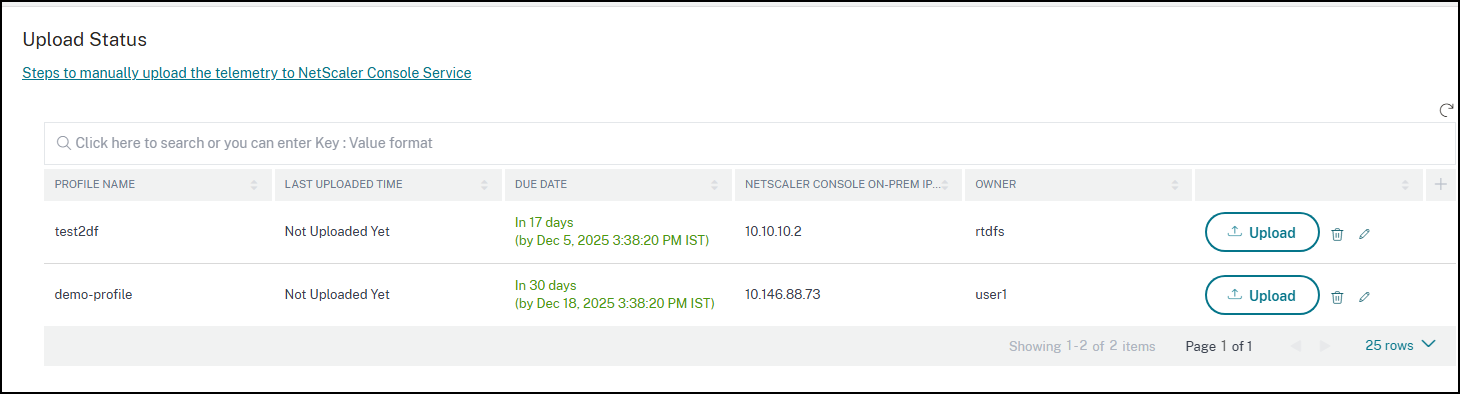
Note:
If you are an existing {{page.adm-product-name-long}} on-prem user and have previously uploaded the telemetry file to the {{page.adm-product-name-long}} service, you must create a new profile and then upload the telemetry file. After creating the profile, you might observe a discrepancy between the {{page.adm-product-name-long}} on-prem deadline and the {{page.adm-product-name-long}} service deadline. Ensure that you upload the telemetry file to {{page.adm-product-name-long}} service on or before the due date that is shown in your {{page.adm-product-name-long}} on-prem. This discrepancy is aligned after you complete one upload using the new profile.
To upload your data telemetry in NetScaler Console service:
-
In NetScaler Console on-prem upload page, click Upload Telemetry from the created profile, and select the downloaded (.tgz) file to complete the upload process.
-
Complete the first upload within 30 days of selecting manual mode. Repeat the same procedure and upload the telemetry file every 90 days thereafter.
Notes:
-
The upload fails if the file is not in a valid (.tgz) format or the file does not pass the integrity checks. The recommendation is to download again and retry to upload. If the issue persists, contact Customer Care.
-
The NetScaler Console service rejects the uploaded telemetry files older than 90 days. To retry, download a fresh telemetry file and upload it.
-
You can disable the optional telemetry data. To disable, in NetScaler Console on-prem, you must first disable Security Advisory in the NetScaler Telemetry page, then navigate to Settings > Administration > Enable or disable the Console feature data sharing, and clear the I agree to share Console feature usage data checkbox.
To edit or delete a profile:
-
Navigate to Settings > Console on-prem telemetry upload, and select the profile that you want to edit or delete.
-
To edit, click the Edit icon. Update the required fields and click Save.
-
To delete, click the Delete icon.