Automate SSL certificate management
To maintain digital security, you must automate management of SSL certificates in your environment. You need ways to proactively manage and monitor all the certificates, notify you of certificates due for expiry, and automatically renew the certificates before they expire. Expired SSL certificates lead to security risks. You can configure Venafi Trust Protection Platform servers with NetScaler Console to automate management of SSL certificates installed on NetScaler instances.
By using Venafi with NetScaler Console, you can manage the SSL certificates through their entire lifecycle. You can do the following tasks in the NetScaler Console Application dashboard:
-
Check SSL issues and application scores.
-
Troubleshoot SSL issues and apply suggested remediation.
-
Check certificates bound to an application.
-
Create, install, and renew certificates quickly.
-
Automate renewal of certificates.
-
Secure applications by binding generated certificates to NetScaler virtual servers.
-
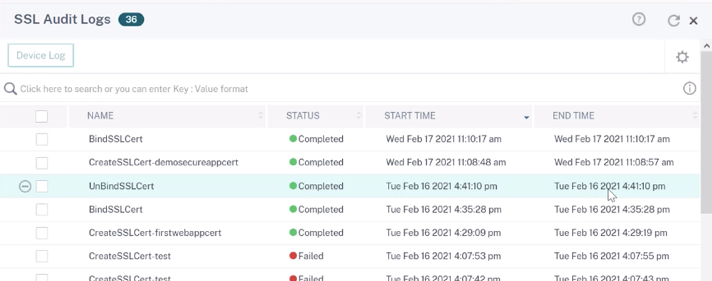
Check all the SSL task-related logs on a particular application.
Related information
Configure a Venafi server on NetScaler Console
Configuring a Venafi server is a two-step process. First, you add the Venafi server on NetScaler Console. Next, you configure the policies on the Venafi server. To add the Venafi server on NetScaler Console, from the NetScaler Console GUI, navigate Infrastructure > SSL Dashboard > Third party CA. Click Add.
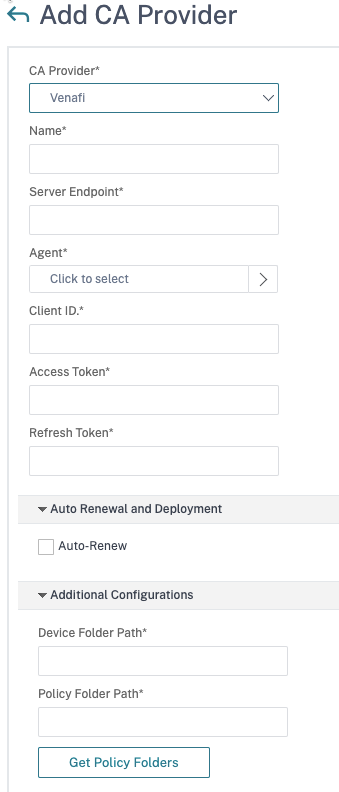
Enter the details in the fields provided. Check the Auto-Renew option if you want the certificates to be renewed automatically. For details about each field, hover over the field and click the
i icon.
Note
The policy folder must have subfolders configured in it.
Example:
"policy_folder": "\\VED\\Policy\\TLS
TLS Certificates
NetScaler Console"
After you’ve configured the Venafi server, you can use the NetScaler Console dashboard to manage your SSL certificates.
Manage SSL certificate lifecycle
The application dashboard is a one-stop place to manage your SSL certificates end to end. From the NetScaler Console GUI, navigate to Applications > App Dashboard. Under Issue Categories select SSL Config. Under Current Issues, you can see the SSL-related issues of your applications. To see the SSL report, under Applications, hover over the app. To see details of the report, click the app. In this example, we have an application with a score of 27.
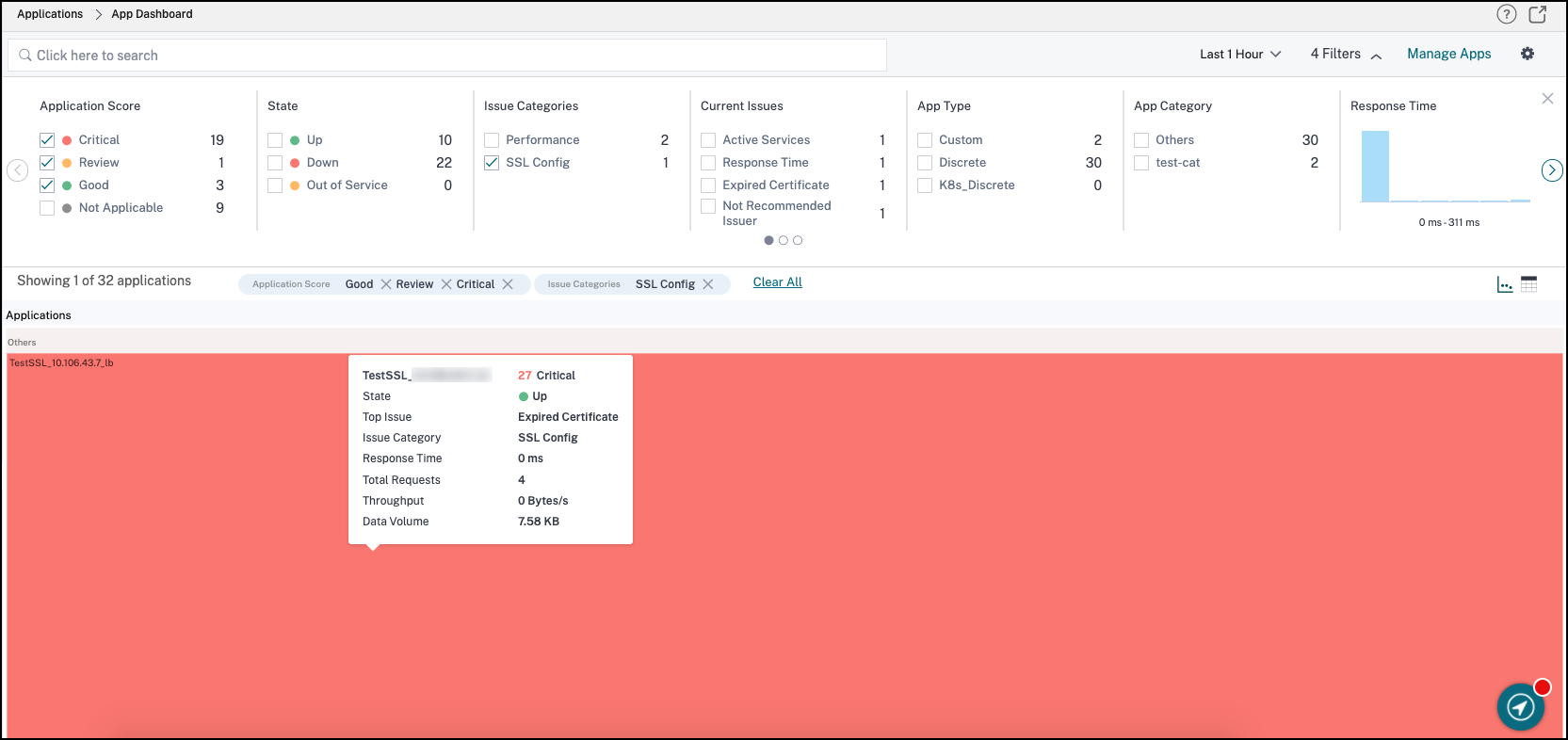
Further, you can filter your issues using Application Scores such as critical or review. The SSL application scores are based on SSL parameters, which are enabled by default under Manage Apps settings in the upper right corner of the dashboard.
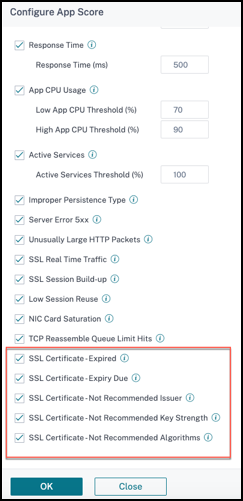
To disable any of the SSL parameters, clear the box and click OK. To see the details of the SSL report, under Applications, click the app for which you want to see the report.
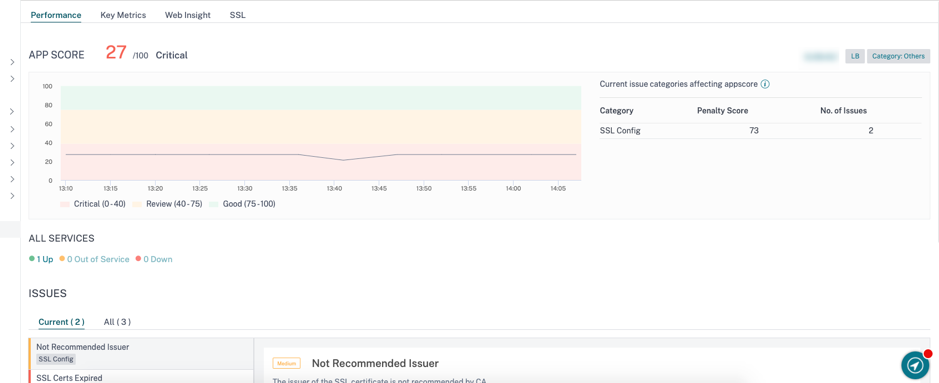
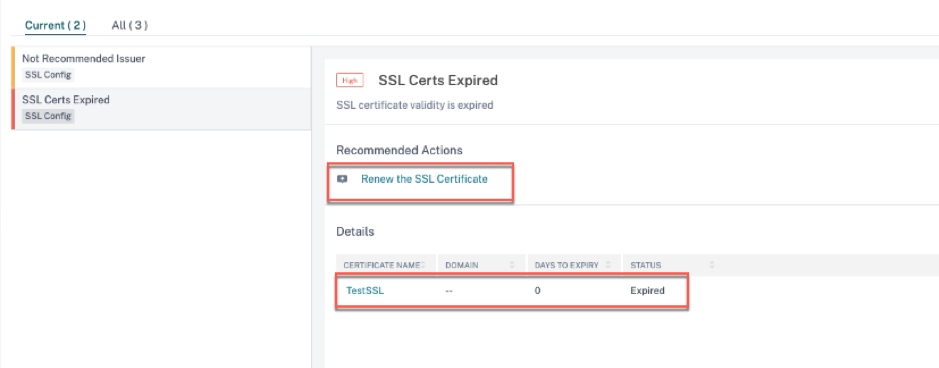
You can check performance score and scroll down the page to see details such as the virtual servers that the app has and the certificates bound to the virtual servers and the issues with the certificates. To see details of the certificate, click the link under Certificate Name. For an expired certificate, can you can renew it.
Renewing the certificate involves creating the certificate, installing it, and binding it to the virtual server.
Note
When you add a Venafi server on NetScaler Console, if you enable the auto-renewal option, certificates are automatically renewed before expiry.
Clicking Renew the SSL Certificate takes to the SSL tab, which lists all the certificates bound to the virtual servers of the application. Using this tab you can create and install certificates and bind them to the virtual servers. Also, you can check all the SSL task-related logs on a particular application on the SSL task-related logs on a particular application.

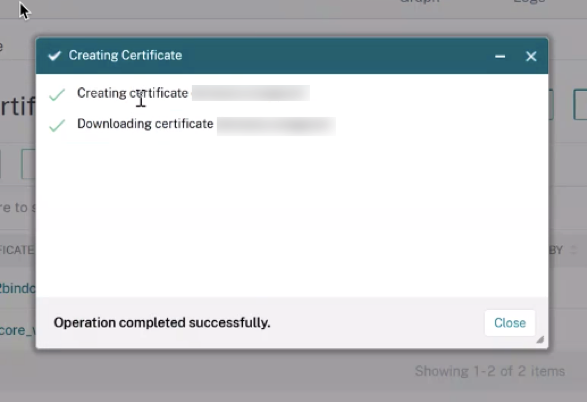
To create a certificate, click Create Certificate and enter the details. Provide a password as downloaded certificates are encrypted and click Create. NetScaler Console contacts the Venafi server to create the certificate. Click Close when the certificate is downloaded.
Next, on the SSL tab click Install Certificate. Select the downloaded certificate and click Install. For more information about how to install an SSL certification on NetScaler, using NetScaler Console, see the section on installing an SSL certificate from NetScaler Console in the topic Install SSL certificates on a NetScaler instance.
Next, click Bind Certificate. You can also unbind a certificate if necessary. After the next SSL polling, the Application dashboard is refreshed with the new data. If you want to check all SSL task logs on a particular application click Certificate Task Log.