
Troubleshoot Pooled capacity license issues
Important:
File-based licensing system (also referred to as manually managed entitlements), traditionally used for activating various on-premises components, will be End of Life (EOL) on April 15, 2026. License Activation Service (LAS) is the next generation technology for product activations across the suite of Citrix products. LAS will be the only way to activate and license NetScaler instances after April 15, 2026, supporting NetScaler Flexed licenses (CPL/UHMC), legacy NetScaler Pooled licenses, and NetScaler Fixed term Bandwidth licenses. To remain supported, your NetScaler and NetScaler Console deployments must be on a LAS compatible version.
The minimum required NetScaler® versions that are LAS compatible are:
-
NetScaler ADCs: 14.1-51.x, 13.1-60.x, 13.1-37.246 (FIPS), 14.1-66.68 (FIPS)
-
NetScaler SVM: 14.1-51.x, 13.1-60.x
-
NetScaler Console Service: Supported from early September 2025.
-
NetScaler Console on-prem: 14.1-51.xNote: LAS support for Console on-prem is from release 14.1-51.x onwards. However, file-based licensing is deprecated as of April 15 2026 from Console on-prem releases 14.1-51.x onwards and 13.1-60.x onwards. If you upgrade to Console on-prem release 14.1-51.x or release 13.1-60.x or later, you can continue using file-based licensing until 15th April 2026. However you must upgrade to Console on-prem release 14.1-51.x or later, and switch to LAS before 15th April 2026 because Console on-prem 13.1 does not support LAS.
All the other forms of legacy NetScaler licenses such as Pooled vCPU, CICO, perpetual will not be supported with LAS. NetScaler instances leveraging perpetual licenses without an active maintenance will become unlicensed upon upgrade to the above mentioned software versions.
LAS based licenses may not be available to customers where prohibited by law or regulations.
If you have questions or concerns, contact Customer Care. Citrix may limit or suspend your Citrix Maintenance for non-compliance with these requirements without liability in addition to any other remedies Citrix may have at law or equity. These requirements don’t apply where prohibited by law or regulation.
This section describes how to analyze and troubleshoot common Pooled capacity issues and also the troubleshooting scenarios are applicable for manually managed entitlement (file-based licenses).
Check license status
The {{page.adm-product-name-short}} acts as a licensing server for your {{page.citrix-adc-generic}} Pooled capacity license. You can use the {{page.adm-product-name-short}} GUI to check the status of the license. Navigate to Infrastructure > Pooled Licensing > Throughput Capacity > License Usage.
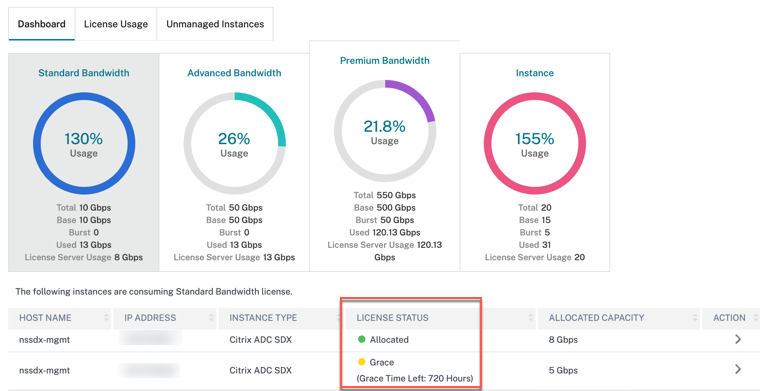
The following table lists the types of license status and what they mean
| Status | What it means |
|---|---|
| Allocated | The license state is fine. |
| Allocated: not applied on {{page.citrix-adc-generic}} | {{page.citrix-adc-generic}} might require reboot if license is checked-out or checked-in from {{page.citrix-adc-generic}}, but {{page.citrix-adc-generic}} hasn’t rebooted yet. |
| Not allocated | License is not allocated in the {{page.citrix-adc-generic}} instance. |
| Grace | {{page.citrix-adc-generic}} instance is in the license grace period for 30 days |
| Sync in progress | {{page.adm-product-name-short}} fetches information from {{page.citrix-adc-generic}} in a 2-minute intervals. Synchronizing licenses between {{page.adm-product-name-short}} and {{page.citrix-adc-generic}} might take as long as 15 minutes. {{page.adm-product-name-short}} might have rebooted or {{page.adm-product-name-short}} HAS failover is triggered. |
| Partially allocated | {{page.citrix-adc-generic}} cannot accept the capacity allocated because it might be running at its maximum allocation. For example, {{page.citrix-adc-generic}} is running with 10 Gbps license pool capacity. When {{page.citrix-adc-generic}} reboots, the 10 Gbps is checked-in back to {{page.adm-product-name-short}} license server. When {{page.citrix-adc-generic}} comes back online, it tries to check out the earlier allocated 10 Gbps automatically. Meanwhile, other {{page.citrix-adc-generic}} instances might have checked out that bandwidth. Partially Allocated appears if the license pool does not have enough capacity to allocate complete 10 Gbps or even partial capacity to this {{page.citrix-adc-generic}}. |
| Not managed | {{page.citrix-adc-generic}} is not added to {{page.adm-product-name-short}} for manageability. This does not have impact on {{page.citrix-adc-generic}} licensing, but it can impact license monitoring from {{page.adm-product-name-short}}. |
| Not managed | {{page.citrix-adc-generic}} is not added to {{page.adm-product-name-short}} for manageability. This does not have impact on {{page.citrix-adc-generic}} licensing, but it can impact license monitoring from {{page.adm-product-name-short}}. |
| Connection lost | {{page.citrix-adc-generic}} is not reachable from {{page.adm-product-name-short}} for manageability. For example, there are network connectivity issues, NITRO is not working, or {{page.citrix-adc-generic}} password mismatches. If NITRO is not working or {{page.citrix-adc-generic}} password mismatches, this does not have an impact on {{page.citrix-adc-generic}} licensing. However, it can impact license monitoring from {{page.adm-product-name-short}}. |
Check server status
This section describes the common server status issues and possible reasons and fixes.
Issue: {{page.citrix-adc-generic}} displays the license server as unreachable and license status changes to grace.
-
Connection to license server ({{page.adm-product-name-short}} or agent) has severed for more than 15 minutes. Verify if the license server is up and reachable.
-
{{page.citrix-adc-generic}} is in grace mode.
Issue: {{page.citrix-adc-generic}} displays license server status as reachable but user attempt to change allocation has no effect. Clicking Change Allocation returns 0 0. This value might make it appear the configured capacity has been lost.
-
Connection to the license server has recently gone down but the {{page.citrix-adc-generic}} still hasn’t missed the second heartbeat. Therefore, it is not in Grace (yet). Verify if the license server is up and reachable.
Issue: {{page.citrix-adc-generic}} displays capacity and instance counts but the license server is Reachable/Unreachable. Clicking Change Allocation returns some numbers but does not account for configured capacity.
-
Connection to license server got restored but the {{page.citrix-adc-generic}} is still to miss the second heartbeat or send the reconnect probe.
Issue: {{page.citrix-adc-generic}} says Cannot connect to license server when configuring Pooled licensing with {{page.adm-product-name-short}}
-
Check firewall rules to ensure that ports 27000 and 7279 are open.
-
The agent is not registered. For more information, see Getting Started.
-
{{page.adm-product-name-short}} does not have license files uploaded. For more information, see Configure {{page.citrix-adc-generic}} Pooled capacity
-
{{page.adm-product-name-short}} has the wrong license file.
Check usage report of license
Under NetScaler Licensing > Pooled Licensing > Throughput Capacity > License Usage in the {{page.adm-product-name-short}} GUI, you can see the monthly peak of your license usage. You can use this report to increase your license usage or plan the purchase of an extra license.
The following are some details how the report is generated and can be used.
Polling: License data is polled from the {{page.citrix-adc-generic}} instances every 15 minutes.
Maintaining peaks per hour: {{page.adm-product-name-short}} maintains only maximum license usage in an hour, per device.
Reporting: You can generate a GUI report for each instance, for a specific time range.
Exporting: You can export reports either as in CSV format or XLS format.
Purging: {{page.adm-product-name-short}} purges data on the first of every month at 12:10 a.m. The purge period is configurable (the default period is two months).
Counters and statistics for Pooled capacity licensing
The following counters, logs, and commands expose the {{page.citrix-adc-generic}} Pooled licensing metrics that indicate the behavior of both {{page.adm-product-name-short}} and {{page.citrix-adc-generic}} instances in Pooled licensing mode.
-
SNMP traps: available from {{page.citrix-adc-generic}} version 13.xx.
-
NSCONMSG counters for rate limiting: available from {{page.citrix-adc-generic}} version 12.1 57.xx.
-
{{page.adm-product-name-short}} counters {{page.adm-product-name-short}} Command Actions are available in {{page.citrix-adc-generic}} Cloud service.
SNMP traps
You can configure the following SNMP traps v.13 Pooled license alarms
-
POOLED-LICENSE-CHECKOUT-FAILURE -
POOLED-LICENSE-ONGRACE -
Configure POOLED-LICENSE-PARTIAL
For more information about these alarms, see {{page.citrix-adc-generic}} SNMP OID Reference.
NSCONMSG Counter
Check the following
NCCONMSG counters and what they mean:
-
allnic_err_rl_cpu_pkt_drops: aggregate (all NICs) packet drops after CPU limit was reached -
allnic_err_rl_pps_pkt_drops: aggregate packet drops system wide after pps limit -
allnic_err_rl_rate_pkt_drops: aggregate rate drops system wide -
allnic_err_rl_pkt_drops: cumulative rate limiting drops due to rate, pps, and CPU -
rl_tot_ssl_rl_enforced: number of times SSL RL was applied (on new SSL connections) -
rl_tot_ssl_rl_data_limited: number of times the SSL throughput limit was reached -
rl_tot_ssl_rl_sess_limited: number of times the SSL TPS limit was reached
{{page.adm-product-name-short}} counters
When you choose the Run Command Action event action, you can create a command or a script that can be run on {{page.adm-product-name-short}} for events matching a particular filter criterion. You can also set the following parameters for the Run Command Action script:
| Parameter | Description |
|---|---|
| $source | This parameter corresponds to the source IP address of the received event. |
| $category | This parameter corresponds to the type of traps defined under the category of the filter. |
| $entity | This parameter corresponds to the entity instances or counters for which an event has been generated. It can include the counter names for all threshold-related events, entity names for all entity-related events, and certificate names for all certificate-related events. |
| $severity | This parameter corresponds to the severity of the event. |
| $failureobj | The failure object affects the way that an event is processed and ensures that the failure object reflects the exact problem as notified. This parameter can be used to track down problems quickly and to identify the reason for failure, instead of simply reporting raw events. |
Note
During command execution, these parameters are replaced with actual values.