
How to change a NetScaler SDX nsroot password
Occasionally, you must change the nsroot password of the NetScaler appliance for security reasons or compliance of password rotation policy.
This document describes the steps required to change the nsroot password of a NetScaler SDX appliance managed through NetScaler Console cloud.
If you change the NetScaler password, you must modify the NetScaler Console admin profile that is associated with the NetScaler. A NetScaler Console admin profile maintains the NetScaler credentials for REST API, SSH, SCP, or SNMP based communication with the NetScaler appliance. Through admin profiles, NetScaler Console manages NetScaler SDX appliances.
Related information
Change password
Follow these steps to change the password:
-
Step 1. Change the SDX password from the SDX Management Service GUI.
-
Step 2. Modify the NetScaler Console admin profile associated with the SDX.
Note:
If the SDX appliance is managed by other tools as well, you must change the credentials on those tools as well.
Change the SDX password from the SDX Management Service GUI
-
From SDX Management Service, navigate to System > User Administration > Users.
-
Select the user name for which you want to change the password and click Edit.
-
Select Change Password.
-
Enter a new password and click OK.
-
The SDX password has been changed
Modify the NetScaler Console admin profile
After you've modified the SDX passwords, you must modify the admin profiles of the instances. Follow these steps:
-
Navigate to Infrastructure > Instances Dashboard > NetScaler > SDX.
-
Select Profiles to see all the admin profiles.
-
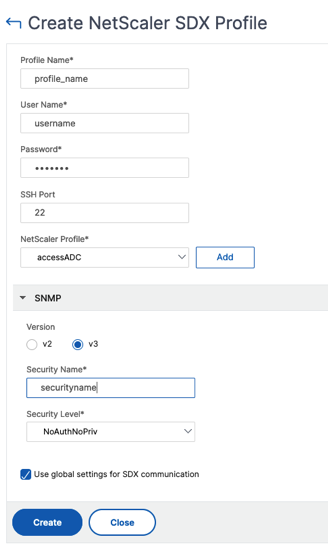
Select Add to create an admin profile.
-
Provide new NetScaler credentials, and click Create.
-
The newly created profile appears under Admin Profiles.
-
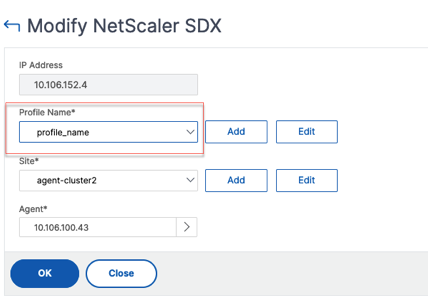
Go to Network > Instances > NetScaler > SDX. Select the instance for which the password has been modified, and the select Edit.
-
Select the newly created profile name and click OK.
-
Select the instance again, right-click, click Rediscover.
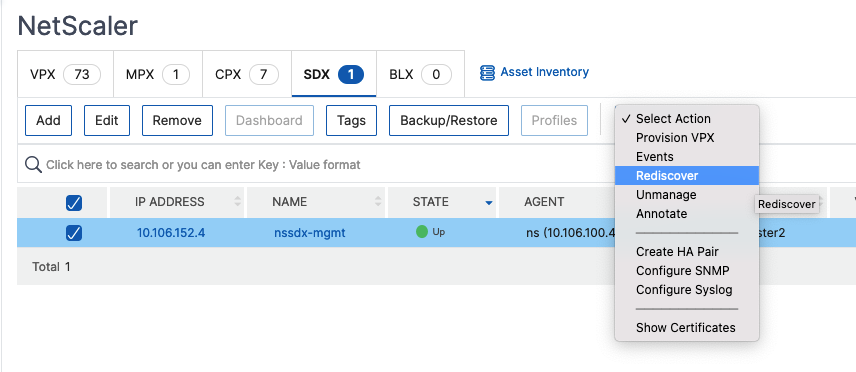
You've successfully changed the password.
For information about changing the password of an SDX appliance, see How to change a NetScaler MPX or VPX root password.