
Email Settings
NetScaler Console service allows onboarding of NetScaler instances using the Advisory Concole Connect based low-touch onboarding workflow. As a part of this workflow, customers receive product initiated emails from NetScaler Console service. You can enable or disable the email notifications that you receive as part of the Advisory Console Connect based low-touch onboarding workflow. You can configure and manage the email notifications in the following ways:
-
Enable emails for all admins - You will be able to enable the emails for all admins in your org. By default, the emails are enabled for all the admins in the Org.
-
Enable / disable emails for selected admins - You can customize the email settings so that only specific admins in the org receive emails and the other admins do not.
-
Disable emails for all admins - You will be able to disable and stop the emails for all admins in your org.
Related information
Configure Email Settings
You can configure the Email Settings and enable or disable the emails that you receive as part of the Console Advisory Connect based low-touch onboarding workflow. To configure the Email Settings:
-
Click Onboard to ADM Service in the product initiated email. The Citrix Cloud™ page appears.
-
In the Citrix Cloud login page:
-
If you are an existing Citrix Cloud customer, sign in to Citrix Cloud using your credentials of Citrix.com, My Citrix, or Citrix Cloud.
-
If you are not an existing Citrix Cloud customer, sign up to Citrix cloud. For more info, see Sign up for Citrix Cloud.Note:If you are part of multiple Org IDs and one of the Org IDs is in Citrix Cloud, sign in using your existing credentials.
The NetScaler Console landing page appears, providing you with an overview of NetScaler Console and its benefits. -
-
In the NetScaler Console landing page, click Next.The Insights on your NetScaler and Gateway instances page appears, where you can get insights into your overall NetScaler infrastructure with recommendations.
-
In the Insights on your NetScaler and Gateway instances page, click Next.The Select NetScaler and Gateway instances to onboard page appears, where you can see a list of NetScaler instances to onboard and additional options such as Email Settings.
-
Click Email Settings. The Email Settings pane appears.
 You can now configure the email settings to enable or disable emails.
Note:
If you have onboarded only one NetScaler instance, then you will not receive these emails.
If you are already on the NetScaler Console GUI and you want to configure the email settings:
-
In NetScaler Console GUI, navigate to Infrastructure > Instances, and then click NetScaler. The NetScaler page appears.
-
In the NetScaler page, click Asset Inventory.The Select NetScaler and Gateway instances to onboard page appears to show the list of NetScaler instances that are onboarded and additional options such as Email Settings.
-
Click Email Settings. The Email Settings pane appears.
You can now configure the email settings to enable or disable emails.
Enable emails for all admins
By default, the emails are enabled for all the admins in the Org.
To enable or subscribe to the email notifications as part of the Console Advisory Connect based workflow:
-
In the Email Settings pane, select Enable emails for all admins.
-
Click Save and Close.All the admins in the org are now subscribed and will receive email notifications as part of the Console Advisory Connect based workflow.
Enable / disable emails for specific admins in the org
You can customize the email settings so that only specific admins in the org receive emails. You will see the list of admins who have the emails enabled on the left and the list of admins who have the emails disabled on the right.
To disable emails for specific admins in the org:
-
Locate the admin email address in the Enabled list.
-
Click the add button (+).
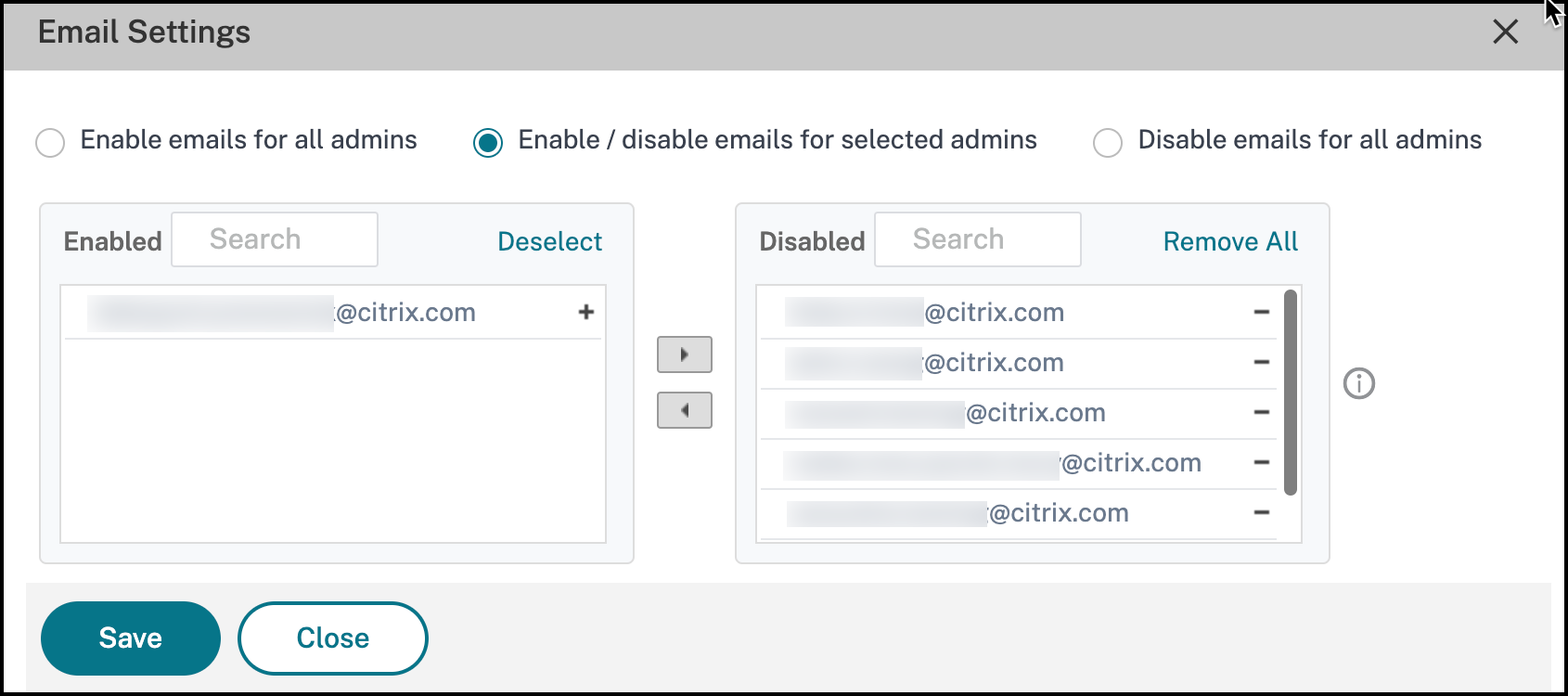 You will see the admin email address added to the Disabled list.
 -
Click Save and Close.The admin is now unsubscribed to not receive email notifications as part of the Console Advisory Connect based workflow.Note:If you want to disable emails for multiple admins, select all their email IDs in the Enabled email list, and click the add button (+) to add the email IDs to the Disabled list. Click Save and Close.
If you have previously disabled emails for specific or all admins in your org, you will be able to enable emails for all the admins. To enable emails for specific admins in the org:
-
Locate the admin email address in the Disabled list.
-
Click the remove button (-). You will see the admin email address removed from the Disabled list.
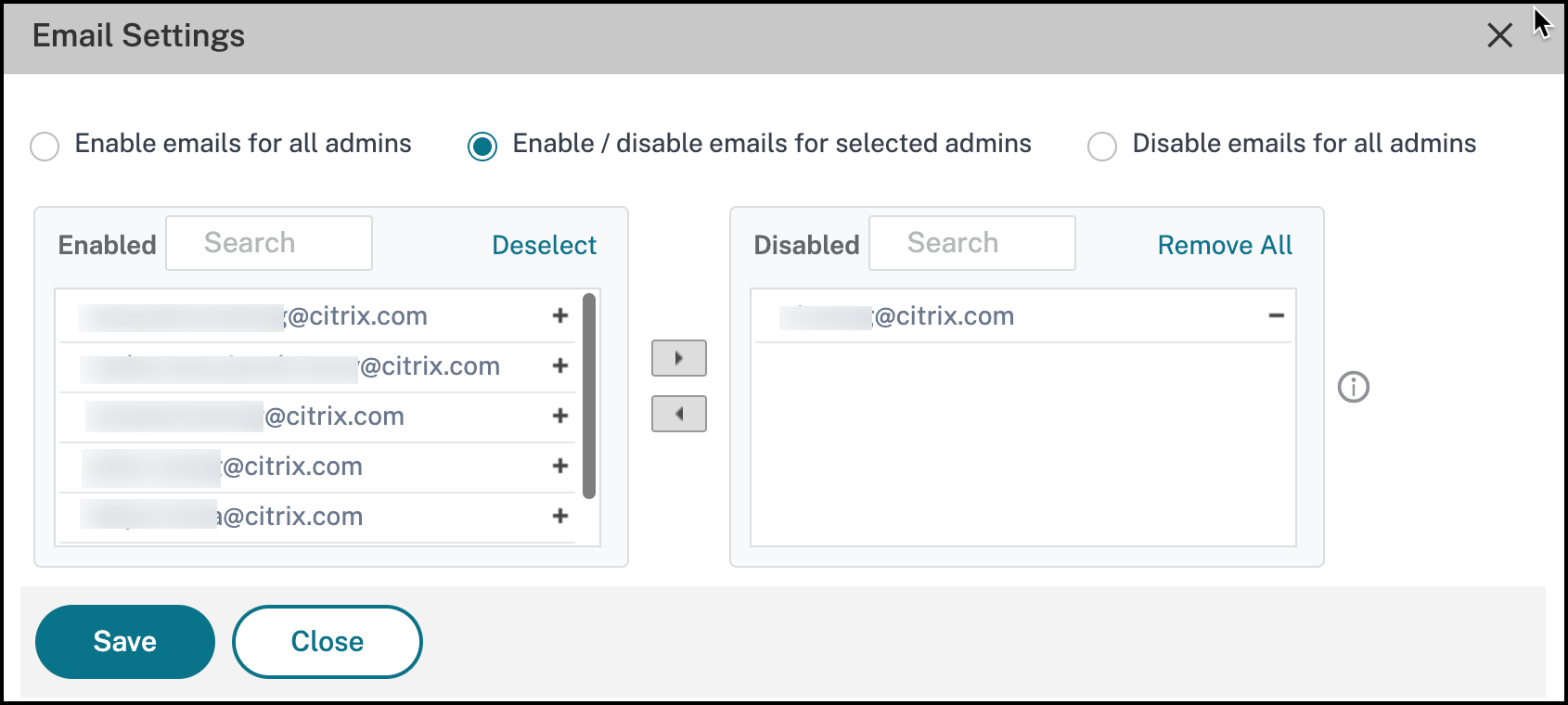
-
Click Save and Close.The admin will now start receiving onboarding related emails. The admin is now subscribed to receive email notifications.Note:If you want to enable emails for multiple admins, select all their email IDs in the Disabled email list, and click the remove button (-) to add the email IDs to the Enabled list. Click Save and Close.
Disable emails for all admins
You can select this option if you want to disable or stop the emails for all admins who belong to your org.
To disable or unsubscribe from receiving emails:
-
In the Email Settings pane, select Disable emails for all admins.
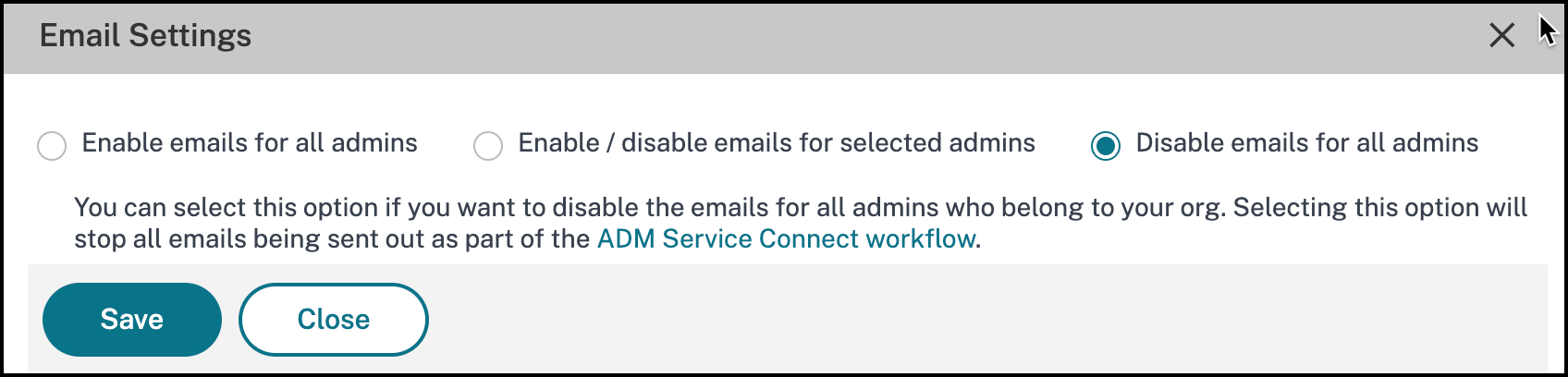
-
Click Save and Close.All the admins in the org are now unsubscribed and will not receive any email notifications.