
Automated certificate renewal by using the ACME protocol
{{page.adm-product-name-short}} supports the Automated Certificate Management Environment (ACME), an open protocol designed to automate the renewal of SSL/TLS certificates.
Previously, the network administrators had to undergo the labor-intensive, multi-stage manual process of renewing the certificates. ACME support mitigates these challenges by providing a robust framework for automated certificate renewal to perform the following actions:
-
Request new certificates from trusted Certificate Authorities (CAs).
-
Validate domain ownership using automated methods (Currently, NetScaler Console supports only the DNS-01 challenge).
-
Renew certificates automatically before expiry.
Related information
ACME support in NetScaler® Console
{{page.adm-product-name-short}} uses the
acme.sh client and supports the following Certificate Authorities:
-
Let’s Encrypt
-
DigiCert Inc
-
Sectigo Limited
-
Entrust, Inc
-
GlobalSign
-
GoDaddy.com, Inc
-
ZeroSSL
-
Google Trust Services
-
Google Public CA
-
BuyPass Go SSL
-
Actalis
-
SSL.com
-
HashiCorp Vault
-
Smallstep
-
Pebble
-
HARICA
-
EJBCA
The following steps explain how automated certificate renewal happens in {{page.adm-product-name-short}}:
-
When {{page.adm-product-name-short}} initiates a certificate request for a domain using the
acme.shclient, the client connects to the chosen Certificate Authority (for example, Let's Encrypt or DigiCert). -
The CA issues a challenge to prove domain ownership, which in this case is a DNS-01 challenge.
-
{{page.adm-product-name-short}} using pre-configured credentials, automatically updates the DNS TXT record for the domain with the value provided by the CA.
-
The CA validates the TXT record, confirming domain ownership.
-
Upon successful validation, the CA issues the SSL/TLS certificate to {{page.adm-product-name-short}}.
-
{{page.adm-product-name-short}} stores the certificate in the respective store (Certificate store/Zero-touch store).
-
Based on the renewal window provided by you, {{page.adm-product-name-short}} automatically repeats this process for renewal before the certificate’s expiration date.
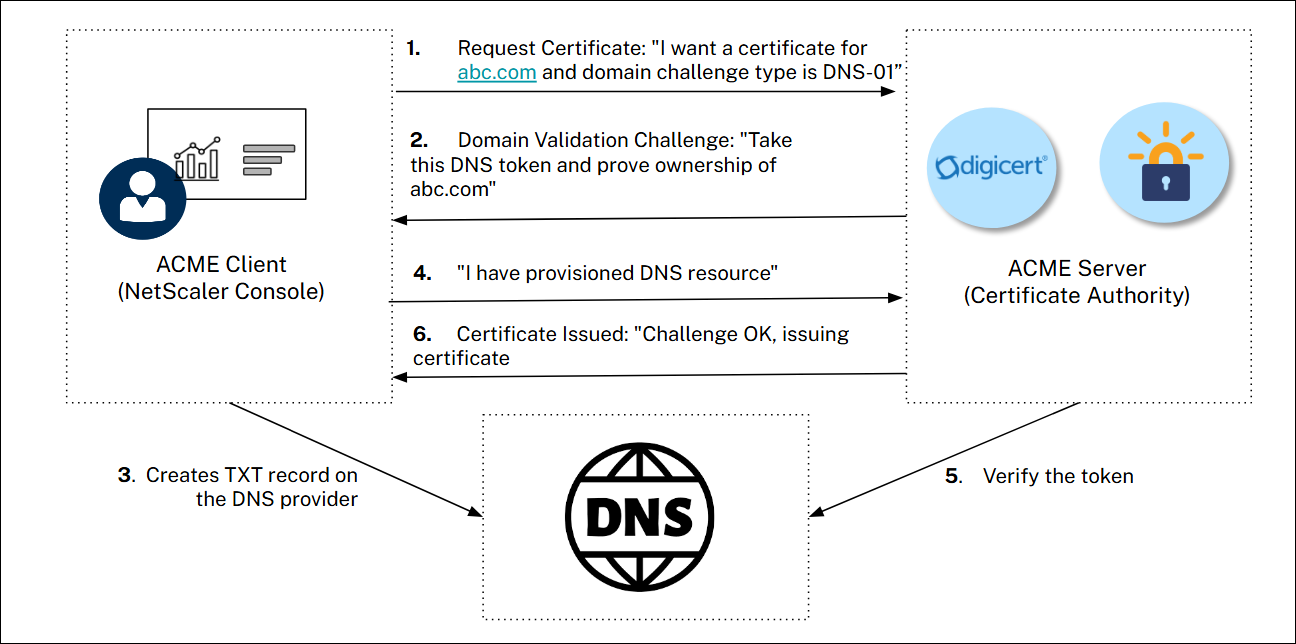
With ACME support in {{page.adm-product-name-short}}, you can perform the following actions:
-
Automatically renew certificates before they expire
-
Switch from one CA to another during renewal
-
Generate or upload CSR and request for new certificate
The following are the key benefits:
-
Fully Automated Lifecycle with no manual intervention for certificate issuance or renewal.
-
Customizable Renewal Schedule that suits organizational needs (for example, set to renew 7 days before expiry).
-
Eliminates downtime due to expired certificates.
-
Reduced operational overhead by automating expiry tracking and renewals.
-
Improved security posture with always-valid, CA best-practice aligned certificates.
Configuration steps for ACME integration
Integrating ACME is a one-time process and includes the following steps:
-
Step 1: Configure Certificate Authority (CA).
-
Step 2: Select certificates for renewal.
-
Step 3: Add a DNS provider and map the respective domains.
Prerequisites
-
Ensure that you must have a valid account for your Certificate Authority (CA) and license for the same.
-
Ensure that you have DNS provider access credentials.
Step 1: Configure Certificate Authority (CA)
Perform the following steps to register the Certificate Authority (CA) that is used for renewals:
-
Navigate to Infrastructure > SSL Dashboard. If you are configuring ACME for the first time, then you see a banner with "Automated renewals for SSL certificates". Click Get Started.
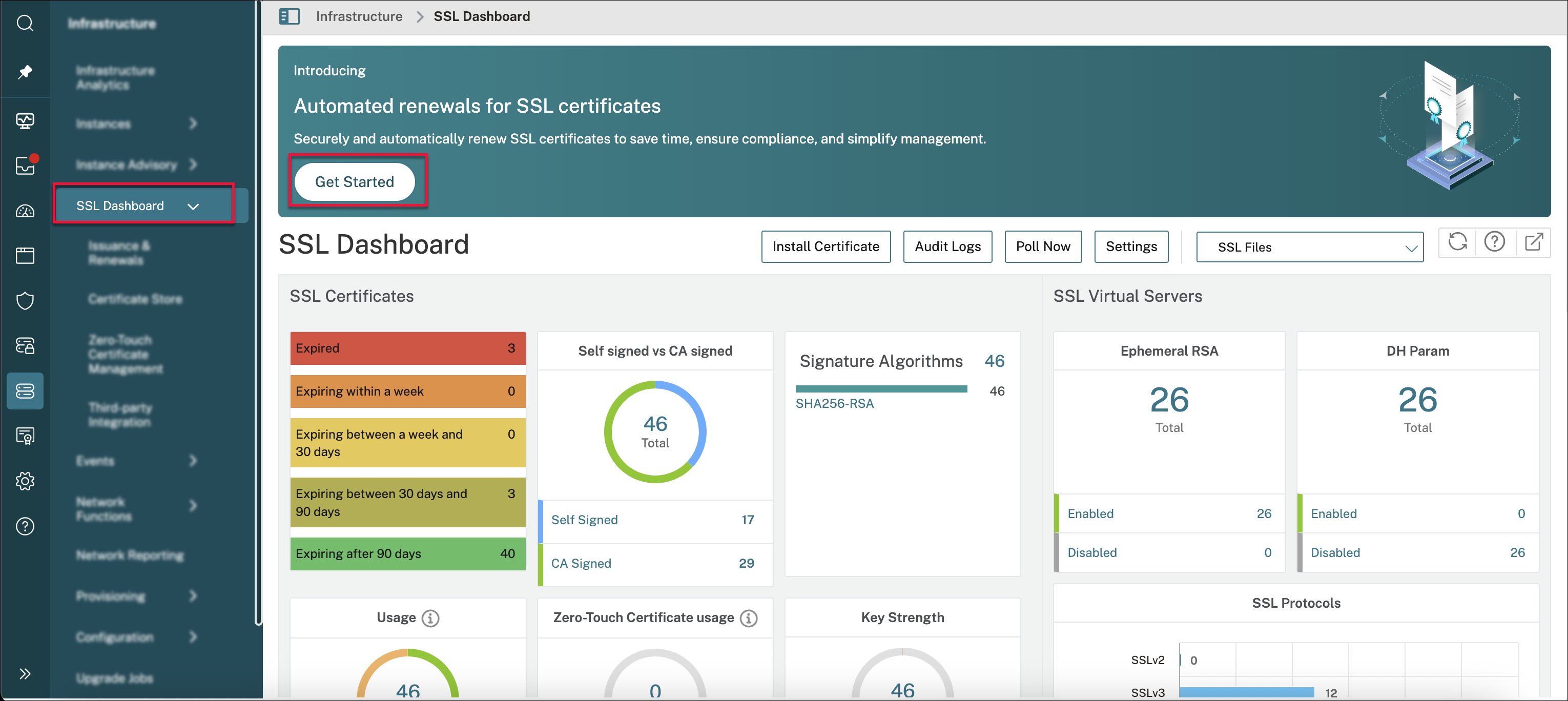 orNavigate to Infrastructure > SSL Dashboard > Third-party Integration > CA Vendors and click Add.
 -
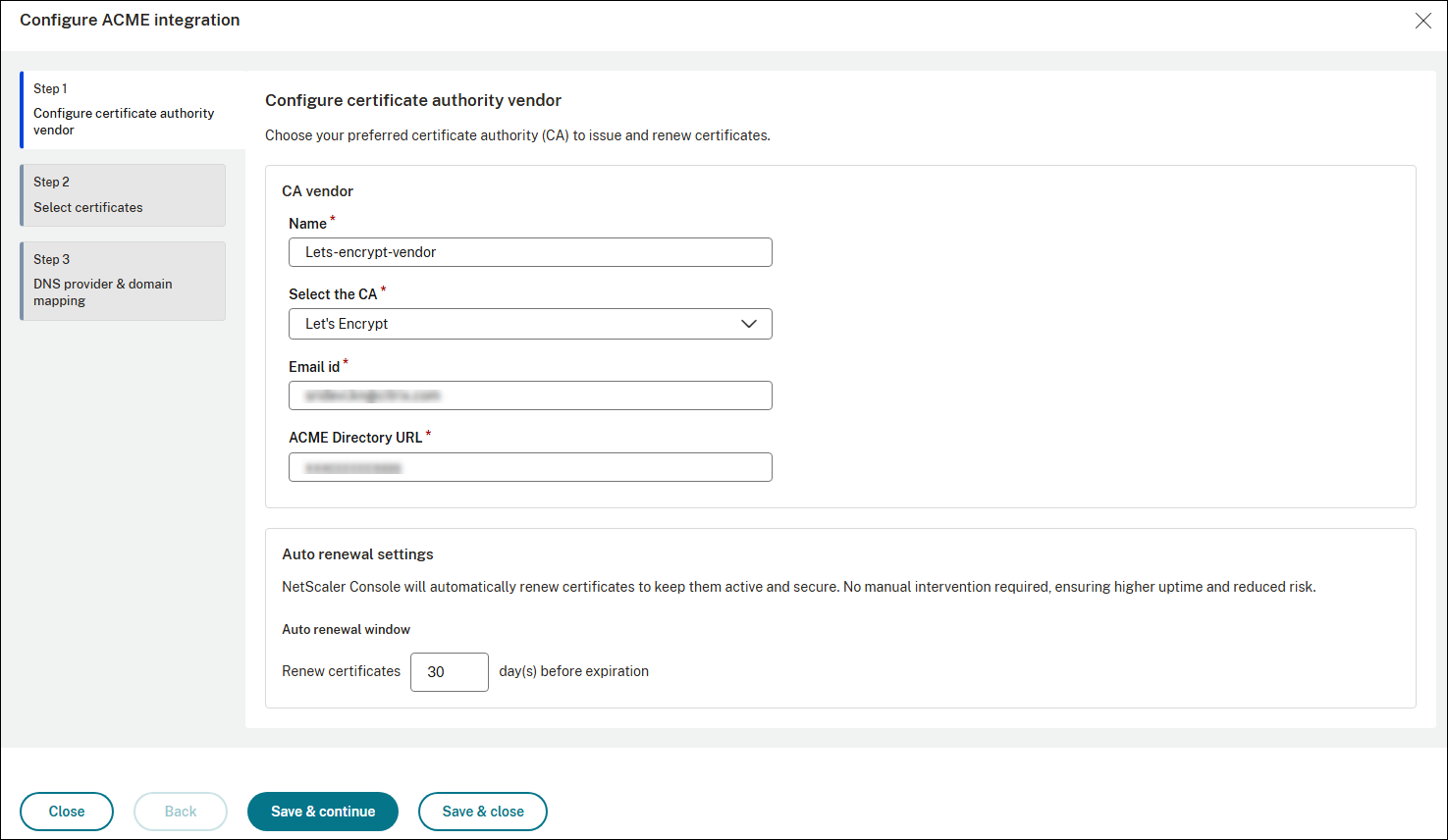
Enter a name and select the CA vendor.
-
Provide the other details such as email address, ACME Directory URL.
-
Enter the number of days before which the {{page.adm-product-name-short}} must automatically renew the certificates.
-
Click Save and continue. {{page.adm-product-name-short}} attempts to connect to the CA. If connectivity fails, review the details provided, correct the configuration details, and then retry.
Step 2: Select certificates for renewal
After CA details are added, {{page.adm-product-name-short}} automatically scans all certificates (from both the certificate store and the Zero-touch store) and lists the certificates issued by the configured CA separately. Review the certificates listed.
-
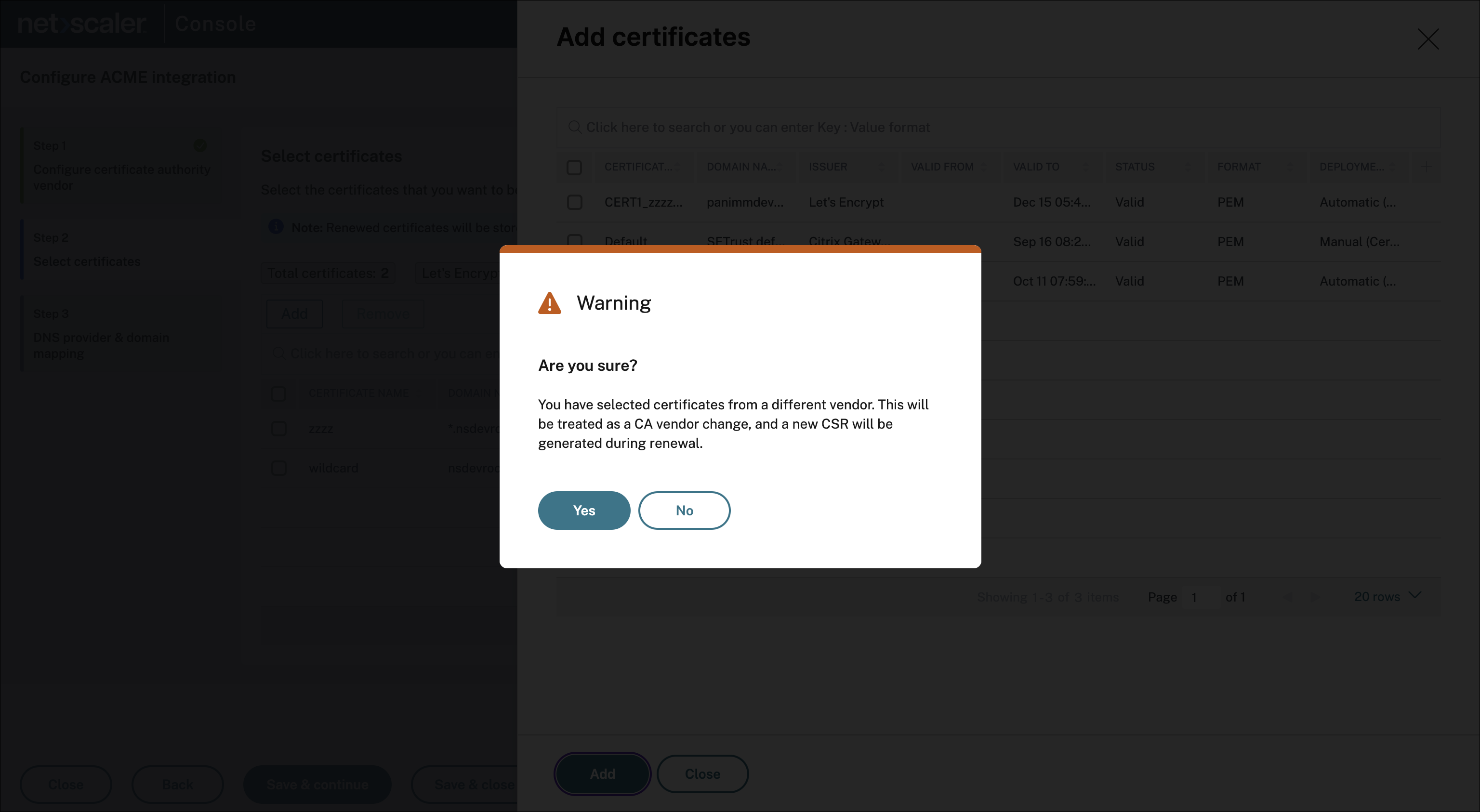
Select the certificates that you want to automatically renew. For example, If you configure Let’s Encrypt as the CA and have 2 certificates from Let’s Encrypt and 2 from another vendor, the dashboard displays:
Let’s Encrypt: 2 and Other CA: 2.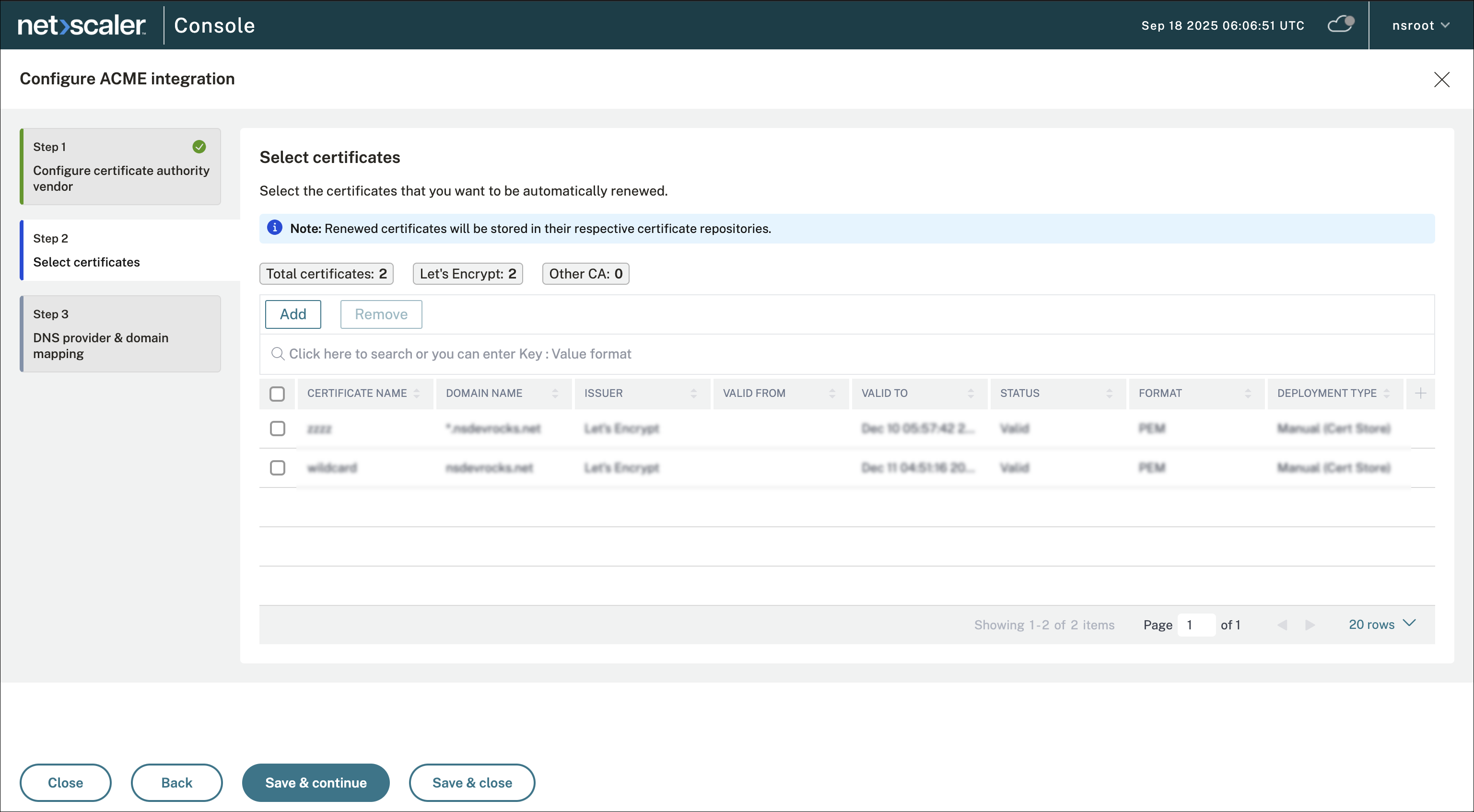
-
You can click Add to also add certificates issued by a different CA or Remove to remove certificates that you do not want to renew automatically. If you select certificates from a different vendor, you get a prompt to confirm the vendor change. Once you confirm, these certificates get renewed through the newly configured CA when their renewal window is reached.Note:Ensure that you do not have duplicate certificates in the Certificate store and Zero-touch certificate store. If there are duplicate certificates, then the renewal process happens twice for each store.
-
Click Save and continue.Note:Certificates remain in their respective stores after renewal. For example, if a certificate is stored in the certificate store, its renewed version is also placed in the certificate store. If the certificate is stored in the Zero-touch store, its renewed version is also placed in the Zero-touch store.Certificate deployment behavior depends on the store type.
-
If the certificates are stored in the certificate store, they must be manually deployed to NetScaler.
-
If the certificates are stored in the Zero-touch store, the certificates are automatically deployed to NetScaler without admin intervention. We recommend you to use Zero-touch Certificate Management for seamless, fully automated deployment of renewed certificates. For more information, see Zero-touch certificate management.
-
Step 3: Add a DNS provider and map the domains
-
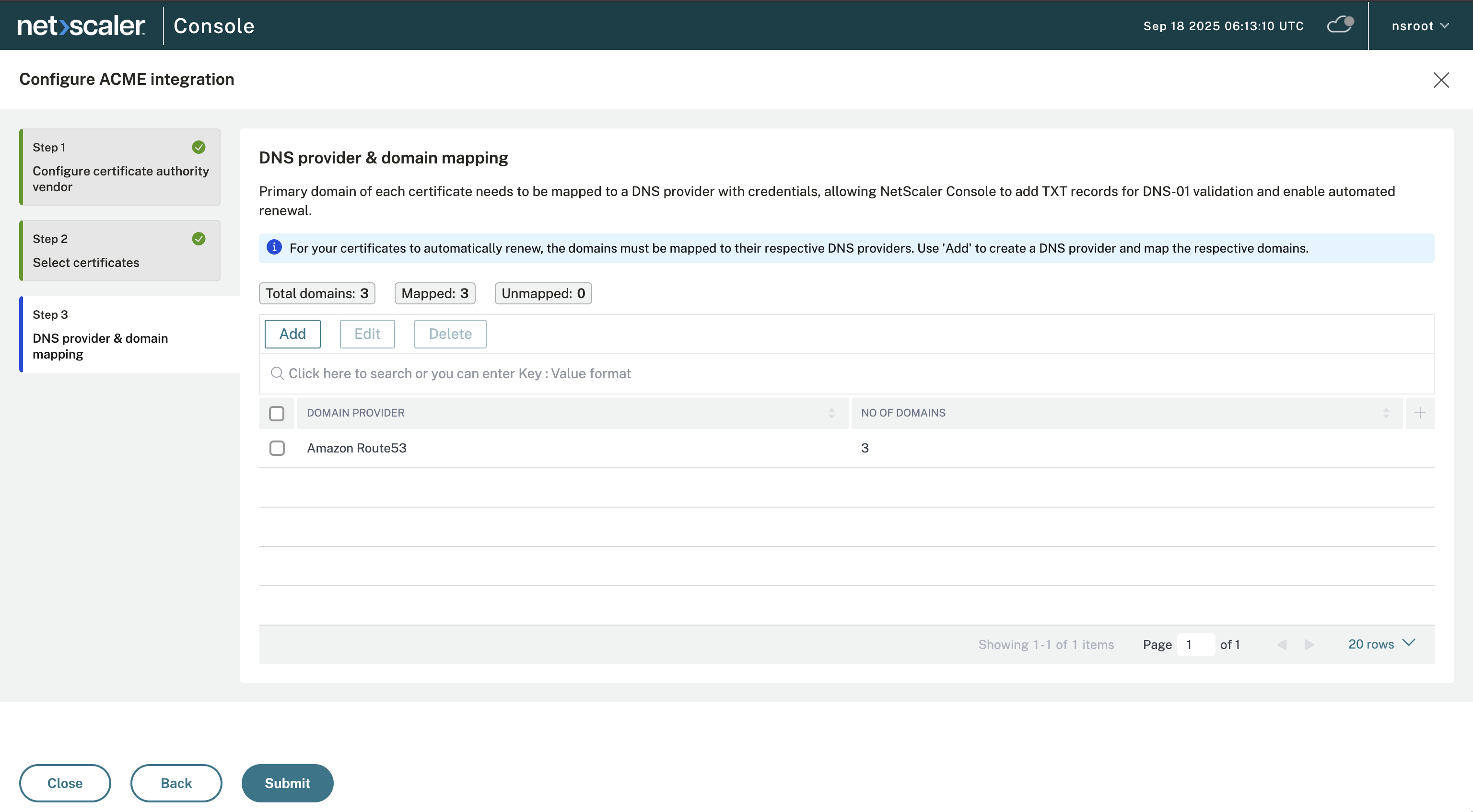
Click Add on the DNS provider & domain mapping page.
-
Select the DNS providers from the Select DNS provider drop-down list. The DNS providers supported by the
acme.share listed in the drop-down list. If you do not see your DNS provider in the list that means it is not supported. -
Enter provider details such as Access key ID, Secret Access Key and click Save to save the configuration.
-
Click Add Domain under Domain Mapping.
-
Select the domains served by the configured DNS provider.Important:Ensure that each domain is linked to the correct DNS provider. {{page.adm-product-name-short}} uses these mappings to perform the DNS-01 challenge automatically. During issuance or renewal, {{page.adm-product-name-short}} creates the required TXT records in the mapped DNS provider. Once validation succeeds, the CA issues or renews the certificate. Certificates are renewed only when all associated domains are mapped correctly to their DNS providers.For example, if your organization uses Amazon Route53 as the DNS provider. First, add the Amazon Route53 credentials (Access Key ID and Secret Key) under DNS Provider Details. Then, map the domains managed by Amazon Route53 (for example: example.com, app.example.com). When a certificate for these domains is issued or renewed, {{page.adm-product-name-short}} automatically creates the required TXT records in Amazon Route53. Once validation is successful, the CA issues or renews the certificates.The following public DNS providers are supported:
-
1984.hosting
-
ACME DNS
-
AcmeProxy Server API
-
Active24
-
Akamai.com Edge DNS
-
Aliyun
-
All-inkl Kas Server
-
Alviy.com
-
Amazon Route53
-
Anexia.com CloudDNS
-
ArtFiles.de
-
ArvanCloud.ir
-
autoDNS-InternetX
-
Azure DNS
-
Azion.om
-
Beget.com
-
BookMyName.com
-
Bunny.net
-
CloudFlare
-
ClouDNS.net
-
ConoHa
-
Constellix.com
-
Core-Networks
-
cPanel Server API
-
Curanet.dk
-
cyon.ch
-
DDNSS.de
-
deSEC.io
-
DigitalOcean
-
DirectAdmin
-
DNS.Services
-
DNSExit.com
-
dns.la
-
DNSMadeEasy
-
DNSimple
-
dnsHome.de
-
DNSPod.cn
-
DNSPod.com
-
Domain-Offensive do.de
-
DomeneShop.no
-
DreamHost
-
DuckDNS.org
-
durabledns.com
-
Dyn.com
-
DynDnsFree.de
-
Dynu.com
-
DynV6.com
-
easyDNS.net
-
edgecenter DNS API
-
EUserv.com
-
Exoscale
-
Fornex.com
-
FreeDNS
-
FreeMyIP.com
-
Gandi LiveDNS
-
Gcore.com
-
GeoScaling.com
-
GoDaddy.com
-
Google Cloud DNS
-
Google Domains
-
Hetzner.com
-
Hexonet.com
-
hosting.de
-
HuaweiCloud.com
-
Hurricane Electric
-
Hurricane Electric HE.net DDNS
-
Infoblox
-
Infomaniak.com
-
INWX
-
IONOS Cloud DNS
-
IONOS.de
-
InternetBS.net
-
ISPConfig 3.1
-
jdcloud.com
-
Joker.com
-
kapper.net
-
King.host
-
Knot DNS
-
Leaseweb.com
-
Lexicon DNS client
-
lima-city.de
-
Linode
-
Linode.com-Old
-
Loopia
-
LuaDNS
-
MailinaBox
-
MaraDNS
-
mijn.host
-
Misaka.io
-
MyDNS.JP
-
Mythic-Beasts.com
-
Name.com
-
Namecheap
-
NameMaster.de
-
Namesilo
-
Nanelo.com
-
NederHost.nl
-
Neodigit.net
-
Netcup
-
Netlify.com
-
nic.ru
-
Njalla
-
NLnetLabs NSD
-
NS1.com
-
Nexcess
-
one.com
-
Online.net
-
omg.lol
-
OpenProvider
-
OpenStack Designate API
-
OPNsense
-
Oracle Cloud Infrastructure-OCI
-
OVH.com
-
Plesk XML
-
PointHQ
-
Porkbun.com
-
PowerDNS
-
RackCorp.com
-
RackSpace.com
-
rage4.com
-
RcodeZero
-
reg.ru
-
ScaleWay.com
-
Schlundtech
-
Selectel
-
SelfHost.de
-
ServerCow.de
-
Simply.com
-
Technitium DNS Server
-
tele3.cz
-
Tencent.com
-
Timeweb.Cloud
-
TransIP.nl
-
UltraDNS
-
united-domains Reselling
-
unoeuro.com
-
variomedia.de
-
Vercel.com
-
veesp.com
-
versio.nl AuroraDNS
-
VSCALE
-
vshosting.cz CloudDNS
-
Vultr
-
Websupport.sk
-
West.cn
-
World4You.com
-
Yandex 360 for Business DNS API.
-
Yandex Cloud DNS
-
Zilore
-
Zone.eu
-
ZoneEdit.com
-
Zonomi
-
Once all three steps are completed, {{page.adm-product-name-short}} configures the ACME CA server. The selected certificates are renewed for the mapped domains. {{page.adm-product-name-short}} periodically checks certificate validity and renews them before they expire (based on configured window). With no manual intervention required, certificates always stay valid and up to date.
Issuance and renewals
Navigate to Infrastructure > SSL Dashboard > Issuance & Renewals to check all the renewal activities and the new requests raised from the certificate issuance.
Automatic renewals
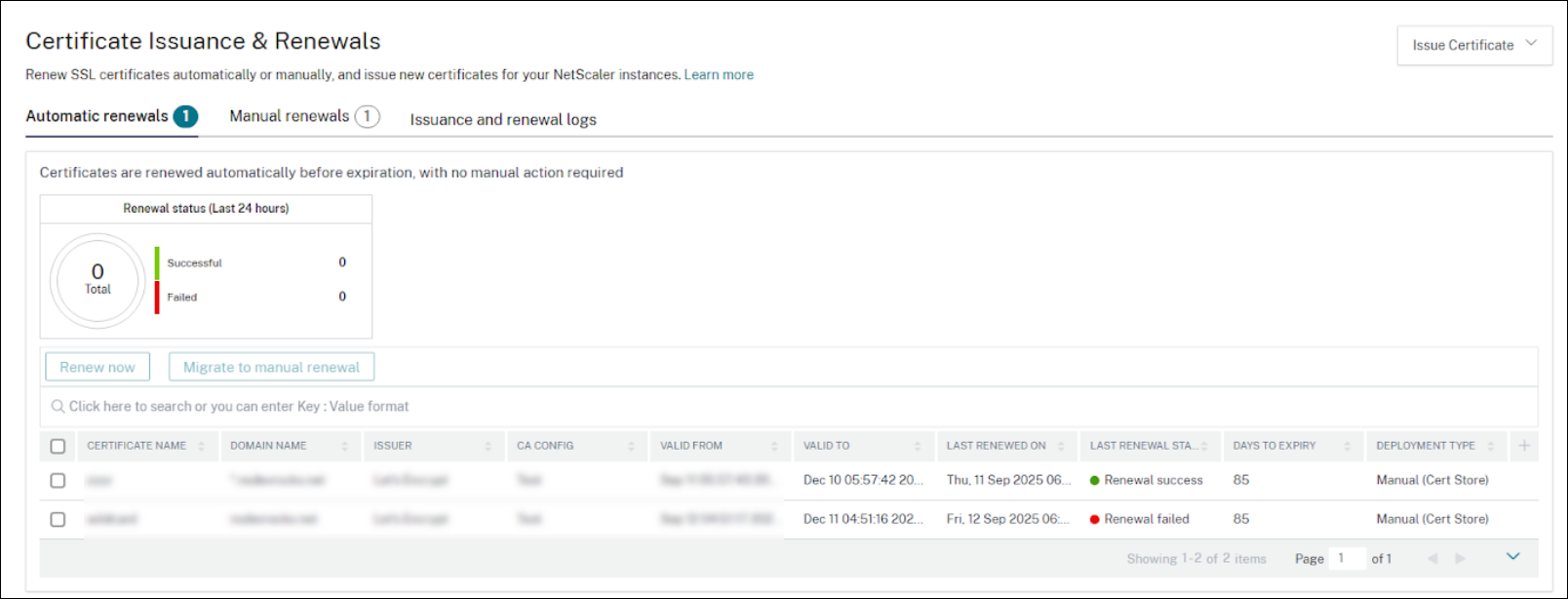
The Automatic renewals tab lists the certificates that are enrolled for automatic renewal. When the configured renewal window is reached, {{page.adm-product-name-short}} renews them automatically.
You can also trigger an on-demand renewal before the scheduled renewal window. For on-demand renewal, select the required certificate, and click Renew now.
If you do not want some certificates to be automatically renewed, you can move to manual renewals. To transfer the certificates from automatic renewal to manual renewal, select the required certificates and click Migrate to manual renewal.
Manual renewals
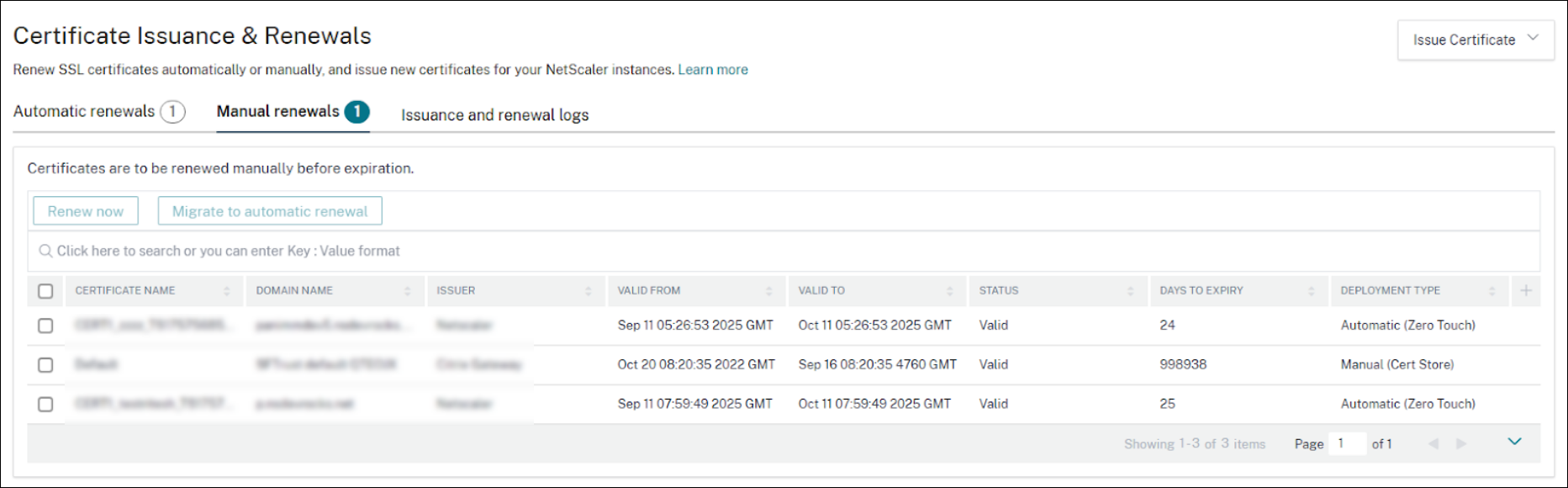
The Manual renewals tab lists all the certificates that must be manually renewed. These certificates must be updated manually, either by renewing the certificate offline and uploading the new certificate to the appropriate store, or by using the Renew now option.
To renew a certificate, select a certificate and click Renew now. If the certificate is issued by a registered CA and its domain’s DNS provider is configured, you can renew it on demand by using ACME without moving it to automated renewals.
You can also move a certificate to automatic renewal. To transfer the certificates from manual renewal to automatic renewal, select the required certificates and click Migrate to automatic renewal.
Note:
You can renew or migrate only one certificate at a time.
Issuance and renewal logs
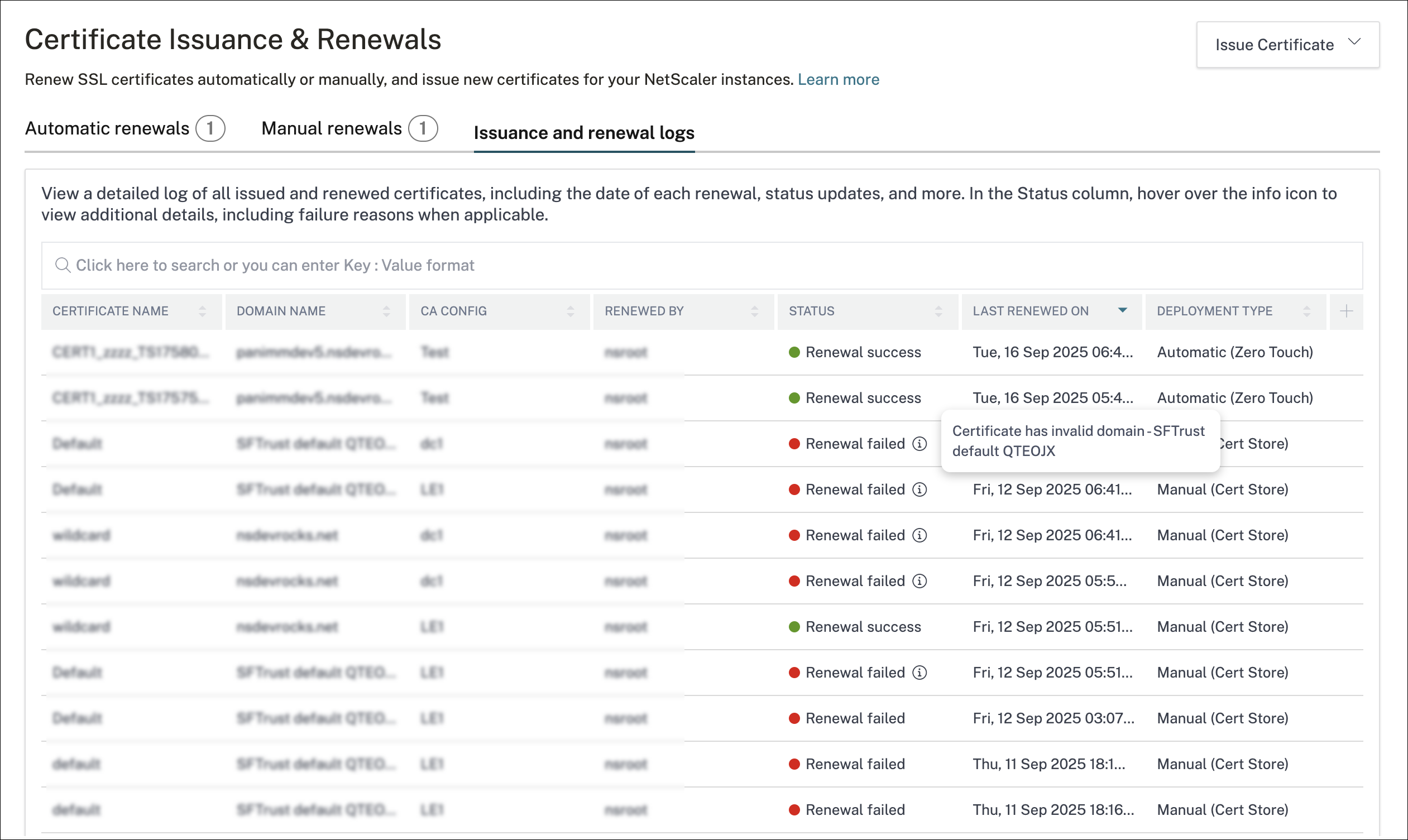
The Issuance and renewal logs tab provides the list of certificate requests using ACME, including issuances and renewals. For a failed event, you can click the info icon to view detailed error information.
Issue a certificate
ACME integration in {{page.adm-product-name-short}} supports requesting new certificates directly by using the ACME protocol. You can either create a CSR within {{page.adm-product-name-short}} or upload an existing CSR to request new certificates.
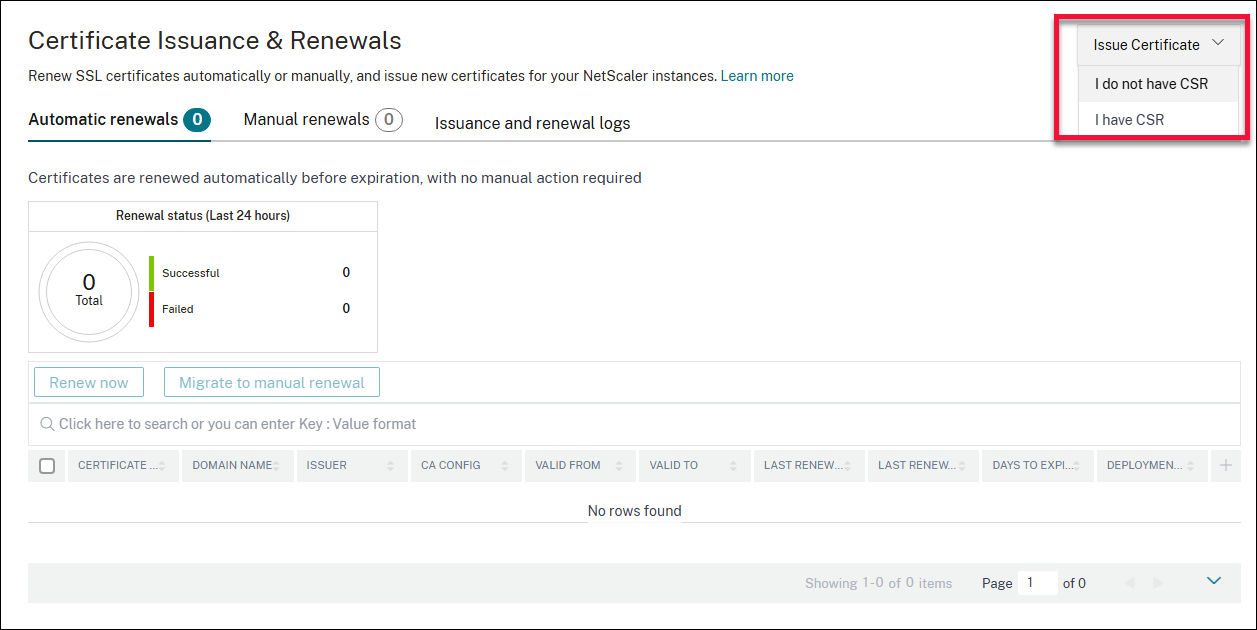
Navigate to Infrastructure > SSL dashboard > Issuances & Renewal and click Issue Certificate and select one of the following based on your scenario:
-
I do not have CSR: If you don’t already have a CSR, {{page.adm-product-name-short}} allows you to generate one and issue a new certificate.
-
I have CSR: If you already have a CSR generated offline, you can upload it to issue a certificate.
Issue a certificate without CSR
Perform the following steps to generate a CSR and issue a new certificate:
-
Navigate to Infrastructure > SSL dashboard > Issuances & Renewal and click Issue Certificate and select I do not have CSR.
-
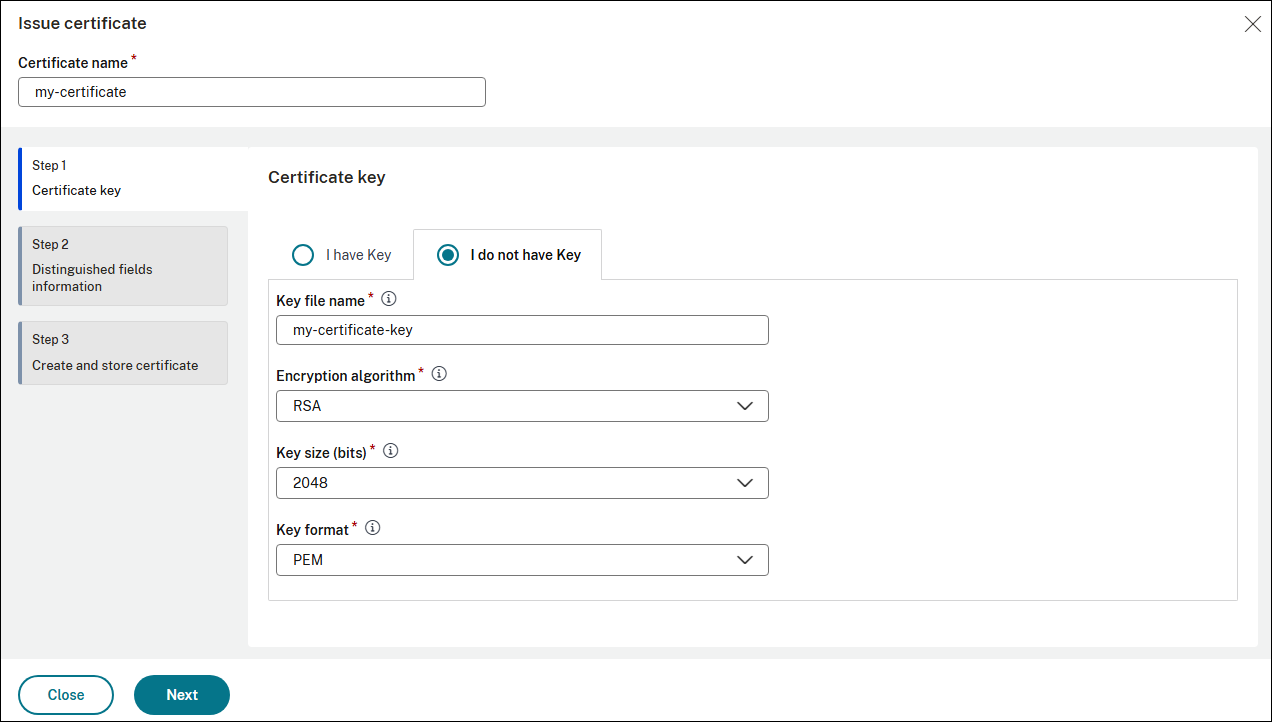
On the Certificate key page, either upload an existing key by selecting I have a key or generate a new one by selecting I do not have a key.
-
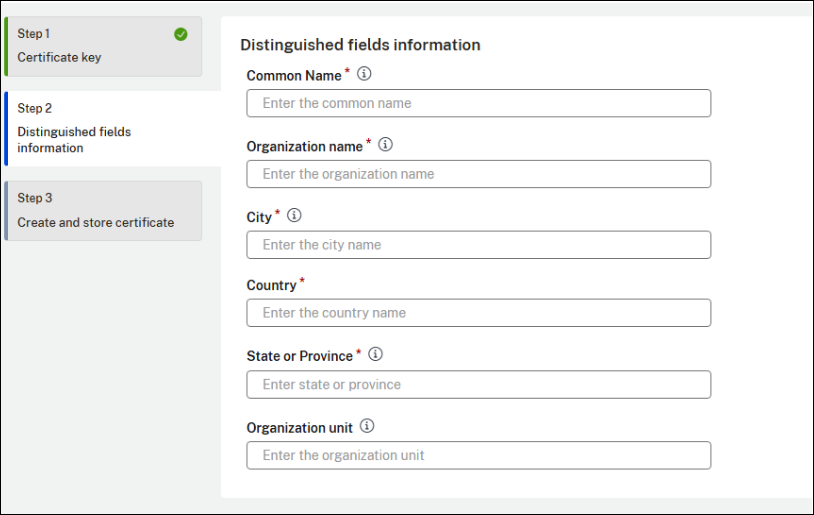
Enter the required CSR information.
-
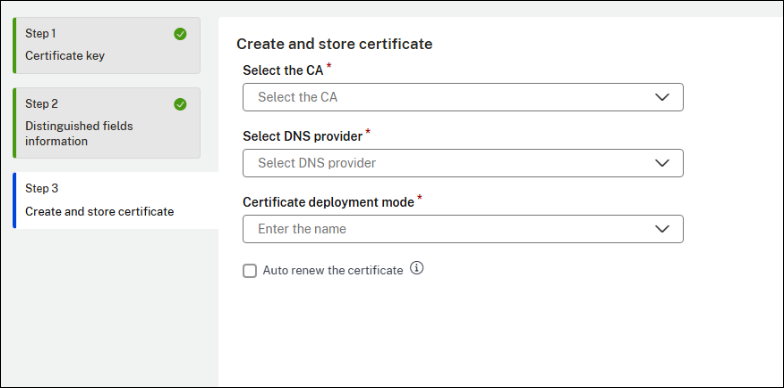
Select the CA, DNS provider, and certificate deployment mode for the ACME request. Choose Cert Store for manual deployment, or Zero Touch Store for automatic deployment on NetScaler.
-
Select Auto renew the certificate if you want the certificate to be automatically renewed in future.
-
Click Save.
Issue a certificate with CSR
Perform the following steps if you already have a CSR generated offline and you want to upload it to issue a certificate:
-
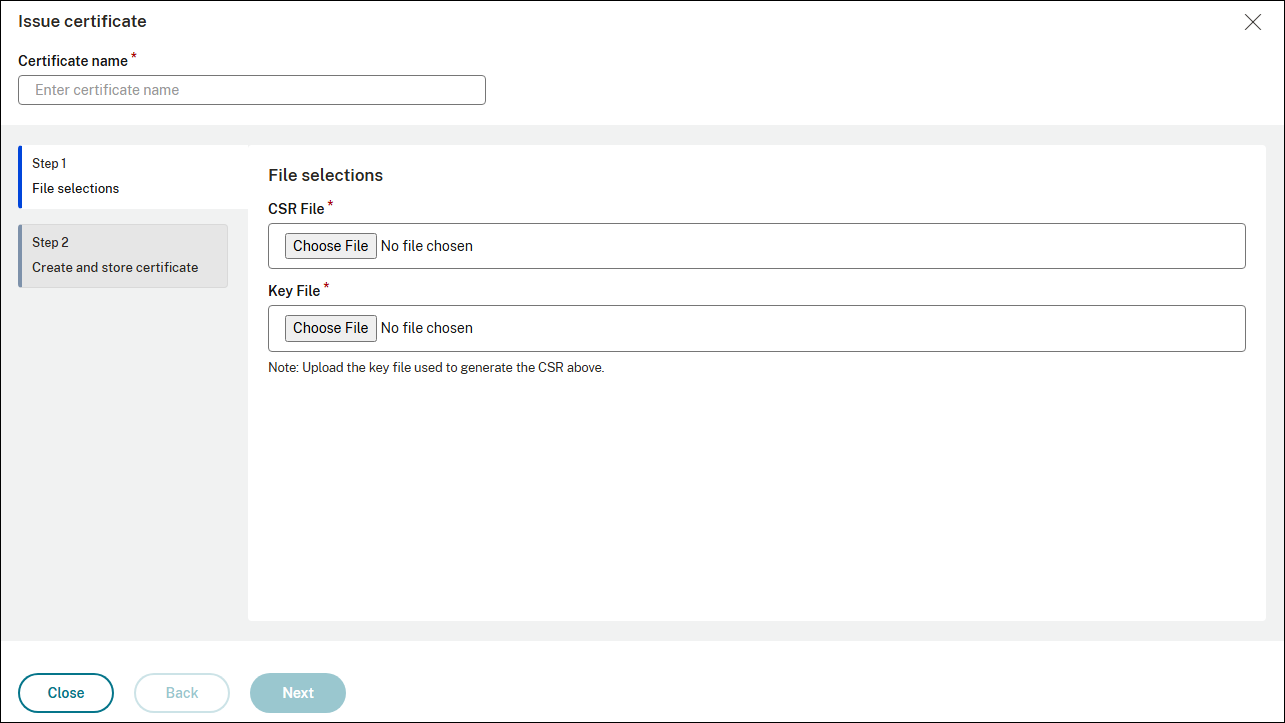
Navigate to Infrastructure > SSL dashboard > Issuances & Renewal and click Issue Certificate and select I have CSR.
-
Choose the CSR file and associated key file from your local system.
-
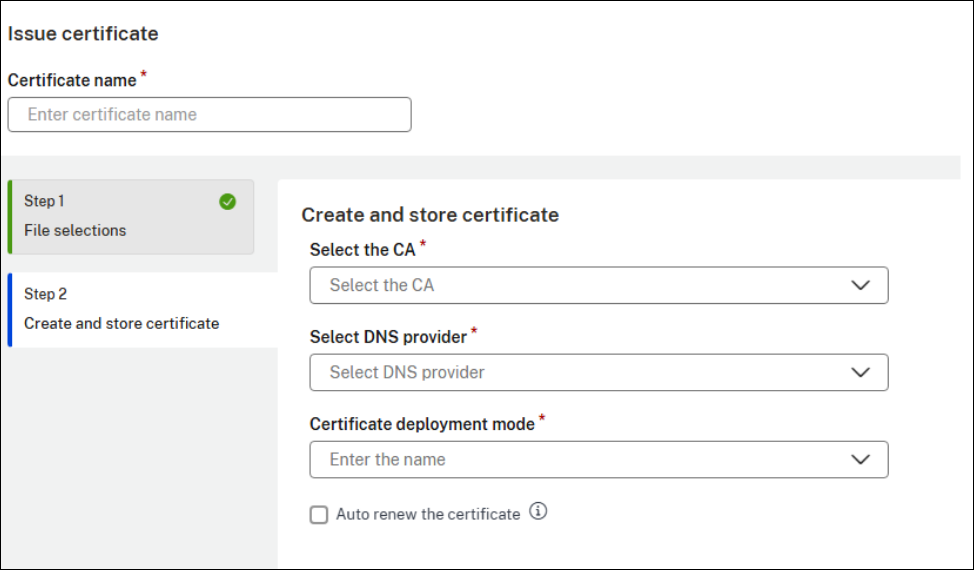
Select the CA, DNS provider, and certificate deployment mode for the ACME request. Choose Cert Store for manual deployment, or Zero Touch Store for automatic deployment on NetScaler.
-
Select Auto renew the certificate if you want the certificate to be automatically renewed in future.
-
Click Save.
Third-party Integration
You can add and manage more than one CA vendor and DNS provider.
You can perform following actions from the Third Party Integration page:
-
Add or edit a CA vendor
-
Change the auto renewal settings
-
Add or edit the certificate from an existing configured CA
-
Add or edit a DNS provider
-
Change domain mappings
Add or edit a CA vendor
You can register more than one CA vendor to manage certificates issued by different vendors. You can also edit the existing CA vendor details.
-
Navigate to SSL dashboard > Third party integration > ACME > CA Vendors. Click Add.
-
To add a CA vendor, provide a name for the CA vendor and select the CA.
-
To edit an existing CA vendor details, select the CA vendor and click Edit.
-
Add or update the required details.
-
Click Save.
Change the auto renewal settings
To change the auto renewal settings, perform the following steps:
-
Navigate to SSL dashboard > Third party integration > ACME > CA Vendors.
-
Select a CA vendor, and click Edit
-
In the Configure certificate Authority vendor, change the number of days as per your requirement the Auto renew settings section.
-
Click Save and continue.
-
Complete the workflow.
Add or edit the certificate from an existing configured CA
To add or edit the certificate from an existing configured CA, perform the following steps
-
Navigate to SSL dashboard > Third party integration > ACME > CA Vendors.
-
Select a CA vendor, and click Edit.
-
Navigate to Step 2 Select certificates, and add or remove the required certificates.
-
Click Save and continue.
-
Complete the workflow.
Note:
If the certificate has not been unmapped from the original CA, it does not appear in the selection list for the new CA.
Add or edit a DNS provider
To add a new DNS provider or edit existing domain mappings of existing DNS providers, perform the following steps:
-
Navigate to SSL dashboard > Third party integration > ACME > DNS Providers.
-
To add a DNS provider, click Add. Select the DNS provider, and click Save.
-
To edit an existing DNS provider, select a DNS provider and click Edit.
-
Add or update the required details.
-
Click Save.
Change domain mappings
To edit the domain mappings of existing DNS providers, perform the following steps:
-
Navigate to SSL dashboard > Third party integration > ACME > DNS Providers.
-
Select a DNS provider and click Edit.
-
Navigate to Domain mapping, and add or remove domains as required.
-
Click Save.
Important:
If a domain is unmapped, its certificate renewal stops. Always remap domains to a valid DNS provider to ensure that renewals continue.
Limitations
-
Certificate renewal happens only for the DNS providers that are supported by
acme.sh.
Troubleshoot issues related to automatic certificate renewal
A few common error messages that might occur and their associated root cause are listed in this section:
-
Certificate has invalid domain - ADCD error is reported when the domain name in the certificate is not valid as per ACME requirements.
-
Invalid identifiers requested :: Cannot issue for "testdomain": Domain name needs at least one dot is reported when the requested domain name is missing a dot (such as "example" instead of "example.com").
-
Could not get nonce from the CA server. Please check the CA server configuration. is reported when the ACME client fails to obtain a nonce from the CA, often due to network or server issues.
-
Cannot initialize API for the CA server. Please check the CA server configuration. is reported when the ACME client cannot initialize communication with the CA server, possibly due to misconfiguration.
-
Invalid domain name provided. Please check the domain name and try again. is reported when the domain name format is invalid or not allowed by the ACME protocol.
-
Domains not changed. Certificate with same configuration already exists. is reported when a certificate request is made with no changes to the domain list and the certificate already exists.
-
Error adding TXT record for domain validation. Please check the DNS configuration and try again. is reported when the ACME client fails to add the required DNS TXT record for domain validation.
-
Signature does not match. Please check the server time as it may not be in sync. is reported when there is a signature mismatch, often due to time synchronization issues between client and server.
-
Certificate is missing a DNS provider name. is reported when no DNS provider is specified for DNS-based domain validation.
-
Renewal skipped as no active DNS providers are configured. is reported when certificate renewal is attempted but no active DNS providers are configured.
-
Error validating contact(s) :: unable to parse email address is reported when the contact email address provided is invalid or cannot be parsed.
-
Unable to process finalize order request. (For invalid ACME Directory URL) is reported when the ACME client cannot finalize the order, often due to an invalid or unreachable ACME Directory URL.
-
DNS Provider - TestDNS does not exist or is not active. is reported when the specified DNS provider is not found or is inactive in the system.
-
Config CA ID is empty/does not exist. is reported when the CA configuration ID is missing or does not match any existing configuration.