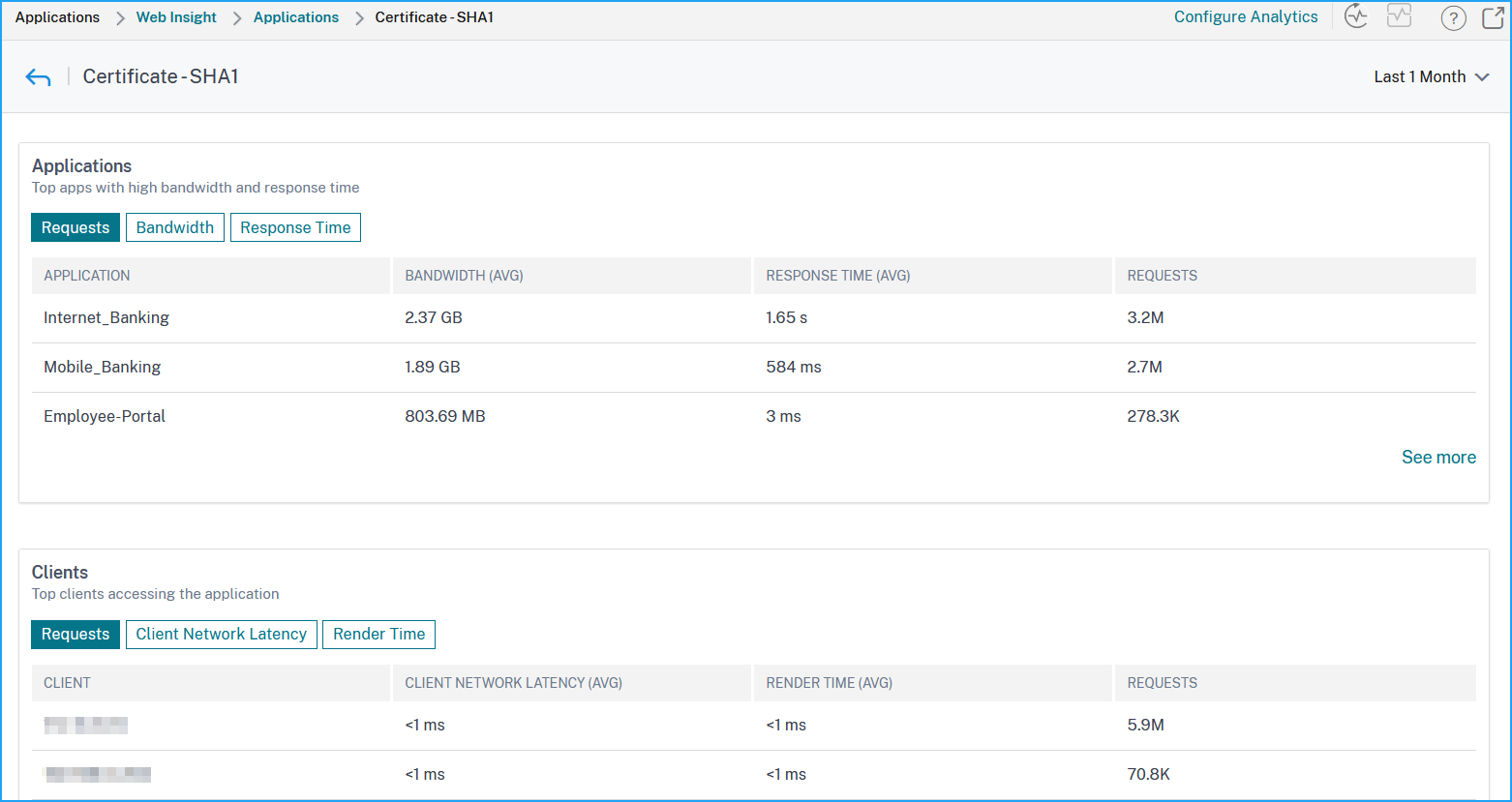
SSL Insight
SSL Insight provides visibility into secure web transactions (HTTPS) and allows IT administrators to monitor all the secure web applications being served by the NetScaler by providing integrated and real-time and historic monitoring of secure web transactions. With this visibility the administrator can assess following:
-
Determine Configuration Change Impact on Customer Usage. The administrator can understand the impact on clients for making a configuration change like turning off SSLv3 or removing a cipher like RC4-MD5. This can be done by assessing the historic transaction data on this protocol and cipher.
-
Quantify client performance. Administrator can understand the impact on Application Response Time based on the SSL ciphers/protocol used or the certificates negotiated.
-
Application Security. Assess if any of the applications have transactions running on low security protocols, ciphers, or weak key strength.
When SSL Analytics is enabled on a NetScaler instance, SSL statistics are recorded and logged for every SSL transaction. The statistics show the details of the SSL flow. Also, every successful connection is logged and displayed by NetScaler Console.
SSL Insight provides the following critical information, which is displayed by NetScaler Console Analytics:
-
SSL Protocol version negotiated
-
Cipher negotiated, and the cipher strength
-
Signature Hash algorithm of the certificate used
-
Certificate Type & Size
-
SSL Front end and Back end errors
Note
For successful SSL connections, SSL AppFlow® logging happens at the end of every transaction.
Related information
Prerequisites
-
The NetScaler instance on which you intend to configure SSL Insight must be running NetScaler software release 11.1 51.21 and higher. Run the following commands on the NetScaler instance running 11.1 51.21 to enable Logstream as a transport type for SSL Insight.
-
enable ns mode ulfd -
add ulfd server <IP Address of the NetScaler Console>For NetScaler instances running version 12.0 and above, select Logstream as the transport type while enabling AppFlow from NetScaler Console.
-
The NetScaler Console version and build must be equal to or higher than the NetScaler version and build. For example, if you have installed NetScaler Console 11.1 build 61.7, then ensure you have installed NetScaler 11.1 build 60.14 or earlier.
Configure SSL Insight
SSL Insight Metrics are included in Web Insight reports if you enable the following elements:
-
Enable AppFlow for Web Insight on each NetScaler instance.
-
Enable ULFD mode on each NetScaler instance.
-
Enable required AppFlow parameters on each NetScaler instance.
Enable the insight
Note
You can enable the AppFlow feature either from NetScaler Console or from each NetScaler instance.
Enable the AppFlow feature from NetScaler Console
-
Navigate to Infrastructure > Instances, and select the NetScaler instance on which you want to enable analytics.
-
From the Select Action list, select Configure Analytics.
-
On the Configure Analytics on Virtual Servers page:
-
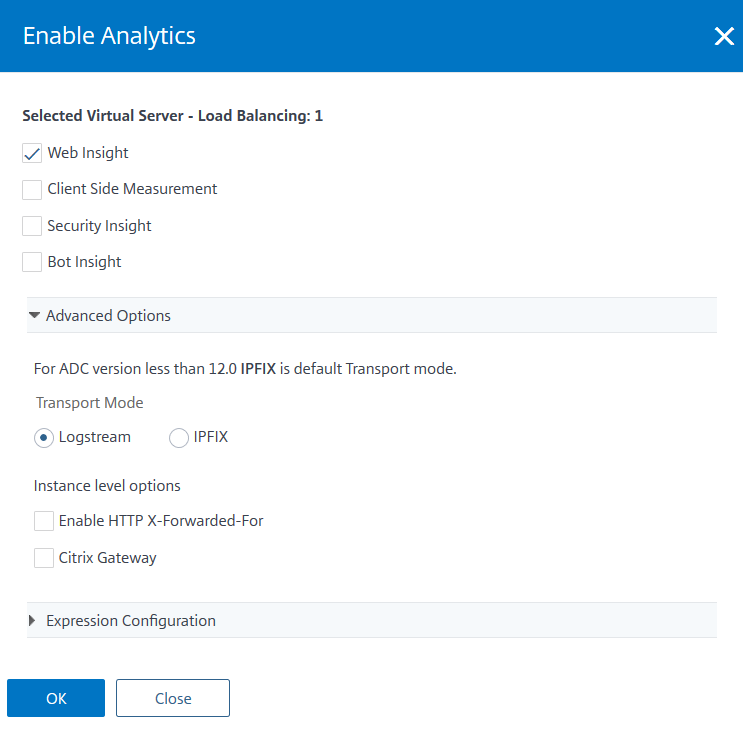
Select the virtual servers that you want to enable Web Insight and click Enable Security & AnalyticsThe Enable Security & Analytics window is displayed.
-
Select Web Insight
-
Under Advanced Options, select Logstream or IPFIX as Transport ModeNoteFor NetScaler 12.0 or earlier, IPFIX is the default option for Transport Mode. For NetScaler 12.0 or later, you can either select Logstream or IPFIX as Transport Mode.For more information about IPFIX and Logstream, see Logstream overview.
-
The Expression is true by default
-
Click OK
-
Note
You cannot enable data collection on a virtual server if the operational state of the virtual server is other than UP.
Enable the AppFlow feature by using the NetScaler GUI
In a NetScaler instance's GUI, navigate to Configuration > System > Settings, click Configure Advanced Features, and select AppFlow.
Enable ULFD mode
After you enable ULFD mode on the NetScaler instances on which the virtual servers are configured, the ULFD server streams the analytics data from the NetScaler instances to NetScaler Console.
Enable SSL Insight parameters
On each NetScaler instance, you have to enable some HTTP parameters to display SSL Insight records in NetScaler Console.
Enable SSL Insight parameters from the NetScaler configuration utility
-
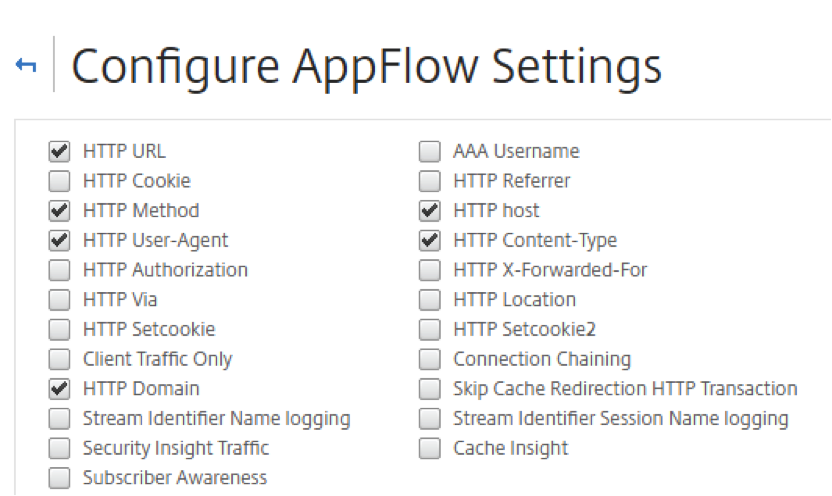
Navigate to Configuration > System > AppFlow, and click Change AppFlowSettings.
-
Select the following check boxes: HTTP Domain, HTTP Host, HTTP Method, HTTP URL, HTTP User-Agent, HTTP Content-Type.
-
Click OK.
View the SSL Insight metrics
SSL Insight metrics in NetScaler Console provide a detailed view of the performance of the SSL transactions served by the NetScaler instances. You can view the SSL Insight metrics at the client, server, or application level, and the SSL success and failure transactions' metrics. With the help of these metrics, you can analyze and optimize your NetScaler HTTPS settings and SSL-certificate settings, and track performance issues.
Note
When you create a group, you can assign roles to the group, provide application-level access to the group, and assign users to the group. NetScaler Console analytics now supports virtual IP address based authorization. Your users can now see reports for all Insights for only the applications (virtual servers) that they are authorized to. For more information on groups and assigning users to the group, see Configuring Groups on NetScaler Console.
Monitor SSL Insight metrics in NetScaler Console
As an administrator, you can view SSL metrics for:
-
An application. Navigate to Applications > Dashboard, click an application, and select Web Insight tab to view the detailed metrics. For more information, see Application Usage Analytics.
-
All applications. Navigate to Applications > Web Insight and click Applications and Clients tabs to view the SSL metrics.
Use case: Obtain an overview of the SSL transactions
The following use case describes how you can use SSL Insight to assess the usage of various SSL Parameters and improve security measures.
Consider that you have a set of applications that are using SSL transactions (HTTPS) for communication, and you have configured NetScaler Console to monitor the SSL components. You might need to frequently review the applications so that you can focus first on the applications that need the most attention. The Web Insight dashboard for an application or all applications provides a summary of following SSL parameters under SSL Errors and SSL Usage:
-
SSL Certificates
-
SSL Protocols
-
SSL Cipher
-
SSL Key Strength
-
SSL Failure – Front end
-
SSL Failure – Back end
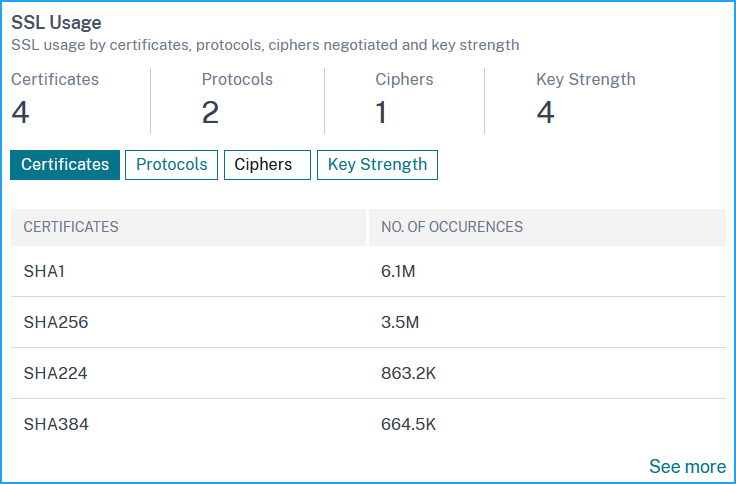
You can click each tab to view details.
Use case: SSL metrics for clients
You can see list of clients (identified by their IP addresses) and the total occurences per client. Navigate to Applications > Web Insight and select the Clients tab to view the details under SSL Usage.
Click a metric to view details and under Clients, click any client IP address to view the SSL metrics for the selected client.