
View relaxation rules, idle, and deny rules
After you configure the learning profile, NetScaler Console starts to get a list of relaxation, idle, and deny rules.
-
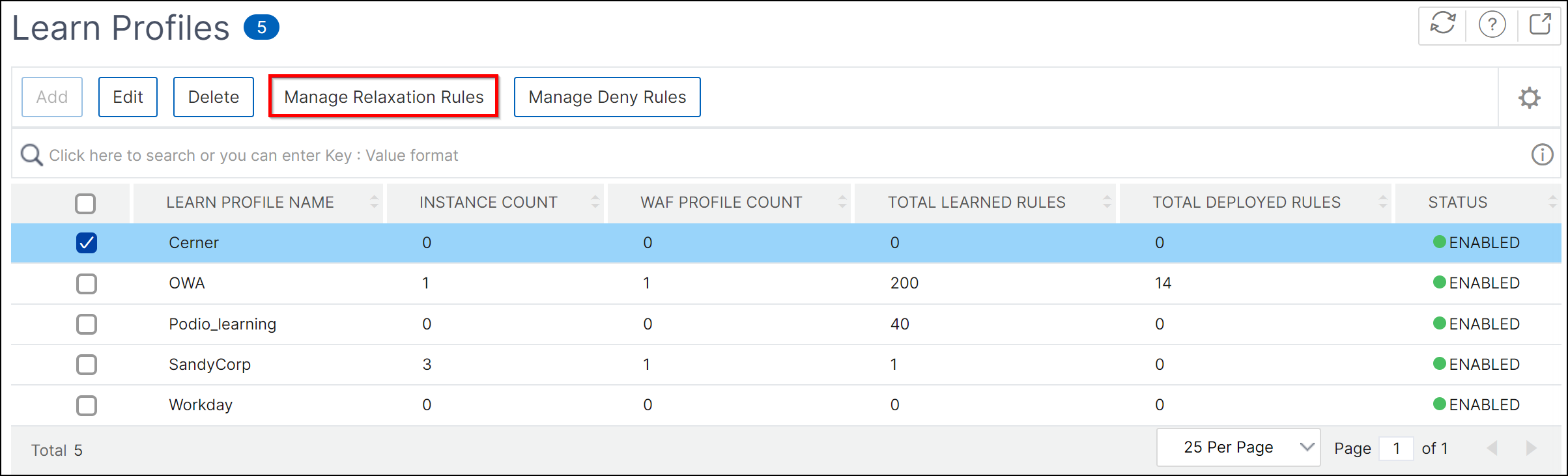
Navigate to Security > WAF Learning > Learn Profiles.The Learn Profiles page indicates the WAF learning profile name, total NetScaler instance associated, total WAF profile created on the instance, total learned rules, total deployed rules, and the status.
-
Select the profile name and click Manage Relaxation Rules.
 You can view the total rules, total learned rules, total deployed rules, and total idle rules for the selected profile.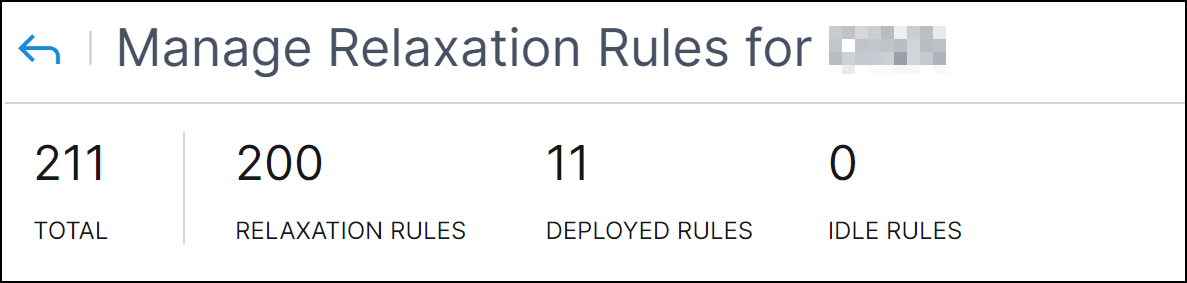
-
In the Learned Rules tab, you can view the relaxed rules. Select the rule, validate, and click Add & Deploy, Deploy, Edit & Deploy, Delete, or Deploy as Deny.
-
Add & Deploy - Enables you to create a new rule with the security check options. After you create the rule, click Deploy.
-
Deploy - Enables you to deploy the relaxed rule.
-
Edit & Deploy - Enables you to edit the rule before you want to deploy. For SQL security check, you can edit the rule and change the Rule Type to Deny and then deploy.
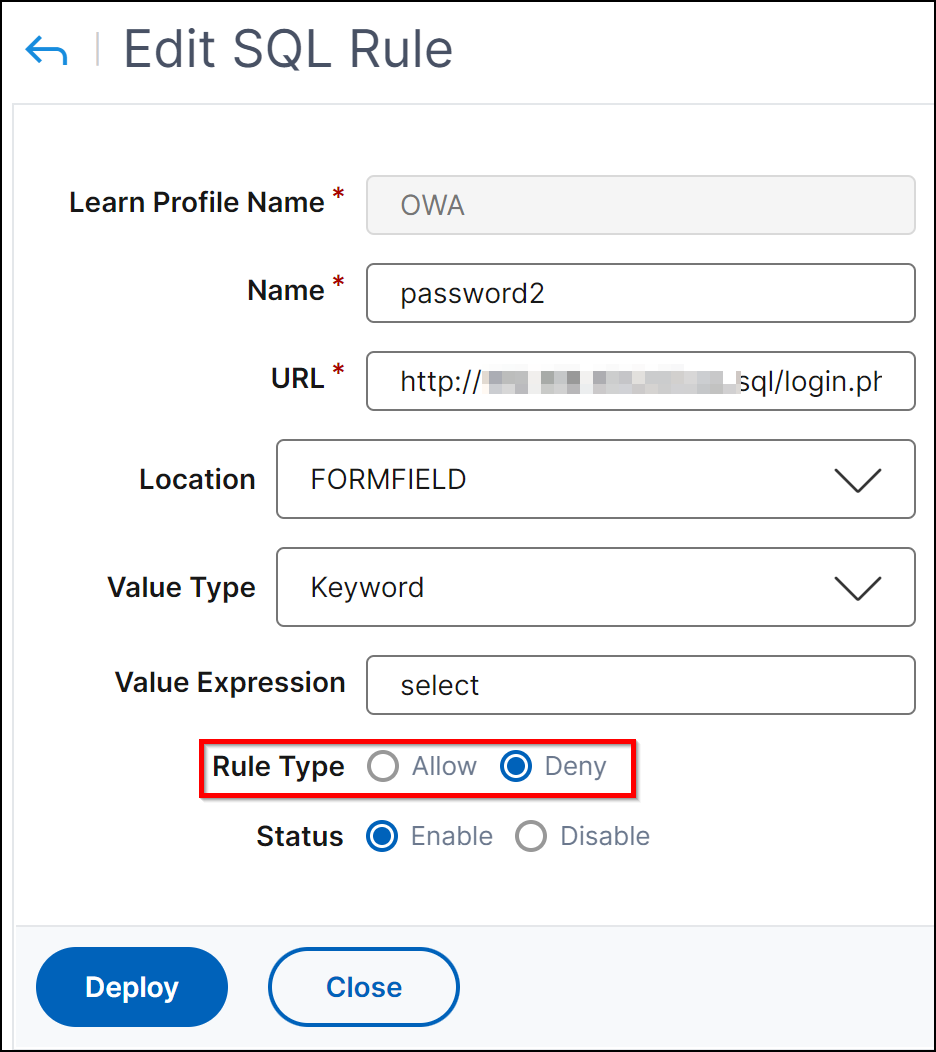 For more information, see Relaxation and deny rules for handling HTML SQL injection attacks.
 -
Delete - Enables you to delete the rule without any action.
-
Deploy as Deny - For the SQL security check, you can use this option to deny requests.
-
-
Click the Deployed Rules tab to view the deployed rules. Select a rule and choose to delete, enable, or disable the rule.
-
Click the Idle Rules tab to view the idle rules that have no traffic. Click Delete if you want to delete the rule.
NoteThe violation list is available until the configured grace duration. After the grace period, NetScaler Console deploys the available violations automatically.For each configured learned profile, you can view up to 1 million learned rules. -
Related information
Manage deny rules
In addition to relaxation (allow) mode, you can also configure and use the deny rules for handling HTML SQL injection attack security check. If you configure the HTML SQL Injection security check in deny mode, the detected violations are blocked.
In the Manage Deny Rules tab, you can view the denied rules for HTML SQL injection checks. Select the rule, validate, and click Add & Deploy, Deploy, Edit & Deploy, Delete, or Deploy as Relaxation.
-
Add & Deploy - Enables you to create a new rule with the security check options. After you create the rule, click Deploy.
-
Deploy - Enables you to deploy the denied rule.
-
Edit & Deploy - Enables you to edit the rule before you want to deploy.
-
Delete - Enables you to delete the rule without any action.
-
Deploy as Relaxation - Allows the traffic.