
ECDHE ciphers
All NetScaler appliances support the ECDHE cipher group on the front end and the back end. On an SDX appliance, if an SSL chip is assigned to a VPX instance, the cipher support of an MPX appliance applies. Otherwise, the normal cipher support of a VPX instance applies.
For more information about the builds and platforms that support these ciphers, see Ciphers available on the NetScaler appliances.
ECDHE cipher suites use elliptical curve cryptography (ECC). Because of its smaller key size, ECC is especially useful in a mobile (wireless) environment or an interactive voice response environment, where every millisecond is important. Smaller key sizes save power, memory, bandwidth, and computational cost.
A NetScaler appliance supports the following ECC curves:
-
P_256
-
P_384
-
P_224
-
P_521
-
X_25519 (Supported only on TLS 1.3 on the front end in release 14.1-12.x and later. Supported on TLS 1.2 and 1.3 on the backend in release 14.1-25.x and later).
You can bind all five curves to the SSL front-end entities. By default, the curves are bound in the following order: X_25519, P_256, P_384,P_224,P_521. When you upgrade to release 14.1-12.x, the curve bindings in any existing SSL virtual servers and SSL profiles aren’t modified. To use X25519, you must modify the configuration and bind X25519 manually. Alternately, to add X25519 at the front of the list, use the 'ALL' ec_curve option in the
bind ssl vserver or bind ssl profile commands. This command internally unbinds and binds all the curves in the default order.
You can bind the first four ECC curves to the SSL back-end entities. By default, all four curves are bound in the following order: P_256, P_384,P_224,P_521.
To change the order, you must first unbind all the curves, and then bind them in the desired order.
Related information
Bind ECC curves to an SSL virtual server by using the CLI
ECC curves supported: P_256, P_384, P_224, P_521, and X_25519.
At the command prompt, type:
bind ssl vserver <vServerName > -eccCurveName <eccCurveName >
Example:
bind ssl vserver  v1 -eccCurveName P_224

 sh ssl vserver v1

 Advanced SSL configuration for VServer v1:
 DH: DISABLED
 Ephemeral RSA: ENABLED Refresh Count: 0
 Session Reuse: ENABLED Timeout: 120 seconds
 Cipher Redirect: DISABLED
 SSLv2 Redirect: DISABLED
 ClearText Port: 0
 Client Auth: DISABLED
 SSL Redirect: DISABLED
 Non FIPS Ciphers: DISABLED
 SNI: DISABLED
 SSLv2: DISABLED SSLv3: ENABLED TLSv1.0: ENABLED  TLSv1.1: DISABLED  TLSv1.2: DISABLED
 Push Encryption Trigger: Always
 Send Close-Notify: YES
 ECC Curve: P_224

 1) Cipher Name: DEFAULT
 Description: Predefined Cipher Alias
 Done
Bind ECC curves to an SSL virtual server by using the GUI
ECC curves supported: P_256, P_384, P_224, P_521, and X_25519.
-
Navigate to Traffic Management > Load Balancing > Virtual Servers.
-
Select an SSL virtual server and click Edit.
-
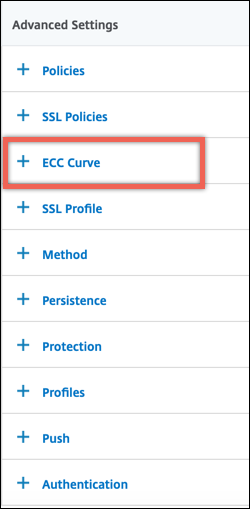
In Advanced Settings, click ECC Curve.
-
Click inside the ECC curve section.
-
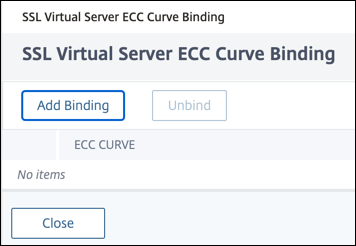
In the SSL Virtual Server ECC Curve Binding page, click Add Binding.
-
In ECC Curve Binding, click Select ECC Curve.
-
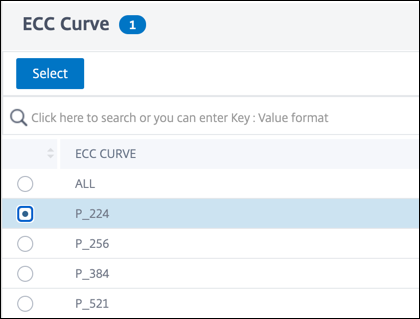
Select a value, and then click Select.
-
Click Bind.
-
Click Close.
-
Click Done.
Bind ECC curves to an SSL service by using the CLI
ECC curves supported: P_256, P_384, P_224, P_521 and X_25519.
At the command prompt, type:
bind ssl service <ServiceName > -eccCurveName <eccCurveName >
Example:
> bind ssl service sslsvc -eccCurveName P_224

 > sh ssl service sslsvc

     Advanced SSL configuration for Back-end SSL Service sslsvc:
     DH: DISABLED
     DH Private-Key Exponent Size Limit: DISABLED    Ephemeral RSA: DISABLED
     Session Reuse: ENABLED      Timeout: 300 seconds
     Cipher Redirect: DISABLED
     ClearText Port: 0
     Server Auth: DISABLED
     SSL Redirect: DISABLED
     Non FIPS Ciphers: DISABLED
     SNI: DISABLED
     OCSP Stapling: DISABLED
     SSLv3: ENABLED  TLSv1.0: ENABLED  TLSv1.1: ENABLED  TLSv1.2: ENABLED  TLSv1.3: DISABLED
     Send Close-Notify: YES
     Strict Sig-Digest Check: DISABLED
     Zero RTT Early Data: ???
     DHE Key Exchange With PSK: ???
     Tickets Per Authentication Context: ???

     ECC Curve: P_224


 1)  Cipher Name: DEFAULT_BACKEND
     Description: Default cipher list for Backend SSL session
  Done
Bind ECC curves to an SSL service group by using the CLI
ECC curves supported: P_256, P_384, P_224, P_521 and X_25519.
At the command prompt, type:
bind ssl servicegroup <ServicegroupName > -eccCurveName <eccCurveName >
Example:
> bind ssl service sslsg -eccCurveName X_25519

 > sh ssl service sslsvc

     Advanced SSL configuration for Back-end SSL Service Group sslsg:
     Session Reuse: ENABLED        Timeout: 300 seconds
     Server Auth: DISABLED
     Non FIPS Ciphers: DISABLED
     SNI: DISABLED
     OCSP Stapling: DISABLED
     SSLv3: ENABLED  TLSv1.0: ENABLED  TLSv1.1: ENABLED  TLSv1.2: ENABLED  TLSv1.3: DISABLED
     Send Close-Notify: YES
     Strict Sig-Digest Check: DISABLED

     ECC Curve: X_25519


 1)  Cipher Name: DEFAULT_BACKEND
     Description: Default cipher list for Backend SSL session
  Done
Bind ECC curves to an SSL service by using the GUI
-
Navigate to Traffic Management > Load Balancing > Services.
-
Select an SSL service and click Edit.
-
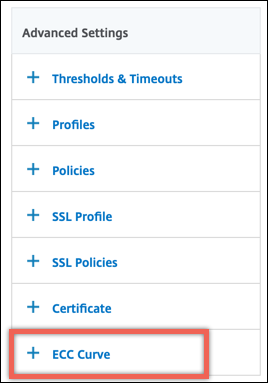
In Advanced Settings, click ECC Curve.
-
Click inside the ECC curve section.
-
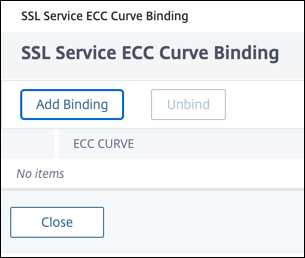
In the SSL Service ECC Curve Binding page, click Add Binding.
-
In ECC Curve Binding, click Select ECC Curve.
-
Select a value, and then click Select.
-
Click Bind.
-
Click Close.
-
Click Done.
Bind ECC curves to an SSL service groups by using the GUI
-
Navigate to Traffic Management > Load Balancing > Service Groups.
-
Select an SSL service group and click Edit.
-
In Advanced Settings, click ECC Curve.
-
Click inside the ECC curve section.
-
In the SSL Service Group ECC Curve Binding page, click Add Binding.
-
In ECC Curve Binding, click Select ECC Curve.
-
Select a value, and then click Select.
-
Click Bind.
-
Click Close.
-
Click Done.