
Configure a GSLB virtual server
A GSLB virtual server is an entity that represents one or more GSLB services and balances traffic between them. It evaluates the configured GSLB methods or algorithms to select a GSLB service to which to send the client request.
Note
A GSLB virtual server protocol requirement is mainly to create a relation between the virtual server and the services that are bound to the virtual server. This also keeps CLI/APIs consistent for other types of virtual servers. The Service Type parameter on a service or a virtual server is not used while serving the DNS requests. It is instead referenced during site persistence, monitoring, and for doing lookups via MEP.
Related information
To create a GSLB virtual server by using the command line interface
At the command prompt, type the following commands to add a GSLB virtual server and verify the configuration:
-  add gslb vserver <name> <serviceType> -dnsRecordType <A| AAAA| CNAME| NAPTR>
 -  show gslb vserver <name>
Example:
add gslb vserver Vserver-GSLB-1 HTTP -dnsRecordType A
 add gslb vserver Vserver-GSLB-2 HTTP -dnsRecordType AAAA
 show gslb vserver Vserver-GSLB-1
 show gslb vserver Vserver-GSLB-2
To modify or remove a GSLB virtual server by using the command line interface
-
To modify a GSLB virtual server, use the
set gslb vservercommand. This command works similar to theadd gslb vservercommand, except that you enter the name of an existing GSLB virtual server. -
To reset a parameter to its default value, you can use the
unset gslb vservercommand followed by the vserverName value and the name of the parameter to be unset. -
To remove a GSLB virtual server, use the
rm gslb vservercommand, which accepts only the name argument.
To configure a GSLB virtual server by using the configuration utility
-
Navigate to Traffic Management > GSLB > Virtual Servers.
-
Add a new GSLB virtual server, or select an existing GSLB virtual server and edit its settings.
To view the statistics of a GSLB virtual server by using the command line interface
At the command prompt, type:
stat gslb vserver <name>
Example:
stat gslb vserver Vserver-GSLB-1
To view the statistics of a GSLB virtual server by using the configuration utility
Navigate to Traffic Management > GSLB > Virtual Servers, select the virtual server and click Statistics.
GSLB virtual server statistics
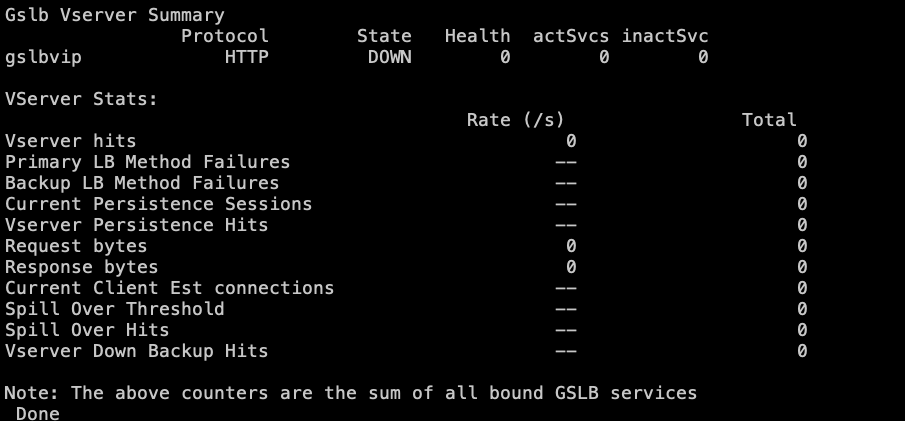
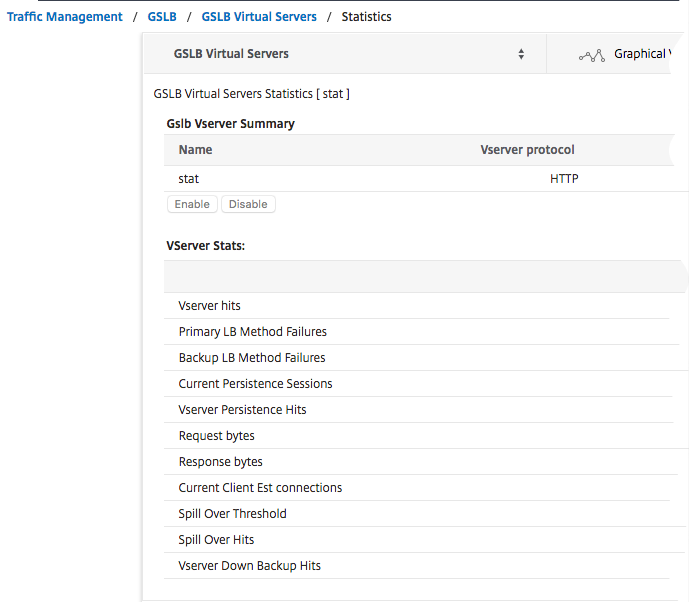
Starting from NetScaler version 12.1 build 51.xx and later, the GSLB virtual server statistics also display the following information in addition to details such as; virtual server hits, current persistence session, request bytes, response bytes, spillover threshold, spillover hits, current client established connections, and virtual server down backup hits.
-
Primary LB method failures: Number of times the primary GSLB method has failed.
-
Backup LB method failures: Number of times the backup GSLB method has failed.
-
Vserver persistence hits: The number of times the request is served through the persistence sessions.
The GSLB virtual server statistics also display the statistics of the service group members bound to the virtual server.
Note: The primary or the backup method can fail when the primary method is static proximity and the backup method is RTT. In this scenario, if there is no location corresponding to LDNS IP, the static proximity fails and the backup method is attempted. The statistics are updated based on the following:
-
If the backup method is successful, only primary method failure statistics are incremented.
-
If the RTT calculation is not successful, then the backup method also fails. In this case, both primary and backup method failure statistics are incremented.
When the backup method fails, the last resort method of round robin is used.
The following image is a sample of GSLB virtual server statistics from the CLI.
The following image is a sample of GSLB virtual server statistics from the GUI.
GSLB service statistics
When you run the
stat gslb service command from the command line or click the Statistics link from the configuration utility, the following details of the service are displayed:
-
Request bytes. Total number of request bytes received on this service or virtual server.
-
Response bytes. Number of response bytes received by this service or virtual server.
-
Current client established connections. Number of client connections in ESTABLISHED state.
-
Current load on the service. Load on the service (Calculated from the load monitor bound to the service).
The data of the number of requests and responses, and the number of current client and server connections may not be displayed or may not be synchronized with the data of the corresponding load balancing virtual server.
Clearing the GSLB virtual server or service statistics
Note: This feature is available in NetScaler release 10.5.e.
You can now clear the statistics of a GSLB virtual server and service. NetScaler provides the following two options to clear the statistics:
-
Basic: Clears the statistics that are specific to the virtual server but retains the statistics that are contributed by the bound GLSB service.
-
Full: Clears both the virtual server and the bound GSLB service statistics.
To clear the statistics of a GSLB virtual server by using the command line interface
At the command prompt, type:
stat gslb vserver <name> -clearstats <basic | full>
Example:
stat gslb vserver Vserver-GSLB-1 –clearstats basic
To clear the statistics of a GSLB service by using the command line interface
At the command prompt, type:
stat gslb service <name> -clearstats <basic | full>
Example:
stat gslb service service-GSLB-1 –clearstats basic
To clear the statistics of a GSLB virtual server by using the configuration utility
-
Navigate to Traffic Management > GSLB > Virtual Servers.
-
Select the GSLB virtual server and, click Statistics, and then click Clear.
-
From the Clear drop-down list, select Basic or Full, and then click OK.
To clear the statistics of a GSLB service by using the configuration utility
-
Navigate to Traffic Management > GSLB > Services.
-
Select the GSLB service and, click Statistics, and then click Clear.
-
From the Clear drop-down list, select Basic or Full, and then click OK.
Enabling and Disabling GSLB Virtual Servers
When you create a GSLB virtual server, it is enabled by default. If you disable the GSLB virtual server, upon receiving a DNS request, the NetScaler appliance does not make any GSLB decision based on the GSLB method that is configured. Instead, the response to the DNS query contains the IP addresses of all the services bound to the virtual server.
To enable or disable a GSLB virtual server by using the command line interface
At the command prompt, type one of the following commands:
enable gslb vserver <name>@

 disable gslb vserver <name>@
Example:
enable gslb vserver Vserver-GSLB-1
 disable gslb vserver Vserver-GSLB-1
To enable or disable a GSLB virtual server by using the configuration utility
-
Navigate to Traffic Management > GSLB > Virtual Servers.
-
Select a virtual server and, from the Action list, select enable or disable.
Use cases - GSLB virtual server
The following are some of the use cases where you can configure GSLB virtual servers: