
Buffer overflow check
The Buffer Overflow check detects attempts to cause a buffer overflow on the web server. If the Web App Firewall detects that the URL, cookies, or header are longer than the configured length, it blocks the request because it can cause a buffer overflow.
The Buffer Overflow check prevents attacks against insecure operating-system or web-server software that can crash or behave unpredictably when it receives a data string that is larger than it can handle. Proper programming techniques prevent buffer overflows by checking incoming data and either rejecting or truncating overlong strings. Many programs, however, do not check all incoming data and are therefore vulnerable to buffer overflows. This issue especially affects older versions of web-server software and operating systems, many of which are still in use.
The Buffer Overflow security check allows you to configure the Block, Log, and Stats actions. In addition, you can also configure the following parameters:
-
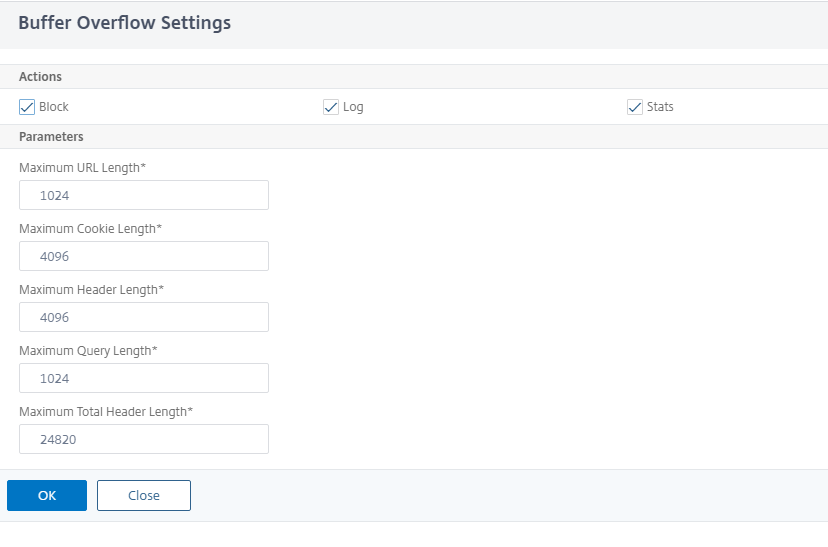
Maximum URL Length. The maximum length the Web App Firewall allows in a requested URL. Requests with longer URLs are blocked. Possible Values: 0–65535. Default: 1024
-
Maximum Cookie Length. The maximum length the Web App Firewall allows for all cookies in a request. Requests with longer cookies trigger the violations. Possible Values: 0–65535. Default: 4096
-
Maximum Header Length. The maximum length the Web App Firewall allows for HTTP headers. Requests with longer headers are blocked. Possible Values: 0–65535. Default: 4096
-
Query string length. Maximum length allowed for query string in an incoming request. Requests with longer queries are blocked. Possible Values: 0–65535. Default: 1024
-
Total request length. Maximum request length allowed for an incoming request. Requests with longer length are blocked. Possible Values: 0–65535. Default: 24820
Related information
Using the command line to configure the Buffer Overflow security check
To configure Buffer Overflow security check actions and other parameters by using the command line
At the command prompt, type:
add appfw profile <name> -bufferOverflowMaxURLLength <positive_integer> -bufferOverflowMaxHeaderLength <positive_integer> - bufferOverflowMaxCookieLength <positive_integer> -bufferOverflowMaxQueryLength <positive_integer> -bufferOverflowMaxTotalHeaderLength <positive_integer>
Example:
add appfw profile profile1 –bufferOverflowMaxURLLength 7000 –bufferOverflowMaxHeaderLength 7250 – bufferOverflowMaxCookieLength 7100 –bufferOverflowMaxQueryLength 7300 –bufferOverflowMaxTotalHeaderLength 7300
Configure buffer overflow security check by using the NetScaler GUI
-
Navigate to Security > Web App Firewall and Profiles.
-
On the Profiles page, select a profile and click Edit.
-
On the NetScaler Web App Firewall Profile page, go to Advanced Settings section and click Security Checks.
-
In Security Checks section, select Buffer Overflow and click Action Settings.
-
In the Buffer Overflow Settings page, set the following parameters. a. Actions. Select one or more actions to perform for command injection security check. b. Maximum URL Length. Maximum length, in characters, for URLs on your protected websites. Requests with longer URLs are blocked. c. Maximum Cookie Length. Maximum length, in characters, for cookies sent to your protected websites. Requests with longer cookies are blocked. d. Maximum Header Length. Maximum length, in characters, for HTTP headers in requests sent to your protected websites. Requests with longer headers are blocked. e. Maximum Query Length. Maximum length, in bytes, for query string sent to your protected websites. Requests with longer query strings are blocked. f. Maximum Total Header Length. Maximum length, in bytes, for the total HTTP header length in requests sent to your protected websites. The minimum value of this and maxHeaderLen in httpProfile will be used. Requests with longer length are blocked.
-
Click OK and Close.
Using the Log Feature with the Buffer Overflow Security Check
When the log action is enabled, the Buffer Overflow security check violations are logged in the audit log as APPFW_BUFFEROVERFLOW_URL, APPFW_BUFFEROVERFLOW_COOKIE, and APPFW_BUFFEROVERFLOW_HDR violations. The Web App Firewall supports both Native and CEF log formats. You can also send the logs to a remote syslog server.
If you use the GUI to review the logs, you can use the click-to-deploy feature to apply relaxations indicated by the logs.
To access the log messages by using the command line
Switch to the shell and tail the ns.logs in the /var/log/ folder to access the log messages pertaining to the Buffer overflow violations:
> **Shell**
 > **tail -f /var/log/ns.log | grep APPFW_BUFFEROVERFLOW**
Example of a CEF log message showing bufferOverflowMaxCookieLength violation in non-block mode
Oct 22 17:35:20 <local0.info> 10.217.31.98 CEF:0|Citrix|NetScaler|NS11.0|APPFW|**APPFW_BUFFEROVERFLOW_COOKIE**|6|src=10.217.253.62 geolocation=Unknown spt=41198 method=GET request=http://aaron.stratum8.net/FFC/sc11.html **msg=Cookie header length(43) is greater than maximum allowed(16).** cn1=119 cn2=465 cs1=owa_profile cs2=PPE1 cs3=wvOOOb+cJ2ZRbstZpyeNXIqLj7Y0001 cs4=ALERT cs5=2015 **act=not blocked**
Example of a CEF log message showing bufferOverflowMaxURLLength violation in non-block mode
Oct 22 18:39:56 <local0.info> 10.217.31.98 CEF:0|Citrix|NetScaler|NS11.0|APPFW|**APPFW_BUFFEROVERFLOW_URL**|6|src=10.217.253.62 geolocation=Unknown spt=19171 method=GET request=http://aaron.stratum8.net/FFC/sc11.html **msg=URL length(39) is greater than maximum allowed(20).** cn1=707 cn2=402 cs1=owa_profile cs2=PPE0 cs3=kW49GcKbnwKByByi3+jeNzfgWa80000 cs4=ALERT cs5=2015 **act=not blocked**
Example of a Native Format Log message showing bufferOverflowMaxHeaderLength violation in block mode
Oct 22 18:44:00 <local0.info> 10.217.31.98 10/22/2015:18:44:00 GMT ns 0-PPE-2 : default APPFW **APPFW_BUFFEROVERFLOW_HDR** 155 0 : 10.217.253.62 374-PPE2 khhBEeY4DB8V2D3H2sMLkXmfWnA0002 owa_profile **Header(User-Agent) length(82) is greater than maximum allowed(10)** : http://aaron.stratum8.net/ **<blocked>**
To access the log messages by using the GUI
The GUI includes a useful tool (Syslog Viewer) for analyzing the log messages. You have multiple options for accessing the Syslog Viewer:
-
Navigate to the Application Firewall > Profiles, select the target profile, and click Security Checks. Highlight the Buffer Overflow row and click Logs. When you access the logs directly from the Buffer Overflow Security Check of the profile, the GUI filters out the log messages and displays only the logs pertaining to these security check violations.
-
You can also access the Syslog Viewer by navigating to NetScaler® > System > Auditing. In the Audit Messages section, click the Syslog messages link to display the Syslog Viewer, which displays all log messages, including other security check violation logs. This is useful for debugging when multiple security check violations might be triggered during request processing.
-
Navigate to Application Firewall > policies > Auditing. In the Audit Messages section, click the Syslog messages link to display the Syslog Viewer, which displays all log messages, including other security check violation logs.
The XML based Syslog Viewer provides various filter options for selecting only the log messages that are of interest to you. To select log messages for the Buffer Overflow check, filter by selecting APPFW in the drop-down list options for Module. The Event Type list offers three options, APPFW_BUFFEROVERFLOW_URL, APPFW_BUFFEROVERFLOW_COOKIE, and APPFW_BUFFEROVERFLOW_HDR, to view all the log messages pertaining to buffer overflow security check. You can select one or more options to further refine your selection. For example, if you select the APPFW_BUFFEROVERFLOW_COOKIE check box and click the Apply button, only log messages pertaining to the Buffer Overflow security check violations for the Cookie header appear in the Syslog Viewer. If you place the cursor in the row for a specific log message, multiple options, such as Module, Event Type, Event ID, and Client IP, appear below the log message. You can select any of these options to highlight the corresponding information in the log message.
Click-to-Deploy: The GUI provides click-to-deploy functionality, which is currently supported only for the buffer overflow log messages pertaining to the URL Length violations. You can use the Syslog Viewer to not only view the triggered violations, but also run informed decisions based on the observed lengths of the blocked messages. If the current value is too restrictive and is triggering false positives, you can select a message and deploy it to replace the current value with the URL length value seen in the message. The log messages must be in CEF log format for this operation. If the relaxation can be deployed for a log message, a check box appears at the right edge of the Syslog Viewer box in the row. Select the check box, and then select an option from the Action list to deploy the relaxation. Edit & Deploy, Deploy, and Deploy All are available as Action options. You can use the APPFW_BUFFEROVERFLOW_URL filter to isolate all the log messages pertaining to the configured URL length violations.
If you select an individual log message, all three action options Edit & Deploy, Deploy, and Deploy All are available. If you select Edit & Deploy, the Buffer Overflow settings dialogue is displayed. The new URL length that was observed in the request is inserted into the Maximum URL length input field. If you click Close without any edits, the current configured values remain unchanged. If you click the OK button, the new value of the Maximum URL length replaces the previous value.
Note
The block, log and stats action check boxes are unchecked in the displayed Buffer Overflow settings dialogue, and need to be reconfigured if you select the Edit & Deploy option. Make sure to enable these check boxes before clicking OK, otherwise the new URL length gets configured but the actions are set to none.
If you select the check boxes for multiple log messages, you can use the Deploy or Deploy All option. If the deployed log messages have different URL lengths, the configured value gets replaced by the highest URL Length value observed in the selected messages. Deploying the rule results only in changing the bufferOverflowMaxURLLength value. Configured actions are retained and remain unchanged.
To use Click-to-Deploy functionality in the GUI
-
In the Syslog Viewer, select APPFW in the Module options.
-
Enable the APPFW_BUFFEROVERFLOW_URL check box as the Event Type to filter corresponding log messages.
-
Enable the check box to select the rule.
-
Use the Action drop-down list of options to deploy the relaxation.
-
Navigate to Application Firewall > Profiles, select the target profile, and click Security Checks to access the Buffer Overflow settings pane to verify that the Maximum URL Length value is updated.
Statistics for the Buffer Overflow violations
When the stats action is enabled, the counter for the Buffer Overflow Security Check is incremented when the Web App Firewall takes any action for this security check. The statistics are collected for Rate and Total count for Traffic, Violations, and Logs. The size of an increment of the log counter can vary depending on the configured settings. For example, if the block action is enabled, a request for a page that contains three Buffer Overflow violations increments the stats counter by one, because the page is blocked when the first violation is detected. However, if block is disabled, processing the same request increments the stat counter for violations because each violation generates a separate log message.
To display Buffer Overflow Security Check statistics by using the command line
At the command prompt, type:
> sh appfw stats
To display stats for a specific profile, use the following command:
> stat appfw profile <profile name>
To display Buffer Overflow statistics by using the GUI
-
Navigate to System > Security > Application Firewall.
-
In the right pane, access the Statistics Link.
-
Use the scroll bar to view the statistics about Buffer Overflow violations and logs. The statistics table provides real-time data and is updated every 7 seconds.
Highlights
-
The buffer overflow security check allows you to configure limits to enforce the maximum length of allowed URLs, Cookies, and Headers.
-
Block, Log and Stats actions enable you to monitor the traffic and configure optimal protection for your application.
-
Syslog viewer enables you to filter and view all the log messages pertaining to buffer overflow violations.
-
Click-to-Deploy functionality is supported for the bufferOverflowMaxURLLength violations. You can select and deploy an individual rule, or you can select multiple log messages to tweak and relax the current configured value of the maximum allowed length of the URL. The highest value of the URL from the selected group is set as the new value, to allow all these requests that are currently flagged as violations.
-
The Web App Firewall now evaluates individual cookies when inspecting the incoming request. If length of any one cookie received in the Cookie header exceeds the configured BufferOverflowMaxCookieLength, the Buffer Overflow violation is triggered.
Important
In release 10.5.e (in a few interim enhancements builds prior to 59.13xx.e build) and in the 11.0 release (in builds prior to 65.x), Web App Firewall processing of the Cookie header was changed. In those releases, every cookie is evaluated individually, and if the length of any one cookie received in the Cookie header exceeds the configured BufferOverflowMaxCookieLength, the Buffer Overflow violation is triggered. As a result of this change, requests that were blocked in 10.5 and earlier release builds might be allowed, because the length of the entire cookie header is not calculated for determining the cookie length. **** In some situations, the total cookie size forwarded to the server might be larger than the accepted value, and the server might respond with "400 Bad Request".
This change has been reverted. The behavior in the 10.5.e ->59.13xx.e and subsequent 10.5.e enhancement builds in addition to 11.0 release 65.x and subsequent builds is now similar to that of the non-enhancement builds of release 10.5. The entire raw Cookie header is now considered when calculating the length of the cookie. Surrounding spaces and the semicolon (;) characters separating the name-value pairs are also included in determining the cookie length.