
Configure bot signature setting
You can configure the following settings in the bot signature settings:
-
Configure bot allow list
-
Configure bot block list
-
Configure CAPTCHA for IP reputation
-
Bot Transactions Per second (TPS)
Related information
Configure bot allow list by using NetScaler GUI
This detection technique enables you to bypass the URLs that you configure as allowed URLs. Complete the following step to configure an allow list URL:
-
Navigate to Security > NetScaler® Bot Management and Profiles.
-
On the NetScaler Bot Management Profiles page, select a file and click Edit.
-
On the NetScaler Bot Management Profile page, go to the Signature Settings section and click Allow List.
-
In the Allow List section, set the following parameters:
-
Enabled. Select the checkbox to validate the allow list URLs as part of the detection process.
-
Configure Types. Configure an allow list URL. The URL is bypassed during bot detection. Click Add to add a URL to the bot allow list.
-
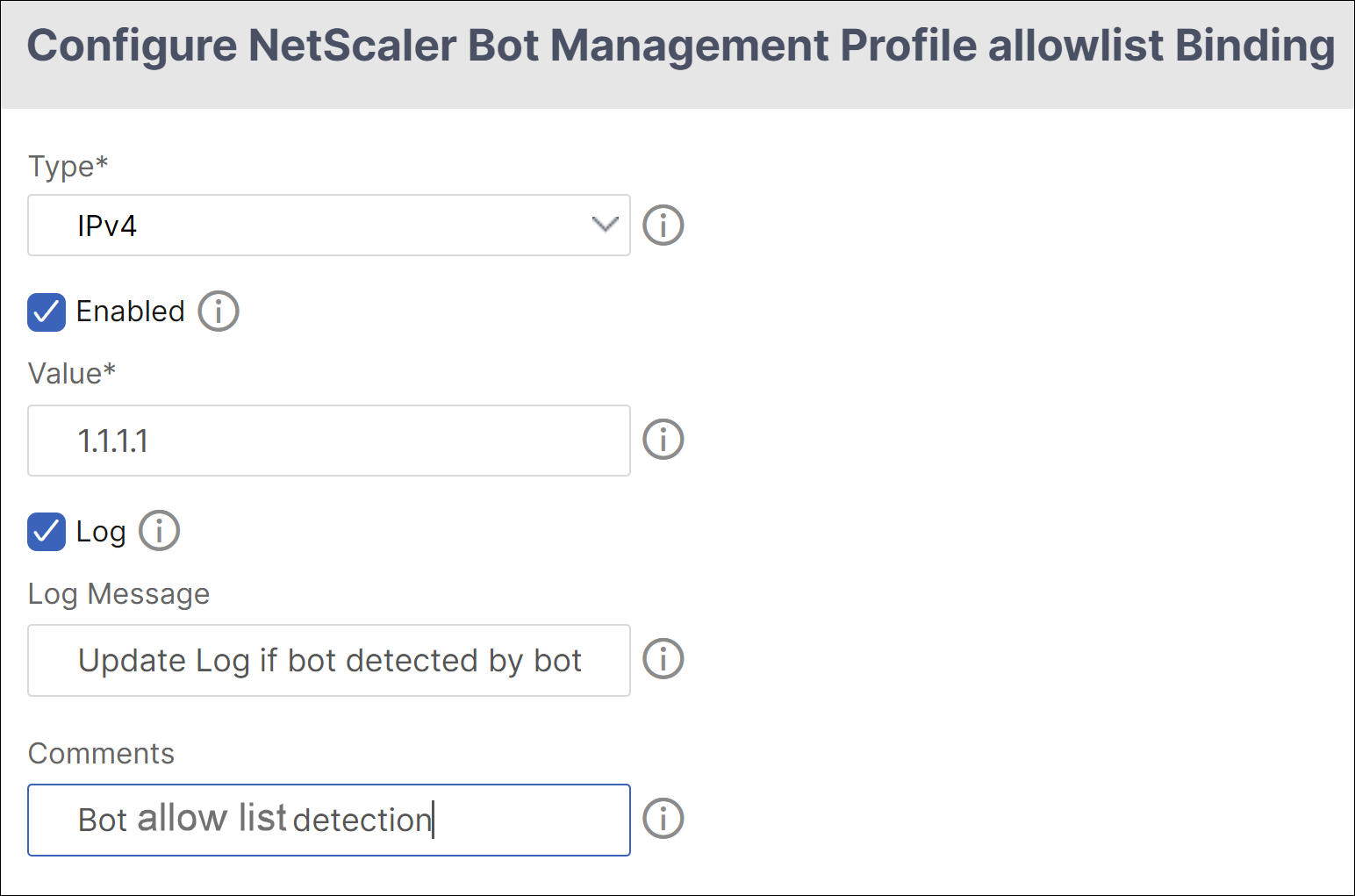
In the Configure NetScaler Bot Management Profile allowlist Binding page, set the following parameters:
-
Type. URL type can be an IPv4 address, subnet IP address, or an IP address matching a policy expression.
-
Enabled. Select the checkbox to validate the URL.
-
Value. URL address.
-
Log. Select the checkbox to store log entries.
-
Log Message. Brief description of the log.
-
Comments. Brief description about the allow list URL.
-
Click OK.
-
-
-
Click Update.
-
Click Done.
Configure bot block list by using NetScaler GUI
This detection technique enables you to drop the URLs that you configure as blocked URLs. Complete the following step to configure a block list URL.
-
Navigate to Security > NetScaler Bot Management and Profiles.
-
On the NetScaler Bot Management Profiles page, select a signature file and click Edit.
-
On the NetScaler Bot Management Profile page, go to the Signature Settings section and click Block List.
-
In the Block List section, set the following parameters:
-
Enabled. Select the checkbox to validate block list URLs as part of the detection process.
-
Configure Types. Configure a URL to be part of the bot block list detection process. These URLs are dropped during bot detection. Click Add to add a URL to the bot block list
-
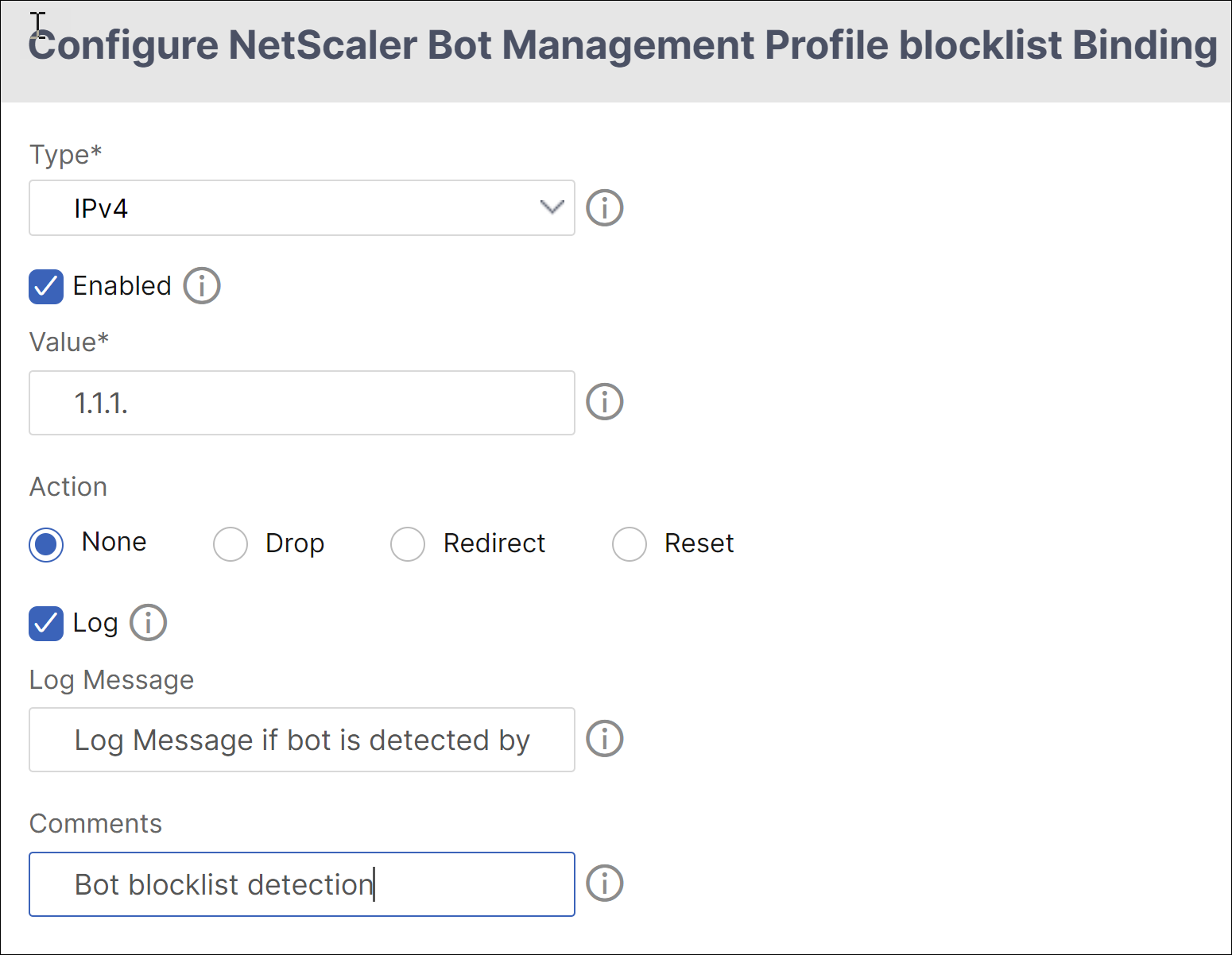
In the Configure NetScaler Bot Management Profile Blocklist Binding page, set the following parameters.
-
Type. URL type can be an IPv4 address, subnet IP address, or IP address.
-
Enabled. Select the checkbox to validate the URL.
-
Value. URL address.
-
Log. Select the checkbox to store log entries.
-
Log Message. Brief description of the login.
-
Comments. Brief description about the block list URL.
-
Click OK.
-
-
-
Click Update.
-
Click Done.
Configure CAPTCHA for IP reputation
CAPTCHA helps to block automated bots that cause security violations to web applications. In the NetScaler, CAPTCHA uses the challenge-response module to identify if the incoming traffic is from a human user and not an automated bot.
How CAPTCHA works in NetScaler bot management
In NetScaler bot management, CAPTCHA validation is configured as a policy action to be run after bot policy is evaluated. The CAPTCHA action is available only for IP reputation and device fingerprint detection techniques. Following are the steps to understand how CAPTCHA works:
-
If a security violation is observed during IP reputation or device fingerprint bot detection, the ADC appliance sends a CAPTCHA challenge.
-
The client sends the CAPTCHA response.
-
The appliance validates the CAPTCHA response and if the CAPTCHA is valid, the request is allowed and it is forwarded to the back-end server.
-
If the CATCHA response is invalid, the appliance sends a new CAPTCHA challenge until the maximum number of attempts is reached.
-
If the CAPTCHA response is invalid even after the maximum number of attempts, the appliance drops or redirects the request to the configured error URL.
-
If you have configured log action, then the appliance stores the request details in the ns.log file.
Configure CAPTCHA settings by using the NetScaler GUI
The bot management CAPTCHA action is supported only for IP reputation and device fingerprint detection techniques. Complete the following steps to configure the CAPTCHA settings.
-
Navigate to Security > NetScaler Bot Management and Profiles.
-
On the NetScaler Bot Management Profiles page, select a profile and click Edit.
-
On the NetScaler Bot Management Profile page, go to the Signature Settings section and click CAPTCHA.
-
In the CAPTCHA Settings section, click Add to configure CAPTCHA settings to the profile:
-
In the Configure NetScaler Bot Management CAPTCHA page, set the following parameters.
-
URL. Bot URL for which the CAPTCHA action is applied during IP reputation and device fingerprint detection techniques.
-
Enabled. Set this option to enable CAPTCHA support.
-
Grace time. Duration until when no new CAPTCHA challenge is sent after the current valid CAPTCHA response is received.
-
Wait time. Duration taken for the ADC appliance to wait until the client sends the CAPTCHA response.
-
Mute Period. Duration for which the client which sent an incorrect CAPTCHA response must wait until allowed to try next. During this mute period, the ADC appliance does not allow any requests. Range: 60–900 seconds, Recommended: 300 seconds
-
Request Length limit. Length of the request for which the CAPTCHA challenge is sent to the client. If the length is greater than the threshold value, the request is dropped. Default value is 10–3000 bytes.
-
Retry Attempts. Number of attempts the client is allowed to retry to solve the CAPTCHA challenge. Range: 1–10, Recommended: 5.
-
No Action/Drop/Redirect action to be taken if the client fails the CAPTCHA validation.
-
Log. Set this option to store request information from the client when response CAPTCHA fails. The data is stored in
ns.logfile. -
Comment. A brief description about the CAPTCHA configuration.
-
-
Click OK and Done.
-
Navigate to Security > NetScaler Bot Management > Signatures.
-
On the NetScaler Bot Management Signatures page, select a signature file and click Edit.
-
On the NetScaler Bot Management Signature page, go to the Signature Settings section and click Bot Signatures.
-
In the Bot Signatures section, set the following parameters:
-
Configure Static Signatures. Select a bot static signature record and click Edit to assign a bot action to it.
-
Click OK.
-
Click Update Signature.
-
Click Done.
Bot Transactions Per second (TPS)
The Transactions Per Second (TPS) bot technique detects incoming traffic as a bot if the number of requests per second (RPS) and percentage increase in RPS exceeds the configured threshold value. The detection technique protects your web applications from automated bots that can cause web scraping activities, brute forcing login, and other malicious attacks.
Note:
The bot technique detects an incoming traffic as bot only if both the parameters are configured and if both values increase beyond the threshold limit. Let us consider a scenario, where the appliance receives many requests coming from a specific URL and you want the NetScaler bot management to detect if there is a bot attack. The TPS detection technique examines the number of requests (configured value) coming from the URL within 1 second and the percentage increase (configured value) in the number of requests received within 30 minutes. If the values exceed the threshold limit, the traffic is considered as bot and the appliance runs the configured action.
To configure TPS, you must complete the following steps:
-
Enable bot TPS
-
Bind TPS settings to bot management profile
Configure bot transactions per second (TPS) using CLI
Enable bot transaction per second (TPS)
Before you can begin, you must ensure that the bot TPS feature is enabled on the appliance. At the command prompt, type:
set bot profile profile1 –tps ON
Bind TPS settings to bot management profile
Once you enable the bot TPS feature, you must bind the TPS settings to the bot management profile.
At the command prompt, type:
bind bot profile <name>… (-tps [-type ( SourceIP | GeoLocation | RequestURL | Host )] [-threshold <positive_integer>] [-percentage <positive_integer>] [-action ( none | log | drop | redirect | reset | mitigation )] [-logMessage <string>])
Example:
bind bot profile profile1 -tps -type RequestURL -threshold 1 -percentage 100000 -action drop -logMessage log
Configure bot transactions per second (TPS) by using the NetScaler GUI
Complete the following steps to configure bot transactions per second:
-
Navigate to Security > NetScaler Bot Management > Profiles.
-
In the NetScaler Bot Management Profiles page, select a profile and click Edit.
-
In the Create NetScaler Bot Management Profile page, click TPS under Signature Settings section.
-
In the TPS section, enable the feature and click Add.
-
In Configure NetScaler bot Management Profile TPS Binding page, set the following parameters.
-
Type - Input types allowed by the detection technique. Possible values: SOURCE IP, GEOLOCATION, HOST, URL.SOURCE_IP – TPS based on client IP address.GEOLOCATION – TPS based on the client's geographic location.HOST - TPS based on client requests forwarded to a specific back-end server IP address.URL – TPS based on client requests coming from a specific URL.
-
Fixed Threshold - Maximum number of requests allowed from a TPS input type within 1 second time interval.
-
Percentage Threshold - Maximum percentage increase in requests from a TPS input type within 30 minute time interval.
-
Action - Action to be taken for bot detected by TPS binding.
-
Log - Enable or disable logging for TPS binding.
-
Log Message. Message to log for bot detected by TPS binding. Maximum Length: 255.
-
Comments - A brief description about the TPS configuration. Maximum Length: 255
-
-
Click OK and then Close.