Configure domain drop-down, username, and password field in the first factor and policy evaluation based on groups in the next factor
The following section describes the use case of configuring domain drop-down, username, and password field in the first factor and policy evaluation based on groups in the next factor.
Use Case: Configure domain drop-down, username, and password field in the first factor and policy evaluation based on groups in the next factor.
-
User logs in to Citrix Workspace and gets redirected to authentication virtual server.
-
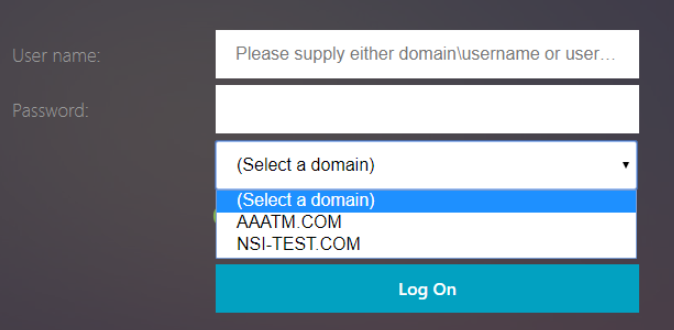
NetScaler presents a logon form with a domain drop-down list, username, and password field.
-
User selects a value from the domain drop-down list and enters credentials.
-
NetScaler presents a logon form based on the user input.
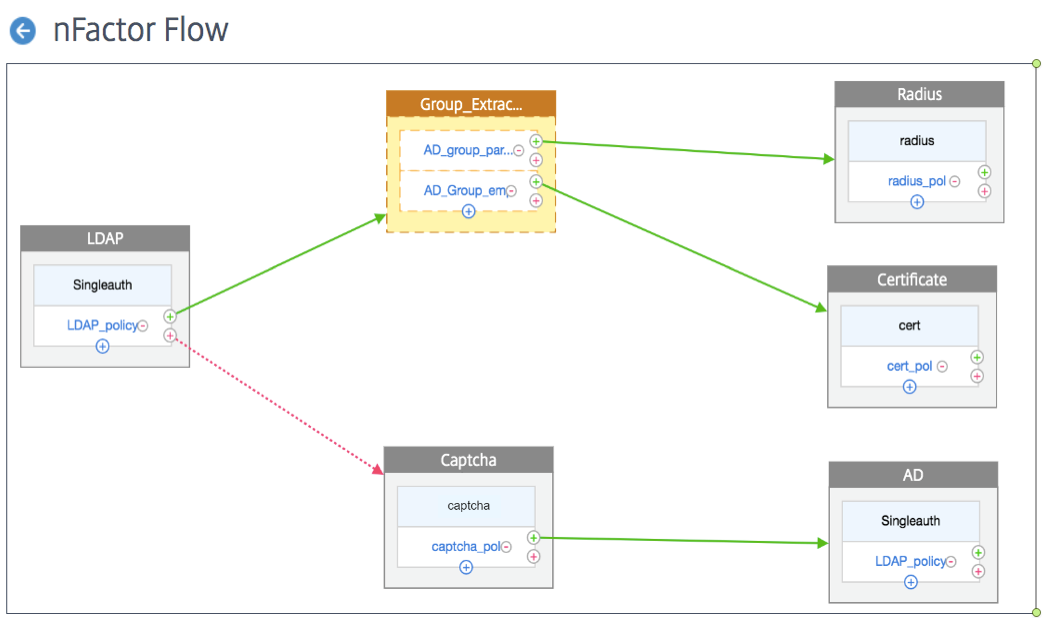
The following diagram shows a sample nFactor visualizer flow.
Related information
Configure domain drop-down, username, and password field in the first factor and policy evaluation based on groups in the next factor using nFactor visualizer
Following are the steps to configure.
-
Navigate to Security > AAA-Application Traffic > nFactor Visualizer > nFactor Flow and click Add.
-
Click the plus icon to add a factor in the nFactor Flow.
-
Enter a name for the Factor.
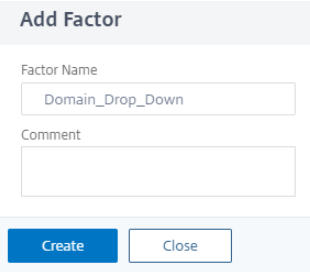
-
Add the schema for the First Factor by clicking on Add Schema.
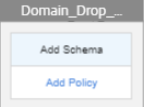
-
Create a EULA_Schema by selecting the DomainDropdown.xml login schema.
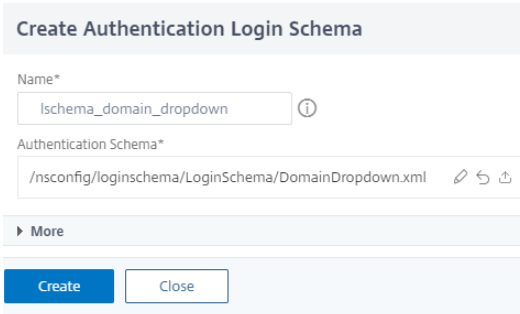
-
Choose the schema for the first factor created in step 5.
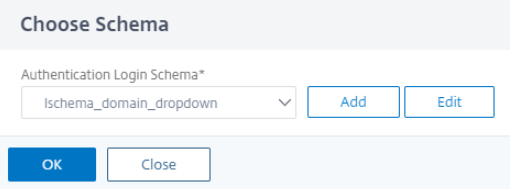
-
Click Add Policy and choose the LDAP Policy for first authentication.
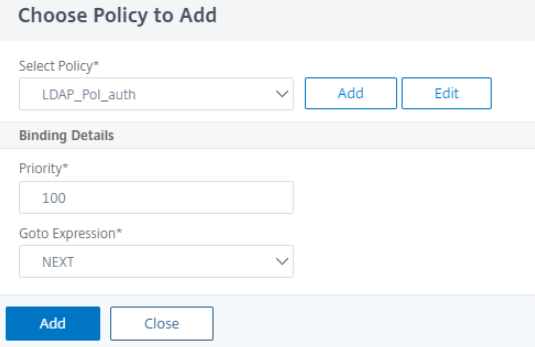
-
Click the plus icon to create a decision block.
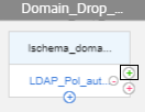 For more information on creating LDAP Authentication see, Configuring LDAP Authentication
 -
Select Create decision block and enter a name in Decision Factor Name field.
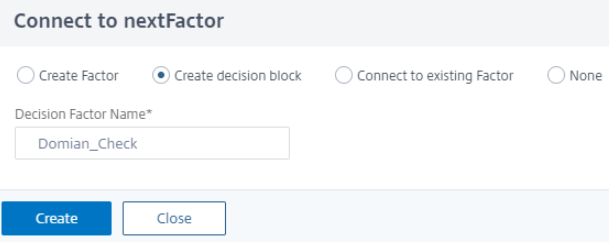
-
Click Add Policy to create a policy for the domain check.
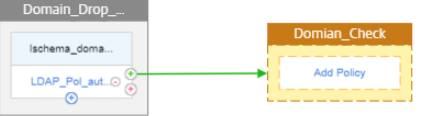
-
To create a policy to check for domain, select NO_AUTHN under Action Type.
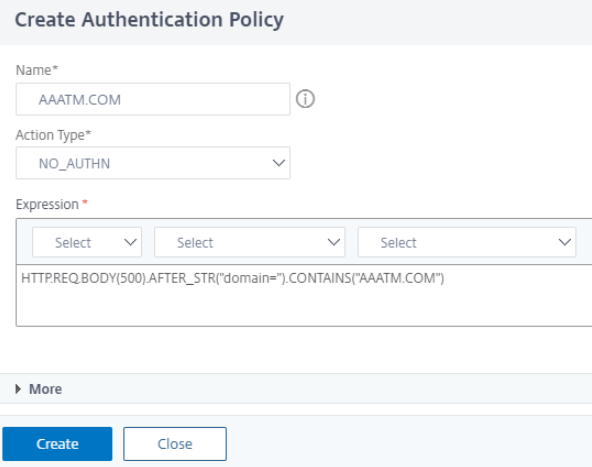
-
Choose the previously created policy to add in decision block.
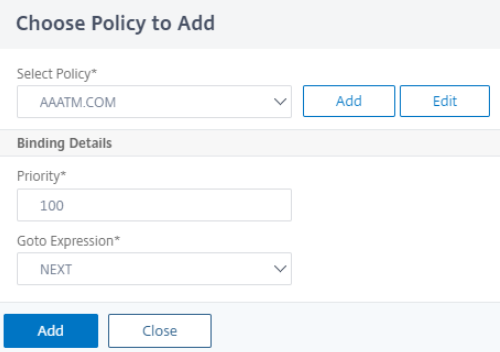
-
Click the plus icon below the newly created policy to add another policy for checking
AAATM.COM.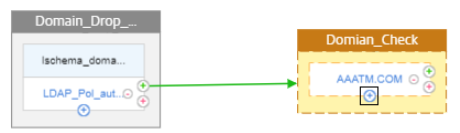
-
Create another policy to check for the second domain.
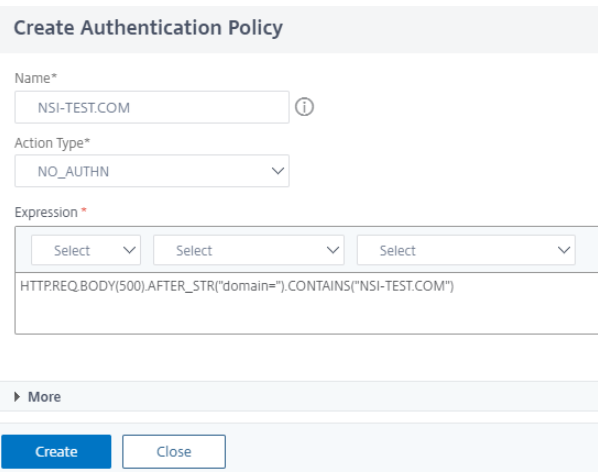
-
Choose the policy created in the previous step to add in decision block.
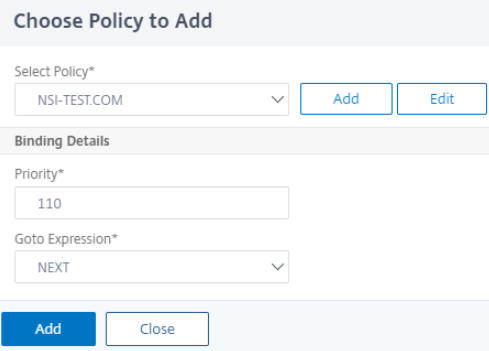
-
Select the + sign next to
AAATM.COMto add factor that is evaluated if user is a part ofAAATM.COM. In this case, add an LDAP Policy.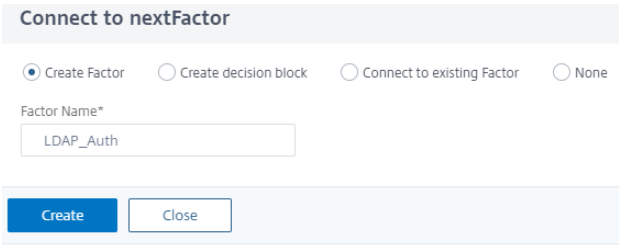
-
Choose a schema for domain
AAATM.COMusers. In this example, password only schema is used that gives user a text field to enter the Password.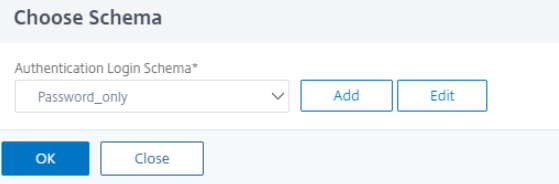
-
Follow step 7 add the policy for authenticating users of
AAATM.COMdomain -
Select the + sign next to
NSI-TEST.COMto add factor that will be evaluated if user is a part ofNSI-TEST.COM. In this example RADIUS authentication menthod is used.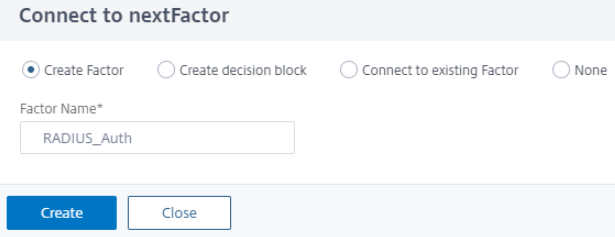
-
Follow step 17 to add a schema password only and then add the policy for RADIUS as shown in step 7.
-
Click Done. The configuration is saved automatically.
-
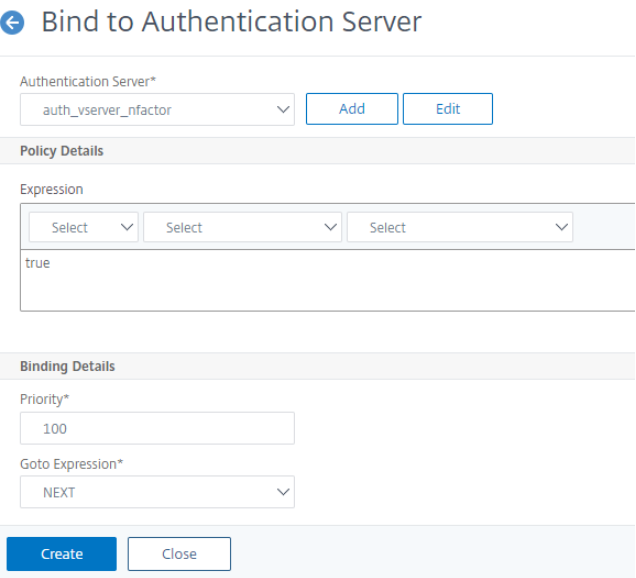
Select the nFactor Flow just created and bind it to a AAA Virtual Server by clicking Bind to Authentication Server and clicking Create
Note
Bind and Unbind the nFactor Flow through the option given in nFactor Flow under Show Bindings only.
To unbind the nFactor Flow, do the following.
-
Select the nFactor Flow and click Show Bindings.
-
Select the Authentication VServer and click Unbind.
Note
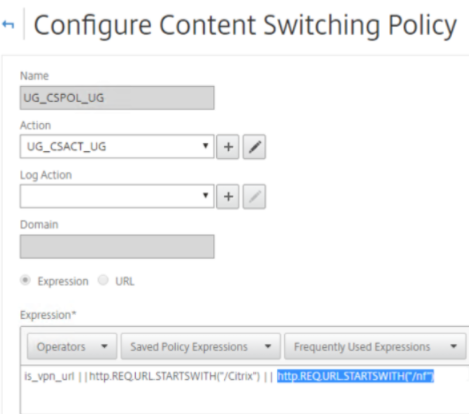
For Login Schema to work, "/nf" is added to the Content Switching policy expression, when using Unified Gateway.
Configure domain drop-down, username, and password field in the first factor and policy evaluation based on groups in the next factor using CLI
The following configuration describes adding a TM virtual server for resource access, adding authentication virtual server for securing TM virtual server, and relevant policies for this use-case.
add lb vserver lbn HTTP 10.217.28.166 80 -persistenceType NONE -cltTimeout 180 -AuthenticationHost auth.nsi-test.com -Authentication ON -authnVsName avn

 add authentication vserver avn SSL 10.217.28.167 443 -AuthenticationDomain nsi-test.com
 add authentication login Schema nfactor-domain -authenticationSchema domain-dropdown.xml
 add authentication policylabel nfactor-domain-pol -loginSchema nfactor-domain
 add authentication Policy radius-auth -rule "HTTP.REQ.BODY(500).AFTER_STR(\"domain=\").CONTAINS(\"NSI-TEST.COM\")" -action <RADIUS-ACTION>
 add authentication Policy next_ldap -rule "HTTP.REQ.BODY(500).AFTER_STR(\"domain=\").CONTAINS(\"AAATM.COM\")" -action <LDAP-ACTION>

 bind authentication vserver avn -policy radius-auth -priority 10 -gotoPriorityExpression NEXT
 bind authentication vserver avn -policy next_ldap -priority 20 -gotoPriorityExpression END
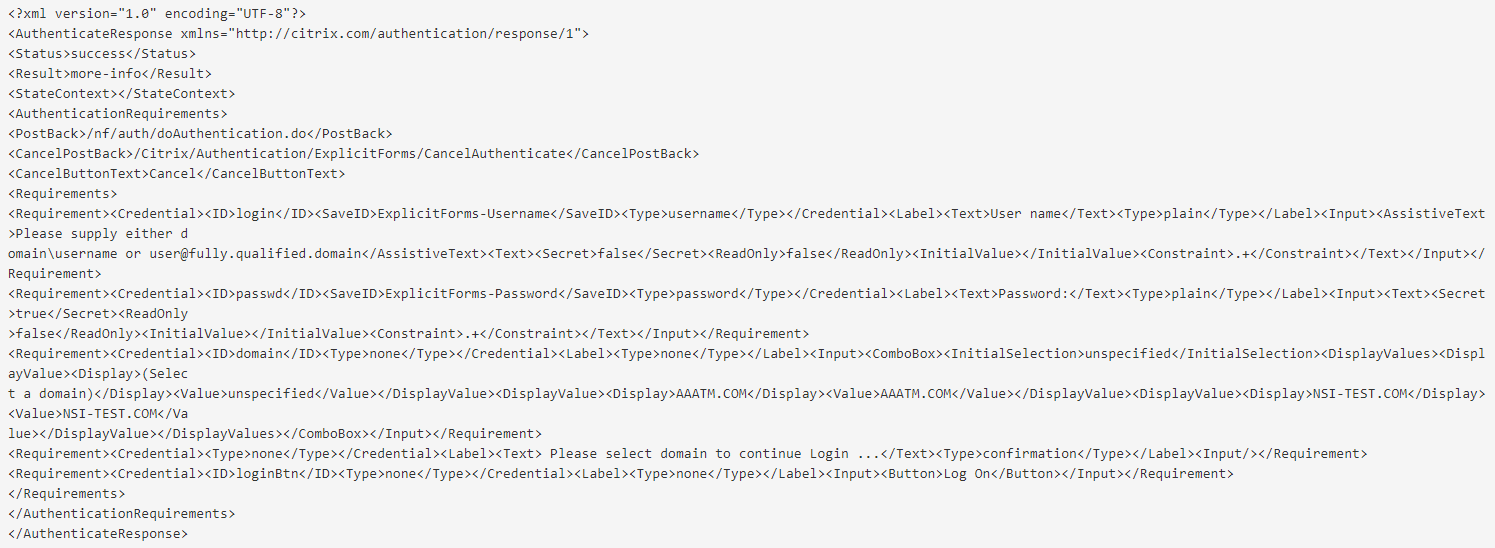
The following is an example used for this specific representation of logon form.
Note
This login Schema need not be separately configured on latest builds of NetScaler and is present as DomainDropdown.xml