
File upload protection
Many attackers try to upload malicious code, virus, or malware as file attachments during multi-form submission. It is important to protect our network and overcome such threats. To prevent such malicious file uploads, a NetScaler admin configures a set of allowable file upload formats in the WAF profile. By doing this, you restrict file uploads to specific formats and protect the appliance against malicious file uploads. The protection works only when you disable the
ExcludeFileUploadFormChecks option in the WAF profile.
Related information
How file upload works
When you configure allowable file upload formats, the component interaction is as follows:
-
Client request has a form submission with a file upload type, for example PDF.
-
As part of the security check, WAF inspects the request payload and validates the file type (based on magic signature numbers).
-
If the file type is not in a supported format, the corresponding action based on file type binding is applied.
-
To validate the file type the appliance inspects the payload and checks for the known magic numbers at known offsets. Each file type has a sequence of magic numbers that validates the file type.
Configure file type upload by using NetScaler CLI
To configure allowable file formats, the appliance uses a WAF profile that is bound to file upload parameters.
-
Configure Web Application Firewall profile
At the command prompt, type:
set appfw profile <profile_name> [-fileUploadTypesAction <fileUploadTypesAction>]<fileUploadTypesAction> = ( none | block | log | stats )
Example
set appfw profile profile1 –fileUploadTypesAction block
-
Bind Web Application Firewall profile with file upload parameters. The command binds the specified exemption (relaxation) or rule to the specified application firewall profile.
At the command prompt, type:
bind appfw profile <profile_name> - fileUploadType <form_field > <form_action_url> [-isNameRegex ( REGEX | NOTREGEX )] -fileType <fileType> ( pdf | msdoc | text | image | any)
Note:
The form field name is a regular expression type. The default value is
NOTREGEX.
Example
> bind appfw profile test -fileuploadType thefile "http://10.10.10.10/fileupload_sample/upload.php" -isNameRegex NOTREGEX -filetype image
-->
Configure file upload security protection by using NetScaler GUI
-
In the navigation pane, navigate to Security > Profiles.
-
In the Profiles page, click Add.
-
In the NetScaler Web App Firewall Profile page, click Security Checks under Advanced Settings.
-
In the Security Checks section, select File Upload Types and click Action Settings.
-
In the File Upload Types Settings page, set the file upload action.
-
Click OK.
-
In the NetScaler Web App Firewall Profile page, click OK and Done.
Configure file upload relaxation rule by using NetScaler GUI
You can relax a file upload security protection to avoid false positives. For example, the appliance might block file uploads but you can add a relaxation rule to allow file uploads from specific websites. By doing this, the appliance bypasses security inspection for the specified form field and allow users to upload files from the website mentioned in the action URL.
Note:
The file upload validation fails if the File Upload Types Rexalation Rule is not enabled.
Perform the following steps to create a relaxation rule.
-
In the navigation pane, navigate to Security > NetScaler Web App Firewall > Profiles.
-
In the Profiles page, click Add.
-
In the NetScaler Web App Firewall Profile page, click Relaxation Rules under Advanced Settings.
-
In the Relaxation Rules section, select File Upload Types and click Edit.
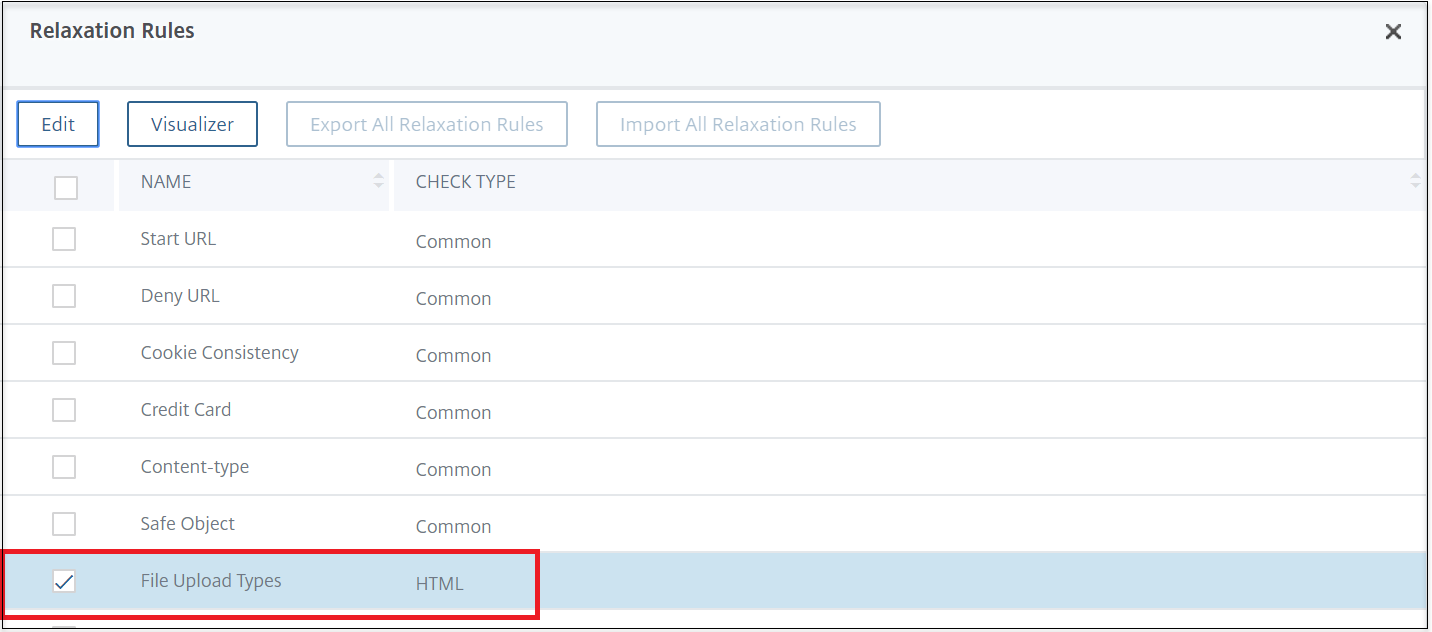
-
In the File Upload Types Rexalation Rules page, click Add.
-
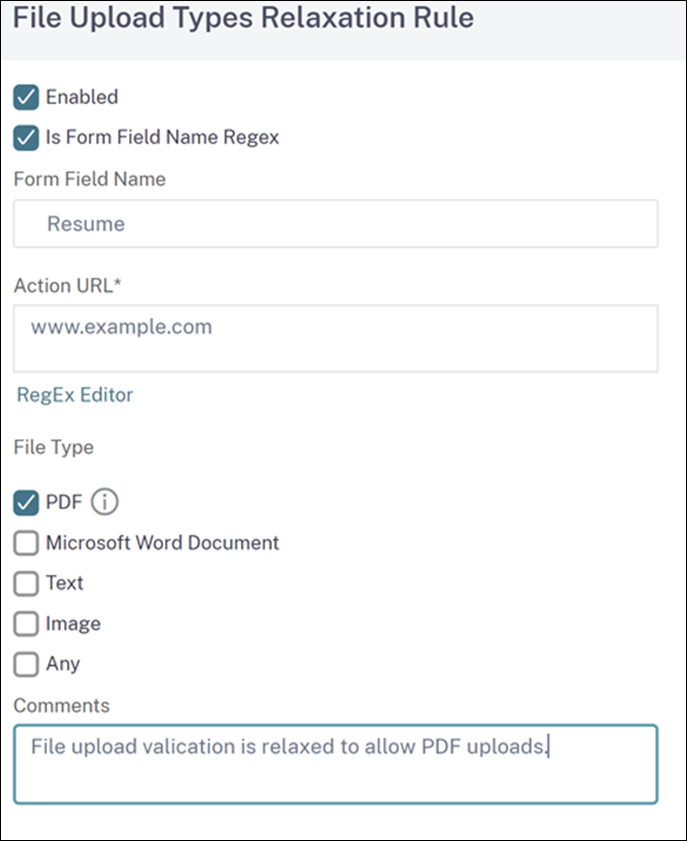
In the File Upload Types Relaxation Rule page, set the following parameters:
-
Enabled - Select to enable the relaxation rule.
-
Is Form Field Name Regex - Select to update a regex pattern for the form field name.
-
Form Field Name - Enter the file name that does not require a security check.
-
Action URL - The form submission URL that must be exempted from security checks.
-
File Type - Supported file format that can be uploaded.
-
Comments - A brief description about the file upload.
-
-
Click Create.
-
In the NetScaler Web App Firewall Profile page, click OK and Done.