
Configure a desired set of service group members for a service group in one NITRO API call
Support is added to configure a desired set of service group members for a service group in one NITRO API call. A new API, Desired State API, is added to support this configuration. Using Desired State API, you can:
-
Provide a list of service group members in a single PUT request on “servicegroup_servicegroupmemberlist_binding” resource.
-
Provide their weight and state (optional) in that PUT request.
-
Effectively synchronize the appliance configuration with deployment changes around application servers.
The NetScaler appliance compares the requested desired member set with the configured member set. Then, it automatically binds the new members and unbinds the members that are not present in the request.
Note:
-
This feature is supported only for service groups of type
API. -
You can only bind IP address based services using Desired State API, domain name based services are not allowed.
-
Previously, only one service group member can be bound in a NITRO call.
Important
Desired State API for ServiceGroup membership is supported in NetScaler cluster deployment.
Related information
Use case: Synchronize deployment changes to NetScaler appliance in large scale deployments, such as Kubernetes
In large scale and highly dynamic deployments (for example Kubernetes), the challenge is to keep the appliance configuration up-to-date with the rate of change of deployments to accurately serve the application traffic. In such deployments, controllers (Ingress or E-W Controller) are responsible for updating ADC configuration. Whenever there are changes to deployment,
kube-api server sends the effective set of endpoints through ‘Endpoints event’ to the controller. The controller uses the Read-Delta-Modify approach where it performs the following:
-
Fetches the currently configured endpoint set (service group member set of a service group) for the service from ADC appliance.
-
Compares the configured endpoint set with the set in the received event.
-
Binds the new endpoints (service group members) or unbinds the deleted endpoints.
Because the rate of change and the size of services is high in this environment, this configuration method is not efficient and might delay configuration updates.
Desired State API solves the problem by accepting the intended member set for a service group in a single API, and effectively updates the configuration.
Create a service group of type API by using the CLI
At the command prompt, type;
add serviceGroup <serviceGroupName>@ <serviceType> [-autoScale™ <autoScale>]
Example:
add serviceGroup svg1 HTTP -autoScale API
You can configure the
autoDisablegraceful and autoDisabledelay and autoScale parameters by using add serviceGroup or set serviceGroup command.
add serviceGroup <serviceGroupName>@ <serviceType> [-autoScale <autoScale>] [-autoDisablegraceful ( YES | NO)] [-autoDisabledelay <secs>]

 add serviceGroup <serviceGroupName>@ <serviceType> [-autoScale (API |CLOUD | DISABLED| DNS |POLICY)]

 set serviceGroup <serviceGroupName [-autoDisablegraceful ( YES | NO)] [-autoDisabledelay <secs>]

 set serviceGroup <serviceGroupName [-autoScale (API |CLOUD | DISABLED| DNS |POLICY)]
Example:
add serviceGroup svg1 HTTP autoDisablegraceful YES -autoDisabledelay 100

 add serviceGroup svg1 HTTP -autoScale API

 set serviceGroup svg1 -autoDisablegraceful  YES -autoDisabledelay 100

 set serviceGroup svg1 -autoScale API
Arguments
autoDisablegraceful
Indicates graceful shutdown of the service. If this option is enabled, the appliance waits for all outstanding connections to this service to be closed before deleting the service. For clients that already have a persistent session on the system, new connections or requests continue to be sent to this service. The service member is deleted only if there are no outstanding connections. Default value: NO
autoDisabledelay
Indicates the time allowed (in seconds) for a graceful shutdown. During this period new connections or requests continue to be sent to this service for clients that already have a persistent session on the system. Connections or requests from new clients that do not have persistence sessions on the system are not sent to the service. Instead, they are load balanced among other available services. After the delay time expires, the service member is deleted.
Autoscale API
The Autoscale API argument enables using the Desired State API for binding the member set to an intended service group. You can set the service group from non-autoscale to Autoscale type of Desired State API, if all provided conditions match.
The desired state API checks if the IP address of the service group member is associated with any existing server. If the IP address matches with an existing server, the API reuses the existing server's IP address and name. If the IP address does not match with any existing server, the API creates a server and assigns the IP address itself as the server name.
Example:
Consider a server with IP address 2.2.2.2 and name as myserver that exists in a NetScaler appliance. Using the desired state API, you bind a set of service group members whose IP address ranges from 2.2.2.1 to 2.2.2.3.
As the IP address 2.2.2.2 is associated with an existing server, the API reuses the IP address and name (2.2.2.2 and myserver). As there are no existing servers with IP addresses, 2.2.2.1, 2.2.2.3, the API creates servers with these IP addresses. The API assigns the IP address itself as the server's name.
If the IP address provided in the desired state command conflicts with other NetScaler entities such as CS virtual server, then a conflict occurs. An error message gets displayed that contains the reason for failure. The IP address of the first service group member among the list of failed members is displayed in the error message.
Example:
Consider a server with IP address 2.2.2.8 which is used as an LB server. Using the desired state API, you try to bind a set of service group members whose IP address ranges from 2.2.2.2 - 2.2.2.11.
As 2.2.2.8 is already in use for LB service, a conflict occurs. The following error message is displayed that contains the reason for failure and the failed member bindings:
{ "errorcode": 304, "message": "Address already in use", "severity": "ERROR", "servicegroup_servicegroupmemberlist_binding": { "servicegroupname": "sg1", "failedmembers": [ { "ip": "2.2.2.8", "port": 80 }, { "ip": "2.2.2.9", "port": 80 } ] } }
The error code 304 displays the first service group member among the list of failed members, which is 2.2.2.8.
The
set serviceGroup Autoscale command might fail if the existing member bindings meet any of these conditions:
-
If the server bound to the service group is either a name server or a domain-based server.
-
If the loopback server name is anything other than 127.0.0.1 or 0000:0000:0000:0000:0000:0000:0000:0001.
-
If you choose different types of Autoscale (Cloud, API, DNS, and Policy) in a set serviceGroup command and add serviceGroup command.
Important:
-
The autoDisablegraceful and autoDisabledelay parameters are applicable only for the service groups of Autoscale type “API” and “CLOUD.”
-
If the autoDisablegraceful or the autoDisabledelay parameters are not configured, then service members are deleted immediately.
Unbind a service group member gracefully
If any of the service group members is not in the desired state list, those members are gracefully unbound based on the
autoDisablegraceful or autoDisabledelay parameter configuration.
-
If one of these parameters is set, then the service group member is unbound gracefully.
-
If none of these parameters are set, then the service group member is unbound immediately.
Note:
-
Service group members identified for graceful unbind are displayed only when the show service group command is run.
-
You cannot perform any operation (such as set, unset) on the service group member identified for graceful unbind.
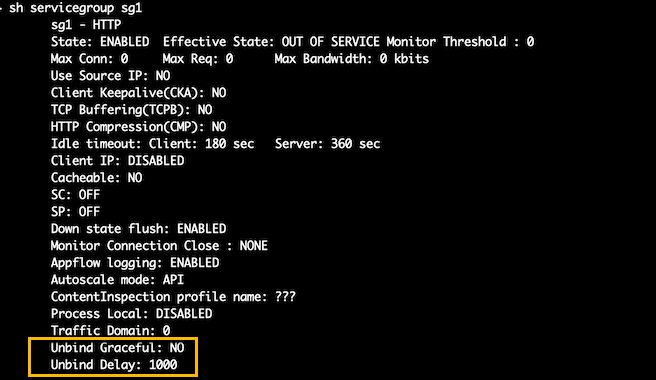
The following figure displays a sample show service group command.
Create a service group of type API by using the GUI
-
Navigate to Traffic Management > Load Balancing > Service Groups, and click Add.
-
In AutoScale Mode, select API.
Configure graceful shutdown or a time delay for an API type service group by using the GUI
-
Navigate to Traffic Management > Load Balancing > Service Groups.
-
In AutoScale Mode, select API.
-
In Auto Disable Graceful, select YES.
-
In Auto Disable Delay, enter the wait time for a graceful shutdown.
Note: The Auto Disable Graceful or Auto Display Delay fields are enabled only if you select API or CLOUD in AutoScale Mode.