
Upgrade a NetScaler standalone appliance
Before upgrading the system software, make sure that you read the Before you begin section and complete the prerequisites such as backing up the necessary files and downloading the NetScaler® firmware.
Related information
Upgrade a NetScaler standalone appliance by using the GUI
Follow these steps to upgrade a standalone NetScaler to release 14.1 by using the GUI.
-
In a web browser, type the IP address of the NetScaler, for example
http://10.102.29.50. -
In User Name and Password, type the administrator credentials (nsroot/nsroot) and then click Log On.
-
Navigate to System and click System Upgrade.
-
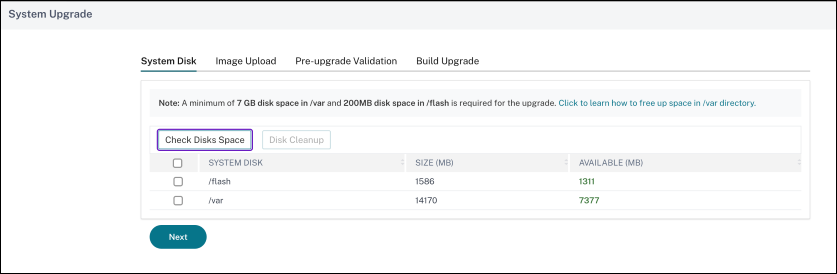
Click System Disk to check whether enough space is available on the device.Note:A minimum of 7 GB disk space in
/varand 200 MB disk space in/flashis required for the upgrade. -
If enough space is not available, click Disk Cleanup and choose the directories to clear enough space.
-
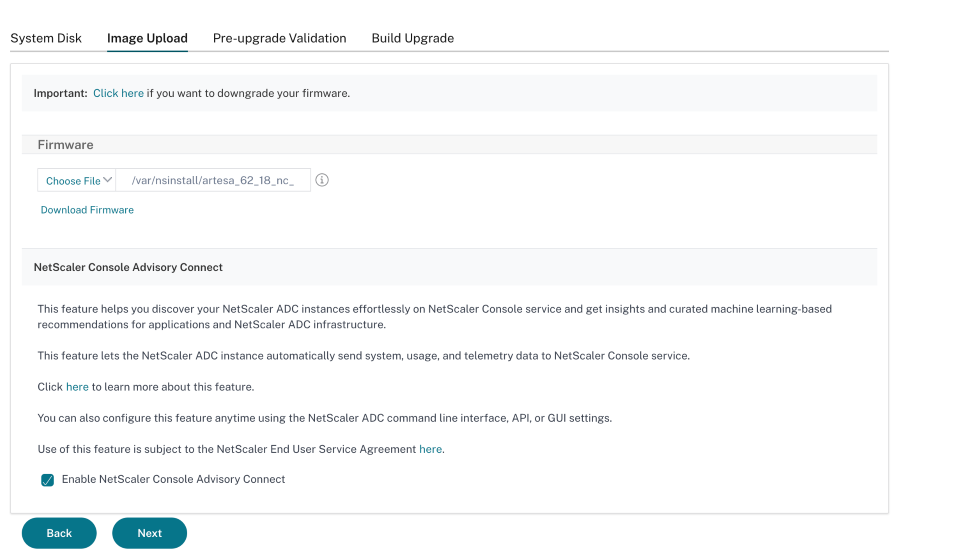
Click Next to open the Image Upload tab, from the Choose File menu, select the appropriate option: Local or Appliance. To use the Appliance option, you must upload the firmware to the NetScaler first. You can use any file transfer method such as WinSCP to upload the NetScaler firmware to the appliance.
-
Click Next to open the Pre-upgrade Validation tab. The device performs pre-upgrade validation checks.
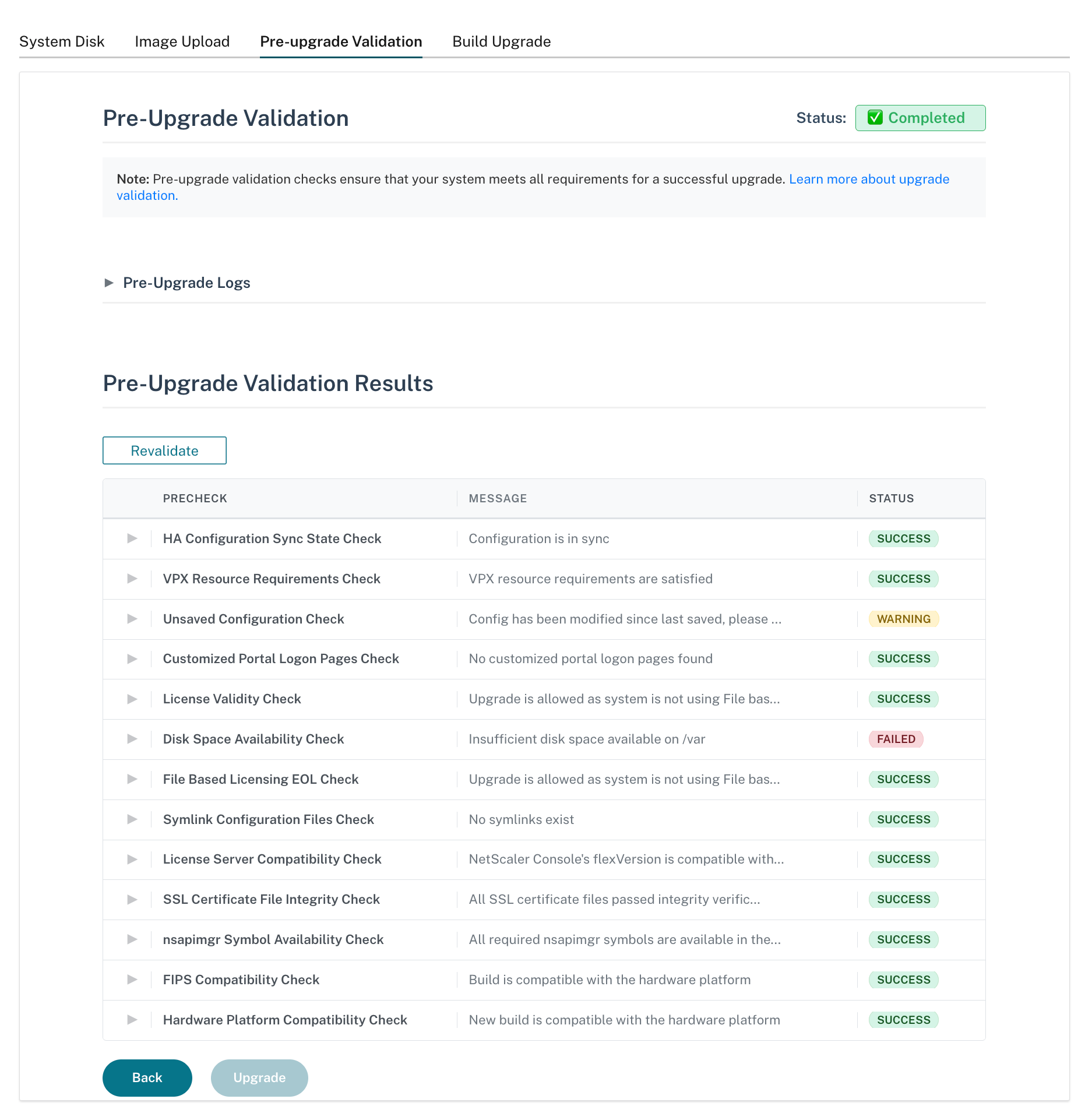 For any Failed or Warning check, click the row to view the error, then use the action button at the end of the status row to take corrective action.Note:For a Warning check, fix the warning and click Revalidate before you continue. If you are sure it does not affect the system, click Ignore Warning & Upgrade. This can cause configuration loss, such as unsaved changes.
 -
Click Revalidate (at the top of the validation tasks) to ensure that no checks fail. For more details about the pre-upgrade check performed, see Pre-upgrade validation checks for NetScaler.
-
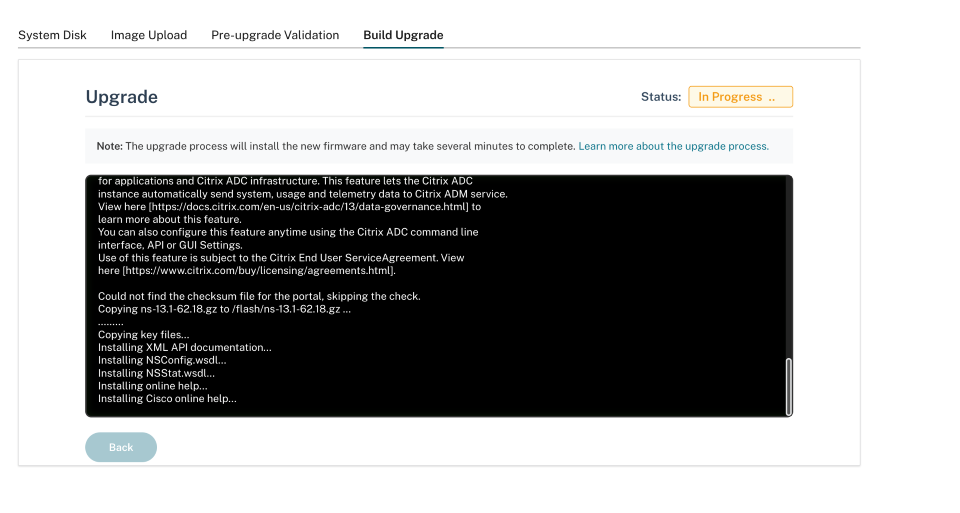
Click Upgrade to proceed with the system upgrade.Note:The system reboots after a successful upgrade.
-
After the upgrade, close all browser instances and clear your computer's cache before accessing the appliance.
Upgrade a NetScaler standalone appliance by using the CLI
Follow these steps to upgrade a standalone NetScaler to release 14.1 by using the CLI:
In the following procedure,
<release> and <releasenumber> represent the release version you are upgrading to, and <targetbuildnumber> represents the build number that you are upgrading to. The procedure includes optional steps to avoid losing any updates that are pushed to the /etc directory during the upgrade.
-
Use an SSH client, such as PuTTy, to open an SSH connection to the appliance.
-
Log on to the appliance by using the administrator credentials. Save the running configuration. At the prompt, type:
save config -
Switch to the shell prompt by running the following command:
shell -
Create a copy of the ns.conf file. At the shell prompt, type:
-
cd /nsconfig -
cp ns.conf ns.conf.NS<currentreleasenumber><currentbuildnumber>
You must take a backup of the configuration file to another computer. -
-
Important:It is important that both the upgrade changes and your customizations are applied to an upgraded NetScaler appliance. So, if you have customized configuration files in the
/etcdirectory, perform the pre-upgrade steps in Upgrade considerations for customized configuration files -
Create a location for the installation package. At the shell prompt type:
-
cd /var/nsinstall -
cd <releasenumber>Note:If the desired release number directory is not present, create one using the following command:mkdir <releasenumber>Example:mkdir 14.1 -
mkdir build_<targetbuildnumber> -
cd build_<targetbuildnumber>
-
-
Copy the already downloaded NetScaler firmware to the build directory that you have created in the preceding step, by using any file transferring method such as WinSCP. See the Before You Begin section for more information about downloading the NetScaler firmware.
-
Extract the contents of the installation package. Example:
tar -xvzf build-14.1-60.58_nc_64.tgz -
Run the following script to perform the pre-upgrade checks in NetScaler.
./installns --pre_checkNote:For more information, see Pre-upgrade validation checks. -
Run the
installnsscript to install the new version of the system software../installnsNote:During CLI upgrade, you might see the following prompt:Do you wish to delete old signature files and kernel images?In most cases, select No to retain older kernel images and corresponding signature files. Select Yes only if/flashhas insufficient free space and cleanup is required to continue the upgrade. -
When prompted, restart the NetScaler.
-
Important:It is important that both the upgrade changes and your customizations are applied to an upgraded NetScaler appliance. So, if you have customized configuration files in the
/etcdirectory, perform the post-upgrade steps in Upgrade considerations for customized configuration files
See the following example of NetScaler firmware upgrade.
login: nsroot

 Password: nsroot

 Last login: Mon Apr 17 15:05:05 2018 from 10.252.243.134

 Done

 > save config

 > shell

 Last login: Mon Apr 17 15:05:05 2018 from 10.252.243.134

 root@NSnnn# cd /var/nsinstall

 root@NSnnn# cd 14.1

 root@NSnnn# mkdir build_43.1

 root@NSnnn# cd build_43.1

 root@NSnnn# ftp <FTP server IP address>

 ftp> mget build-14.1-41.1_nc.tgz

 ftp> bye

 root@NSnnn# tar xzvf build-14.1-41.1_nc.tgz

 root@NSnnn# ./installns

 installns version (14.1-41.1) kernel (ns-14.1-41.1_nc.gz)

 ...

 Copying ns-14.1-41.1_nc.gz to /flash/ns-14.1-41.1_nc.gz ...

 ...

 Installation has completed.

 Do you wish to delete old signature files and kernel images? [Y/N] N

 Reboot NOW? [Y/N] Y
How to upgrade a standalone NetScaler appliance by using the CLI
Upgrade a NetScaler standalone appliance by using the NITRO API
To use NITRO API to upgrade or downgrade a NetScaler, see Automate NetScaler Upgrade and Downgrade with a Single API.
Verify entities status on the NetScaler appliance after upgrading
After the NetScaler appliance is upgraded, verify the status of the following entities:
-
Virtual servers are in UP state
-
Monitors are in UP state
-
GSLB sites synchronize without any issues
-
All certificates are present on the appliance
-
All the licenses are present on the appliance
Check and install NetScaler 14.1 software update
Update the NetScaler software when an update is available, for better performance. A NetScaler update can include feature improvements, performance fixes, or enhancements. Make sure that you read the release notes to see what fixes and enhancements are available in the update. To check and install a software update, do the following.
-
In the NetScaler home page, click Check for Update from the nsroot menu at the top right corner.
-
In the Latest System Software Updates Available page, check the available software update that you can install.
-
Click Download to download the installation package from the NetScaler download website.
-
After you have downloaded the software package, install the update through either CLI or GUI procedure.
Note:
The Check for Update link is accessible only if you log into the GUI through the HTTP protocol and not through the HTTPS protocol.
Related resources
The following resources provide related information about upgrading or downgrading a NetScaler appliance:
-
Video tutorial - How to upgrade your NetScaler using CLI
-
You can also upgrade NetScaler by using the following methods: