
User, user groups, and command policies
You must first define a user with an account and then organize all users into groups. You can create command policies, or use built-in command policies to regulate user access to commands.
Note:
If you prefer to know more about configuring user and user groups as part of NetScaler authentication and authorization setup for traffic management, see Configure users and groups topic.
You can also customize the command-line prompt for a user. Prompts can be defined in a user’s configuration, in a user-group configuration, and in the global system configuration settings. The prompt displayed for a user is in the following order of precedence:
-
Display the prompt as defined in the user's configuration.
-
Display the prompt as defined in the group configuration for the user’s group.
-
Display the prompt as defined in the system global configuration settings.
You can now specify a timeout value for inactive CLI sessions for a system user. If a user's CLI session is idle for a time that exceeds the timeout value, the NetScaler appliance terminates the connection. The timeout can be defined in a user configuration, in a user-group configuration, or in the global system configuration settings. The timeout for inactive CLI sessions for a user is determined in the following order of precedence:
-
User configuration.
-
Group configuration for the user’s group.
-
Global system configuration settings.
A NetScaler root administrator can configure the maximum concurrent session limit for system users. By restricting the limit, you can reduce the number of open connections and improve server performance. As long as the CLI count is within the configured limit, concurrent users can log on the GUI any number of times. However, if the number of CLI sessions reaches the configured limit, users can no longer log on to the GUI. For example, if the number of concurrent sessions is configured to 20, concurrent users can log on to 19 CLI sessions. But if the user is logged on to the
20<sup>th</sup> CLI session, any attempt to log on to the GUI, CLI, or NITRO results in an error message ((ERROR: Connection limit to CFE exceeded).
Note:
The default the number of concurrent sessions is configured to 20 and the maximum number of concurrent sessions is configured to 40.
Related information
Configure user accounts
To configure user accounts, you simply specify user names and passwords. You can change passwords and remove user accounts at any time.
Note:
All characters in a password are not accepted. However, it works if you type the characters within quotes.
Also, the string must not exceed a maximum length of 127 characters.
To create a user account by using the command line interface
At the command prompt, type the following commands to create a user account and verify the configuration:
-
add system user <username> [-externalAuth ( ENABLED | DISABLED )] [-promptString <string>] [-timeout <secs>] [-logging ( ENABLED | DISABLED )] [-maxsession <positive_integer>] -
show system user <userName>
External users can configure the “logging” parameter to collect external logs using web logging or audit logging mechanism. If the parameter is enabled, the auditing client authenticates itself with NetScaler appliance to collect logs.
Example:
> add system user johnd -promptString user-%u-at-%T
Enter password:
 Confirm password:
 > show system user johnd
 user name: john
      Timeout:900 Timeout Inherited From: Global
      External Authentication: ENABLED
      Logging: DISABLED
      Maximum Client Sessions: 20
For parameter description, see Authentication and authorization user command reference topic.
Configure a user account by using the NetScaler GUI
-
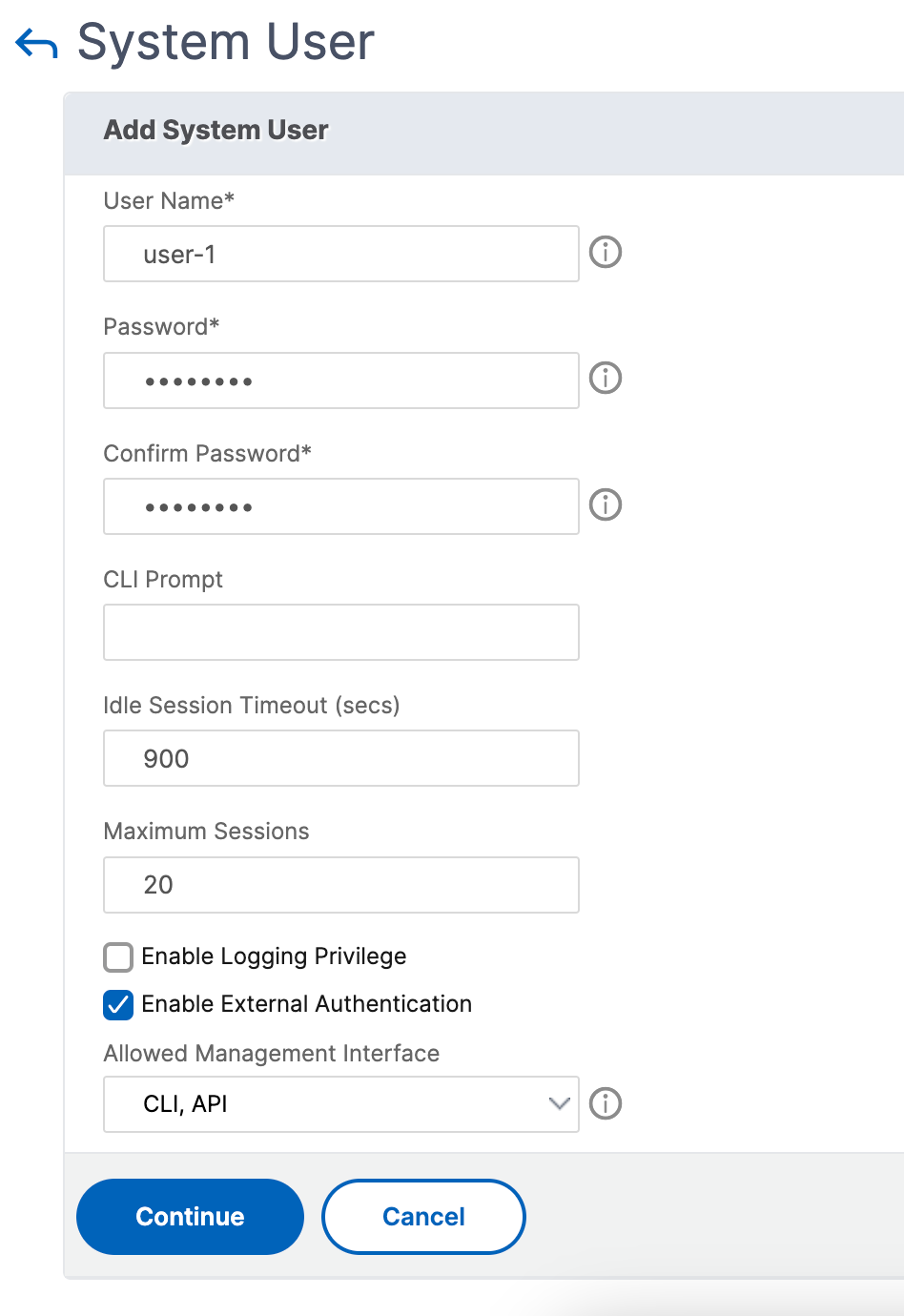
Navigate to System > User Administration > Users, and create the user.
-
In the details pane, click Add to create a system user.
-
In the Create System Group page, set the following parameters:
-
User Name. Name of the user group.
-
CLI Prompt. The prompt that you prefer to set for the CLI interface access.
-
Idle Session Timeout (secs). Set the time a user can be inactive before the session times out and closes.
-
Maximum sessions. Set the maximum number of sessions that a user can try. For a nsroot user, the max session parameter cannot be modified.
-
Enable Logging Privilege. Enable logging privilege for the user. The Enable Logging Privilege parameter collects external logs information using web logging or audit logging mechanism. If the parameter is enabled, the auditing client authenticates itself with NetScaler to collect logs.
-
Enable external Authentication. Select the option if you want to use an external authentication server for authenticating the user.
-
Allowed Management Interface. Select the NetScaler interfaces for which the user group is granted permission to access.
-
Command Policies. Bind command policies to the user group.
-
Partitions. Bind partitions to the user group.
-
-
Click Create and Close.
Configure user groups
After configuring a user group, you can easily grant the same access rights to everyone in the group. To configure a group, you create the group and bind users to the group. You can bind each user account to more than one group. Binding user accounts to multiple groups might allow more flexibility when applying command policies.
To create a user group by using the command line interface
At the command prompt, type the following commands to create a user group and verify the configuration:
-
add system group <groupName> [-promptString <string>] [-timeout <secs>] -
show system group <groupName>
Example:
> add system group Managers -promptString Group-Managers-at-%h
Bind a user account to a group by using the CLI
At the command prompt, type the following commands to bind a user account to a group and verify the configuration:
-
bind system group <groupName> -userName <userName> -
show system group <groupName>
Example:
> bind system group Managers -userName user1
Configure a user group by using the NetScaler GUI
-
Navigate to System > User Administration > Groups, and create the user group.
-
In the details pane, click Add to create a system user group.
-
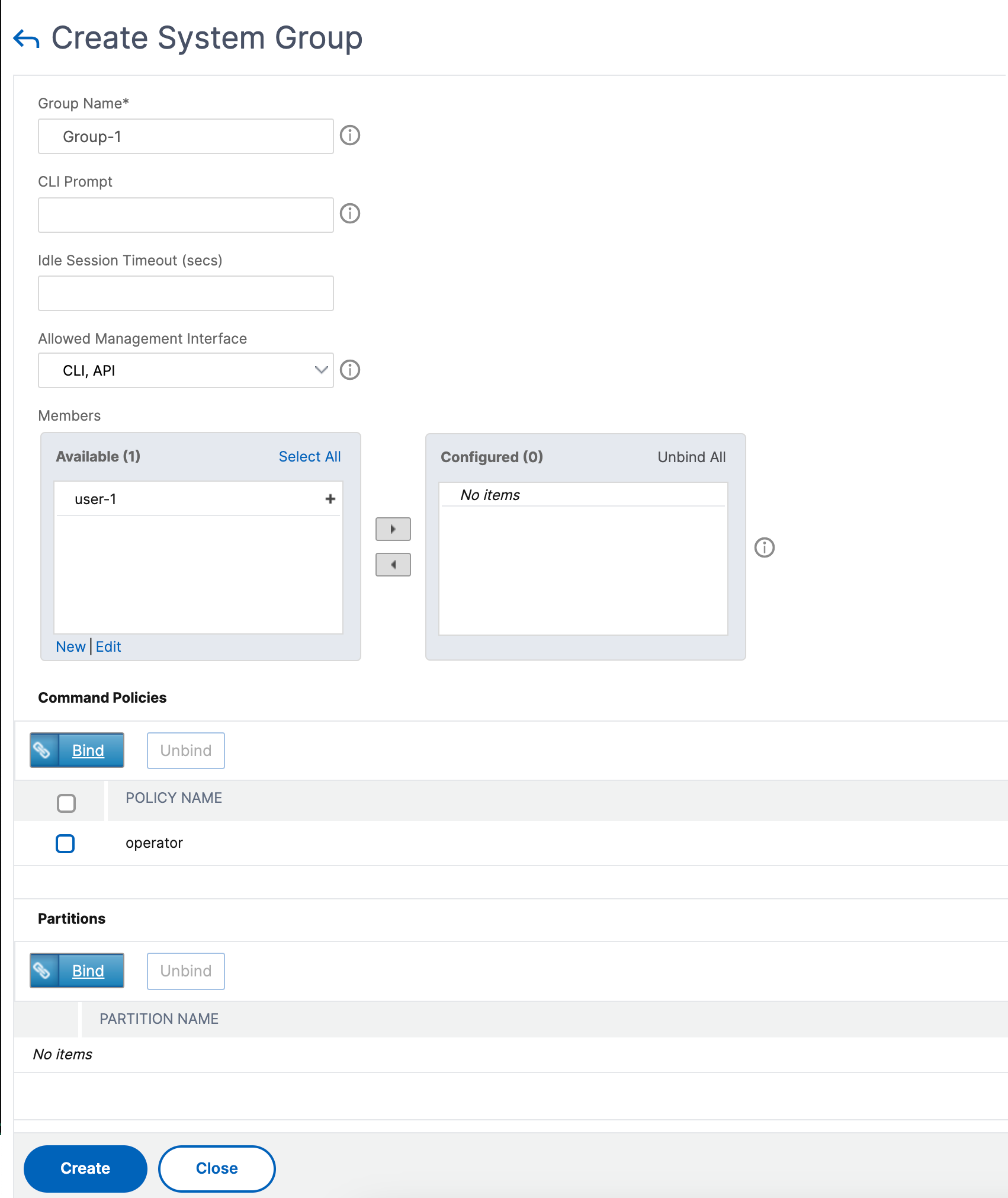
In the Create System Group page, set the following parameters:
-
Group Name. Name of the user group.
-
CLI Prompt. The prompt that you prefer to set for the CLI interface access.
-
Idle Session Timeout (secs). Set the time a user can be inactive before the session times out and closes.
-
Allowed Management Interface. Select the NetScaler interfaces for which the user group is granted permission to access.
-
Members. Add user accounts to the group.
-
Command Policies. Bind command policies to the user group.
-
Partitions. Bind partitions to the user group.
-
-
Click Create and Close.
Note:
To add members to the group, in the Members section, click Add. Select users from the Available list and add them to the Configured list.
Configure command policies
Command policies regulate which commands, command groups, virtual servers, and other entities that users and user groups are permitted to use.
The appliance provides a set of built-in command policies, and you can configure custom policies. To apply the policies, you bind them either to users or to groups.
Here are the key points to keep in mind when defining and applying command policies.
-
You cannot create global command policies. Command policies must be bound directly to the users and groups on the appliance.
-
Users or groups with no associated command policies are subject to the default (DENY-ALL) command policy, and are therefore unable to run any configuration commands until the proper command policies are bound to their accounts.
-
All users inherit the policies of the groups to which they belong.
-
You must assign a priority to a command policy when you bind it to a user account or group account. This enables the appliance to determine which policy has priority when two or more conflicting policies apply to the same user or group.
-
If you bind two different command policies of the same priority to a user account or group account, the policy that you bind first takes the highest priority.
-
The following commands are available by default to any user and are unaffected by any command you specify:
-
help, show CLI attribute, set CLI prompt, clear CLI prompt, show CLI prompt, alias, unalias, history, quit, exit, whoami, config, set CLI mode, unset CLI mode, and show CLI mode.
The following table describes the built-in policies.
| Policy name | Allows |
|---|---|
| read-only | Read-only access to all show commands except show ns runningConfig, show ns ns.conf, and the show commands for the NetScaler command group. |
| operator | Read-only access and access to commands to enable and disable services and servers. |
| network | Full access, except to the set and unset SSL commands, show ns ns.conf, show ns runningConfig, and show gslb runningConfig commands. |
| sysadmin | [Included in NetScaler 12.0 and later] A sysadmin is lower than a superuser in terms of access allowed on the appliance. A sysadmin user can perform all NetScaler operations with the following exceptions: no access to the NetScaler shell, cannot perform user configurations, cannot perform partition configurations, and some other configurations as stated in the sysadmin command policy. |
| superuser | Full access. Same privileges as the nsroot user. |
Create custom command policies
Regular expression support is offered for users with the resources to maintain more customized expressions, and for those deployments that require the flexibility that regular expressions offer. For most users, the built-in command policies are sufficient. Users who need more levels of control but are unfamiliar with regular expressions might want to use only simple expressions, such as those in the examples provided in this section, to maintain policy readability.
When you use a regular expression to create a command policy, keep the following in mind.
-
When you use regular expressions to define commands that are affected by a command policy, you must enclose the commands in double quotation marks. For example, to create a command policy that includes all commands that begin with show, type the following:
-
"\^show .*$"
-
To create a command policy that includes all commands that begin with rm, type the following:
-
"\^rm .*$"
-
Regular expressions used in command policies are not case sensitive.
The following table lists examples of regular expressions for Command Policies:
| Command specification | Matches these commands |
|---|---|
| "\^rm\s+.*$" | All remove actions, because all remove actions begin with the rm string, followed by a space and more parameters such as command groups, command object types, and arguments. |
| "\^show\s+.*$" | All show commands, because all show actions begin with the show string, followed by a space and more parameters such as command groups, command object types, and arguments. |
| "\^shell$" | The shell command alone, but not combined with any additional parameters such as command groups, command object types, and arguments. |
| "\^add\s+vserver\s+.*$" | All create virtual server actions, which consist of add virtual server command followed by a space and more parameters such as command groups, command object types, and arguments. |
| "\^add\s+(lb\s+vserver)\s+.*" | All create lb virtual server actions, which consist of the add lb virtual server command followed by a space and more parameters such as command groups, command object types, and arguments. |
For information about built-in command policies, see table Built-in command policy table.
To create a command policy by using the command line interface
At the command prompt, type the following commands to create a command policy and verify the configuration:
-
add system cmdPolicy <policyname> <action> <cmdspec> -
show system cmdPolicy <policyName>
Example:
add system cmdPolicy USER-POLICY ALLOW (\ server\ )|(\ service(Group)*\ )|(\ vserver\ )|(\ policy\ )|(\ policylabel\ )|(\ limitIdentifier\ )|(\^show\ (?!(system|ns\ (ns.conf|runningConfig))))|(save)|(stat\ .*serv)
Configure a command policy by using the NetScaler GUI
-
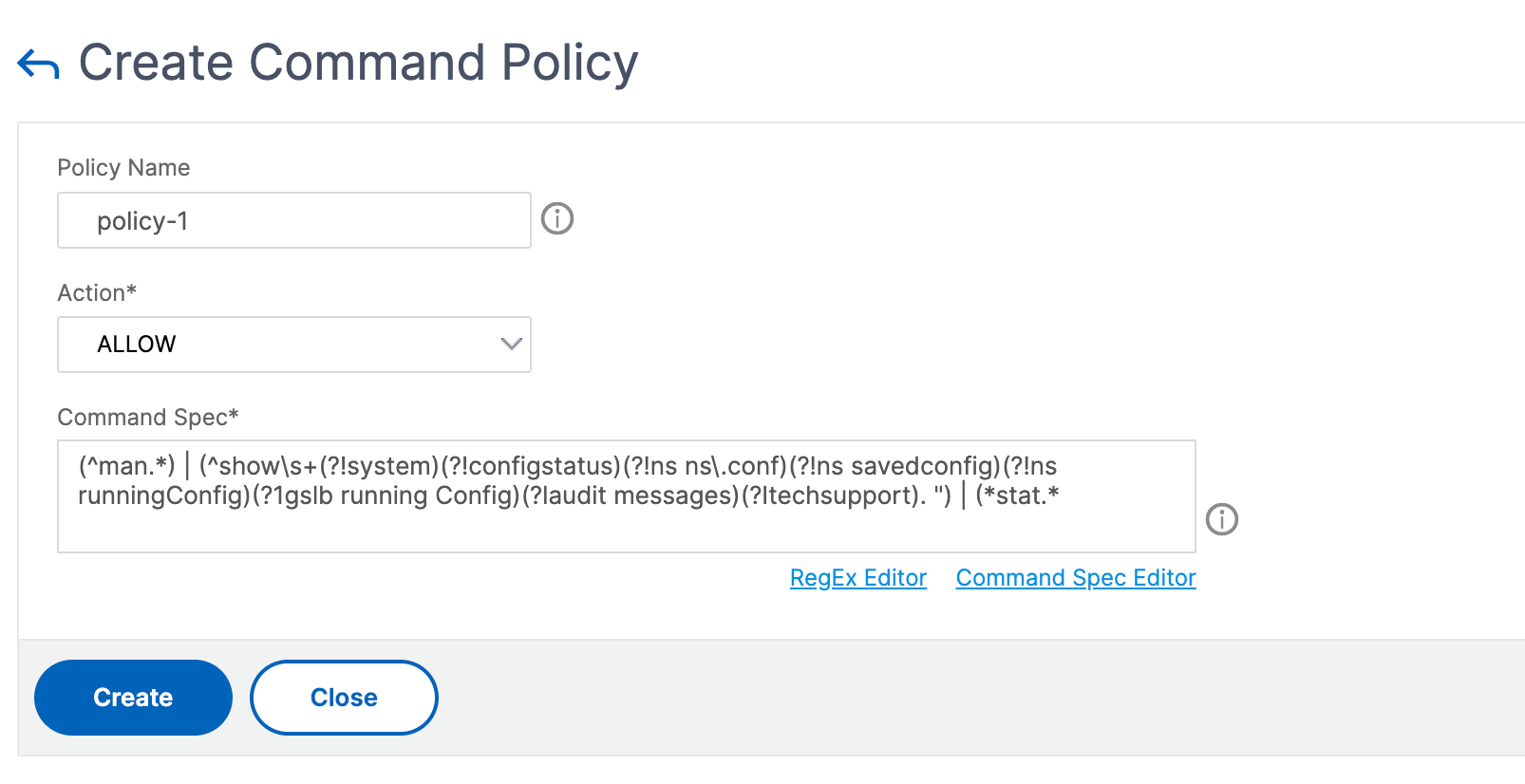
Navigate to System > User Administration > Command Policies.
-
In the details pane, click Add to create a command policy.
-
In the Configure Command Policy page, set the following parameters:
-
Policy name
-
Action
-
Command Spec.
-
-
Click OK.
Bind command policies to user accounts and user groups
Once you have defined your command policies, you must bind them to the appropriate user accounts and groups. When you bind a policy, you must assign it a priority so that the appliance can determine which command policy to follow when two or more applicable command policies are in conflict.
Command policies are evaluated in the following order:
-
Command policies bound directly to users and the corresponding groups are evaluated according to a priority number. A command policy with a lower priority number is evaluated before one with a higher priority number. Therefore, any privileges the lower-numbered command policy explicitly grants or denies are not overridden by a higher-numbered command policy.
-
When two command policies, one bound to a user account and other to a group, have the same priority number, the command policy bound directly to the user account is evaluated first.
To bind command policies to a user by using the command line interface
At the command prompt, type the following commands to bind a command policy to a user and verify the configuration:
-
bind system user <userName> -policyName <policyName> <priority> -
show system user <userName>
Example:
> bind system user user1 -policyName read_all 1
Bind command policies to a user account by using the NetScaler GUI
Navigate to System > User Administration > Users, select the user and bind command policies.
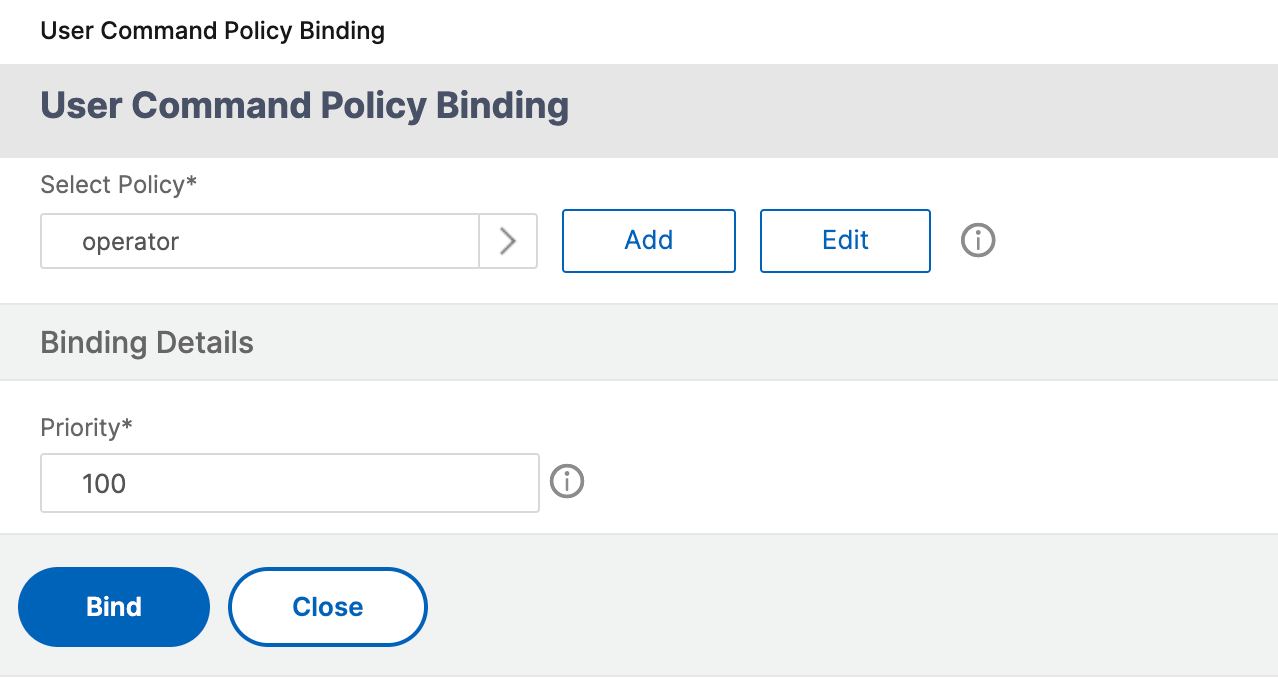
Optionally, you can modify the default priority to ensure that the policy is evaluated in the proper order.
To bind command policies to a group by using the command line interface
At the command prompt, type the following commands to bind a command policy to a user group and verify the configuration:
-
bind system group <groupName> -policyName <policyName> <priority> -
show system group <groupName>
Example:
> bind system group Managers -policyName read_all 1
Bind command policies to a user group by using the NetScaler GUI
Navigate to System > User Administration > Groups, select the group and bind command policies.
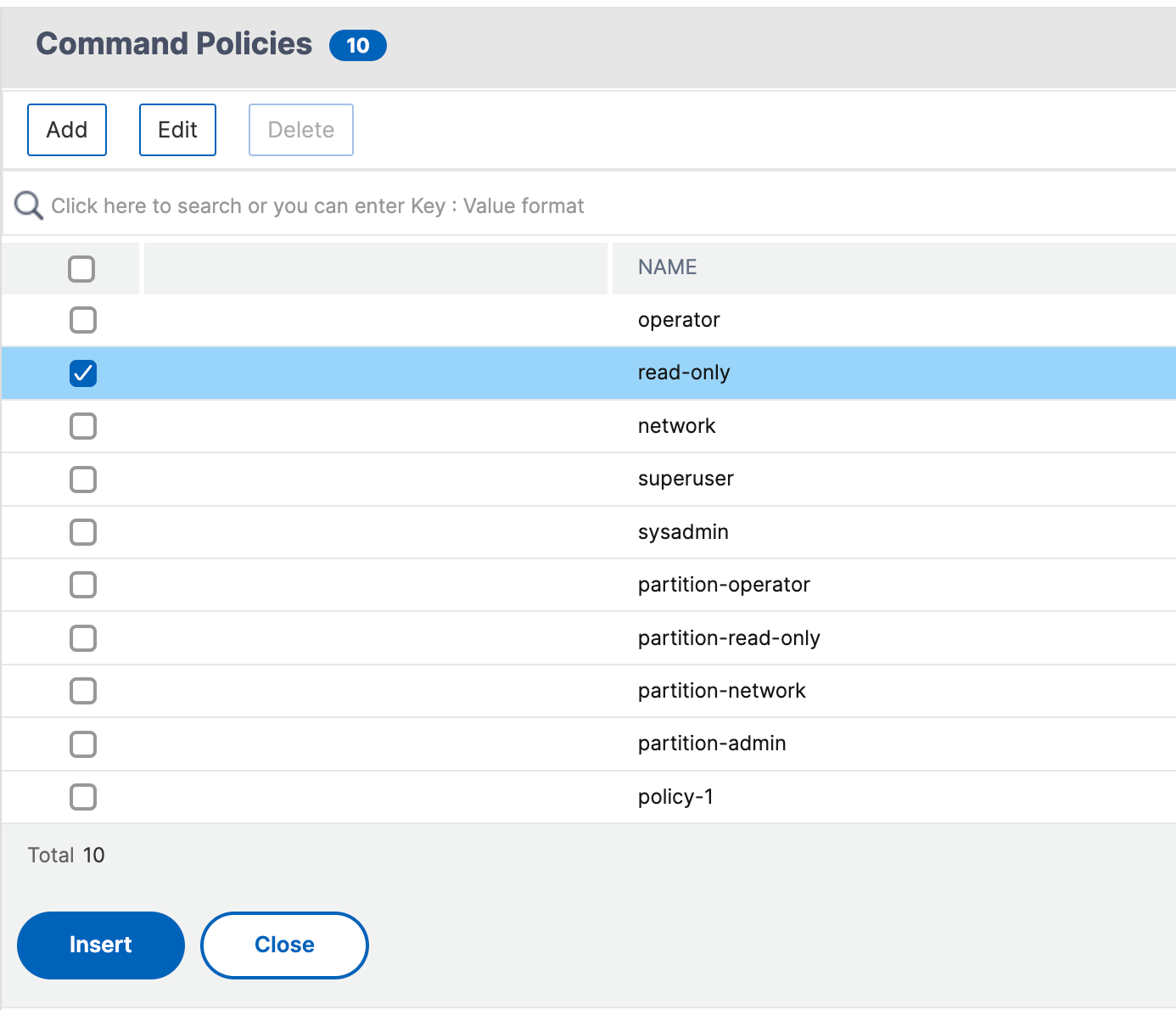
Optionally, you can modify the default priority to ensure that the policy is evaluated in the proper order.
Example use case: Manage user accounts, user groups, and command policies in a manufacturing organization
The following example shows how to create a complete set of user accounts, groups, and command policies and bind each policy to the appropriate groups and users. The company, Example Manufacturing, Inc., has three users who can access the NetScaler appliance:
-
John Doe. The IT manager. John must be able to see all parts of the NetScaler configuration but does not need to modify anything.
-
Maria Ramiez. The lead IT administrator. Maria must be able to see and modify all parts of the NetScaler configuration except for NetScaler commands (which local policy dictates must be performed while logged on as nsroot).
-
Michael Baldrock. The IT administrator in charge of load balancing. Michael must be able to see all parts of the NetScaler configuration, but must modify only the load balancing functions.
The following table shows the breakdown of network information, user account names, group names, and command policies for the sample company.
| Field | Value | Note |
|---|---|---|
| NetScaler host name | ns01.example.net | N/A |
| User accounts | johnd, mariar, and michaelb | John Doe, IT manager, Maria Ramirez, IT administrator and Michael Baldrock, IT administrator. |
| Groups | Managers and SysOps | All managers and all IT administrators. |
| Command Policies | read_all, modify_lb, and modify_all | Allow complete read-only access, Allow modify access to load balancing, and Allow complete modify access. |
The following description walks you through the process of creating a complete set of user accounts, groups, and command policies on the NetScaler appliance named ns01.example.net.
The description includes procedures for binding the appropriate user accounts and groups to one another, and binding appropriate command policies to the user accounts and groups.
This example illustrates how you can use prioritization to grant precise access and privileges to each user in the IT department.
The example assumes that initial installation and configuration have already been performed on the NetScaler.
Configure user accounts, groups, and command policies for a sample organization
-
Use the procedure described in Configuring User Accounts section to create user accounts johnd, mariar, and michaelb.
-
Use the procedure described in Configuring User Groups to create user groups Managers and SysOps, and then bind the users mariar and michaelb to the SysOps group and the user johnd to the Managers group.
-
Use the procedure described in Creating Custom Command Policies to create the following command policies:
-
read_all with action Allow and command spec
"(\^show\s+(?!system)(?!ns ns.conf)(?!ns runningConfig).*)|(\^stat.*)" -
modify_lb with action as Allow and the command spec
"\^set\s+lb\s+.*$" -
modify\_all with action as Allow and the command spec
"\^\S+\s+(?!system).*"
-
-
Use the procedure described in
to bind the read_all command policy to the SysOps group, with priority value 1.
-
Use the procedure described in
to bind the modify_lb command policy to user michaelb, with priority value 5.
The configuration you just created results in the following:
-
John Doe, the IT manager, has read-only access to the entire NetScaler configuration, but he cannot make modifications.
-
Maria Ramirez, the IT lead, has near-complete access to all areas of the NetScaler configuration, having to log on only to perform NetScaler-level commands.
-
Michael Baldrock, the IT administrator responsible for load balancing, has read-only access to the NetScaler configuration, and can modify the configuration options for load balancing.
The set of command policies that applies to a specific user is a combination of command policies applied directly to the user's account and command policies applied to one or more groups of which the user is a member.
Each time a user enters a command, the operating system searches the command policies for that user until it finds a policy with an ALLOW or DENY action that matches the command. When it finds a match, the operating system stops its command policy search and allows or denies access to the command.
If the operating system finds no matching command policy, it denies the user access to the command, in accordance with the NetScaler appliance's default deny policy.
Note:
When placing a user into multiple groups, take care not to cause unintended user command restrictions or privileges. To avoid these conflicts, when organizing your users in groups, bear in mind the NetScaler command policy search procedure and policy ordering rules.