
Web App Firewall logs
The Web App Firewall generates log messages for tracking configuration, policy invocation, and security check violation details.
When you enable the log action for security checks or signatures, the resulting log messages provide information about the requests and responses that the Web App Firewall has observed when protecting your websites and applications. The most important information is the action taken by the Web App Firewall when a signature or a security check violation was observed. For some security checks, the log message can provide useful information, such as, user location or detected pattern that triggered a violation. An excessive increase in the number of violation messages in the logs can indicate a surge in malicious requests. The message alerts you that your application might be under attack to exploit a specific vulnerability that is detected and thwarted by Web App Firewall protections.
Note:
If you want to segregate NetScaler Web App Firewall logs from the System Logs, you must use an external SYSLOG server.
Related information
NetScaler (Native) format logs
The Web App Firewall uses the NetScaler format logs (also called native format logs) by default. These logs have the same format as those generated by other NetScaler features. Each log contains the following fields:
-
Timestamp. Date and time when the connection occurred.
-
Severity. Severity level of the log.
-
Module. NetScaler module that generated the log entry.
-
Event Type. Type of event, such as signature violation or security check violation.
-
Event ID. ID assigned to the event.
-
Client IP. IP address of the user whose connection was logged.
-
Transaction ID. ID assigned to the transaction that caused the log.
-
Session ID. ID assigned to the user session that caused the log.
-
Message. The log message. Contains information identifying the signature or security check that triggered the log entry.
You can search for any of these fields, or any combination of information from different fields. Your selection is limited only by the capabilities of the tools you use to view the logs. You can observe the Web App Firewall log messages in the GUI by accessing the NetScaler syslog viewer, or you can manually connect to the NetScaler appliance and access logs from the command line interface, or you can drop into the shell and tail the logs directly from the
/var/log/folder.
Example of a native format log message
Jun 22 19:14:37 <local0.info> 10.217.31.98 06/22/2015:19:14:37 GMT ns 0-PPE-1 :
 default APPFW APPFW_cross-site scripting 60 0 :  10.217.253.62 616-PPE1 y/3upt2K8ySWWId3Kavbxyni7Rw0000
 pr_ffc http://aaron.stratum8.net/FFC/login.php?login_name=abc&passwd=
 12345&drinking_pref=on&text_area=%3Cscript%3E%0D%0A&loginButton=ClickToLogin&as_sfid=
 AAAAAAWEXcNQLlSokNmqaYF6dvfqlChNzSMsdyO9JXOJomm2v
 BwAMOqZIChv21EcgBc3rexIUcfm0vckKlsgoOeC_BArx1Ic4NLxxkWMtrJe4H7SOfkiv9NL7AG4juPIanTvVo
 %3D&as_fid=feeec8758b41740eedeeb6b35b85dfd3d5def30c Cross-site script check failed for
 field text_area="Bad tag: script" <blocked>
Common Event Format (CEF) logs
The Web App Firewall also supports CEF logs. CEF is an open log management standard that improves the interoperability of security-related information from different security and network devices and applications. CEF enables customers to use a common event log format so that data can is easily collected and aggregated for analysis by an enterprise management system. The log message is broken into different fields so that you can easily parse the message and write scripts to identify important information.
Analyzing the CEF Log Message
In addition to date, timestamp, client IP, log format, appliance, company, build version, module, and security check information, Web App Firewall CEF log messages include the following details:
-
src – source IP address
-
spt – source port number
-
request – request URL
-
act – action (for example blocked, transformed)
-
msg – message (Message regarding the observed security check violation)
-
Offset - represents the bytes from the beginning of the file.
-
cn1 – event ID
-
cn2 – HTTP Transaction ID
-
cs1 – profile name
-
cs2 – PPE ID (for example PPE1)
-
cs3 - Session ID
-
cs4 – Severity (for example INFO, ALERT)
-
cs5 – event year
-
cs6 - Signature Violation Category
-
method – Method (for example GET/POST)
For example, consider the following CEF format log message, which was generated when a Start URL violation was triggered:
Jun 12 23:37:17 <local0.info> 10.217.31.98 CEF:0|Citrix|NetScaler|NS11.0
 |APPFW|APPFW_STARTURL|6|src=10.217.253.62 spt=47606 method=GET
 request=http://aaron.stratum8.net/FFC/login.html msg=Disallow Illegal URL. cn1=1340
 cn2=653 cs1=pr_ffc cs2=PPE1 cs3=EsdGd3VD0OaaURLcZnj05Y6DOmE0002 cs4=ALERT cs5=2015
 act=blocked
The above message can be broken down into different components. Refer to the CEP log components table.
Example of a request check violation in CEF log format: request is not blocked
Jun 13 00:21:28 <local0.info> 10.217.31.98 CEF:0|Citrix|NetScaler|NS11.0|APPFW|
 APPFW_FIELDCONSISTENCY|6|src=10.217.253.62 spt=761 method=GET request=
 http://aaron.stratum8.net/FFC/login.php?login_name=abc&passwd=
 123456789234&drinking_pref=on&text_area=&loginButton=ClickToLogin&as_sfid
 =AAAAAAWIahZuYoIFbjBhYMP05mJLTwEfIY0a7AKGMg3jIBaKmwtK4t7M7lNxOgj7Gmd3SZc8KUj6CR6a
 7W5kIWDRHN8PtK1Zc-txHkHNx1WknuG9DzTuM7t1THhluevXu9I4kp8%3D&as_fid=feeec8758b4174
 0eedeeb6b35b85dfd3d5def30c msg=Field consistency check failed for field passwd cn1=1401
 cn2=707 cs1=pr_ffc cs2=PPE1 cs3=Ycby5IvjL6FoVa6Ah94QFTIUpC80001 cs4=ALERT cs5=2015 act=
 not blocked
Example of a response check violation in CEF format: response is transformed
Jun 13 00:25:31 <local0.info> 10.217.31.98 CEF:0|Citrix|NetScaler|NS11.0|APPFW|
 APPFW_SAFECOMMERCE|6|src=10.217.253.62 spt=34041 method=GET request=
 http://aaron.stratum8.net/FFC/CreditCardMind.html msg=Maximum number of potential credit
 card numbers seen cn1=1470 cn2=708 cs1=pr_ffc cs2=PPE1
 cs3=Ycby5IvjL6FoVa6Ah94QFTIUpC80001 cs4=ALERT cs5=2015 act=transformed
Example of a request side signature violation in CEF format: request is blocked
Jun 13 01:11:09 <local0.info> 10.217.31.98 CEF:0|Citrix|NetScaler|NS11.0|APPFW|
 APPFW_SIGNATURE_MATCH|6|src=10.217.253.62 spt=61141 method=GET request=
 http://aaron.stratum8.net/FFC/wwwboard/passwd.txt msg=Signature violation rule ID 807:
 web-cgi /wwwboard/passwd.txt access  cn1=140 cn2=841 cs1=pr_ffc cs2=PPE0
 cs3=OyTgjbXBqcpBFeENKDlde3OkMQ00001 cs4=ALERT cs5=2015 cs6=web-cgi act=blocked
Example of a response check violation in CEF format for an Offset:
Jan 24 10:00:00 <local0.warn> 10.175.4.47 CEF:0|Citrix|NetScaler|NS13.0|APPFW|APPFW_XML_ERR_NOT_WELLFORMED|4|src=5.31.100.129 spt=20644 method=GET request=https://wifiuae.duwifi.ae/publishApplications/en/5dafe3e74fa8015599009bc1/images/fallback_photo.svg msg=XML Format check failed: Message is not a well-formed XML.Error string is 'unclosed token'. Offset:-517597 cn1=547290214 cn2=974226675 cs1=WIFI_UAE_AppFw cs2=PPE0 cs4=ERROR cs5=2023 act=blocked
In this example, the XML_ERR_NOT_WELLFORMED violation occurred because of
unclosed token. This violation is at 517597 location from the beginning of the file.
Log geolocation in the Web App Firewall violation messages
The log details identify the location from which requests originate, and help you configure the Web App Firewall for the optimal level of security. To bypass security implementations such as rate limiting, which rely on the IP addresses of the clients, malware or rogue computers can keep changing the source IP address in requests. Identifying the specific region from where requests are coming can help determine whether the requests are from a valid user or a device attempting to launch cyberattacks. For example, if an excessively large number of requests are received from a specific area, it is easy to determine whether they are being sent by users or a rogue machine. Geolocation analysis of the received traffic can be useful in deflecting attacks such as denial of service (DoS) attacks.
The Web App Firewall offers you the convenience of using the built-in NetScaler database for identifying the locations corresponding to the IP addresses from which malicious requests are originating. You can then enforce a higher level of security for requests from those locations. NetScaler default syntax (PI) expressions give you the flexibility to configure location based policies that can be used with the built-in location database to customize firewall protection, bolstering your defense against coordinated attacks launched from rogue clients in a specific region.
You can use the NetScaler built-in database, or you can use any other database. If the database does not have any location information for the particular client IP address, the CEF log shows the geolocation as an Unknown geolocation.
Note:
Geolocation logging uses the Common Event Format (CEF). By default,
CEF logging and GeoLocationLogging are OFF. You must explicitly enable both parameters.
Example of a CEF log message showing geolocation information
June 8 00:21:09 <local0.info> 10.217.31.98 CEF:0|Citrix|NetScaler|NS11.0|APPFW|
 APPFW_STARTURL|6|src=10.217.253.62 geolocation=NorthAmerica.US.Arizona.Tucson.*.*
 spt=18655 method=GET request=http://aaron.stratum8.net/FFC/login.html
 msg=Disallow Illegal URL. cn1=77 cn2=1547 cs1=test_pr_adv cs2=PPE1
 cs3=KDynjg1pbFtfhC/nt0rBU1o/Tyg0001 cs4=ALERT cs5=2015 act=not blocked
Example of a log message showing geolocation= Unknown
June 9 23:50:53 <local0.info> 10.217.31.98 CEF:0|Citrix|NetScaler|NS11.0|
 APPFW|APPFW_STARTURL|6|src=10.217.30.251 geolocation=Unknown spt=5086
 method=GET request=http://aaron.stratum8.net/FFC/login.html msg=Disallow Illegal URL.
 cn1=74 cn2=1576 cs1=test_pr_adv cs2=PPE2 cs3=PyR0eOEM4gf6GJiTyauiHByL88E0002
 cs4=ALERT cs5=2015 act=not blocked
Configure log action and other log parameters using command interface
To configure the log action for a security check of a profile by using the command line
At the command prompt, type one of the following commands:
-
set appfw profile <name> SecurityCheckAction ([log] | [none]) -
unset appfw profile <name> SecurityCheckAction
Examples
set appfw profile pr_ffc StartURLAction log
unset appfw profile pr_ffc StartURLAction
To configure CEF logging by using the command line
The CEF logging is disabled by default. At the command prompt, type one of the following commands to change or display the current setting:
-
set appfw settings CEFLogging on -
unset appfw settings CEFLogging -
sh appfw settings | grep CEFLogging
To configure the logging of the credit card numbers by using the command line
At the command prompt, type one of the following commands:
-
set appfw profile <name> -doSecureCreditCardLogging ([ON] | [OFF]) -
unset appfw profile <name> -doSecureCreditCardLogging
To configure Geolocation logging by using the command line
-
Use the set command to enable GeoLocationLogging. You can enable the CEF logging at the same time. Use the unset command to disable geolocation logging. The show command shows the current settings of all the Web App Firewall parameters, unless you include the grep command to show the setting for a specific parameter.
-
set appfw settings GeoLocationLogging ON [CEFLogging ON] -
unset appfw settings GeoLocationLogging -
sh appfw settings | grep GeoLocationLogging
-
-
Specify the database
add locationfile /var/netscaler/inbuilt_db/Citrix_netscaler_InBuilt_GeoIP_DB.csvoradd locationfile <path to database file>
Customize Web App Firewall logs
Default format (PI) expressions give you the flexibility to customize the information included in the logs. You have the option to include the specific data that you want to capture in the Web App Firewall generated log messages. For example, if you are using AAA-TM authentication along with the Web App Firewall security checks, and would like to know the accessed URL that triggered the security check violation, the name of the user who requested the URL, the source IP address, and the source port from which the user sent the request, you can use the following commands to specify customized log messages that include all the data:
> sh version
 NetScaler NS12.1: Build 50.0013.nc, Date: Aug 28 2018, 10:51:08   (64-bit)
  Done
> add audit messageaction custom1 ALERT 'HTTP.REQ.URL + " " + HTTP.REQ.USER.NAME + " " + CLIENT.IP.SRC + ":" + CLIENT.TCP.SRCPORT'
Warning: HTTP.REQ.USER has been deprecated. Use AAA.USER instead.
Done> add appfw profile test_profile
Done> add appfw policy appfw_pol true test_profile -logAction custom1
Done
Configure Syslog policy to segregate Web App Firewall logs
The Web App Firewall offers you an option to isolate and redirect the Web App Firewall security log messages to a different log file. This might be desirable if the Web App Firewall is generating many logs, making it difficult to view other NetScaler log messages. You can also use this option when you are interested only in viewing the Web App Firewall log messages and do not want to see the other log messages.
To redirect the Web App Firewall logs to a different log file, configure a syslog action to send the Web App Firewall logs to a different log facility. You can use this action when configuring the syslog policy, and bind it globally for use by Web App Firewall.
Notes:
-
To globally bind Web App Firewall policies, you can configure the global binding parameter, "APPFW_GLOBAL" in the "bind audit syslogGlobal" and "bind audit nslogGlobal" commands. The global bound audit log policies can evaluate log messages in the Web App Firewall logging context.
-
You cannot segregate Web Application Firewall logs from a local audit or SYSLOG server running on NetScaler. Using the local2 log facility results in receiving both Web Application Firewall and IP Reputation logs in the same log file.
Example:
-
Switch to the shell and use an editor such as vi to edit the /etc/syslog.conf file. Add a new entry to use local2.* to send logs to a separate file as shown in the following example:
local2.* /var/log/ns.log.appfw -
Restart the syslog process. You can use the grep command to identify the syslog process ID (PID), as shown in the following example:
root@ns# **ps -A | grep syslog**1063 ?? Ss 0:03.00 /usr/sbin/syslogd -b 127.0.0.1 -n -v -v -8 -Croot@ns# **kill -HUP** 1063 -
From the command line interface, configure either advanced or classic SYSLOG policy with action and bind it as a global Web App Firewall policy. Citrix® recommends you to configure the advanced SYSLOG policy.Advanced SYSLOG policy configuration
add audit syslogAction sysact1 1.1.1.1 -logLevel ALL -logFacility LOCAL2add audit syslogPolicy syspol1 true sysact1bind audit syslogGlobal -policyName syspol1 -priority 100 -globalBindType APPFW_GLOBALClassic SYSLOG policy configurationadd audit syslogAction sysact1 1.1.1.1 -logLevel ALL -logFacility LOCAL2add audit syslogPolicy syspol1 ns_true sysact1bind appfw global syspol1 100 -
All Web App Firewall security check violations will now be redirected to the
/var/log/ns.log.appfwfile. You can tail this file to view the Web App Firewall violations that are getting triggered during the processing of the ongoing traffic.root@ns# tail -f ns.log.appfw
Notes:
-
If you want to send logs to a different log file on the local NetScaler appliance, you can create a syslog server on that local NetScaler appliance. Add
syslogactionto its own IP, and configure the ADC as you would configure an external server. The ADC acts as the server to store your logs. Two actions cannot be added with the same IP and port. In thesyslogaction, by default, the value of IP is set to127.0.0.1and the value of port is set to514. -
If you have configured the syslog policy to redirect the logs to a different log facility, the Web App Firewall log messages no longer appear in the
/var/log/ns.logfile.
Send the Application Firewall messages to an external SYSLOG server
Prerequisite:
A utility to open an SSH connection to the appliance, such as PuTTY.
Perform the following steps:
-
Log on to the external Syslog server.
-
Open the syslog.conf file and add the following line in the file.
local5.* /var/log/appfw.log -
Restart the server.
-
Run the following command from the NetScaler CLI to add a syslog action with the external syslog server IP address.
add audit syslogAction sysact1 127.0.0.1 -logLevel ALL -logFacility LOCAL5 -
Add an advanced policy (syslog1) to the syslog action (Sysact1).
add audit syslogPolicy syspol1 true sysact1 -
Bind the advanced Syslog policy as a global Web App Firewall policy:
bind audit syslogGlobal -policyName syspol1 -priority 100 -globalBindType APPFW_GLOBAL
All the Application Firewall security check violations are redirected to the
/var/log/appfw.log file and will no longer appear in the ns.log file. You can now run the tail command and view the latest entries in the /var/log/appfw.log file.
View Web App Firewall logs
You can view the logs by using the syslog viewer, or by logging on to the NetScaler appliance, opening a UNIX shell, and using the UNIX text editor of your choice.
To access the log messages by using the command line
Switch to the shell and tail the ns.logs in the /var/log/ folder to access the log messages pertaining to the Web App Firewall security check violations:
-
Shell -
tail -f /var/log/ns.log
You can use the vi editor, or any Unix text editor or text search tool, to view and filter the logs for specific entries. For example, you can use the
grep command to access the log messages pertaining to the Credit Card violations:
-
tail -f /var/log/ns.log | grep SAFECOMMERCE
To access the log messages by using the GUI
The GUI includes a useful tool (Syslog Viewer) for analyzing the log messages. You have multiple options for accessing the Syslog Viewer:
-
To view log messages for a specific security check of a profile, navigate to Web App Firewall > Profiles, select the target profile, and click Security Checks. Highlight the row for the target security check and click Logs. When you access the logs directly from the selected security check of the profile, it filters out the log messages and displays only the logs pertaining to the violations for the selected security check. Syslog viewer can display Web App Firewall logs in the Native format and the CEF format. However, for the syslog viewer to filter out the target profile specific log messages, the logs must be in the CEF log format when accessed from the profile.
-
You can also access the Syslog Viewer by navigating to NetScaler > System > Auditing. In the Audit Messages section, click the Syslog messages link to display the Syslog Viewer, which displays all log messages, including all Web App Firewall security check violation logs for all profiles. The log messages are useful for debugging when multiple security check violations might be triggered during request processing.
-
Navigate to Web App Firewall > policies > Auditing. In the Audit Messages section, click the Syslog messages link to display the Syslog Viewer, which displays all log messages, including all security check violation logs for all profiles.
The HTML based Syslog Viewer provides the following filter options for selecting only the log messages that are of interest to you:
-
File—The current
/var/log/ns.logfile is selected by default, and the corresponding messages appear in the Syslog Viewer. A list of other log files in the /var/log directory 's available in a compressed .gz format. To download and uncompress an archived log file, select the log file from the drop-down list option. The log messages pertaining to the selected file are then displayed in the syslog viewer. To refresh the display, click the Refresh icon (a circle of two arrows). -
Module list box—You can select the NetScaler module whose logs you want to view. You can set it to APPFW for Web App Firewall logs.
-
Event Type list box—This box contains a set of check boxes for selecting the type of event you are interested in. For example, to view the log messages pertaining to the signature violations, you can select the APPFW_SIGNATURE_MATCH check box. Similarly, you can select a check box to enable the specific security check that is of interest to you. You can select multiple options.
-
Severity—You can select a specific severity level to show just the logs for that severity level. Leave all the check boxes blank if you want to see all the logs.To access the Web App Firewall security check violation log messages for a specific security check, filter by selecting APPFW in the drop-down list options for Module. The Event Type displays a rich set of options to further refine your selection. For example, if you select the APPFW_FIELDFORMAT check box and click the Apply button, only log messages pertaining to the Field Formats security check violations appear in the Syslog Viewer. Similarly, if you select the APPFW_SQL and APPFW_STARTURL check boxes and click the Apply button, only log messages pertaining to these two security check violations appear in the syslog viewer.
If you place the cursor in the row for a specific log message, multiple options, such as Module, EventType, EventID, or Message are displayed below the log message. You can select any of these options to highlight the corresponding information in the logs.
Highlights
-
CEF Log Format support—The CEF log format option provides a convenient option to monitor, parse, and analyze the Web App Firewall log messages to identify attacks, fine-tune configured settings to decrease false positives, and gather statistics.
-
Option to customize log message—You can use advanced PI expressions to customize log messages and include the data you want to see in the logs.
-
Segregate Web App Firewall specific logs—You have an option to filter and redirect application-firewall specific logs to a separate log file.
-
Remote Logging—You can redirect the log messages to a remote syslog server.
-
Geolocation Logging—You can configure the Web App Firewall to include the geolocation of the area from where the request is received. A built-in geolocation database is available, but you have the option to use an external geolocation database. The NetScaler appliance supports both IPv4 and IPv6 static geolocation databases.
-
Information rich log message—Following are some examples of the type of information that can be included in the logs, depending on the configuration:
-
A Web App Firewall policy was triggered.
-
A security check violation was triggered.
-
A request was considered to be malformed.
-
A request or the response was blocked or not blocked.
-
Request data (such as SQL or cross-site scripting special characters) or response data (such as Credit card numbers or safe object strings) was transformed.
-
The number of credit cards in the response exceeded the configured limit.
-
The credit card number and type.
-
The log strings configured in the signature rules, and the signature ID.
-
Geolocation information about the source of the request.
-
Masked (X'd out) user input for protected confidential fields.
-
Mask sensitive data using regex pattern
The
REGEX_REPLACE advanced policy (PI) function in a log expression (bound to a Web Application Firewall (WAF) profile) enables you to mask sensitive data in WAF logs. You can use the option to mask data using a regex pattern and provide a character or a string pattern to mask the data. Also, you can configure the PI function to replace the first occurrence or all occurrences of the regex pattern.
By default the GUI interface provides the following mask:
-
SSN
-
Credit Card
-
Password
-
User name
Mask sensitive data in Web Application Firewall logs
You can mask sensitive data in WAF logs by configuring the
REGEX_REPLACE advanced policy expression in the log expression bound to a WAF profile. To mask sensitive data, you must complete the following steps:
-
Add a Web Application Firewall profile
-
Bind a log expression to the WAF profile
Add a Web Application Firewall profile
At the command prompt, type:
add appfw profile <name>
Example:
Add appfw profile testprofile1
Bind a log expression with the Web Application Firewall profile
At the command prompt, type:
bind appfw profile <name> -logExpression <string> <expression> –comment <string>
Example:
bind appfw profile testProfile -logExpression "MaskSSN" "HTTP.REQ.BODY(10000).REGEX_REPLACE(re!\b\d{3}-\d{2}-\d{4}\b!, “xxx”, ALL)" -comment "SSN Masked"
Mask sensitive data in Web Application Firewall logs by using NetScaler GUI
-
On the navigation pane, expand Security > NetScaler Web App Firewall > Profiles.
-
On the Profiles page, click Edit.
-
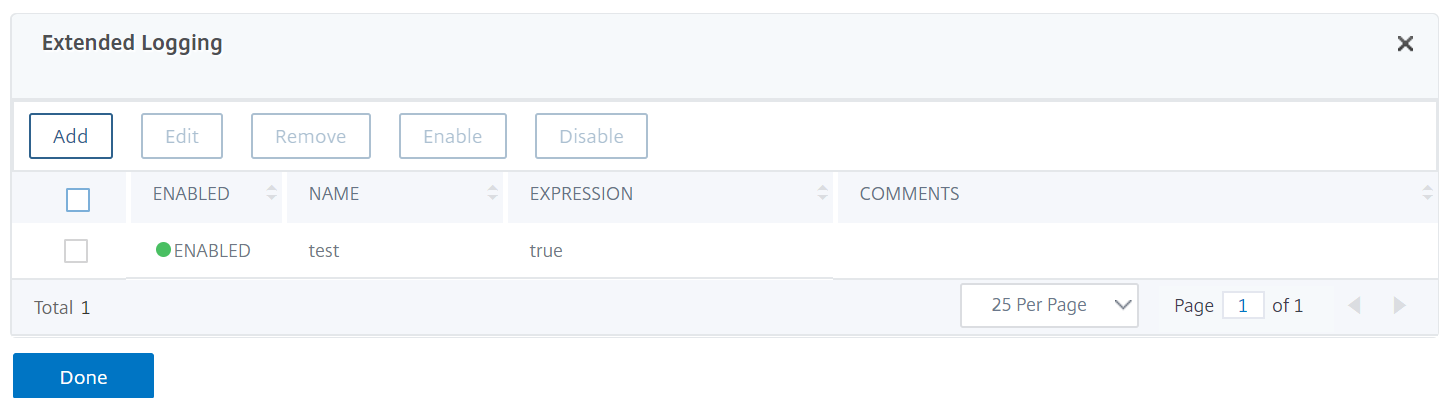
On the NetScaler Web App Firewall Profile page, navigate to Advanced Settings section and click Extended Logging.
-
In the Extended Logging section, click Add.
-
On the Create NetScaler Web App Firewall Extended Log Binding page, set the following parameters:
-
Name. Name of the log expression.
-
Enabled. Select this option to mask sensitive data.
-
Log mask. Select the data to be masked.
-
Expression. Enter the advanced policy expression that enables you to mask sensitive data in WAF logs
-
Comments. Brief description about the masking sensitive data.
-
-
Click Create and Close.