
Use case 14: ShareFile wizard for load balancing Citrix® ShareFile
You can configure load balancing for Citrix ShareFile using the wizard. The Citrix ShareFile wizard helps in setting up the load balancing configuration for the ShareFile site based on the type of content requested. The content switching server directs the request based on whether it is a StorageZone, CIFS, or a SharePoint request. The content switching is based on policies. The wizard auto generates the policies to identify whether the request is for StorageZone, CIFS, or SharePoint. The content switching virtual server uses these policies to direct the request to the correct load balancing server.
A typical data flow can be depicted as shown in the following diagram.
Figure 1. ShareFile Data Load Balancing
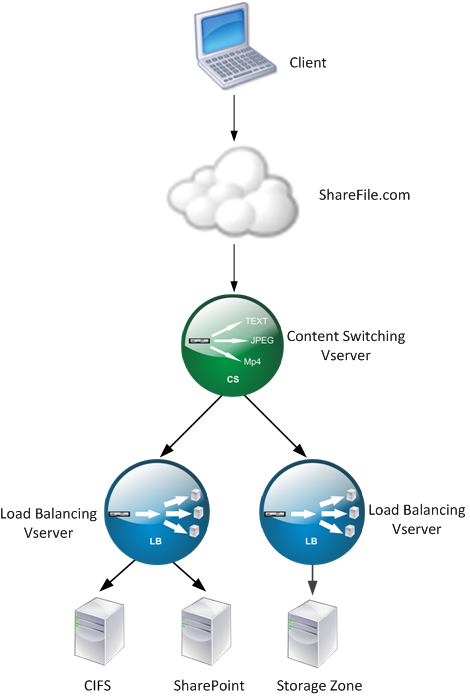
You can view the load balancing virtual servers that the ShareFile wizard creates by navigating to Traffic Management > Virtual Servers and Services > Virtual Servers. You cannot manually remove the virtual servers created using the ShareFile wizard. Use the wizard to remove the virtual servers.
NetScaler uses the LDAP authentication for SharePoint or CIFS request. Hash authentication is used for authenticating requests for StorageZones.
Related information
To configure a NetScaler appliance for load balancing Citrix ShareFile
-
In the navigation pane, click Traffic Management.
-
Under Citrix ShareFile section, click Setup NetScaler for ShareFile.
-
On the Setup Content Switching for ShareFile page, provide the following information:
-
IP Address: IP address of the content switching virtual server.
-
Name: Name of the content switching virtual server.
-
If you want to set up load balancing for CIFS or SharePoint, click the StorageZone Connector for Network File Shares/SharePoint check box and then click Continue. By default, the ShareFile Data check box is selected.
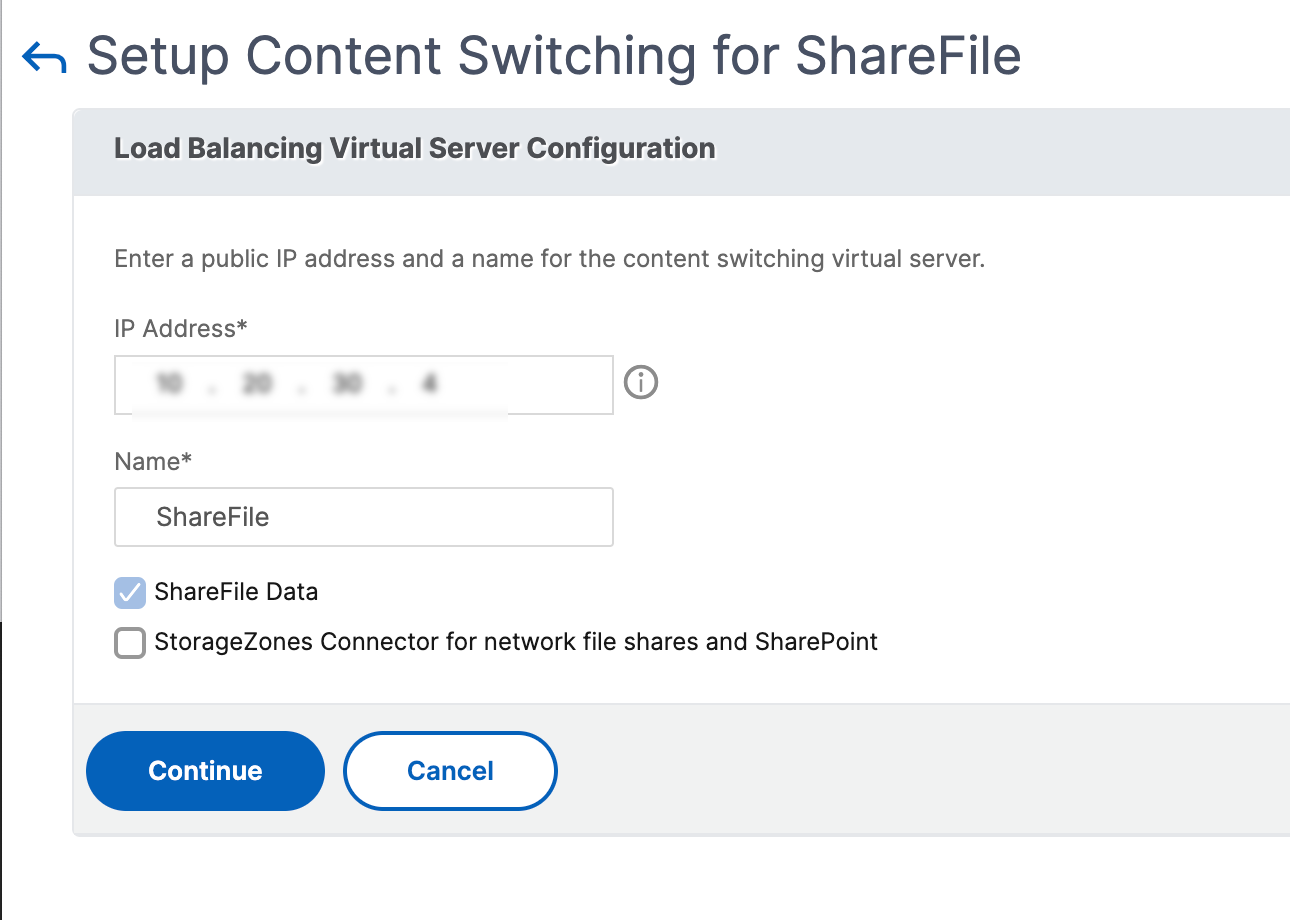
-
-
Provide a valid certificate. If you have a certificate, click Choose Certificate and from the drop-down list select the certificate. If you have to install a certificate, click Install Certificate and provide the Certificate-Key pair.
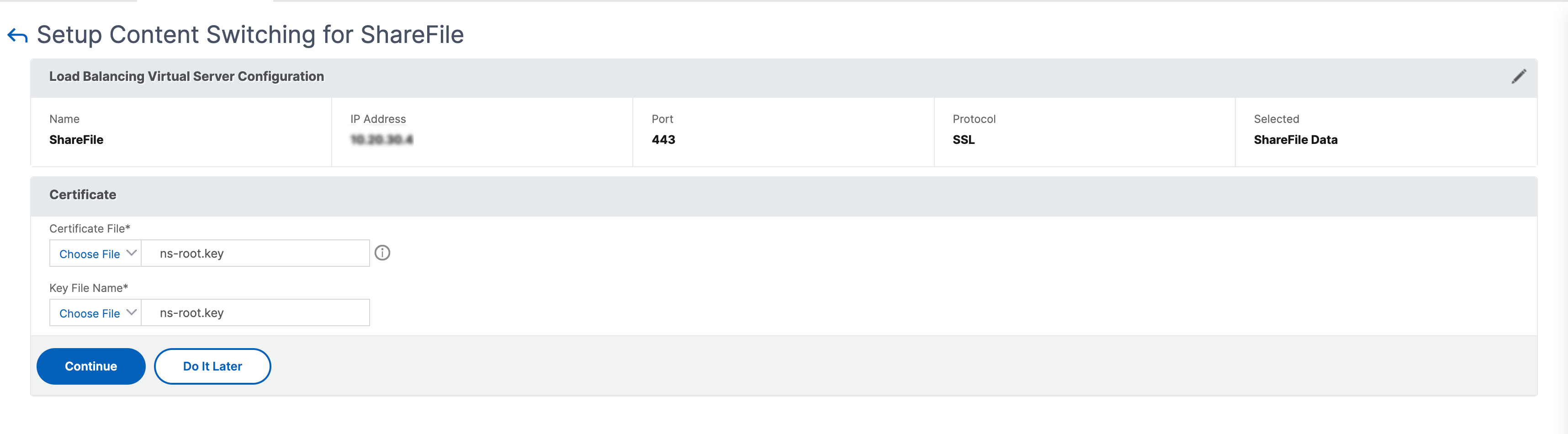
-
Click Continue.
-
In the Add New StorageZone Controller dialog box, specify the values of the following parameters:
-
StorageZone Controller IP Address— IP address
-
Port— Port number. The default value is 443.
-
Protocol— Select from HTTPS or HTTP
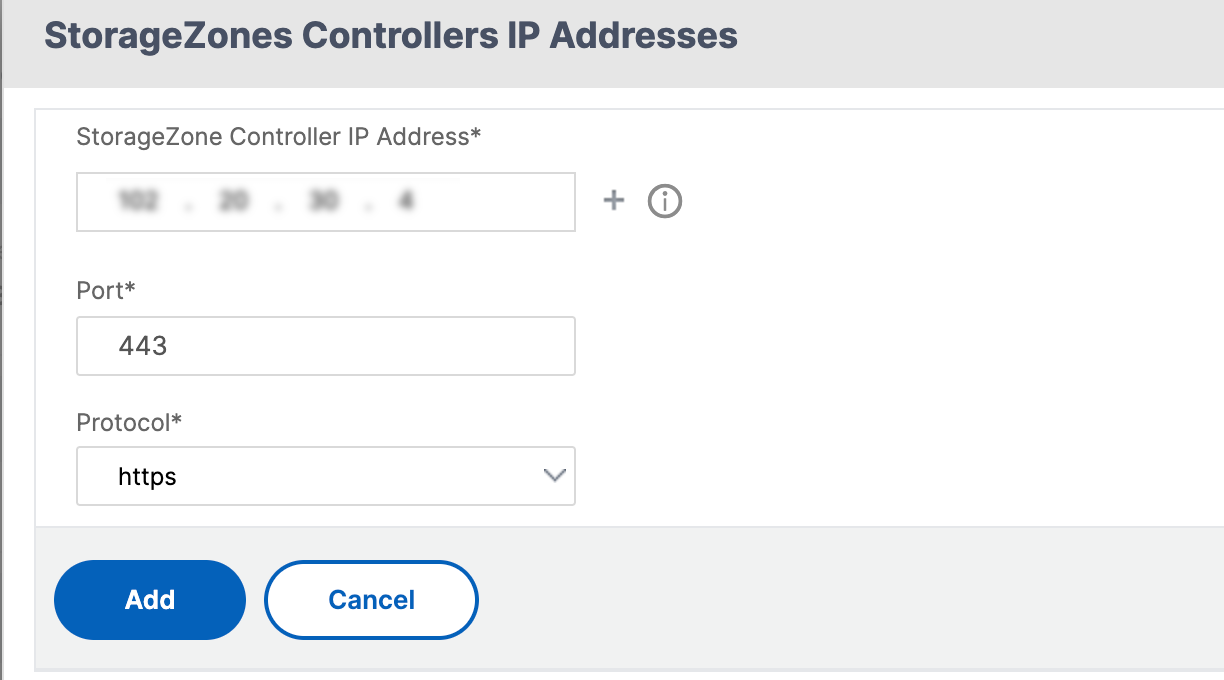
-
-
Click Create and then click Done. The wizard automatically creates a service and autogenerates the name of the service.
-
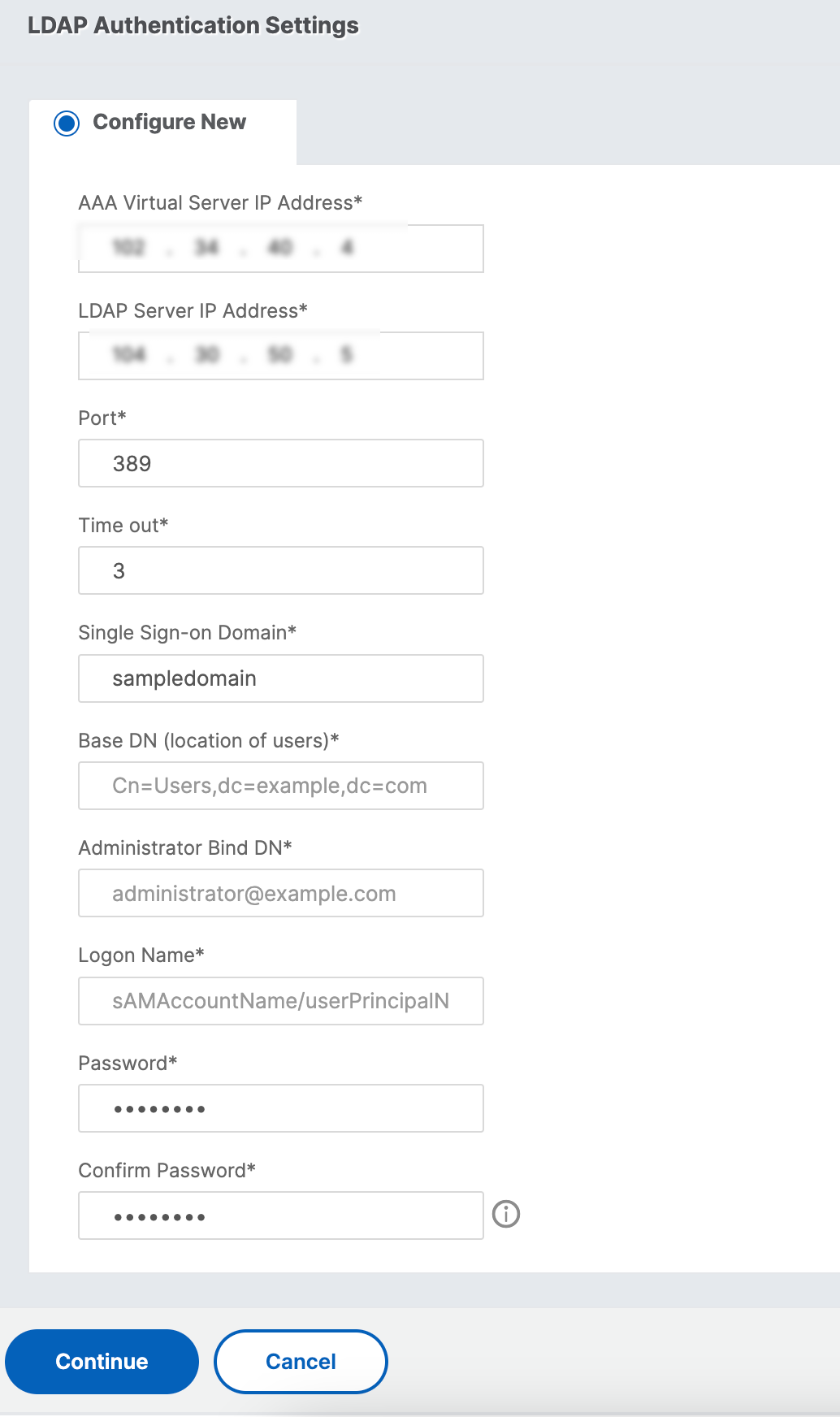
If you chose load balancing for CIFS or SharePoint in step 4.c, then specify the values for LDAP Authentication Settings:
-
NetScaler AAA virtual server IP Address— IP address of NetScaler AAA virtual server
-
LDAP Server IP Address— IP Address of the LDAP server
-
Port— Port number. The default value is 389
-
Timeout— The time-out value in minutes
-
Single sign-on Domain— Single sign-on domain name
-
Base DN— Base domain name
-
Administrator Bind DN— LDAP account name with the domain name, for example, adminstrator@domainname.com
-
Logon Name— Logon name is the sAMAccountName
-
Password and Confirm Password— Enter the password and confirm the password
-
-
Click Continue and then click Done.
To remove load balancing configuration for ShareFile
-
In the navigation pane, click Traffic Management.
-
Under Citrix ShareFile section, click Remove ShareFile Configuration.