
Configuring and using the Learning feature
The learning feature is a repetitive pattern filter that observes activity on a website or application protected by the Web App Firewall, to determine what constitutes normal activity on that website or application. It then generates a list of up to 2,000 suggested rules or exceptions (relaxations) for each security checks that include support for the learning feature. Users normally find it easier to configure relaxations by using the learning feature than by entering the necessary relaxations manually.
The security checks that support the learning feature are:
-
Start URL check
-
Cookie Consistency check
-
Form Field Consistency check
-
Field Formats check
-
CSRF Form Tagging check
-
HTML SQL Injection check
-
HTML Cross-Site Scripting check
-
XML Denial-of-Service check
-
XML Attachment check
-
Web Services Interoperability check
You perform two different types of activities when using the learning feature. First, you enable and configure the feature to use it. You can learn all traffic to your protected web applications, or you can configure a list of IP addresses (called the Add Trusted Learning Clients list) from which the learning feature can generate recommendations. Second, after the feature has been enabled and has processed a certain amount of traffic to your protected websites, you review the list of suggested rules and relaxations (learned rules) and mark each with one of the following designations:
-
Edit & Deploy. The rule is pulled into the Edit dialog box so that you can modify it, and the modified form is deployed.
-
Deploy. The unmodified learned rule is placed on the list of rules or relaxations for this security check.
-
Skip. The learned rule is placed on a list of rules or relaxations that are not deployed. The learned rule is removed when skipped. However, as they are not added to relaxations, they might get learned again.
Learning is not performed only when relaxations are in place, except for field format rules. When rules are skipped, they are only removed from the learned database. As relaxations are not added, they might get learned again. When the rules are deployed, they are removed from learned database and also relaxations are added for the rules. As relaxations are added, they would not be learned again. For field format protection, learning is performed irrespective of relaxations.
Although you can use the command line interface for basic configuration of the learning feature, the feature is designed primarily for configuration through the Web App Firewall wizard or the GUI. You can perform only limited configuration of the learning feature by using the command line.
The wizard integrates configuration of learning features with configuration of the Web App Firewall as a whole, and is therefore the easiest method for configuring this feature on a new NetScaler appliance or when managing a simple Web App Firewall configuration. The GUI visualizer and manual interface both provide direct access to all learned rules for all security checks, and are therefore often preferable when you must review learned rules for many security checks.
The learning database is limited to 20 MB in size, which is reached after approximately 2,000 learned rules or relaxations are generated per security check for which learning is enabled. If you do not regularly review and either approve or ignore learned rules and this limit is reached, an error is logged to the NetScaler® log and no more learned rules are generated until you review the existing learned rules and relaxations.
If learning stops because the database has reached its size limit, you can restart learning either by reviewing the existing learned rules and relaxations or by resetting the learning data. After learned rules or relaxations are approved or ignored, they are removed from the database. After you reset the learning data, all existing learning data is removed from the database and it is reset to its minimum size. When the database falls below 20 MB in size, learning restarts automatically.
We recommend that you enable learning in the staging environment and not in the production environment.
Note:
Enable the
-centralizedLearning parameter in NetScaler using the set appfw settings command to use the Web Application Firewall learning feature in NetScaler Console. Once you enable the Web Application Firewall learning feature, it stops the Web Application Firewall learning feature on Netscaler. Once you enable this parameter, it disables the Web Application Firewall learning feature on Netscaler.
Related information
To configure the learning settings by using the command line interface
Specify the Web App Firewall profile to be configured and, for each security check that you want to include in that profile, specify the minimum threshold or the percent threshold. The minimum threshold is an integer representing the minimum number of user sessions that the Web App Firewall must process before it learns a rule or relaxation (default: 1). The percent threshold is an integer representing the percentage of user sessions in which the Web App Firewall must observe a particular pattern (URL, cookie, field, attachment, or rule violation) before it learns a rule or relaxation (default: 0). Use the following commands:
-
set appfw learningsettings <profileName> [-startURLMinThreshold <positive_integer>] [-startURLPercentThreshold <positive_integer>] [-cookieConsistencyMinThreshold <positive_integer>] [-cookieConsistencyPercentThreshold <positive_integer>] [-CSRFtagMinThreshold <positive_integer>] [-CSRFtagPercentThreshold <positive_integer>] [-fieldConsistencyMinThreshold <positive_integer>] [-fieldConsistencyPercentThreshold <positive_integer>] [-crossSiteScriptingMinThreshold <positive_integer>] [-crossSiteScriptingPercentThreshold <positive_integer>] [-SQLInjectionMinThreshold <positive_integer>] [-SQLInjectionPercentThreshold <positive_integer>] [-fieldFormatMinThreshold <positive_integer>] [-fieldFormatPercentThreshold <positive_integer>] [-XMLWSIMinThreshold <positive_integer>] [-XMLWSIPercentThreshold <positive_integer>] [-XMLAttachmentMinThreshold <positive_integer>] [-XMLAttachmentPercentThreshold <positive_integer>] -
save ns config
Example
The following example enables and configures the learning settings in the profile for the HTML SQL Injection security check. This is an appropriate initial test bed learning configuration, where you have complete control over the traffic that is sent to the Web App Firewall.
set appfw learningsettings pr-basic -SQLInjectionMinThreshold 10
 set appfw learningsettings pr-basic -SQLInjectionPercentThreshold 70
 save ns config
To reset learning settings to their defaults by using the command line interface
To remove any custom configuration of the learning settings for the specified profile and security check, and return the learning settings to their defaults, at the command prompt type the following commands:
-
unset appfw learningsettings <profileName> [-startURLMinThreshold ] [-startURLPercentThreshold] [-cookieConsistencyMinThreshold] [-cookieConsistencyPercentThreshold] [-CSRFtagMinThreshold ] [-CSRFtagPercentThreshold ] [-fieldConsistencyMinThreshold ] [-fieldConsistencyPercentThreshold ] [-crossSiteScriptingMinThreshold ] [-crossSiteScriptingPercentThreshold ] [-SQLInjectionMinThreshold ] [-SQLInjectionPercentThreshold ] [-fieldFormatMinThreshold] [-fieldFormatPercentThreshold ] [-XMLWSIMinThreshold ] [-XMLWSIPercentThreshold ] [-XMLAttachmentMinThreshold ] [-XMLAttachmentPercentThreshold] -
save ns config
To display the learning settings for a profile by using the command line interface
At the command prompt, type the following command:
show appfw learningsettings <profileName>
To display unreviewed learned rules or relaxations for a profile by using the command line interface
At the command prompt, type the following command:
show appfw learningdata <profileName> <securityCheck>
To remove specific unreviewed learned rules or relaxations from the learning database by using the command line interface
At the command prompt, type the following command:
rm appfw learningdata <profileName> (-startURL <expression> | -cookieConsistency <string> | (-fieldConsistency <string> <formActionURL>) | (-crossSiteScripting <string> <formActionURL>) | (-SQLInjection <string> <formActionURL>) | (-fieldFormat <string><formActionURL>) | (-CSRFTag <expression> <CSRFFormOriginURL>) | -XMLDoSCheck <expression> | -XMLWSICheck <expression> | -XMLAttachmentCheck <expression>) [-TotalXMLRequests]
Example
The following example removes all unreviewed learned relaxations for the profile, HTML SQL Injection security check, that apply to the LastName form field.
rm appfw learningdata pr-basic -SQLInjection LastName
To remove all unreviewed learned data by using the command line interface
At the command prompt, type the following command:
reset appfw learningdata
To export learning data by using the command line interface
At the command prompt, type the following command:
export appfw learningdata <profileName> <securitycheck>[-target <string>]
Example
The following example exports learned relaxations for the profile and the HTML SQL Injection security check to a comma-separated values (CSV) format file in the /var/learnt_data/ directory under the file name specified in the -target parameter.
export appfw learningdata pr-basic SQLInjection -target sqli_ld
To configure the Learning feature by using the GUI
-
Navigate to Security > Web App Firewall > Profiles.
-
In the Profiles pane, select the profile, and then click Edit.
-
Click Learnt Rules under Advanced Settings section.
-
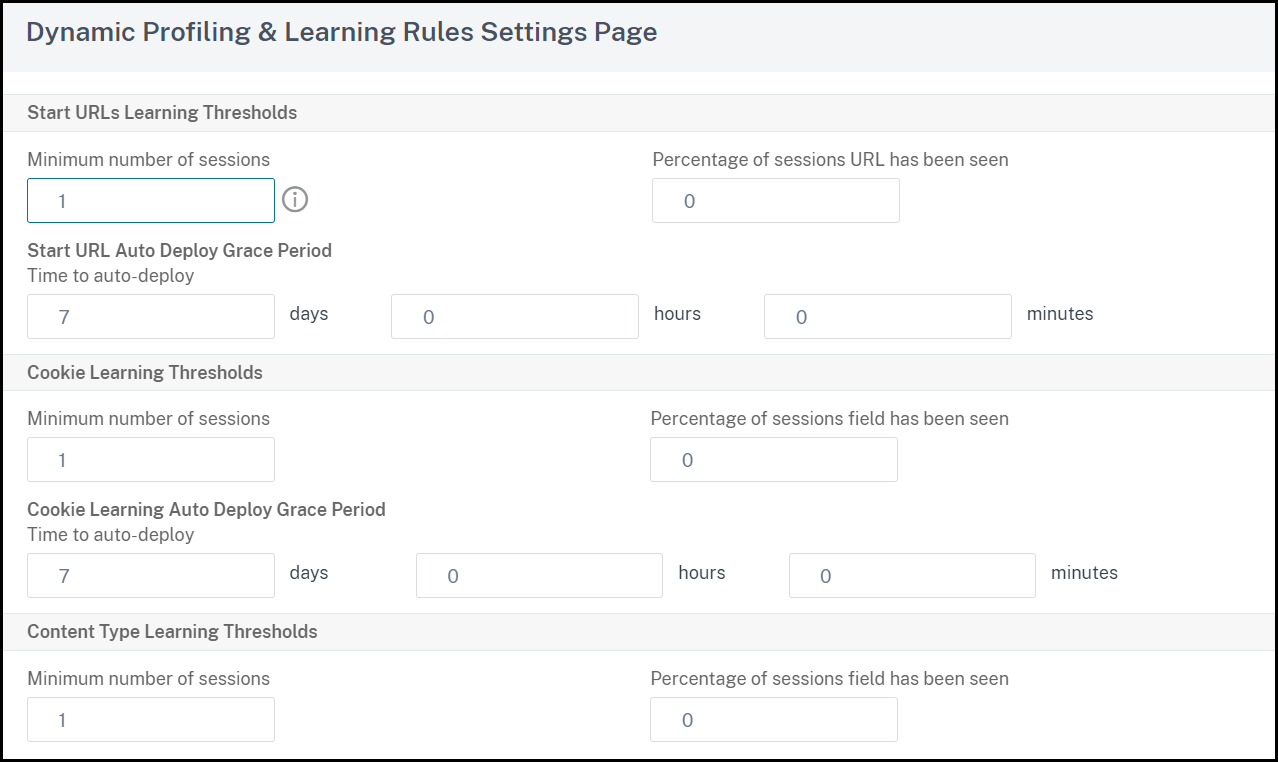
In the Learnt Rules section, select a security check and click Settings.
-
In the Security Check Settings page, set the following parameters:
-
Minimum number threshold. Depending on which security check's learning settings you are configuring, the minimum number threshold might refer to the minimum number of total user sessions that must be observed, the minimum number of requests that must be observed, or the minimum number of times a specific form field must be observed, before a learned relaxation is generated. Default: 1
-
Percentage of times threshold. Depending on which security check’s learning settings you are configuring, the percentage of times threshold might refer to the percentage of total observed user sessions that violated the security check, the percentage of requests, or the percentage of times a form field matched a particular field type, before a learned relaxation is generated. Default: 0
-
-
Click OK and Close.
-
Click Remove All Learned Data to remove all learned data and reset the learning feature, so that it must start its observations again from the beginning.Note:This button removes only learned recommendations that have not been reviewed and either approved or skipped. It does not remove learned relaxations that have been accepted and deployed.
-
To restrict the learning engine to traffic from a specific set of IPs, click Trusted Learning Clients, and add the IP addresses that you want to use to the list.
-
To add an IP address or IP address range to the Trusted Learning Clients list, click Add.
-
In the Add Trusted Learning Clients dialog box, Trusted Clients IP list box, type the IP address or an IP address range in CIDR format.
-
In the Comments text area, type a comment that describes this IP address or range.
-
Click Create to add your new IP address or range to the list.
-
To modify an existing IP address or range, click the IP address or range, and then click Open. Except for the name, the dialog box that appears is identical to the Add Trusted Learning Clients dialog box.
-
To disable or enable an IP address or range, but leave it on the list, click the IP address or range, and then click Disable or Enable, as appropriate.
-
To remove an IP address or range completely, click the IP address or range, and then click Remove.
-
-
Click Close to return to the Configure Web App Firewall Profile page.
-
Click Done.
To review learned rules or relaxations by using the GUI
-
Navigate to Security > Web App Firewall > Profiles.
-
In the Profiles pane, select the profile, and then click Edit.
-
Click Learnt Rules under Advanced Settings section.
-
In the Learnt Rules section, select a security check and click Settings.
-
To review the learned data hierarchically as a branching tree, enabling you to choose general patterns that match many of the learned patterns, click Visualizer.
-
If you have chosen to review actual learned patterns, perform the following steps.
-
Select the first learned relaxation and choose how to handle it.
-
To modify and then accept the relaxation, click Edit & Deploy, edit the relaxation regular expression, and then click OK.
-
To accept the relaxation without modifications, click Deploy.
-
To remove the relaxation from the list without deploying it, click Skip.
-
Repeat the previous step to review each additional learned relaxation.
-
-
Click Close to return to the Manage Learned Rules dialog box.
-
Click Done.