
Audit configuration changes across instances
You want to make sure that certain configurations are running on specific instances for optimal performance of your network. You also want to monitor configuration changes across managed NetScaler instances, troubleshoot configuration errors, and recover unsaved configurations after a sudden system shutdown.
You can create audit templates with specific configurations to audit on certain instances. NetScaler Console compares these instances with the audit template and reports if there is a mismatch in the configuration. The configuration diff report enables you to troubleshoot and rectify unwanted configuration changes.
You can automate the running of the audit template by:
-
Scheduling the time at which the template must be run.
-
Setting the frequency at which NetScaler Console must run the template. You can run the template daily, on a specific day in a week, or on a specific date in a month.
You also have an option to send the diff report generated by NetScaler Console to specified email addresses that you can configure. With this option, users can receive the report as a mail attachment or a Slack notification. They don't have to log on to NetScaler Console to export the reports manually.
Note:
The Rename option is disabled for the default configuration templates. However, you can rename custom configuration templates.
To create audit templates:
-
Navigate to Infrastructure > Configuration > Configuration Audit > Audit Templates, and click Add.
-
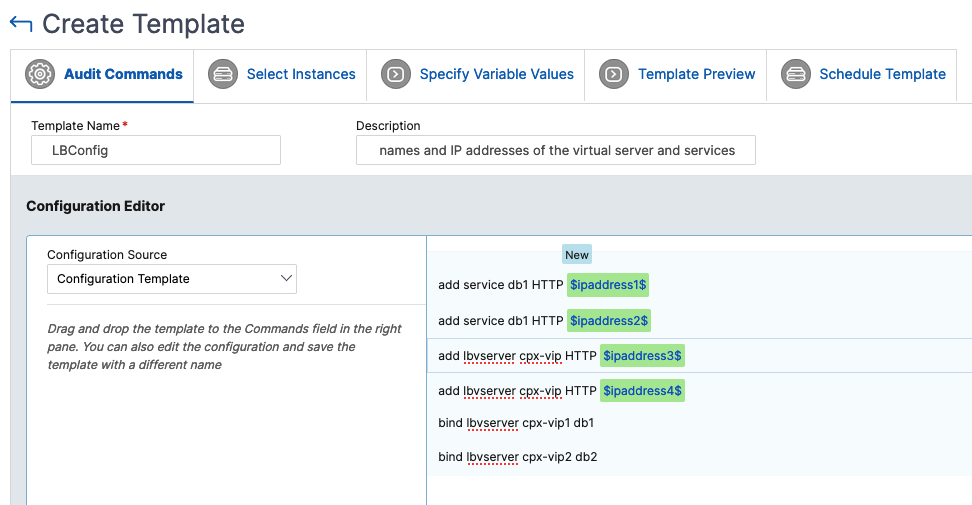
In the Create Template page, and in the Audit Commands tab, specify the template name and its description.
-
In the Configuration Editor page, type in your commands and save the commands as a configuration template. You can also drag an existing template from the left pane to the editor.
-
Select the values that you want to convert to a variable, and then click Convert to Variable. For example, select the IP address of the load balancing server "ipaddress1," and click Convert to Variable. The variable is now enclosed with "$".
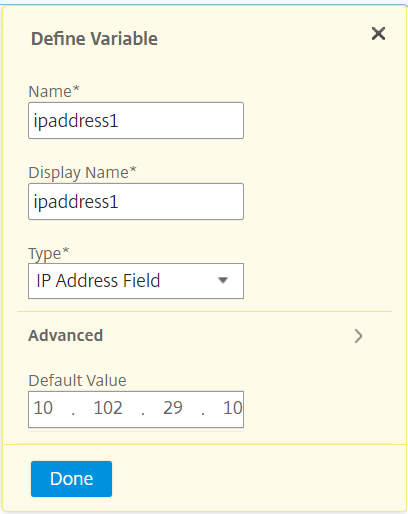
 In the Define Variable window, set the properties for this variable - name, display name, and the type of the variable. Click the Advanced option if you want to further specify a default value for your variable.
 You can also save the commands as a configuration template.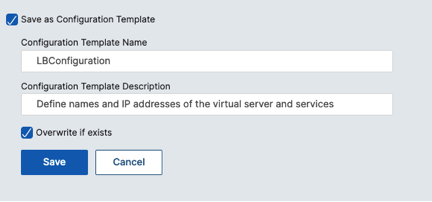
-
Click Save and then, click Next.
-
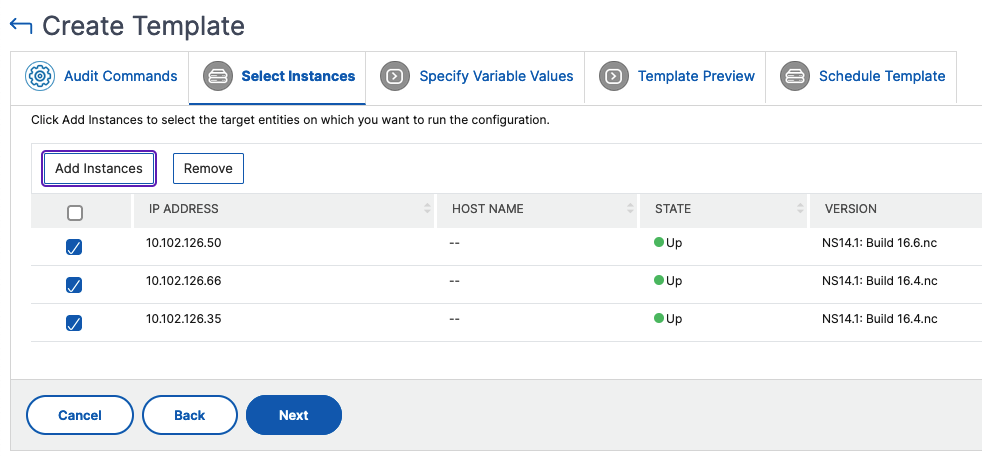
In the Select Instances tab, select the instances you want to run the configuration audit on and click Next.
-
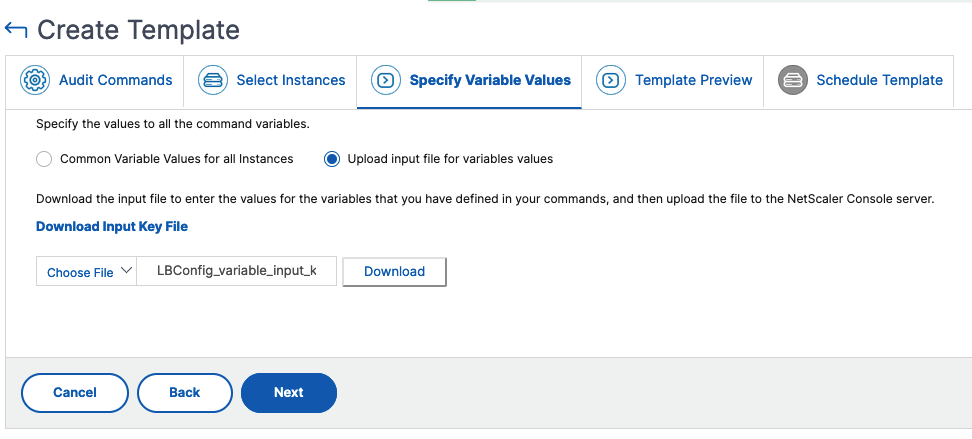
In the Specify Variable Values tab, you have two options:
-
Download the input file to enter the values for the variables that you have defined in your commands. After entering the variables, upload the file to the NetScaler Console server.
-
Enter common values for the variables that you have defined for all instances.
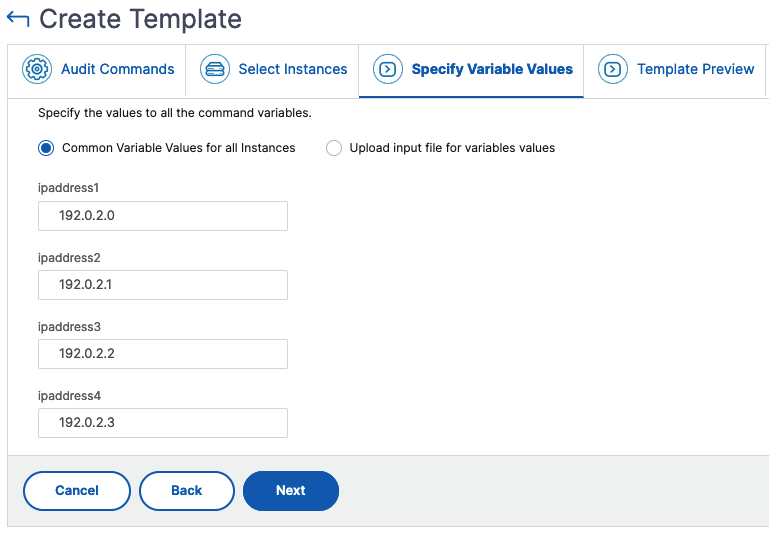 Note:If you want to audit each instance with different values, you must create separate variables in the input file for each instance.
 -
-
Click Next.
-
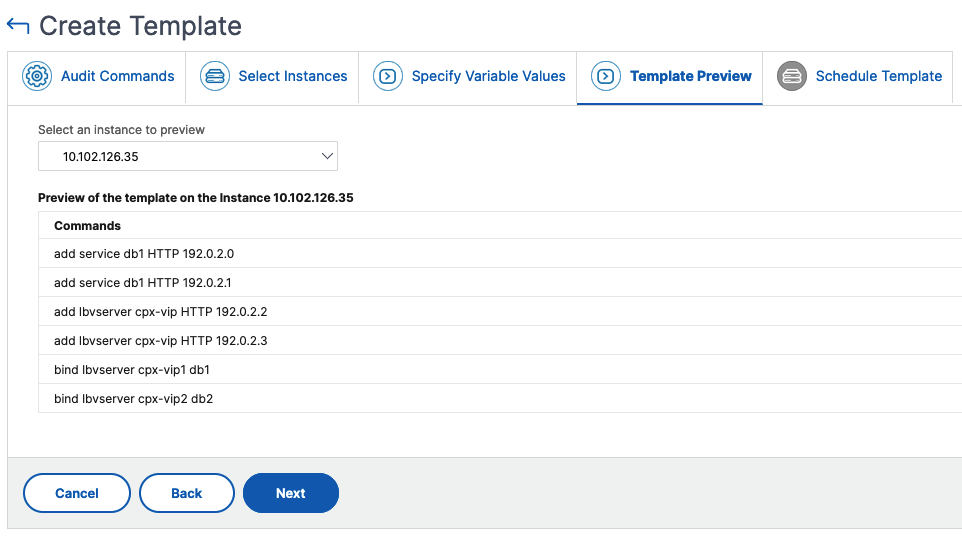
In the Template Preview tab, you can evaluate and verify the commands to be run on each instance or instance group. Click Next.
-
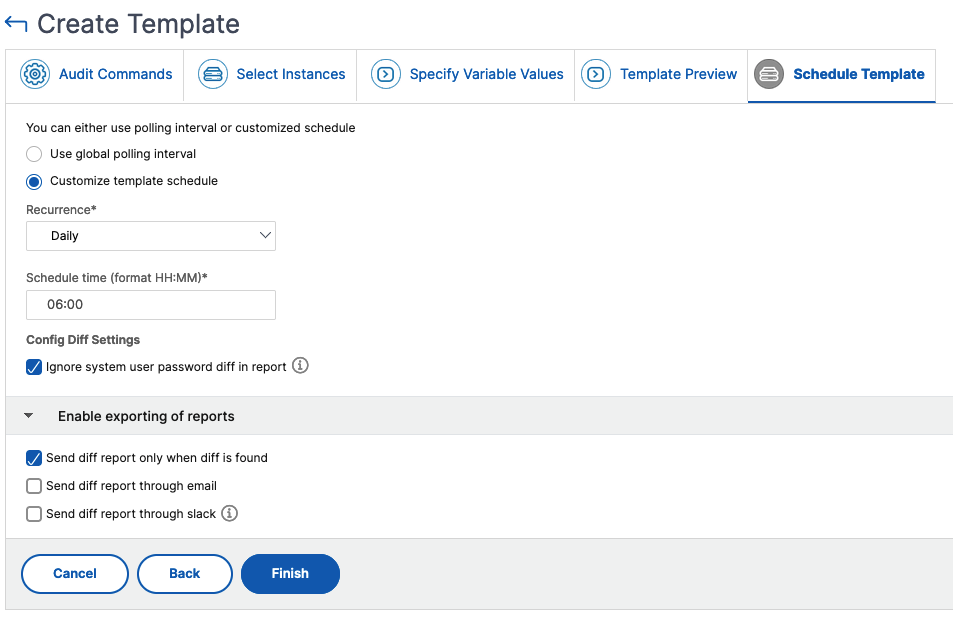
In the Schedule Template tab, you have the following options to schedule the running of the template and configuring the mail address to send the diff report.
-
Use global polling interval. Select this option to run the template on the instances at a time configured globally on NetScaler Console.
-
Customize template schedule. Use this option to configure the time and the frequency at which the templates must be run.
-
Specify the frequency and the timing for the execution of the audit templates.
-
-
Enable exporting of reports. Use this option to:
-
Send diff report only diff is found
-
Send diff report through email. Configure the mail profile to which the diff report must be sent as a mail attachment.
-
Send diff report through slack. Configure the Slack channel to which the diff report must be sent as a notification.
-
-
-
Click Finish.
The audit template appears in the Audit Templates list and is run at the scheduled time against the configurations in the specified instances.
Related information
View configuration changes
You can also use the Configuration Audit dashboard to view high-level details about configuration changes such as:
-
The top 10 instances by configuration change
-
The number of saved and unsaved configurations
-
The file added, removed, or modified in the
nsconfigfolder
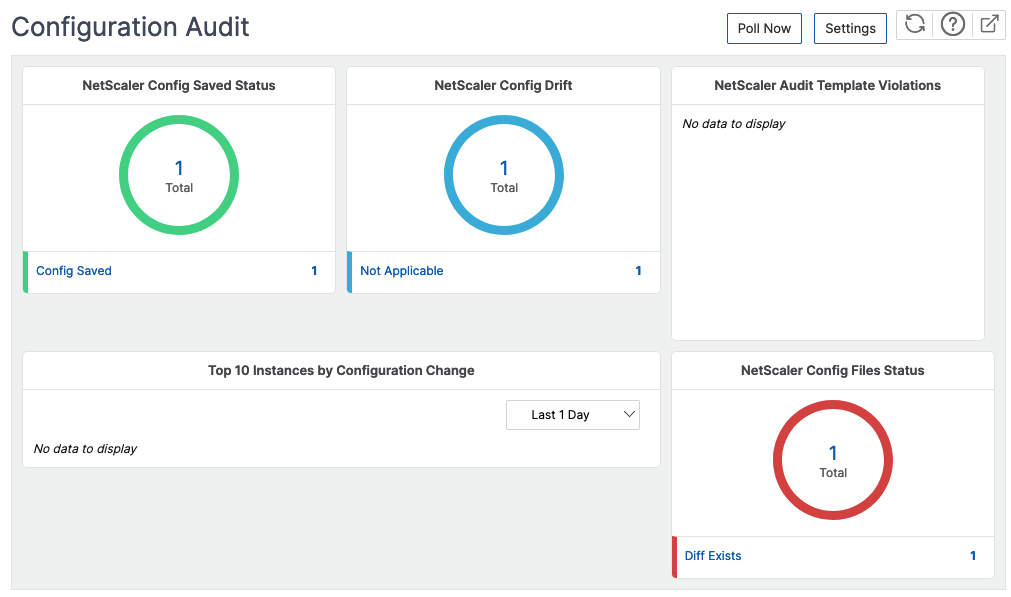
NetScaler Console also allows you to poll configuration audits manually and adds all the configuration audits of the instances immediately to the NetScaler Console. To do so, navigate to Infrastructure > Configuration > Configuration Audit, click Poll Now, the pop-up page Poll Now provides you an option to poll all NetScaler instances in the network, or poll the selected instances.
You can also force an audit on an instance. To do so, click any of the following charts:
-
NetScaler Config Saved Status
-
NetScaler Config Drift
On the Audit Reports page, select the instance and, in the Action list, select Poll Now.

The NetScaler Config File Status chart provides you the status of the NetScaler files present in the
nsconfig folder. The NetScaler Console records and compares changes in files within the nsconfig folder and displays the differences. See, View the file status audit reports.
Set configuration audit notifications
-
Navigate to Infrastructure > Configuration > Configuration Audit.
-
In the Configuration Audit page, click Settings.
-
In the Notification Settings page, click the Edit icon to enable the notification settings.
-
Select the Enabled checkbox. Choose an email distribution list from the drop-down list. You can also create an email distribution list by clicking the + icon and specifying email server details.