
Modes of telemetry collection
Related information
Automated telemetry collection mode
This mode is enabled by default after you upgrade to NetScaler Console on-prem 14.1-25.53 / 13.1-53.22 or later build.
Prerequisites for the automated telemetry collection mode:
-
Ensure that you have an internet connection or have a proxy server configured in NetScaler Console on-prem for Citrix Cloud accessibility. For more information, see System Requirements.
-
Ensure that the following endpoint URLs are reachable:
-
Download Service URL:
https://download.citrixnetworkapi.net -
Service URL:
https://adm.cloud.com(required only in 14.1-43.x or earlier build). -
Auto-enabled channel:
https://safehaven.adm.cloud.com
-
-
Ensure that the following port is open:
Port Type Details Direct of communication 5140 UDP Port to receive NetScaler Gateway telemetry data NetScaler to NetScaler Console
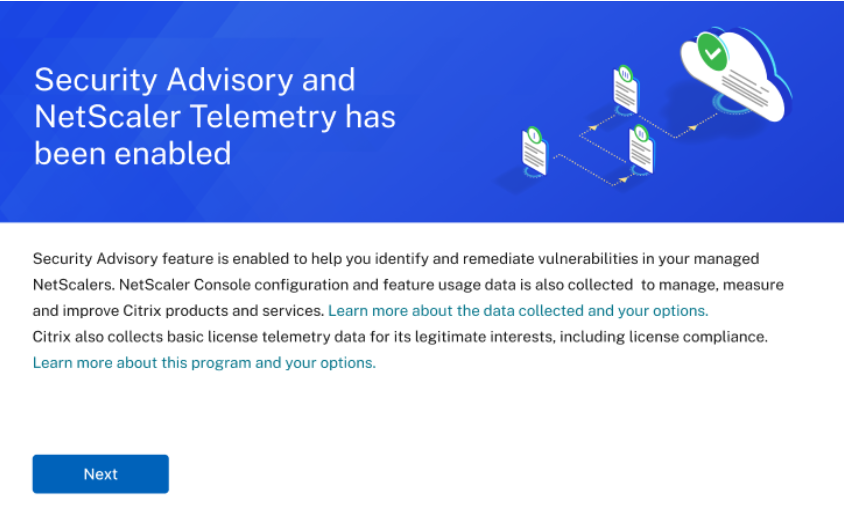
After you upgrade to 14.1-25.53 or 13.1-53.22 build and navigate to the NetScaler Telemetry page, click Next in the following pop-up window:
Manual telemetry collection mode
To use the manual telemetry collection mode, you must first disable Security Advisory and then click the vertical ellipse and select Disable.
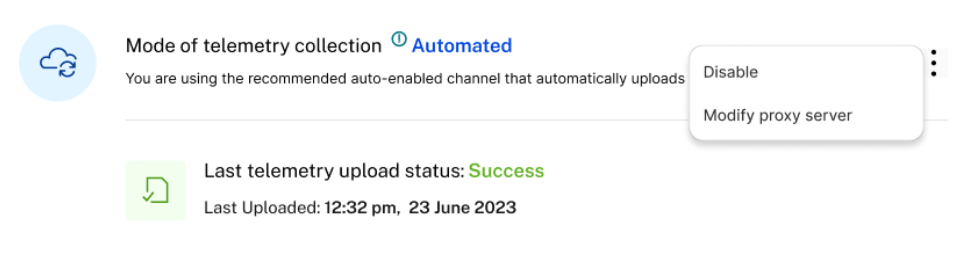
In the pop-up window, click I agree to upload the data manually to disable the automated telemetry collection. The mode of telemetry collection is automatically changed to Manual. In the Manual telemetry mode, the new CVE updates are not available and you can only use the Security Advisory with the existing or the last updated CVEs.
After you opt for manual mode, you must download the telemetry and complete the first upload in NetScaler Console service within 30 days. The subsequent uploads are to be done every 90 days thereafter.
Note:
A maximum of 2 GB NetScaler Console disk space is utilized to save the 90 days of telemetry data.
From the NetScaler Telemetry homepage, click Download Telemetry to download the bundle (.tgz) file that comprises the required telemetry data.

After you download the telemetry file, you must upload it to the NetScaler Console service. To upload in NetScaler Console service:
-
Log on to Citrix Cloud (citrix.cloud.com). If you do not have a Citrix Cloud account, sign up for a new account. For more information, see Create a Citrix Cloud account.
-
Select an account.
-
Under NetScaler Console Service, click Manage.
-
Set up a Console service account.
-
In NetScaler Console service, navigate to Settings > Console on-prem telemetry upload.
-
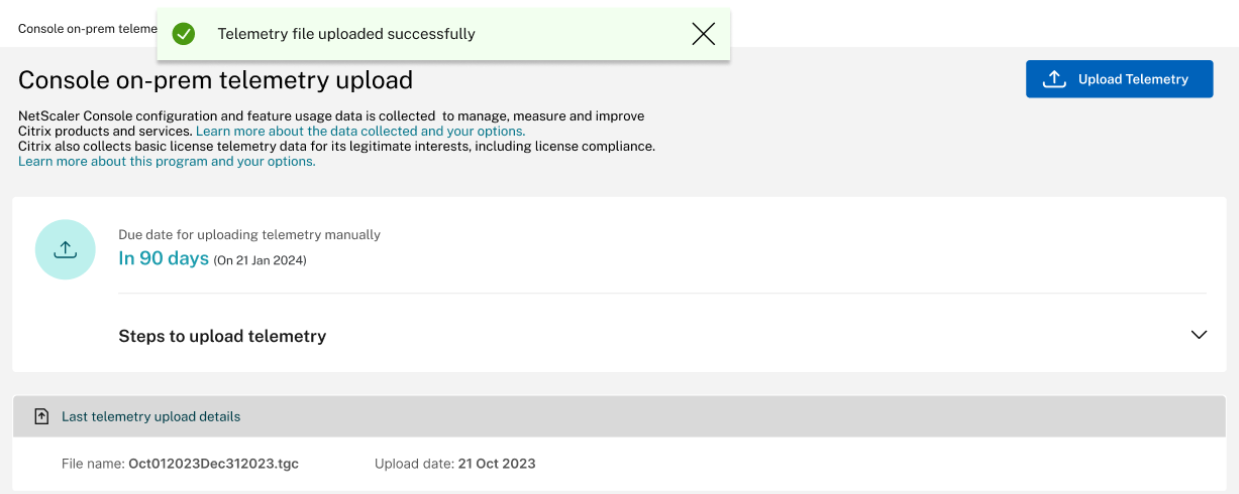
Click Upload Telemetry and select the downloaded (.tgz) file to complete the upload process.
-
Complete the first upload within 30 days of selecting manual mode. Repeat the same procedure and upload the telemetry file every 90 days thereafter.
 Notes:
-
The upload fails if the file is not in a valid (.tgz) format or the file does not pass the integrity checks. The recommendation is to download again and retry to upload. If the issue persists, contact Customer Care.
-
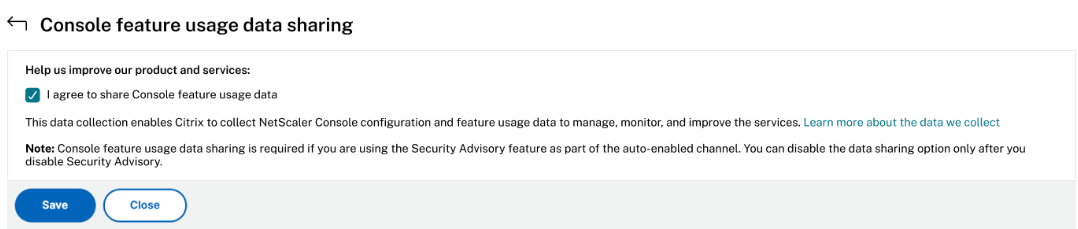
You can disable uploading the optional telemetry data. To disable, you must first disable Security Advisory in the NetScaler Telemetry page, then navigate to Settings > Administration > Enable or disable the Console feature data sharing, and clear the I agree to share Console feature usage data checkbox.
-
In your NetScaler Console on-prem, a reminder banner appears 7 days before the upload due date.
-