
Use NetScaler Console audit logs for managing and monitoring your infrastructure
You can use the NetScaler Console service to track all events on NetScaler Console and syslog events generated on NetScaler Console-managed NetScaler instances. These messages can help you manage and monitor your infrastructure. But log messages are a great source of information only if you review them, and NetScaler Console simplifies the way of reviewing log messages.
You can use filters to search NetScaler Console syslog and audit log messages. The filters help to narrow down your results and find exactly what you are looking for and in real time. The built-in Search Help guides you to filter the logs. Another way to view log messages is to export them in PDF, CSV, PNG, and JPEG formats. You can schedule the export of these reports to specified email addresses at various intervals.
You can review the following types of log messages from the NetScaler Console GUI:
-
NetScaler instance related audit logs
-
NetScaler Console related audit logs
-
Application audit logs
Related information
NetScaler instance related audit logs
Before you can view NetScaler instance-related syslog messages from NetScaler Console, configure the NetScaler Console service as the syslog server for your NetScaler instance. After the configuration is complete, all syslog messages are redirected from the instance to NetScaler Console.
Configure the NetScaler Console service as a syslog server
Follow these steps to configure NetScaler Console as the syslog server:
-
From the NetScaler Console GUI, navigate to Infrastructure > Instances.
-
Select the NetScaler instance from which you want the syslog messages to be collected and displayed in NetScaler Console.
-
In the Select Action list, select Configure Syslog.
-
Click Enable.
-
In the Facility drop-down list, select a local or user-level facility.
-
Select the required log level for the syslog messages.
-
Click OK.
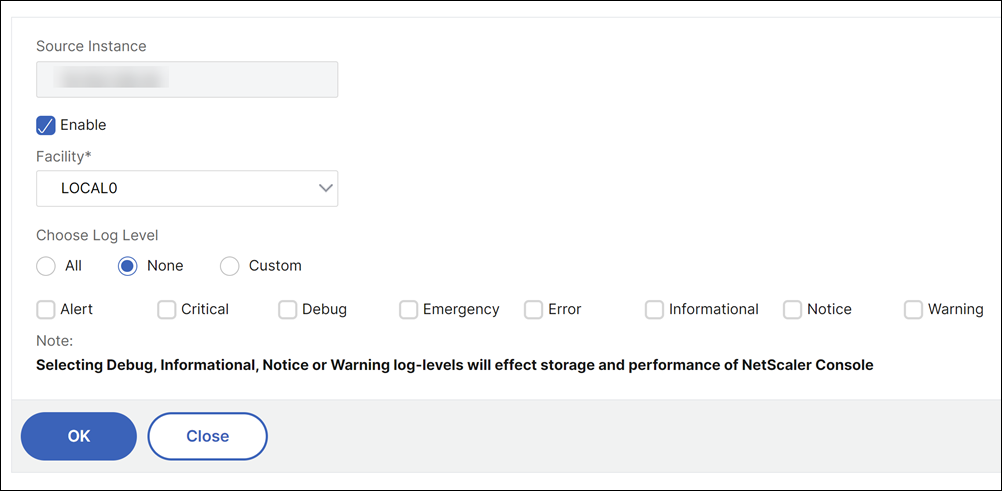
These steps configure all the syslog commands in the NetScaler instance, and NetScaler Console starts receiving the syslog messages. You can view the messages by navigating to Infrastructure > Events > Syslog Messages. Click Need Help? to open the built-in search help. For more information, see View and export syslog messages.
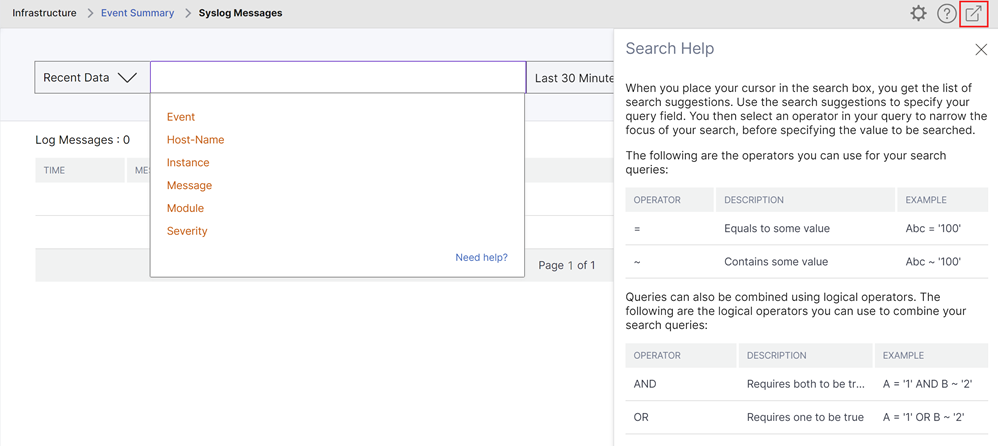
To export the log messages, click the arrow icon on the upper right corner.
Next, click Export Now or Schedule Export. For more information, see View and export syslog messages.
NetScaler Console related audit logs
Based on preconfigured rules, NetScaler Console generates audit log messages for the corresponding events, helping you monitor the health of your infrastructure.
Configuring a syslog server to monitor audit and shell logs
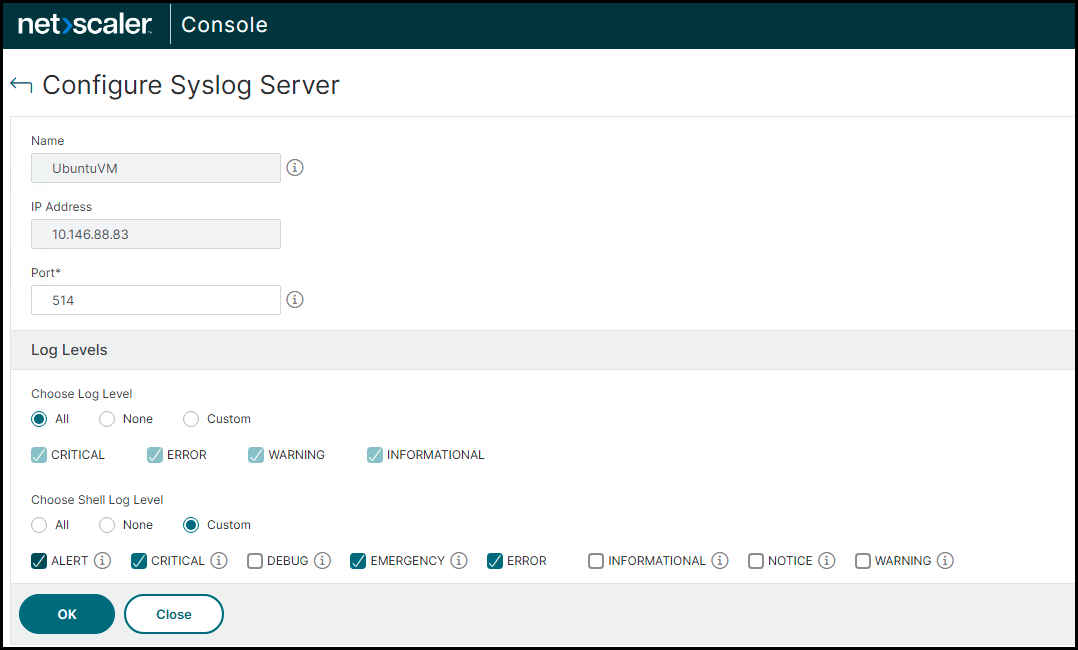
You can configure an external syslog server to monitor audit and shell log events for your NetScaler Console deployments. For versions 14.1-34.x and later, you can configure a syslog server to also receive shell log events. This is an addition to the existing audit log configuration. Similar to audit logs, shell logs can be configured for different log levels.
Follow these steps to configure a syslog server on NetScaler Console:
-
Navigate to UI Settings > Audit logs > Syslog servers.
-
Choose the log levels for audit logs, shell logs, or for both.
-
All: Selects all listed log levels for audit or shell related events.
-
None: Clears all the selection and no logging level is selected.
-
Custom: Allows you to select specific log levels from the available list presented as check boxes.
-
-
Click OK to continue with the selected configuration. This enables NetScaler Console to send audit and/or shell related events to the configured syslog server.
To view all audit log messages present in the NetScaler Console, navigate to Settings > Audit Log Messages.
To export the log messages, click the arrow icon on the upper right corner.
Application related audit logs
You can view the audit log messages for all NetScaler Console applications or for a specific application.
-
To view all audit log messages for all applications present in the NetScaler Console, navigate to Infrastructure > Network Functions > Auditing.
-
To view audit log messages for any specific application in the NetScaler Console, navigate to Applications > Dashboard, click a virtual server and select Audit Log.