
Configure a secondary NIC to access NetScaler Console
You can configure a second NIC for isolating management access to NetScaler Console. Using this second NIC feature, depending upon your requirement, you can choose how you want to isolate the traffic that is received and sent through the NetScaler Console.
Consider a scenario in which you want to isolate the traffic to:
-
Have all communications between NetScaler Console and its managed NetScaler instances in one network.
-
Have management access to NetScaler Console in another network.
In this scenario, as an administrator, you can:
-
Configure one IP address for the traffic between NetScaler Console and its managed NetScaler instances.
-
Configure another IP address for managing the NetScaler Console software to perform all administrative tasks in the software.
Note
If NetScaler Console is configured as an HA pair, the management IP address configured on the second NIC is associated with the primary node.
Related information
Prerequisites
-
Ensure you have deployed and configured NetScaler Console 13.0 Build 47.x or later on the hypervisor (Citrix Hypervisor, Microsoft Hyper-V, Linux KVM, or VMware ESXi).
-
Ensure you have added the second NIC on the hypervisor (Citrix Hypervisor™, Microsoft Hyper-V, Linux KVM, or VMware ESXi).
To assign an IP address to a NIC on a Citrix Hypervisor and create a secondary interface, see Assign an IP Address to a NIC.
Configure a second NIC in NetScaler Console
-
Log on to NetScaler Console GUI.
-
Navigate to Settings > Administration.
-
Under Network Configuration, click IP Address, Second NIC, Host Name and Proxy Server.
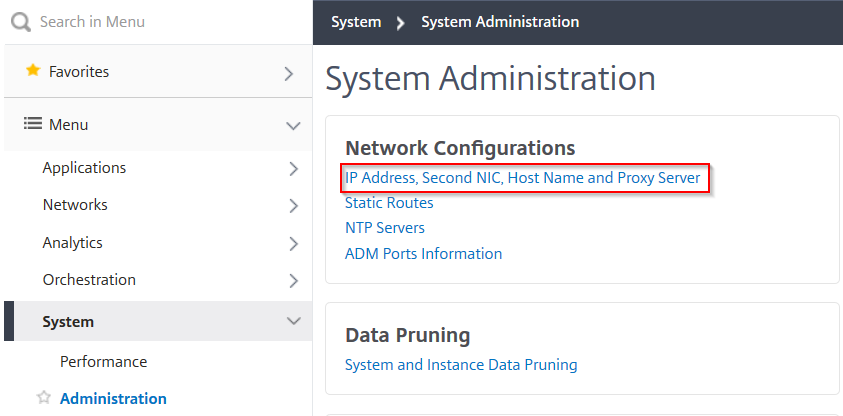 The Network Configuration page is displayed.
 -
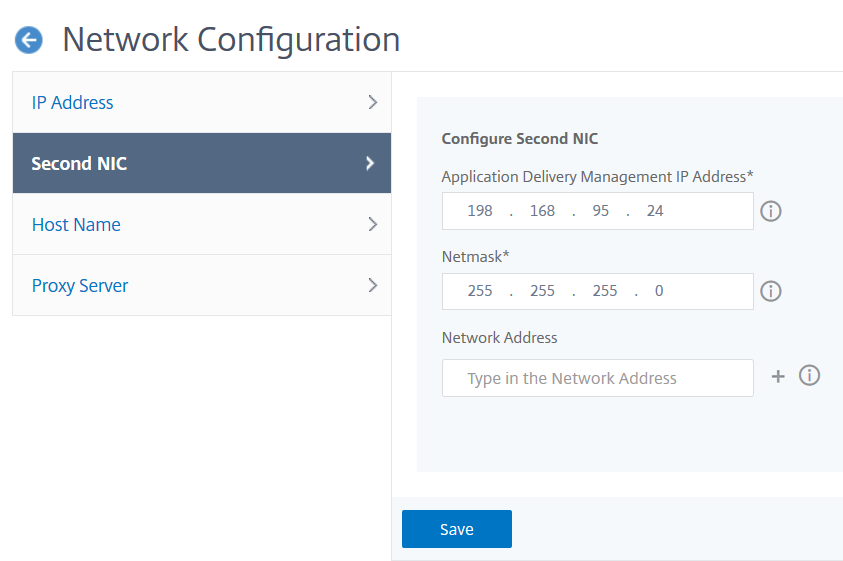
Click the Second NIC tab and configure the following parameters:
-
Application Delivery Management IP Address – Enter a valid IP address to access NetScaler Console. You can use this IP address to access NetScaler Console, apart from the existing management IP address.
-
Netmask – Enter the netmask address to specify the network host. The default address is 255.255.255.0.
-
Network Address – Enter an IP address to add a route entry for NetScaler Console. Click + to add more IP addresses. This field is optional.
-
Click Save.
-