
Centralized GeoIP DB Updates through NetScaler® Console
NetScaler Console allows administrators to upload the GeoIP DB (Geolocation Database) file from MaxMind directly through the NetScaler Console. You can either push the GeoIP DB file immediately to managed NetScaler instances or schedule the update for a later time. These files are essential for accurate IP-to-location mapping, commonly used in GSLB and security policies.
With this enhancement you also get update history tracking, which allows you to view whether an update was successful or failed. Also, you can view, delete, or download previously uploaded or pushed GeoIP DB versions from NetScaler Console. This enhancement also introduces manual update of GeoIP DB file in NetScaler Console, version control, and automated update workflows, allowing seamless GeoIP DB updates without impacting GSLB services.
Previously, NetScaler did not have a centralized mechanism for managing GeoIP DB updates on NetScaler. Administrators had to perform the updates manually on each device, which was time-consuming, error-prone, and disruptive in production environments.
This enhancement provides the following benefits:
-
Automation: The update process is automated and performed without scheduled downtime and therefore reduces operational overhead.
-
Effective scalability: Managing updates across multiple NetScaler instances is efficient and easy to scale.
-
Version control: If an issue arises, you can track the historical versions, upload, and sync an older GeoIP DB file.
Related information
Limitations
-
Format Conversion Support Limited to MaxMind: The automatic format conversion is supported only for MaxMind files. For other vendors, files must already be in the supported format.
-
Deletion Limitation: Deleting a file that is actively in use is not allowed. Ensure no active dependency before removal.
Configuring centralized GeoIP DB Updates through NetScaler Console
Prerequisites
-
Ensure that you have a valid MaxMind license required to use GeoIP DB files.
-
If you are using file format for other vendor files, ensure that the files are in supported format.
Perform the following steps to upload the GeoIP DB file from MaxMind or any other vendor:
-
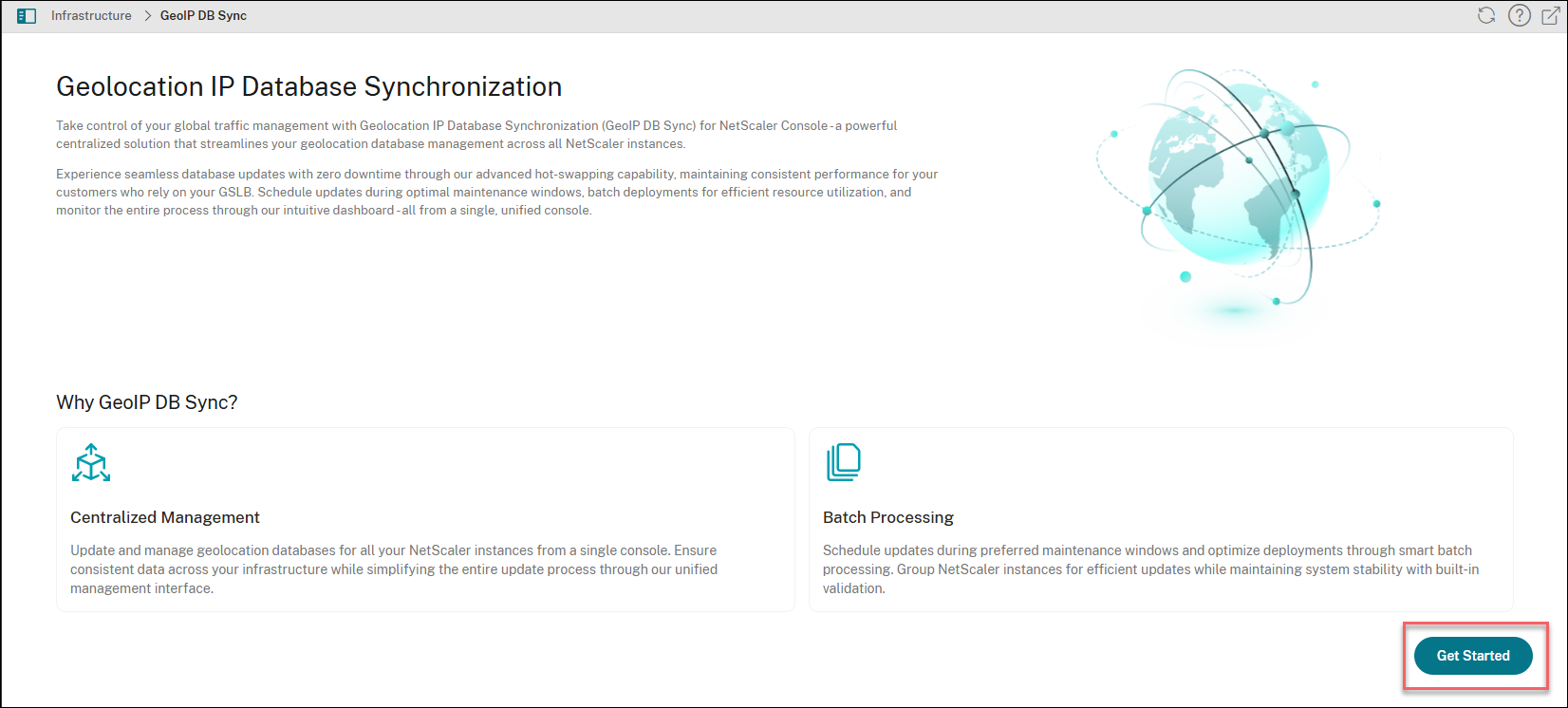
Navigate to Infrastructure > GeoIP DB Sync and click Get Started.
-
Select one of the following options:
-
Upload a new file: You can upload a file from your local system.
-
Use an existing file: You can choose a file that is already present on a NetScaler Console.
Notes:-
If you are uploading the GeoIP DB file for the first time, you do not see the Use an existing file option. Only if the file is already uploaded, then the Use an existing file option appears during subsequent uploads.
-
If you upload a MaxMind file, the NetScaler Console service automatically converts the file to the format that NetScaler recommends during the upload. If you upload a file from other providers, then it must in CSV format and adhere to the following field order recommended by NetScaler: IP range, country code, region, city.
-
-
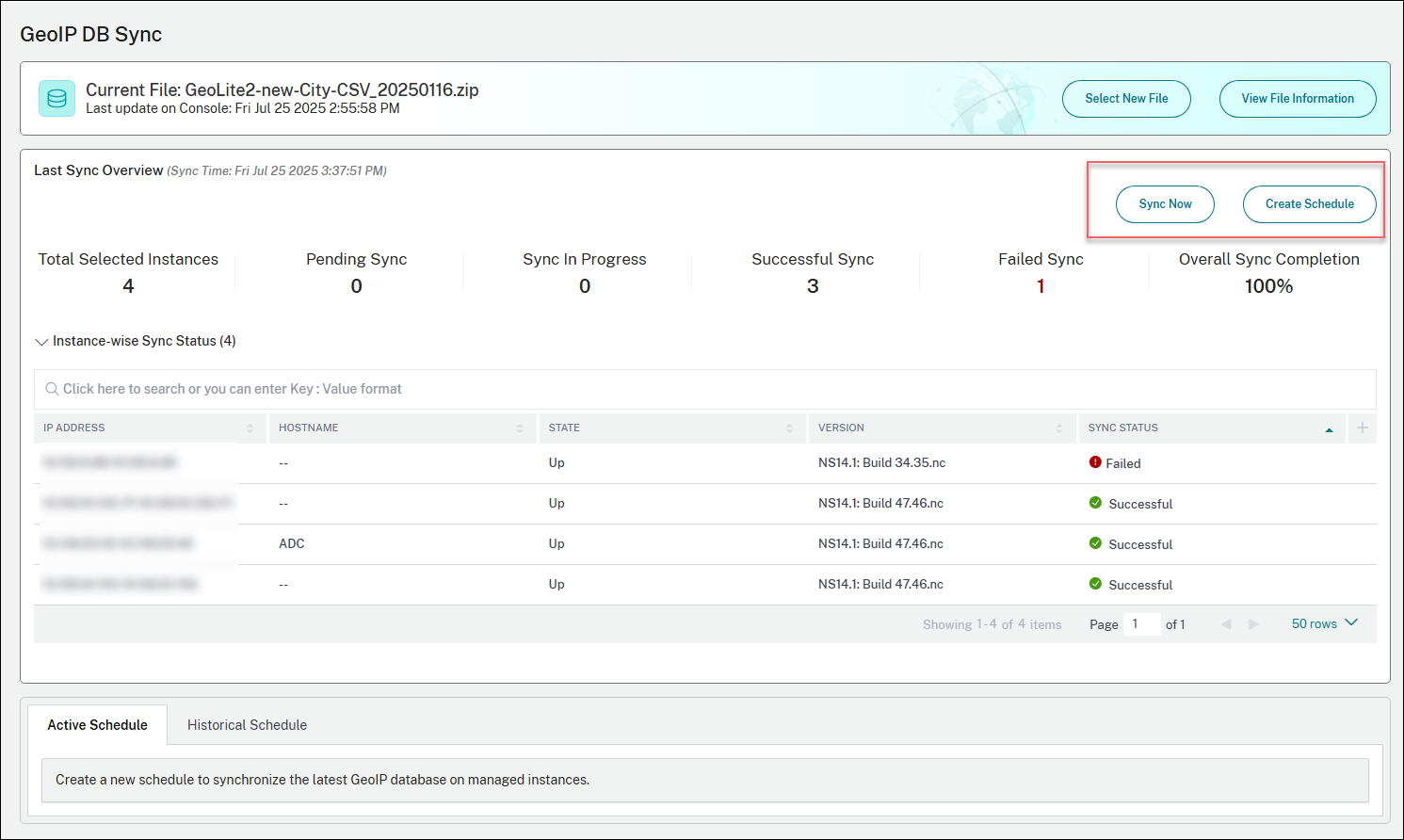
After the file is uploaded, you can perform one of the following actions:
-
Click Sync Now and then Start Sync: All the NetScaler instances get updated immediately.
-
Click Create Schedule - You can select a future date and time for updating the NetScaler instances.
-
-
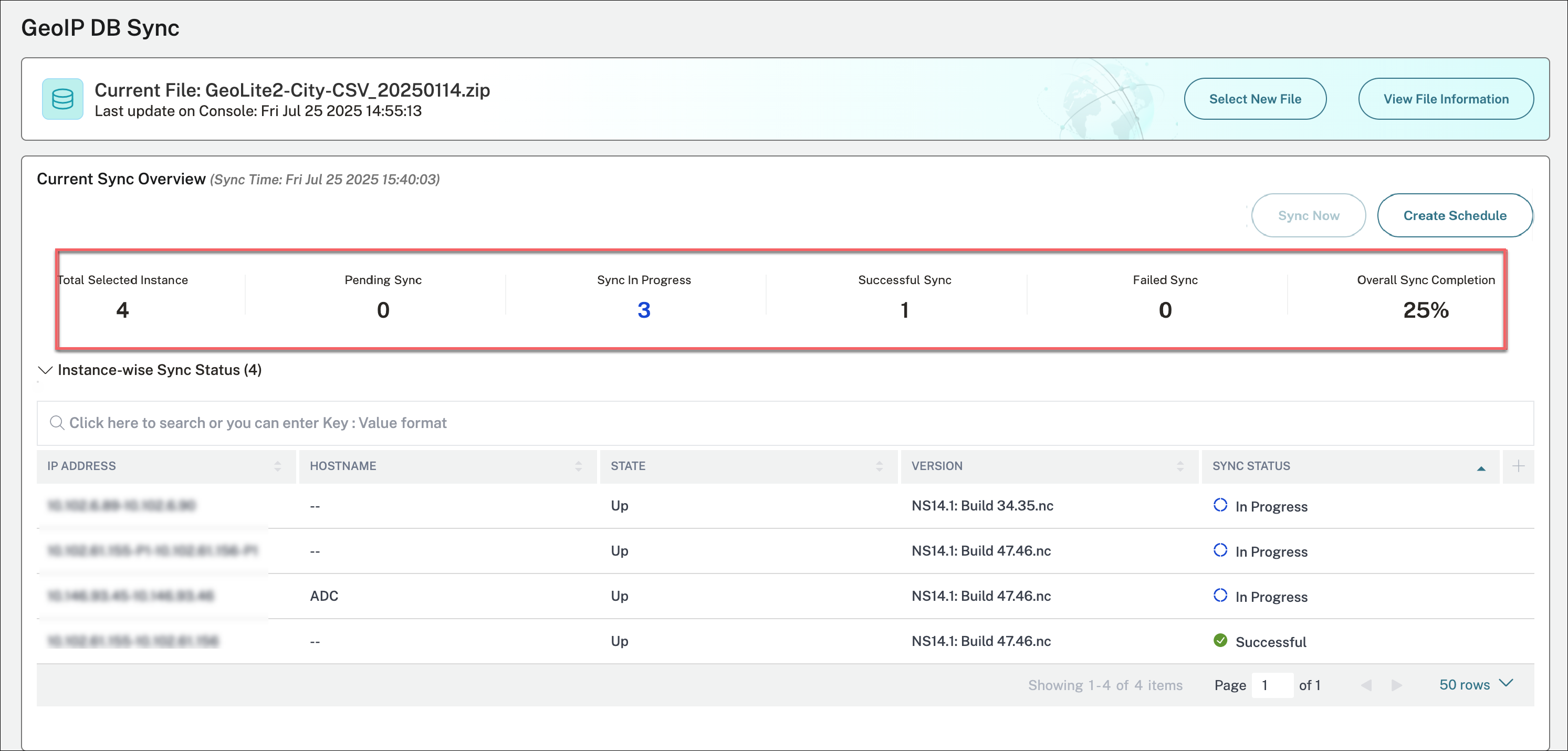
View the progress of sync and instance-wise sync status on the GeoIP DB Sync page.
-
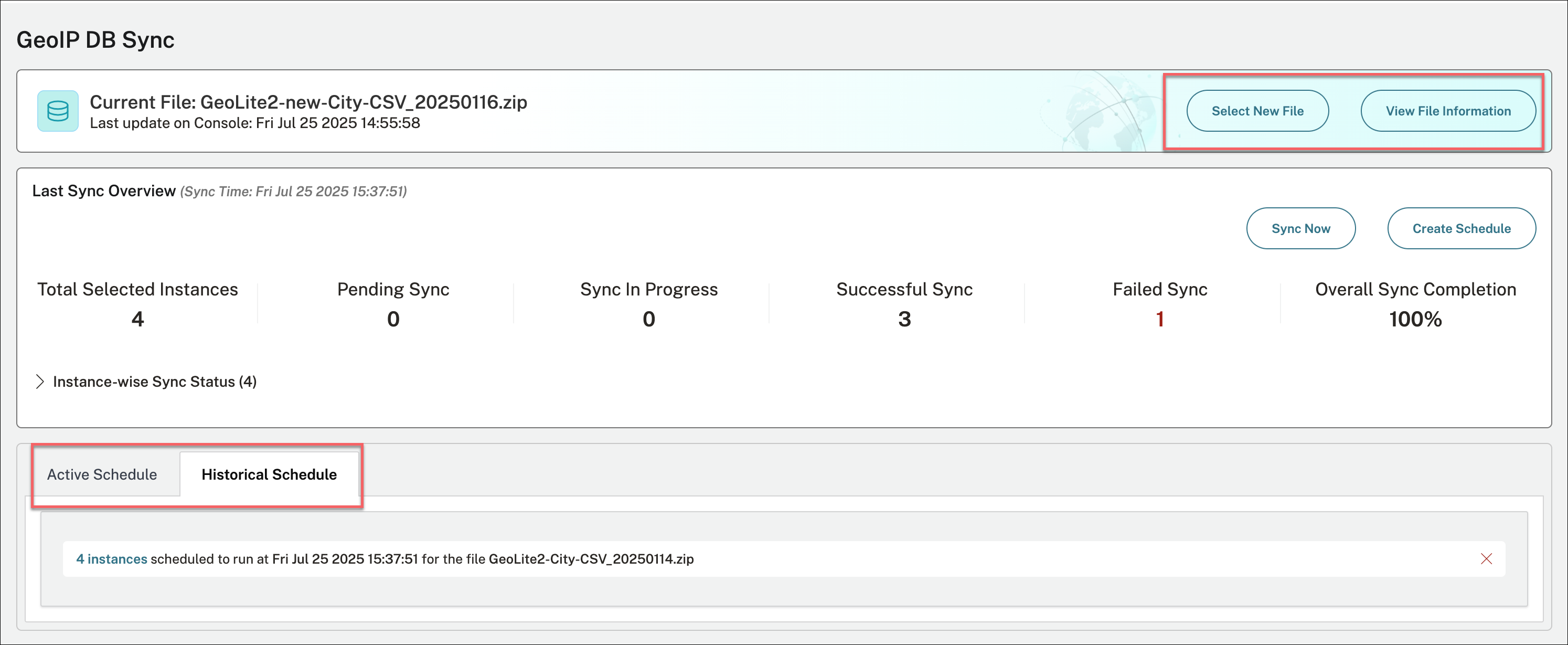
Based on your requirement, you can perform the following actions:
-
Select New File: Click Select New File to upload a GeoIP DB file from local or select an uploaded file from NetScaler Console.
-
View File Information: Click View File Information to view the previously uploaded files. If an issue arises, you can track the historical versions, upload, and sync an older GeoIP DB file.
-
Active Schedule: Click Active Schedule to view the upcoming schedules that are yet to be executed.
-
Historical Schedule: Click Historical Schedule to view the previous GeoIP DB sync activities that are completed.
-