
StyleBook categories
There are two StyleBook categories in NetScaler Console. They are the default StyleBooks and the custom StyleBooks. Whether it is a default or custom, a StyleBook is either a public or a private StyleBook. In NetScaler Console, you can view all the StyleBooks that are present in the system, whatever be their type or visibility status. You can also view a graphical display of how StyleBooks are connected with each other.
This document explains the different types of StyleBooks. Also, it explains the following actions that you can do on the StyleBooks from NetScaler Console:
-
Download a custom StyleBook and make modifications, or create a StyleBook based on an existing one.
-
Hide default StyleBooks.
-
Delete a custom StyleBook from NetScaler Console.
-
Add tags to the StyleBooks.
Related information
Default and custom StyleBooks
-
Default StyleBooks are the StyleBooks shipped with NetScaler Console and they allow you to create configurations that you can deploy on your NetScaler instances. You cannot delete default StyleBooks, but you can hide them from the NetScaler Console GUI.
-
Custom StyleBooks are your own StyleBooks that you imported in to NetScaler Console.
Both default and custom StyleBooks can be either public or private.
Public and private StyleBooks
StyleBooks from which you can create config packs can be categorized as public StyleBooks. That is, they’re all available for your direct usage to create configurations from the NetScaler Console GUI and APIs.
But, some StyleBooks are used as building blocks for other StyleBooks. Such StyleBooks are marked as private. The private StyleBooks cannot be directly used to create config pack from the NetScaler Console GUI. But, you can still display and view these StyleBooks on NetScaler Console. To mark any of your custom StyleBooks as private, set the private attribute in the StyleBook to true. You can still use private StyleBooks to create config packs using the NetScaler Console APIs.
Example of a StyleBook marked as private
name: basic-lb-config
 namespace: com.example.stylebooks
 version: "0.1"
 display-name: Load Balancing Configuration
 description: |
     This StyleBook defines a simple load balancing configuration and is a building block to build other load balancing configurations.
 schema-version: "1.0"
 private: true
View StyleBooks
The number of StyleBooks - both default and private are increasing in NetScaler Console. You might want to search for the particular StyleBook that you want to access. You might also want to view both types of StyleBooks separately.
In NetScaler Console, when you navigate to Applications > StyleBooks, you can view a list of StyleBooks that are present in the system.
A default public StyleBook has the following icons on its panel:

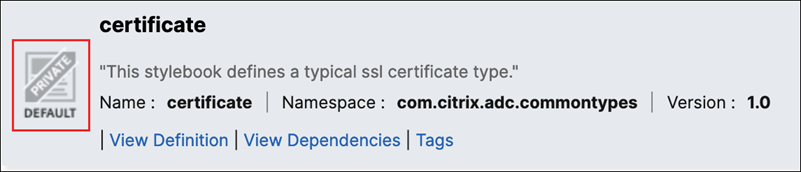
Whereas a default private StyleBook has an icon that declares it as a private StyleBook:

While you can view the definition and dependencies of a private StyleBook, you cannot create a config pack from a private StyleBook using the GUI. The main purpose of a private StyleBook is to use it as a building block for another StyleBook. Using the building-blocks-StyleBooks encourages the reuse of common configuration patterns.
A custom public StyleBook has a different icon as shown in the following image:

While a custom private StyleBook appears with this icon:
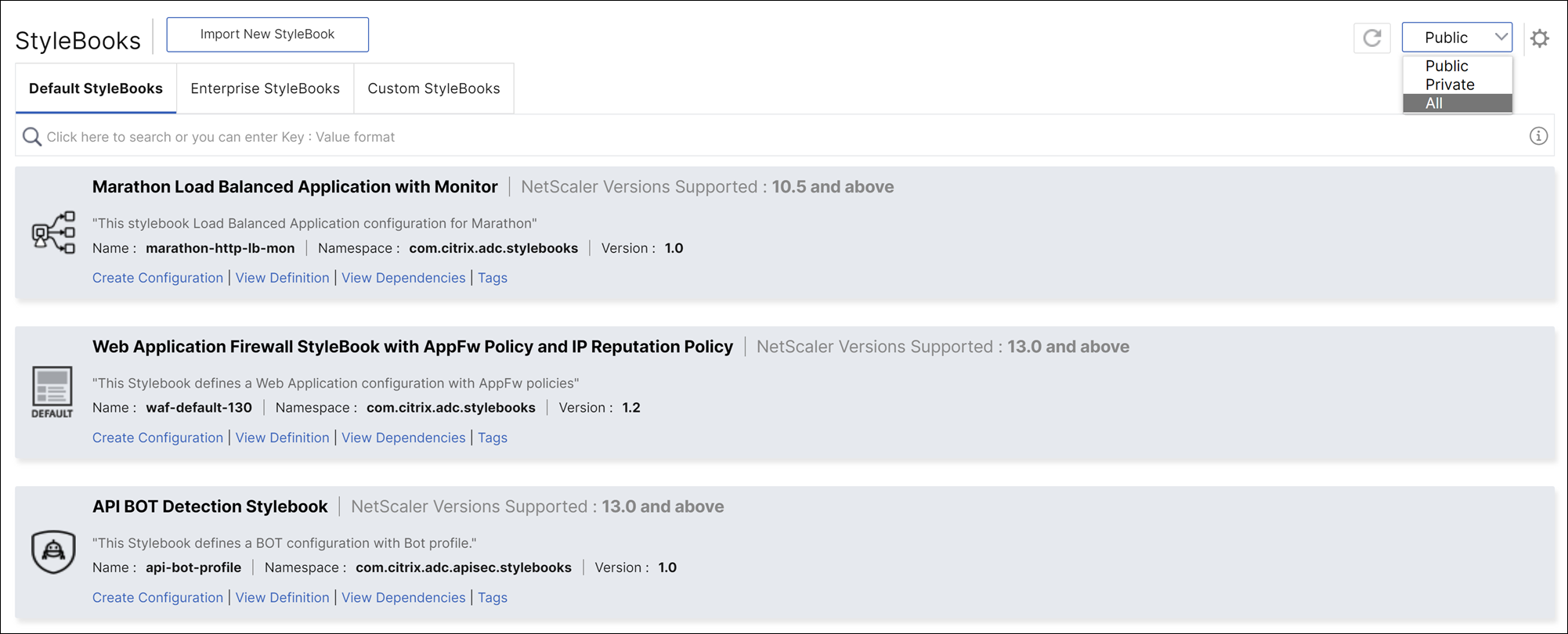
At the top right-side of the page, you can see an option to select the type of StyleBooks to view. There are three options - all, public, or private StyleBooks. Click one of the options.
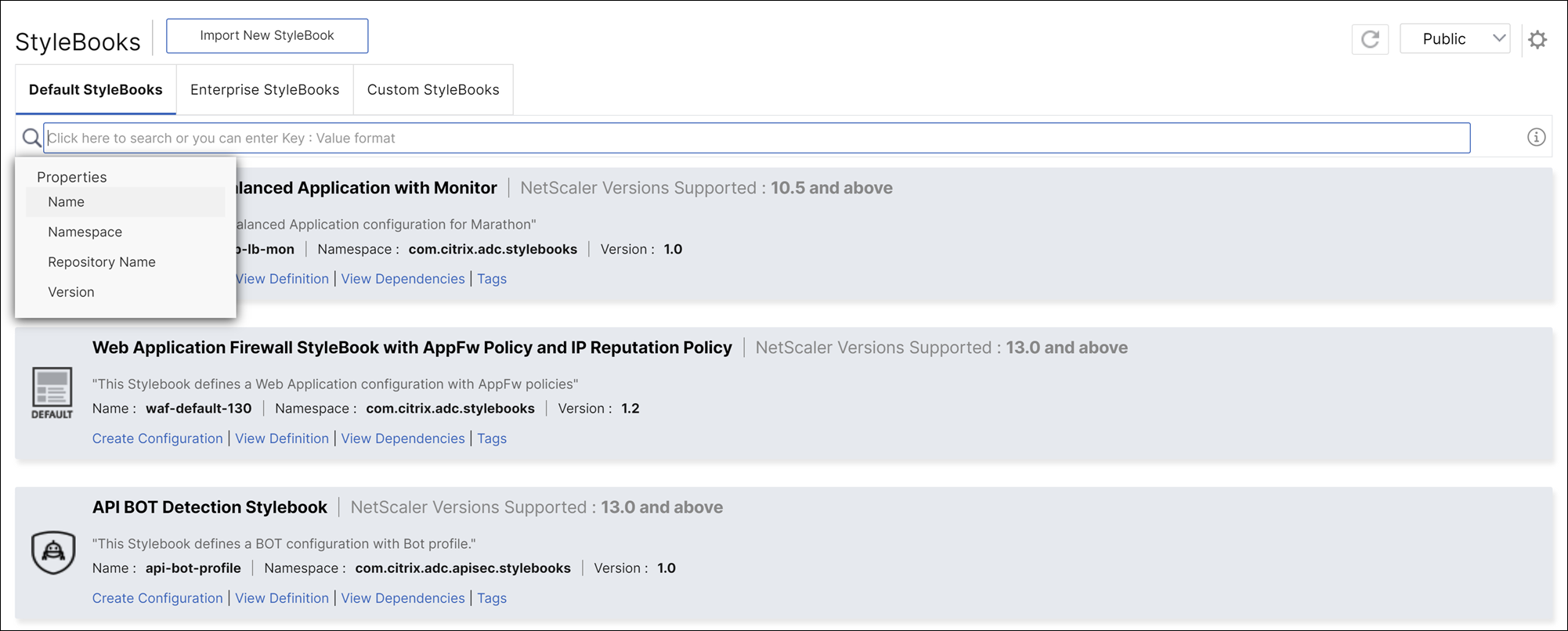
You can also search for a particular StyleBook by clicking the search icon. You can search by name, namespace, and version attributes or a combination of these options. The search operation is not case-sensitive.
Download custom StyleBooks
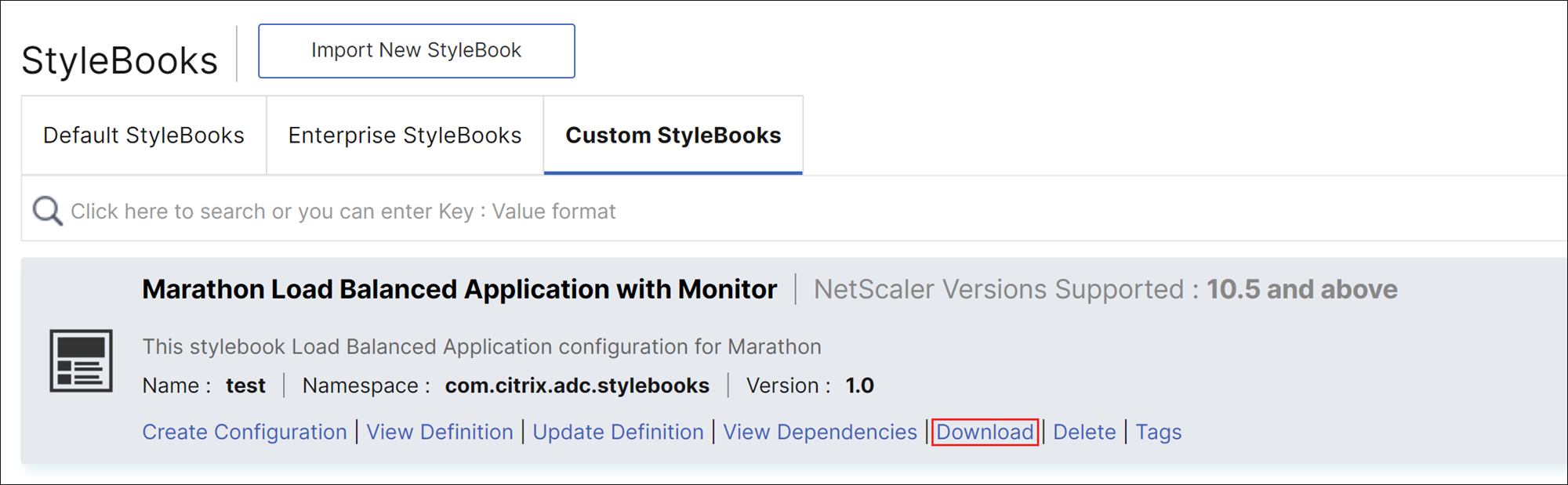
To download the custom StyleBooks from NetScaler Console, navigate to Applications > StyleBooks > Configurations. In the list of StyleBooks that are displayed on the right-side panel, check the option to download the custom-defined StyleBooks. Click Download. If the StyleBook has dependent custom StyleBooks, you can include the dependent StyleBooks in the downloaded bundle.
Note:
You can download custom StyleBooks that are marked as either public or private.
Note:
You cannot download the default StyleBooks. You can view their definitions and dependencies. To do so, click View Definition and View Dependencies links on the StyleBook panel.
Update custom StyleBook
You can update the custom StyleBook definitions from the NetScaler Console GUI itself. So, it helps you make changes to the StyleBook without changing its version. You can also update the definitions imported from a StyleBook bundle.
Important:
-
Before you update the StyleBook definition from the NetScaler Console GUI, ensure the StyleBook definition has no dependent StyleBooks.
-
You can update a StyleBook definition that has config packs.
-
Ensure that the StyleBook definition is backward compatible. All the parameters of the existing StyleBook are then retained in the updated StyleBook and the added parameters appear as optional.
-
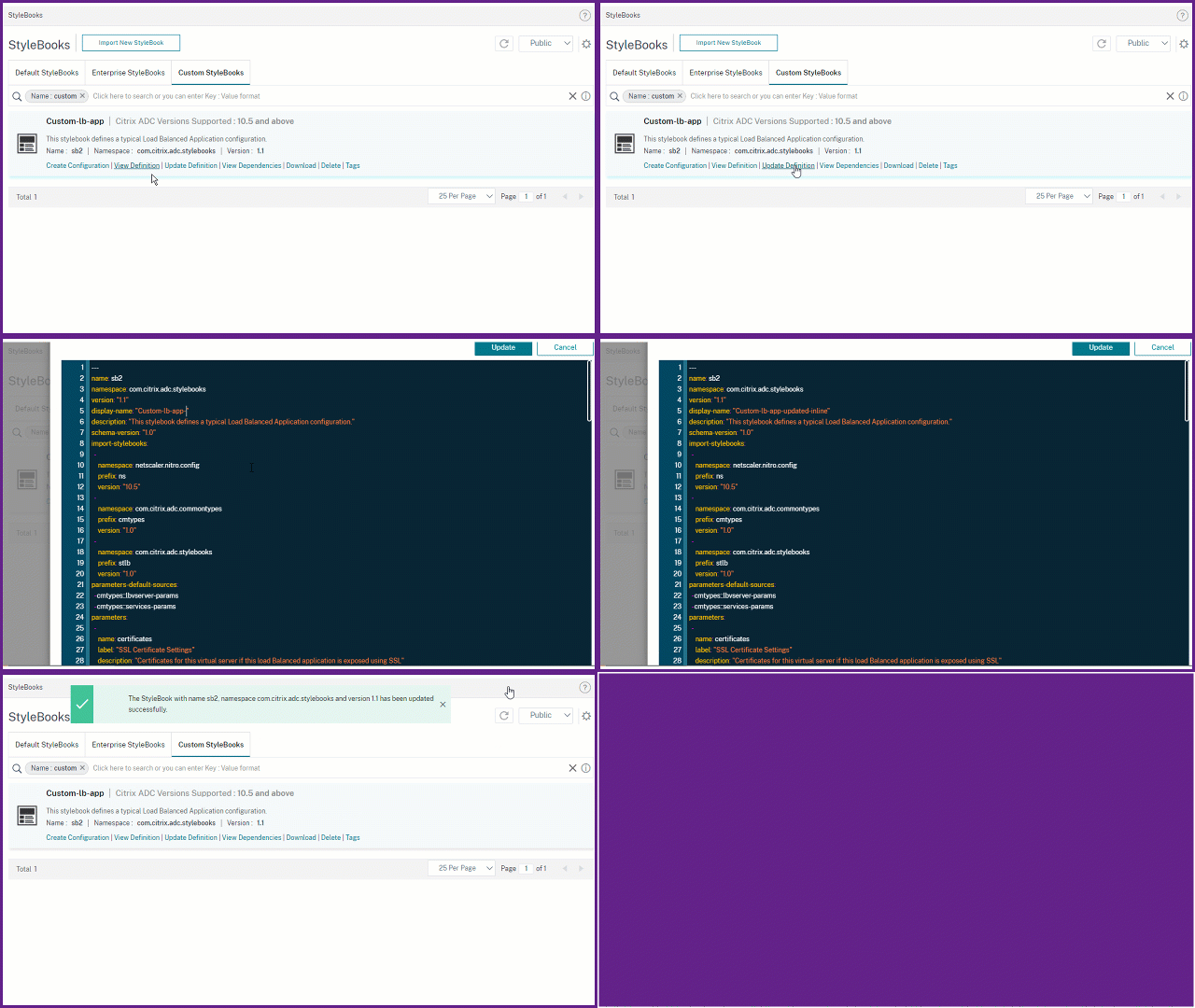
Navigate to Applications > Configuration > StyleBooks.
-
Select the Custom StyleBooks tab.
-
Select Update Definition on the StyleBook that you want to update.
-
Update the definition as required and click Update.
-
Refresh the page to see the latest changes.
Delete custom StyleBooks
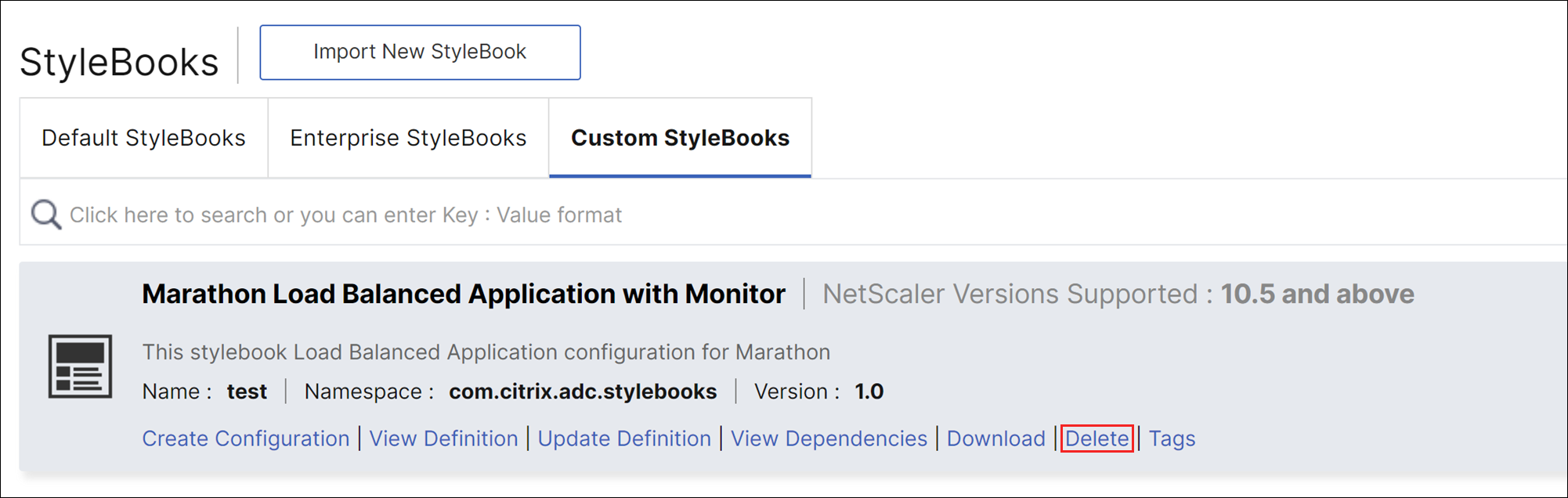
You can also delete a custom StyleBook by clicking the Delete button. A pop-up window prompts you to confirm if you want to remove the StyleBook from NetScaler Console. If the StyleBook uses other custom StyleBooks, you can choose to remove such StyleBooks by selecting the checkbox.
Note:
Do not delete a custom StyleBook if it has dependent StyleBooks in NetScaler Console. Otherwise, it would break the existing StyleBooks.
View StyleBook dependencies
An important and powerful feature of StyleBooks is that they can be used as building blocks for other StyleBooks. You can import a StyleBook into another StyleBook. An imported StyleBook is declared as a type and is used by components or parameters of the second StyleBook. You can study the existing default StyleBooks in NetScaler Console to learn how one StyleBook can be built on top of another StyleBook.
NetScaler Console allows you to view a graphical display of how StyleBooks are connected with each other. This representation is especially useful for complex StyleBooks that are built using other StyleBooks as building blocks. By looking at the dependency graph, it is possible to see the relationships and dependencies among multiple StyleBooks.
A StyleBook used by other StyleBooks cannot be removed from the system because it would break the existing StyleBooks. Using the dependency graph display, you can identify which StyleBooks are preventing the removal of a StyleBook.
To view StyleBook dependencies
In NetScaler Console, navigate to Applications > StyleBooks. The StyleBooks page displays all the StyleBooks available for your use in NetScaler Console. Scroll down and find your StyleBook. The StyleBook tile displays links to create a configuration, to view the StyleBook definition, and to view the StyleBook dependencies. Click View Dependencies.
Forward dependencies
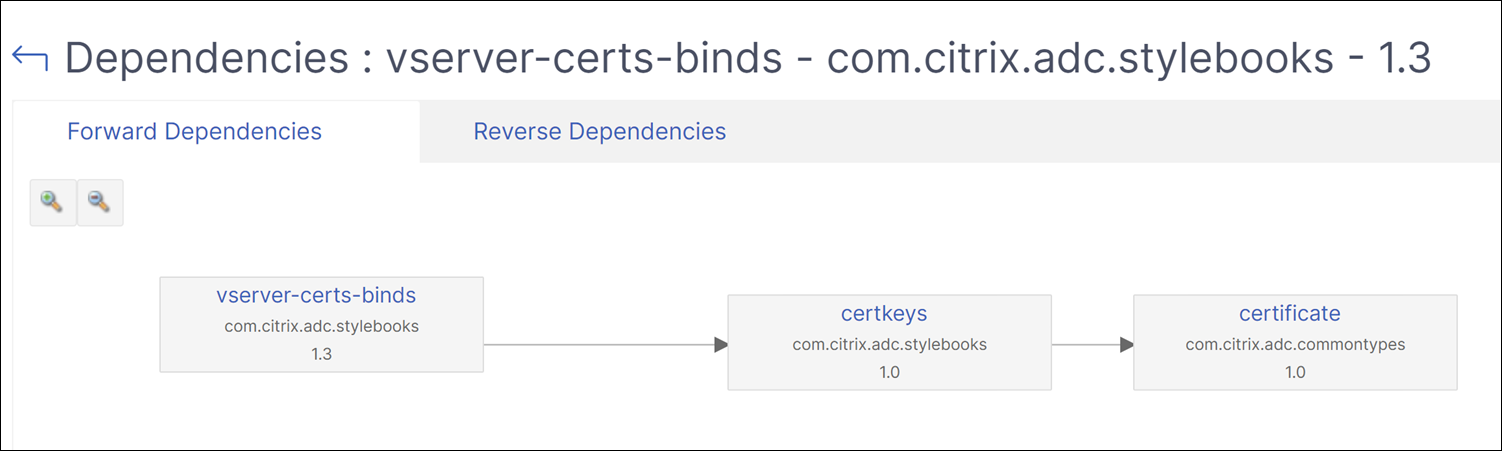
The Forward Dependencies tab allows you to view the different default StyleBooks that your StyleBook is using. Follow the arrows to find the StyleBook that a StyleBook is using. When you point your mouse to one of the arrows, the arrow and the StyleBooks that are connected to one another are highlighted. You can also click the StyleBook names to view the definition of that StyleBook.
Reverse dependencies
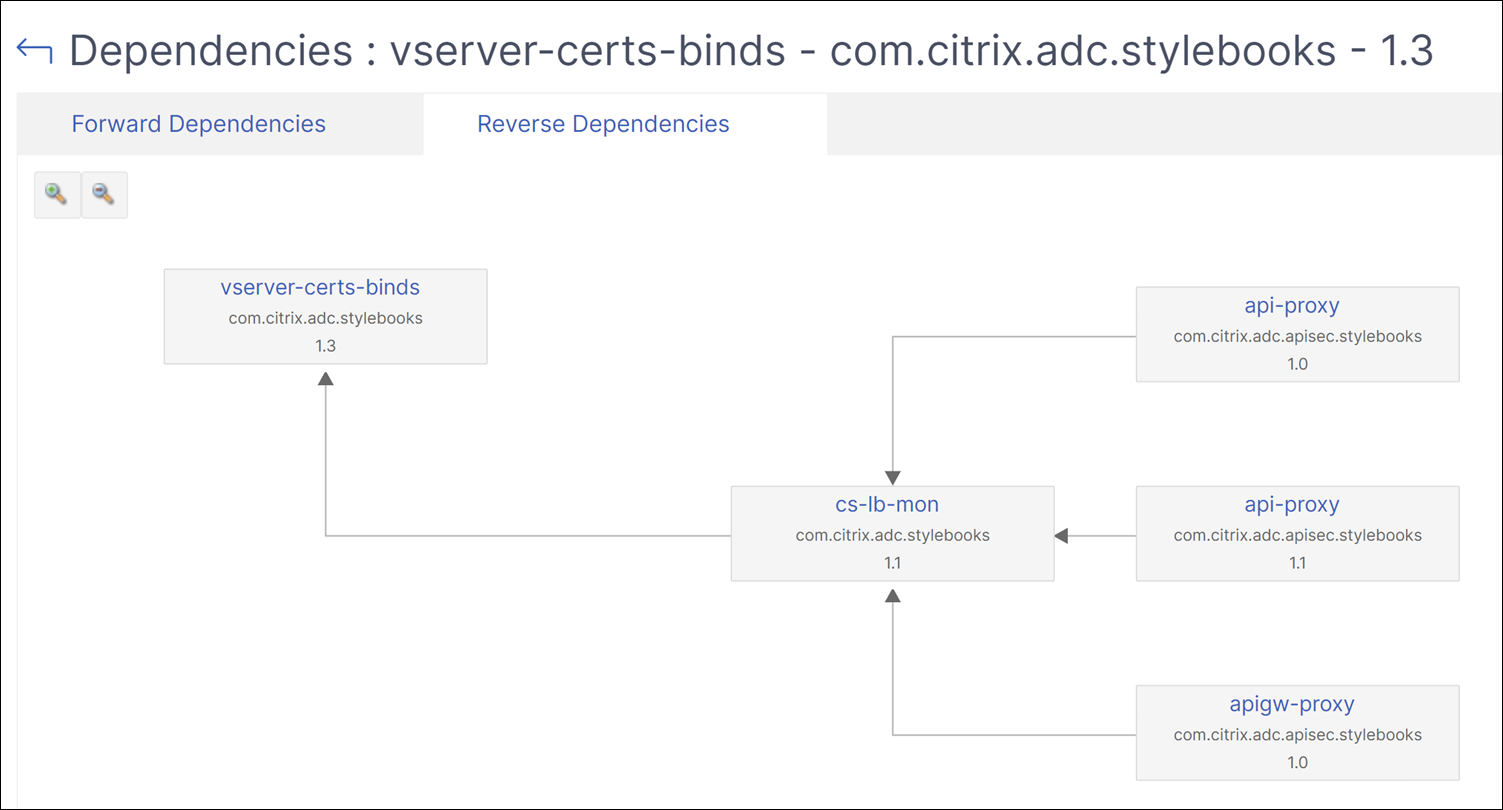
The Reverse Dependencies tab allows you to graphically view the StyleBooks that are using your StyleBook. If you follow the arrows, you can see that all the StyleBooks in the display point towards your StyleBook. Some StyleBooks might be directly using the StyleBook and some StyleBooks might be using the StyleBook through another StyleBook.
Audit NetScaler configuration against config pack
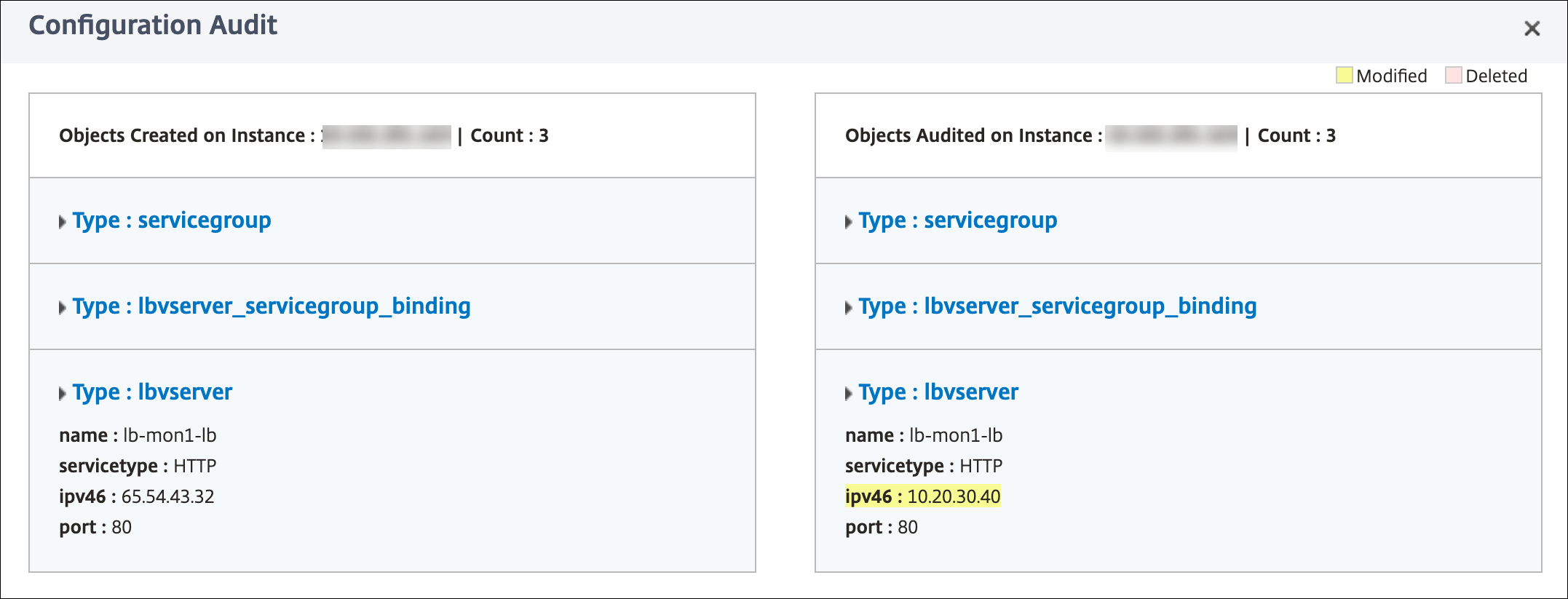
You can compare the changes made by a StyleBook config pack to the current NetScaler configuration. With this comparison, you can do the following:
-
Detect the configuration drift between StyleBook config pack and NetScaler configuration.
-
Identify any modified and deleted objects on the NetScaler that do not reflect the changes made by the config pack.
To compare the config pack changes to the NetScaler configurations, do the following:
-
Navigate to Applications > StyleBooks > Configurations.
-
Click Configuration Audit.The Configuration Audit page displays the objects created and audited.
Download the support bundle of a config pack
The support bundle of a config pack helps the NetScaler® technical support team to view, analyze, and troubleshoot config pack issues.
-
In Applications > Configuration > Config Packs > Support Bundles, select a config pack. Click Download.
-
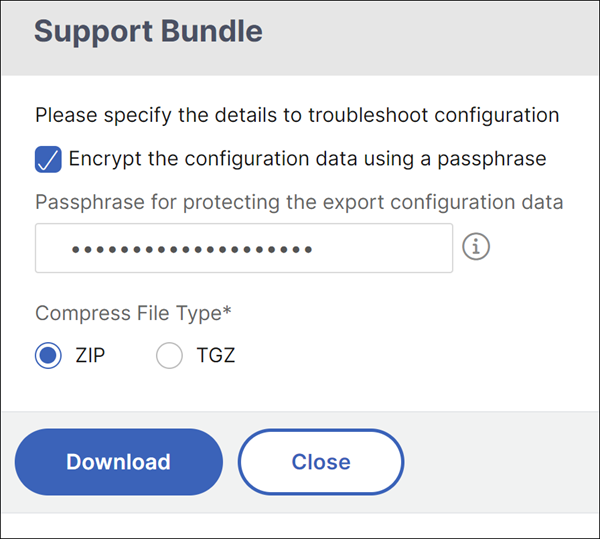
In the Download Support Bundle page, specify:
-
Encrypt the configuration data using a passphrase - Select this option if you want to specify a passphrase to encrypt the bundle file.
-
Passphrase - Specify a passphrase to encrypt the export bundle. This passphrase secures the sensitive data of a config pack. The passphrase must be a minimum of 20 characters.
-
Compress File Type - You can compress the bundle in ZIP or TGZ file format.
-
-
Click Download.
Create a tag for the StyleBook
You can add tags to any StyleBook in NetScaler Console. Tags are key-value pairs that allow you to group StyleBooks using different criteria. You can use these tags while searching or filtering for StyleBooks in NetScaler Console.
To add a tag to the StyleBook:
-
Navigate to Applications > StyleBooks.
-
Select Tags on the StyleBook for which you want to add tags.
 You can add tags to all types of StyleBooks.
 -
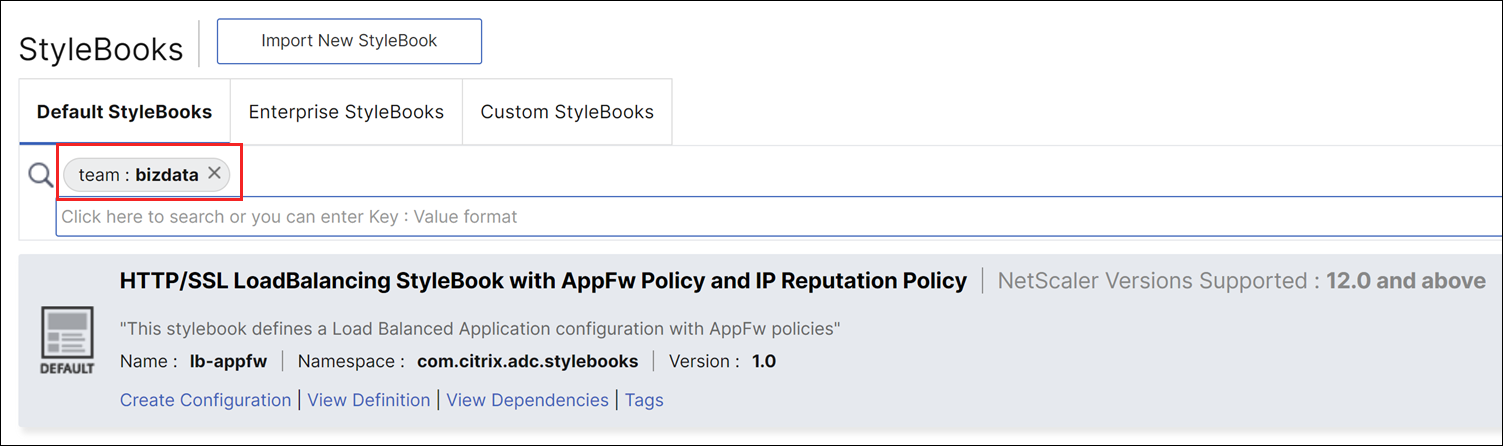
Specify the required Key and Value information that helps you filter the StyleBook.For example, Key=team and Value=bizdata
 To add more tags, click +.
 -
Click Create.
To filter StyleBooks using tags in the search bar, click Tags and select a key and value from the list. The StyleBooks that matches the specified tag are displayed.

The following is an example search for the StyleBooks that have a tag where
key=team and value=bizdata:
You can associate the StyleBook tags to its config pack. So, you can search the config packs using the StyleBook tags itself.
When you create a config pack, use one the following options in the Tag Association section:
-
Associate all present and future StyleBook tags with the configuration – This option associates all the StyleBook tags to a config pack. It also makes sure to associate the new tags that you might add to the StyleBooks in future.
-
Select tags – This option displays the tags of the selected StyleBook. You can select the required StyleBook tags and associate with a config pack.

To configure a StyleBook using CLI commands
If you want to configure any StyleBook using CLI commands, do the following:
-
Run the
show ns runningConfigcommand in NetScaler. -
In NetScaler Console, create a configuration using either default StyleBooks, business application StyleBooks, or custom StyleBooks.
-
Run the
show ns runningConfigcommand in NetScaler again.
The difference between the two outputs displays the CLI commands that you can use to configure any StyleBook using the NetScaler CLI.
Clone a StyleBook
As admins, you can create a duplicate of a StyleBook, together with their dependent StyleBooks. You can then use this bundle for customization such as updating the
parameters and components sections.
To clone a StyleBook:
-
Navigate to Applications > Configuration > StyleBooks.
-
Select Clone on the default or custom StyleBook that you want to duplicate.

-
In the Clone StyleBook page, enter a namespace and version for the StyleBook and the dependent StyleBooks. You can also choose the suggested namespaces and versions.
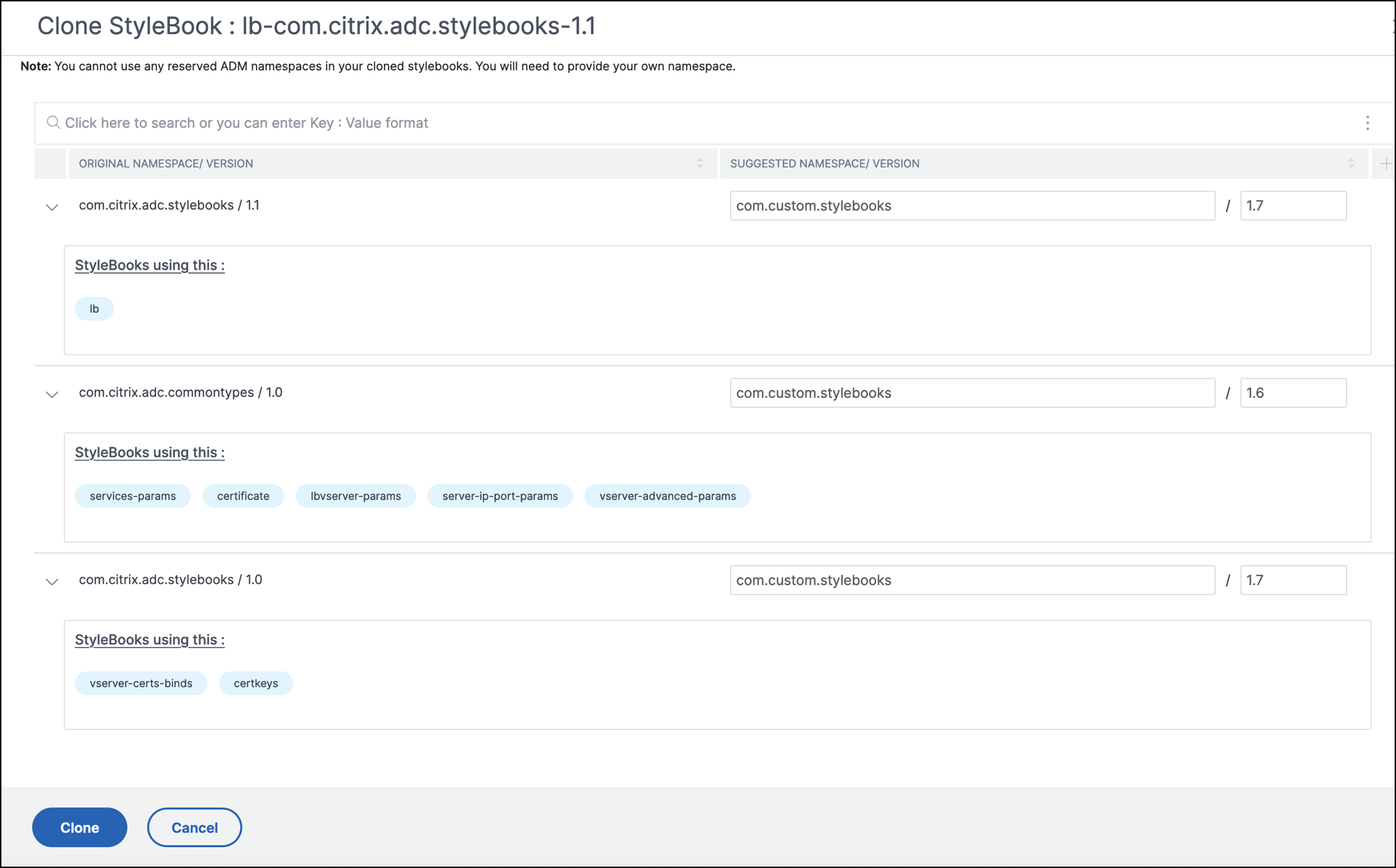 Note:The cloned StyleBook and its dependent StyleBooks must have different namespaces and versions to differentiate them from the existing StyleBooks. You cannot use any reserved NetScaler Console namespaces for the cloned StyleBooks.
 -
Click Clone. The cloned StyleBook package is imported to NetScaler Console and appears in the StyleBooks page.