
Upgrade Advisory
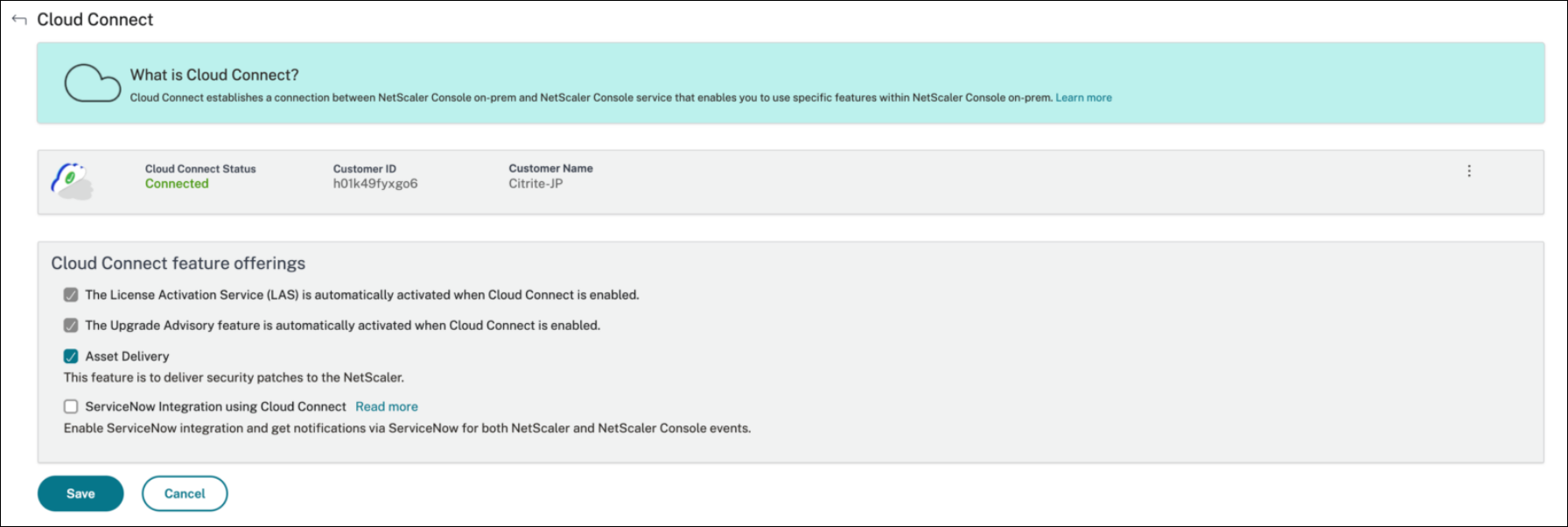
Starting with the NetScaler Console release 14.1 build 66.x, the Upgrade Advisory feature is fully supported. You can access and use the feature by enabling Cloud Connect. Upgrade Advisory is automatically enabled once Cloud Connect is successfully established.
IMPORTANT
Ensure that Cloud Connect is fully enabled and all prerequisites are completed. Any issues with the Cloud Connect connection result in Upgrade Advisory becoming unavailable.
As a network administrator, you might manage many NetScaler instances running on different NetScaler releases in NetScaler Console. Monitoring the lifecycle of each NetScaler instance can be a cumbersome task. You must visit NetScaler Product Matrix, identify the NetScaler instances that are reaching or reached End of Life (EOL) or End of Maintenance (EOM). Then, plan their upgrade.
To ease this process, NetScaler Console upgrade advisory helps you monitor the lifecycle of your NetScaler instances in the following ways:
-
Identifies instances reaching or reached EOL or EOM. So, you can plan NetScaler upgrades ahead of EOL or EOM date.
-
Highlights the instances that are not on the latest release or build. You can upgrade these instances to the latest release or build. With this upgrade, you receive updates on new features and fixed issues.
-
Highlights the instances that are not on preferred NetScaler builds. Some organizations might have a preferred NetScaler build for their instances. In NetScaler Console, you can set the preferred build for your organization depending on build stability, features, and other considerations. Then, review and upgrade the instances that are not on preferred builds. Instances running the preferred builds are indicated with a star icon.
-
Highlights instances running on the most popular releases or builds. Instances running the popular builds are indicated with a ribbon icon.
The upgrade advisory provides links to corresponding release notes. With this information, you can review and decide a NetScaler build for upgrade. You can proceed to create a maintenance job to upgrade NetScaler instances from the Upgrade Advisory page.
Important:
Upgrade advisory only monitors EOL of NetScaler software releases. It doesn’t check the EOL of NetScaler appliances.
Related information
View upgrade advisory
Navigate to Infrastructure > Instance Advisory > Upgrade Advisory and view the following information:
-
Total count of NetScaler instances.
-
Instances reaching the end of life.
-
Instances reaching the end of maintenance.
-
Instances in older build.
-
Instances not in the preferred build.
-
End of Life and End of Maintenance dates for the various NetScaler releases.
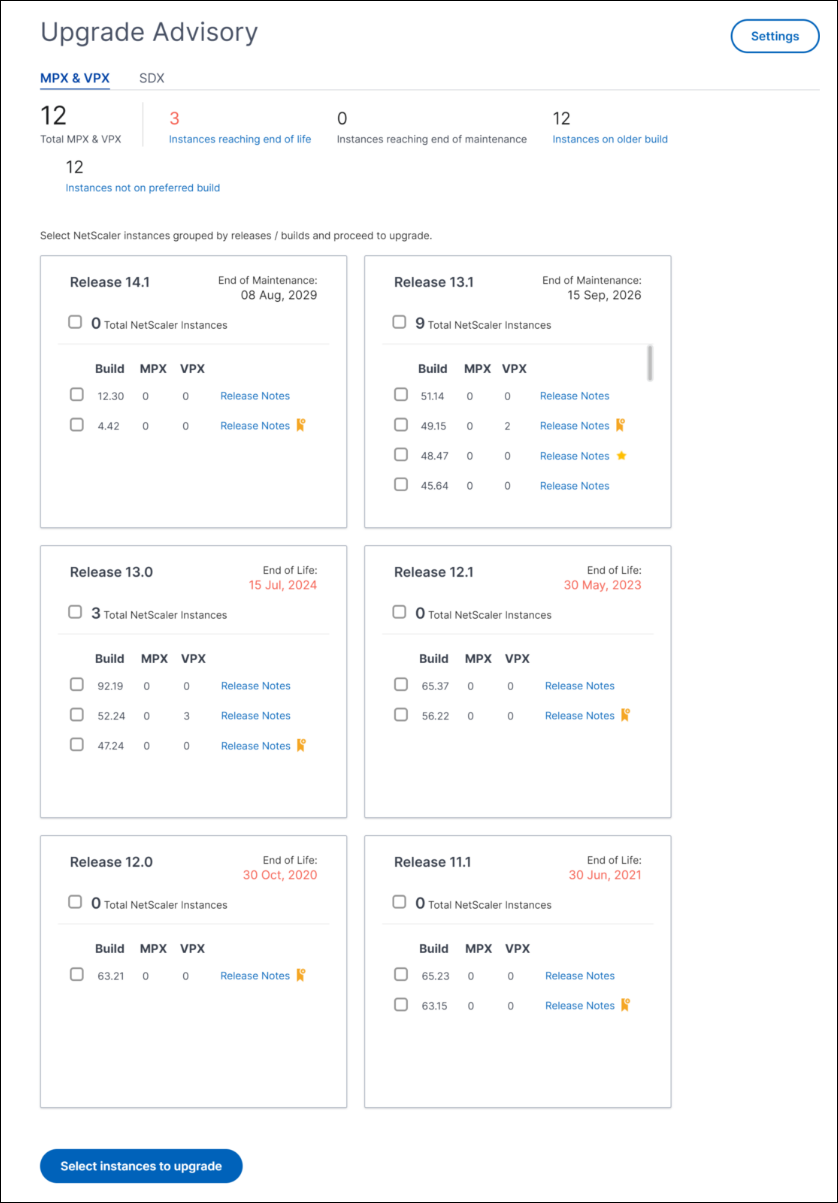
The Upgrade Advisory page groups the NetScaler instances by their releases. The Release Notes link guides you to the specific NetScaler release notes. Review new features, fixed, and known issues before deciding to upgrade. You can select multiple NetScaler instances across different releases to upgrade at a time. When you proceed with an upgrade, it creates an upgrade job. See, Upgrade NetScaler instances.
Set the preferred builds
As an administrator, you can define a preferred NetScaler build for the organization. Do the following to set the preferred build:
-
In Infrastructure > Instance Advisory > Upgrade Advisory, click Settings.
-
Select the preferred release and build.
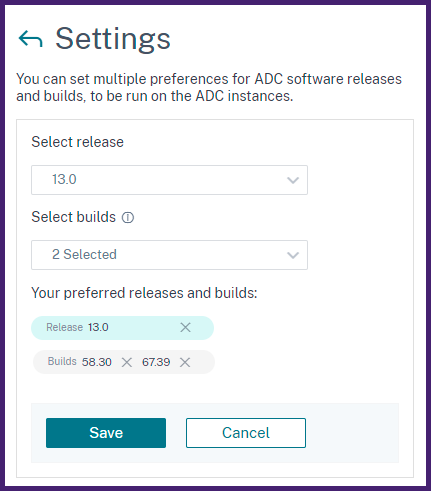 In this example, the preferred builds are
13.0-58.30and13.0-67.39. -
Click Save.
Upgrade NetScaler instances
In the Upgrade Advisory page, after your review, do the following steps to upgrade the required NetScaler instances:
-
Select the instance builds that you want to upgrade and click Select instances to upgrade.
-
Select the NetScaler instance that you want to upgrade and click Proceed to upgrade workflow.
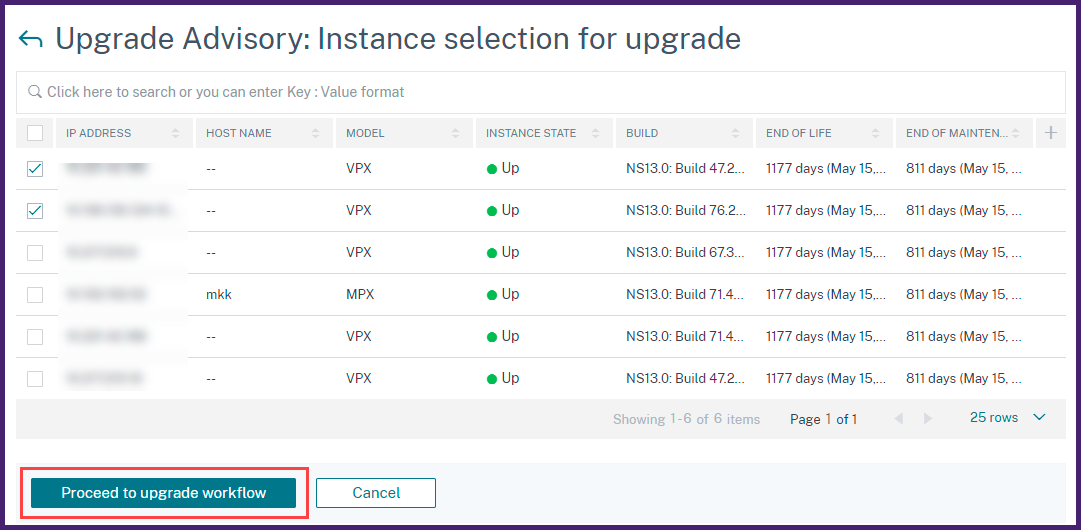 This workflow creates an upgrade job.
 -
In the Select Instance tab,
-
Specify a name to the upgrade job.
-
(Optional) if you want to add other instances, click Add Instances.
-
Click Next.
-
-
In the Select Image tab, select a NetScaler image from the image library or local or appliance.
-
Select from Image Library: Select a NetScaler image from the list. This option lists all NetScaler images that are available in the NetScaler downloads website.
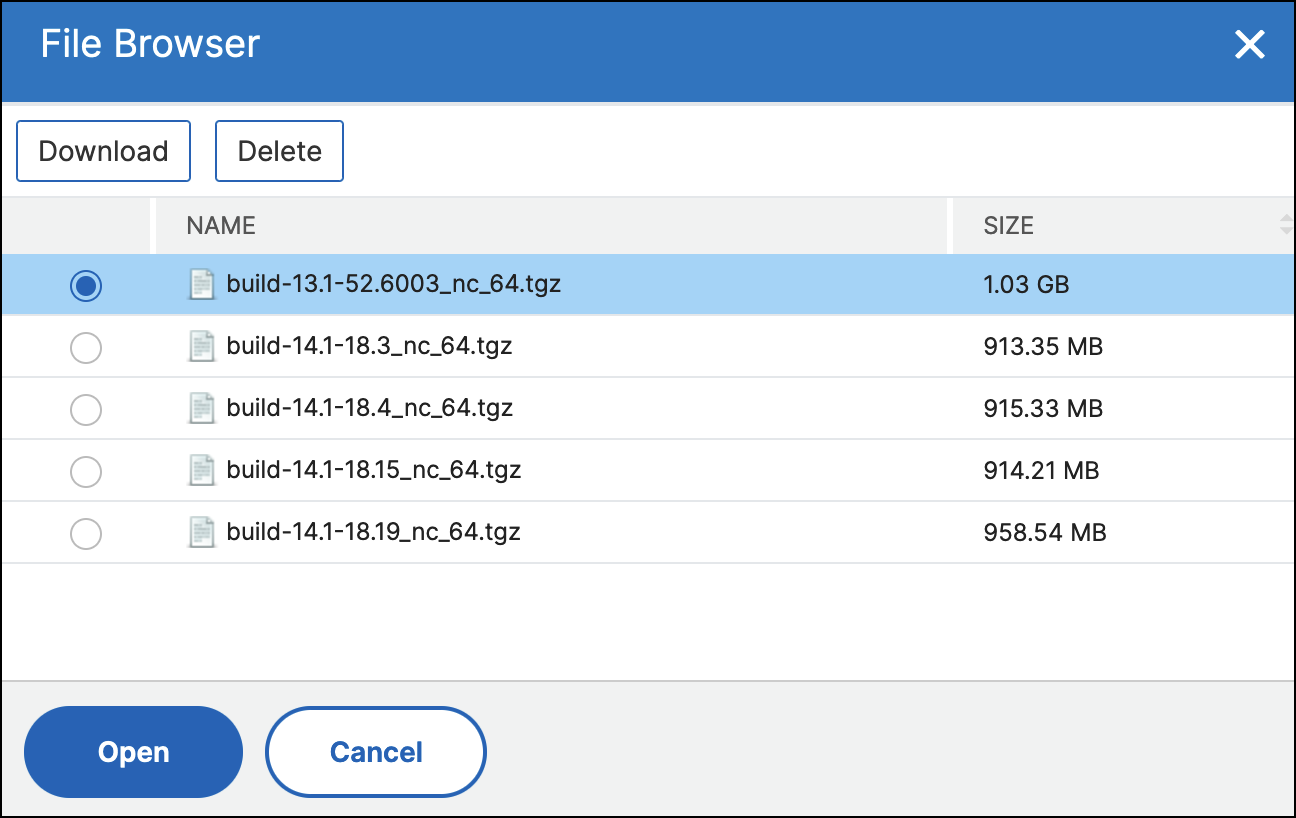 The NetScaler software images display the preferred builds with the star icon. And, most downloaded builds with the bookmark icon.
 -
Select from local or appliance: You can upload the image from your local computer or the NetScaler appliance. When you select NetScaler appliance, the NetScaler Console GUI displays the instance files that are present in
/var/mps/mps_images. Select the image from the NetScaler Console GUI. -
Skip image uploading to NetScaler if the selected image is already available - This option checks whether the selected image is available in NetScaler. Upgrade job skips uploading a new image and uses the image available in NetScaler.
-
Clean software image from NetScaler on successful upgrade - This option clears the uploaded image in the NetScaler instance after the instance upgrade.
Click Next to start the pre-upgrade validation on the selected instances. -
-
The Pre-upgrade validation tab displays the failed instances. you can remove the failed instances and click Next.
-
Disk Space Check: If you face insufficient disk space on an instance, you can check and clean up the disk space. See, Clean up NetScaler disk space.
-
Policy Check: If NetScaler Console finds unsupported classic policies, you can remove such policies to create an upgrade job.
Note:If you specify the cluster IP address, the NetScaler Console does pre-upgrade validation only on the specified instance not on the other cluster nodes. -
-
Optional, in the Custom scripts tab, specify the scripts to run before and after an instance upgrade.
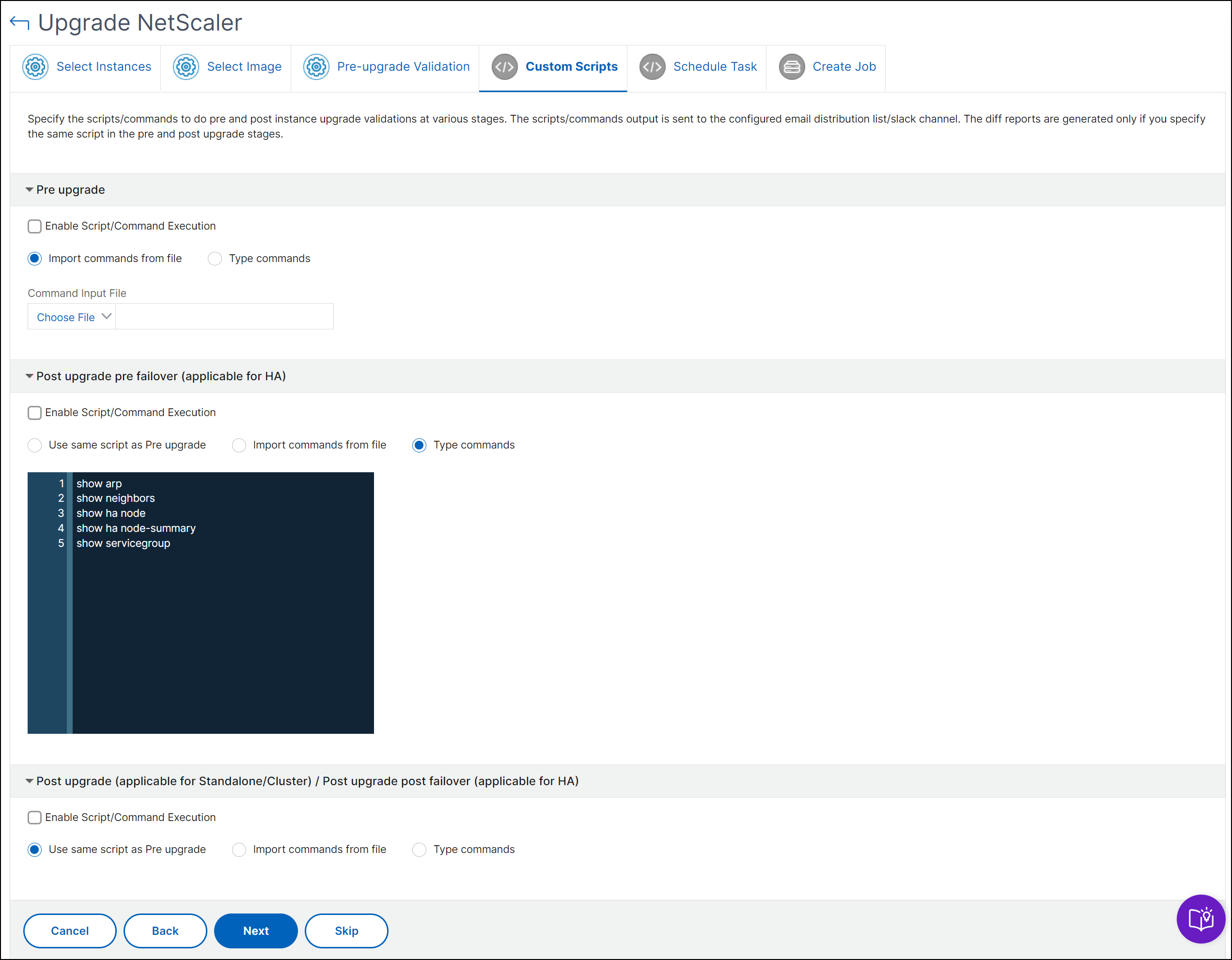 For more information, see Use custom scripts.
 -
In the Schedule Task, select one of the following options:
-
Upgrade Now - The upgrade job runs immediately.
-
Schedule Later - Select this option to run this upgrade job later. Specify the Execution Date and Start Time when you want to upgrade the instances.
If you want to upgrade a NetScaler high-availability pair in two stages, select Perform two stage upgrade for nodes in HA.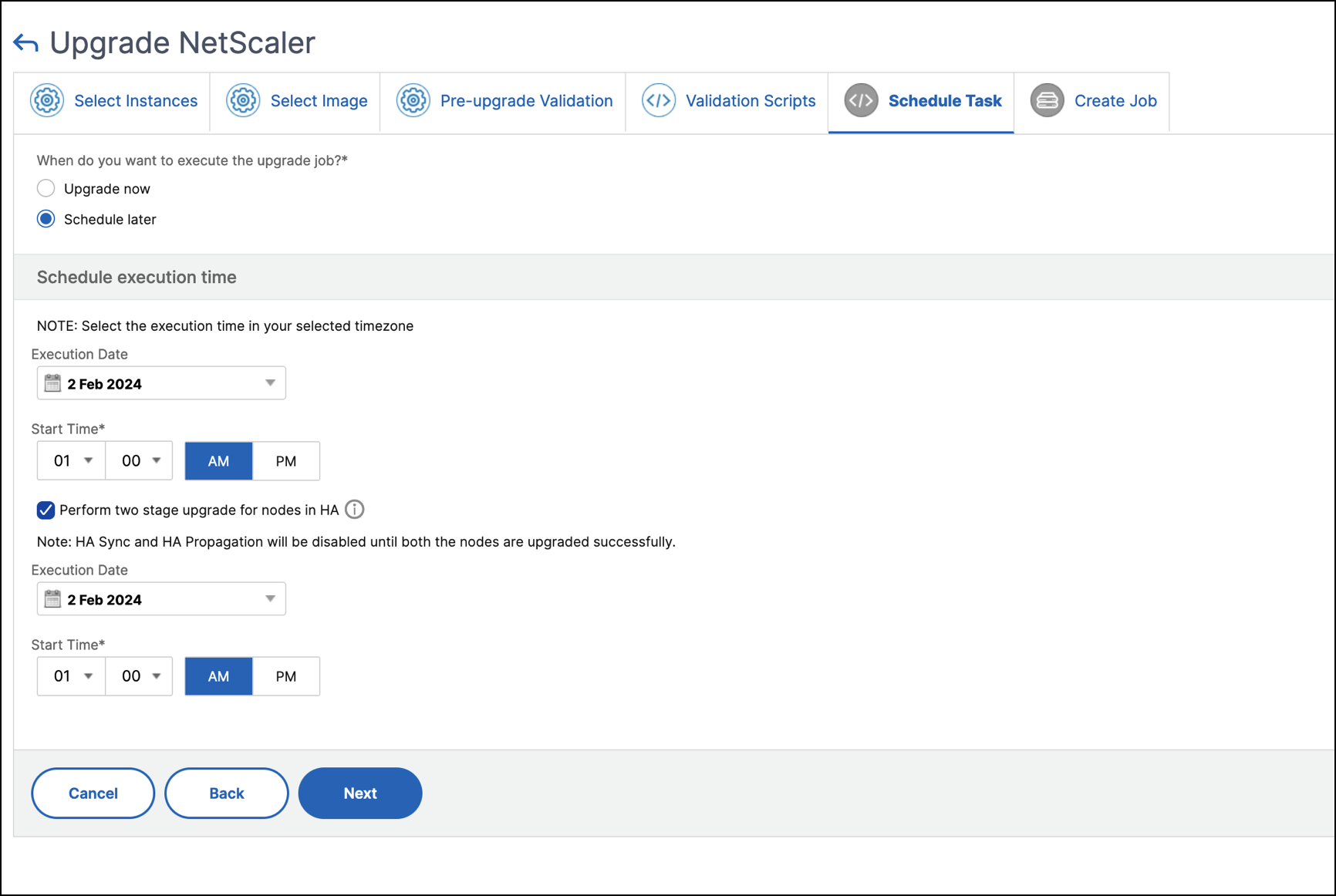 For more information, see Upgrade NetScaler high-availability pair.
 -
-
In the Create Job tab, specify the following details:If you schedule the upgrade job, you can specify when you want to upload the image to an instance:
-
Upload now: Select this option to upload the image immediately. However, the upgrade job runs at the scheduled time.
-
Upload at the time of execution: Select this option to upload the image at the time of upgrade job execution.
-
For more information on the other options, see NetScaler upgrade options.