
Reuse configuration audit templates in configuration jobs
As an admin, you can now save configuration commands as a set of reusable configuration templates when you create a job and run a configuration audit. The configuration template created and saved in Configuration Jobs is available in Configuration Audit to create an audit template that can be applied to specific NetScaler instances. Similarly, the audit template created in Configuration Audit module is available in Configuration Jobs so that you can run the template as a configuration job. Any change made in the template is now visible in both Configuration Jobs and Configuration Audit modules.
Earlier the configuration job and configuration audit templates had to be created separately for the same configuration and saved as different files. This caused a duplication of effort in creating and maintaining the templates.
NetScaler Console allows you to save this template in the system so that the audit template is available in Configuration Jobs also. Now the audit templates can be used to create configuration jobs. This way the templates can be used interchangeably between configuration jobs and configuration audits.
For example, consider a basic load balancing configuration for which you add a load balancing virtual server, add two services, and bind the services to the virtual server.
This example uses the following commands:
add lb vserver servername HTTP ipaddress portnumber

 add service servicename1 ipaddress1 HTTP 80

 add service servicename2 ipaddress2 HTTP 80

 bind lb vserver servername servicename1

 bind lb vserver servername servicename2
Related information
Creating a Template in Configuration Audits and Reusing it in Configuration Jobs
Perform the following task to create a template on configuration audit module and reuse the same in configuration jobs module.
To create an audit template:
-
In NetScaler Console, navigate to Infrasturcture > Configuration Audit > Audit Template, and click Add.
-
On the Create Template page, specify the template name. You can also add more information about the template in the Description field.
-
In the Commands pane, enter commands from the example.
-
Select the Save as Configuration Template check box and specify a name for your template, for example, you can name this template as "LBVariablesTemplate." You can choose to overwrite other templates that exist with the same name.Note The audit template name can be same as the configuration template name.
-
Click Save and click Next.
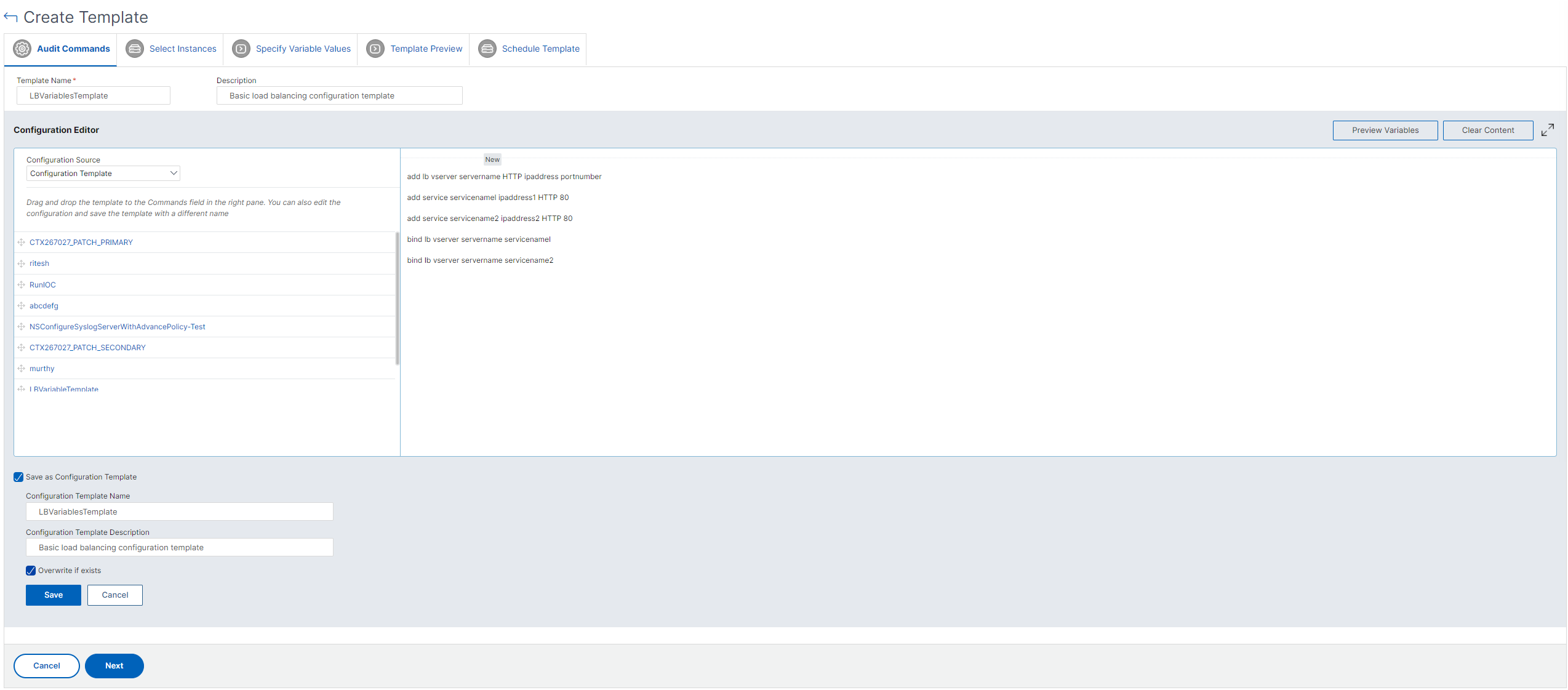
-
Click Next.
-
In Select Instances tab, select the NetScaler instances on which you want to run these configuration commands and click Finish. The new template is now visible in the list of audit templates.

-
When you want to run these configuration commands, navigate to Infrastructure > Configuration Jobs, and click Create Job. The audit template that you created earlier is listed as a configuration template.
To reuse the audit template in configuration jobs:
-
Enter a name for the job and select the instance type, and drag the template to the commands pane.While creating the configuration job, you can convert the local and remote file name parameters into variables. This lets you assign different files to these parameters for the same set of NetScaler instances every time you run the job.
-
In the command that you entered, select the file name that you want to convert to a variable, and then click Convert to Variable.
-
In Select Instances tab, select the instances on which you want to run these commands.
-
If you have specified any variables in the commands, in Specify Variable Values tab, select one of the following options to specify variables for your instances:
-
Variable values from an input file - Download an input file to enter values for the variables that you have defined in your commands, and then upload the file to the NetScaler Console server.
-
Common variable values for all instances – Specify the syslog server IP address and port.
-
-
In the Job Preview tab, you can evaluate and verify the commands to be run on each instance or instance group and click Next.
-
In the Execute tab, click Finish to run the configuration job. Now if you want to add another service to this load balancing server and bind the service to the server, you can edit the commands in the command page and save them.
-
Navigate to Audit Templates and click Add.
-
Drag the "LBVariablesTemplate" template to the commands pane. You can see that the template has been updated with the new commands.
The audit template appears in the Audit Templates list and is run every 12 hours against the configurations of the specified instances. You can now create templates and reuse them between configuration jobs and configuration audit modules.