Use the SSL Dashboard
You can use the SSL certificate dashboard in NetScaler Console to view graphs that help you track certificate issuers, key strengths, and signature algorithms. The SSL certificate dashboard also displays graphs that indicate the following:
-
Number of days after which certificates expire
-
Number of used and unused certificates
-
Number of self-signed and CA-signed certificates
-
Number of issuers
-
Signature algorithms
-
SSL protocols
-
Top 10 instances by number of certificates in use
Related information
To monitor SSL certificates
You might use the SSL dashboard on NetScaler Console to monitor your certificates if your company has SSL Policy where you have defined certain SSL certificate requirements such as all certificates must have minimum key strengths of 2048 bits and a trusted CA authority must authorize it.
In another example, you might have uploaded a new certificate but forgotten to bind it to a virtual server. The SSL dashboard highlights the SSL certificates being used or not used. In the Usage section, you can see the number of certificates that have been installed, and the number of certificates being used. You can further click the graph, to see the certificates name, the instance on which it’s being used, its validity, its signature algorithm, and so on.
To monitor SSL certificates in NetScaler Console, navigate to Infrastructure > SSL Dashboard.
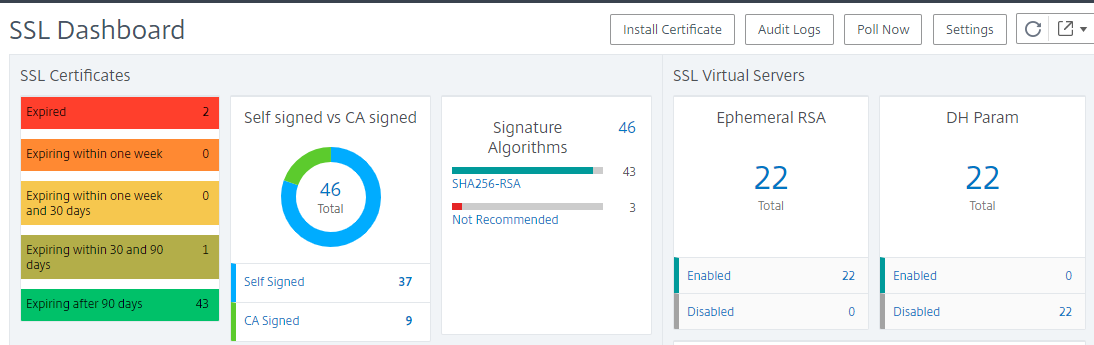
NetScaler Console allows you to poll SSL Certificates and add all the SSL certificates of the instances immediately to NetScaler Console. To do so,
-
Navigate to Infrastructure > SSL Dashboard.
-
Click Poll Now.On the Poll Now page, you can either poll all managed NetScaler instances or select specific instances.
-
Click Start Polling.
In SSL Dashboard, you can monitor the NetScaler SSL certificates, SSL virtual servers, and SSL protocols.
You can click the metrics on the dashboard to view details related to SSL certificates, SSL Virtual Servers, or SSL protocols.
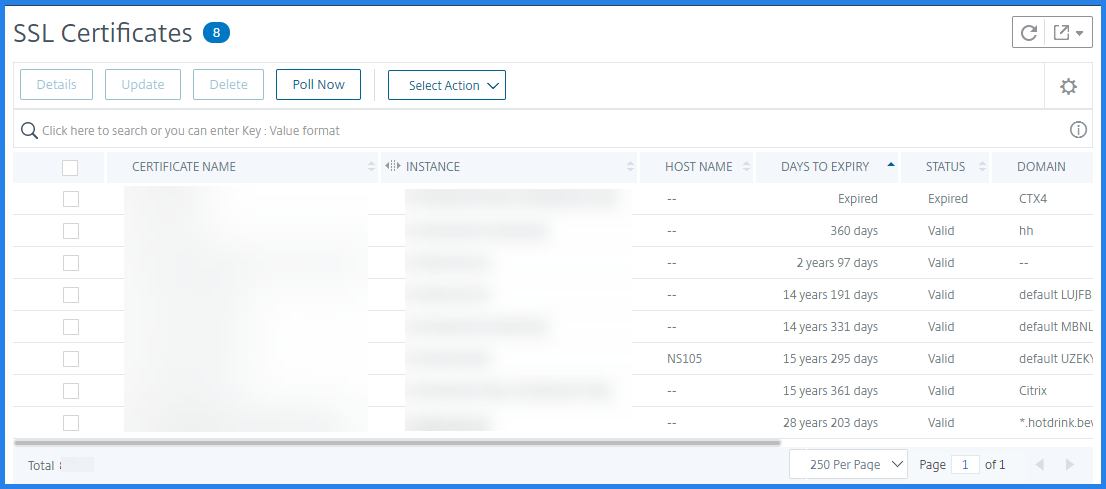
For example, when you click the number under Self signed vs CA signed on the dashboard, the NetScaler Console GUI displays all the SSL certificates on the NetScaler instances.
The NetScaler Console SSL Dashboard also shows the distribution of SSL protocols that are running on your virtual servers. As an administrator, you can specify the protocols that you want to monitor through the SSL policy, for more information, see Configuring SSL Policies. The protocols supported are SSLv2, SSLv3, TLS 1.0, TLS 1.1, TLS 1.2, and TLS 1.3. The SSL protocols used on virtual servers appear in a bar chart format. Clicking a specific protocol displays a list of virtual servers using that protocol.
A donut chart appears after Diffie-Hellman (DH) or Ephemeral RSA keys are enabled or disabled on the SSL dashboard. These keys enable secure communication with export clients even if the server certificate does not support export clients, as in the case of a 1024-bit certificate. Clicking the appropriate chart displays a list of the virtual servers on which DH or Ephemeral RSA keys are enabled.
To view audit trails for SSL certificates
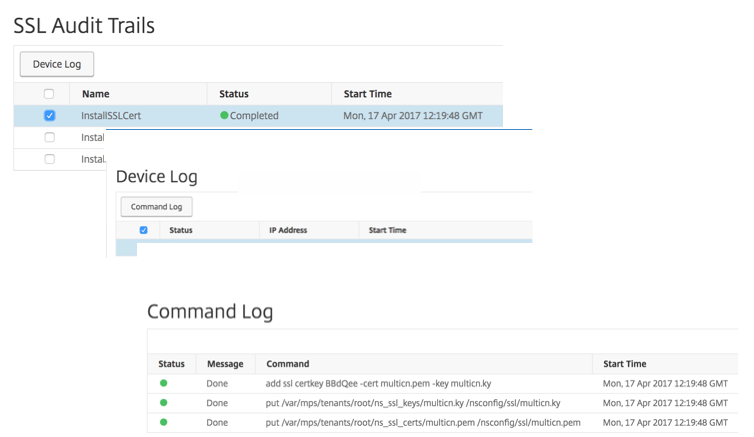
You can now view log details of SSL certificates on NetScaler Console. The log details display operations performed using SSL certificates on NetScaler Console such as: installing SSL certificates, linking and unlinking SSL certificates, updating SSL certificates, and deleting SSL certificates. Audit trail information is useful while monitoring SSL certificate changes done on an application with multiple owners.
To view an audit log for a particular operation performed on NetScaler Console using SSL certificates, navigate to Infrastructure > SSL Dashboard \> and click Audit Logs.
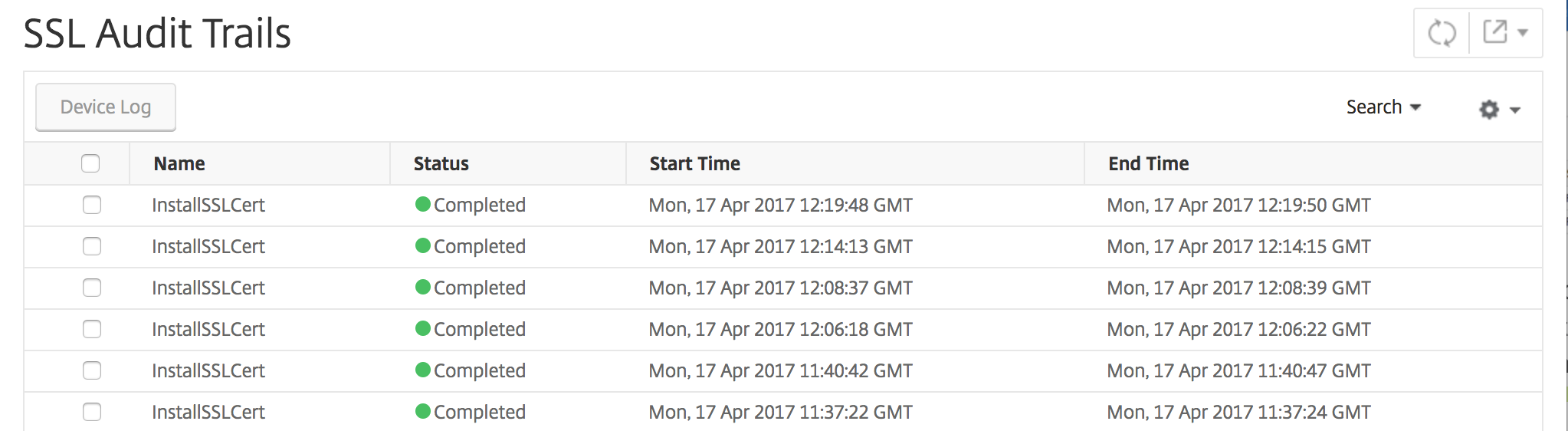
For a particular operation performed using SSL certificate you can view its status, start time, and end time. Furthermore, you can view the instance on which the operation was performed and the commands run on that instance.
To delete the SSL certificate on the SSL Dashboard
NetScaler 14.1-38.x and later provides an option to delete the associated SSL certificate files from NetScaler while deleting the selected configuration of an SSL certificate. To delete an SSL certificate:
-
Navigate to Infrastructure > SSL Dashboard.
-
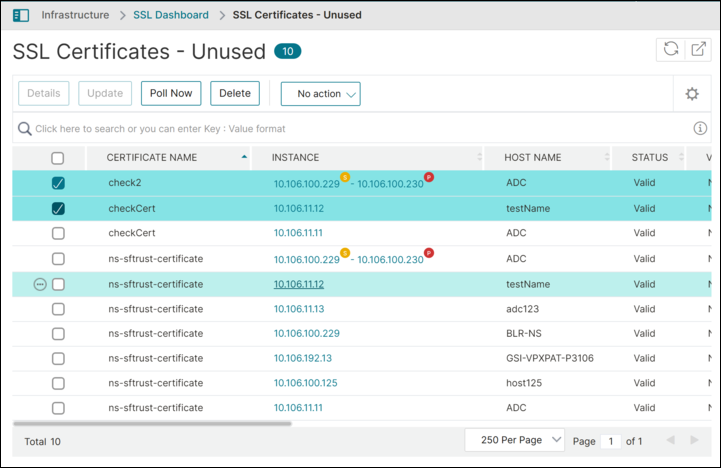
In the SSL Certificates section where the details of SSL certificates are displayed, click the link on the label Unused.
-
A page with a list of unused certificates is displayed.
-
Choose one or more unused certificates you wish to delete.
-
Click Delete.
-
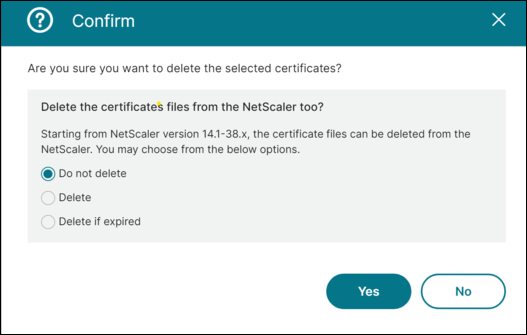
A Confirm dialogue box appears, providing the following options to delete the certificate files from NetScaler® as well:
-
Do Not Delete: Skips the deletion of certificate files from NetScaler.
-
Delete: Deletes the certificate files from NetScaler for both expired and unexpired certificates.
-
Delete if Expired: Deletes the certificate files from NetScaler for expired certificates only.
NOTE:For NetScaler versions earlier than 14.1-38.x, deletion of the certificate file(s) is skipped for all three options. Option to delete the certificate file along with configuration is applicable only for NetScaler 14.1-38.x and later. -
-
Select the appropriate option based on your needs.
-
Click Yes to delete the certificate or click No to exit the workflow without making any changes.
To exclude default NetScaler certificates on the SSL Dashboard
NetScaler Console allows you to show or hide default NetScaler certificates showing up on the SSL Dashboard charts based on your preferences. By default, all certificates are displayed on the SSL dashboard including default certificates.
To show or hide default certificates on the SSL dashboard:
-
Navigate to Infrastructure > SSL Dashboard in the NetScaler Console GUI.
-
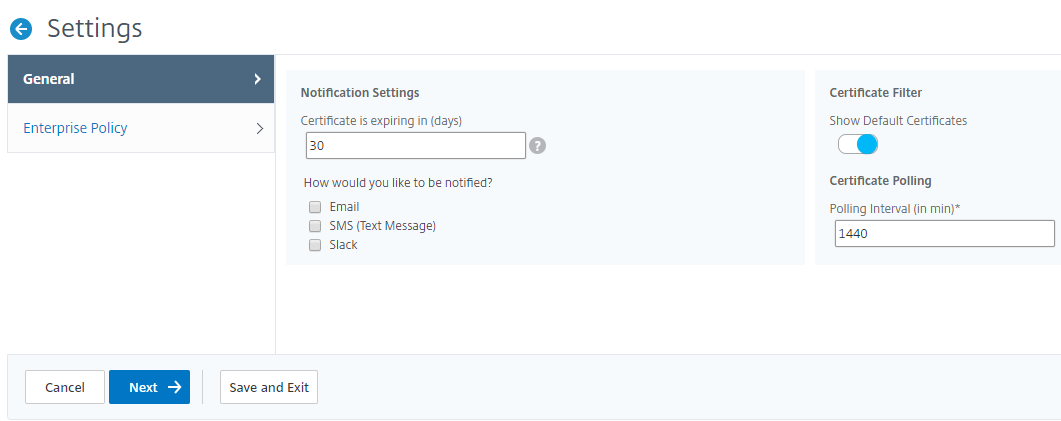
On SSL Dashboard page, click Settings.
-
On the Settings page, select General.
-
Type the number of days when the certificate expires to receive notification about certificate expiry.
-
Select the method of notification and create the respective profiles.
-
In the Certificate Filter section, clear the Show Default Certificates checkbox and click Save and Exit.
View, upload, and download SSL files
To view SSL files on NetScaler Console, navigate to Infrastructure > SSL Dashboard > SSL Files on NetScaler Console.
You can view, upload, and download the following files on NetScaler Console:
-
SSL certificates
-
SSL keys
-
SSL CSRs
To view and download SSL files on a NetScaler instance, navigate to Infrastructure > SSL Dashboard > SSL Files on NetScaler.
You can access the SSL files only after the NetScaler instances have been backed up, either manually or through a scheduled backup process.
Important:
To enable the SSL files download from NetScaler instances, enable the Instance SSL certificates feature. For more information, see Enable or disable NetScaler Console features.
View SSL certificate chain
You can view the complete certificate chain from the intermediate certificates up to the root CA certificate.
To view a certificate chain:
-
Navigate to Infrastructure > SSL Dashboard and click the SSL certificates in any tile.
-
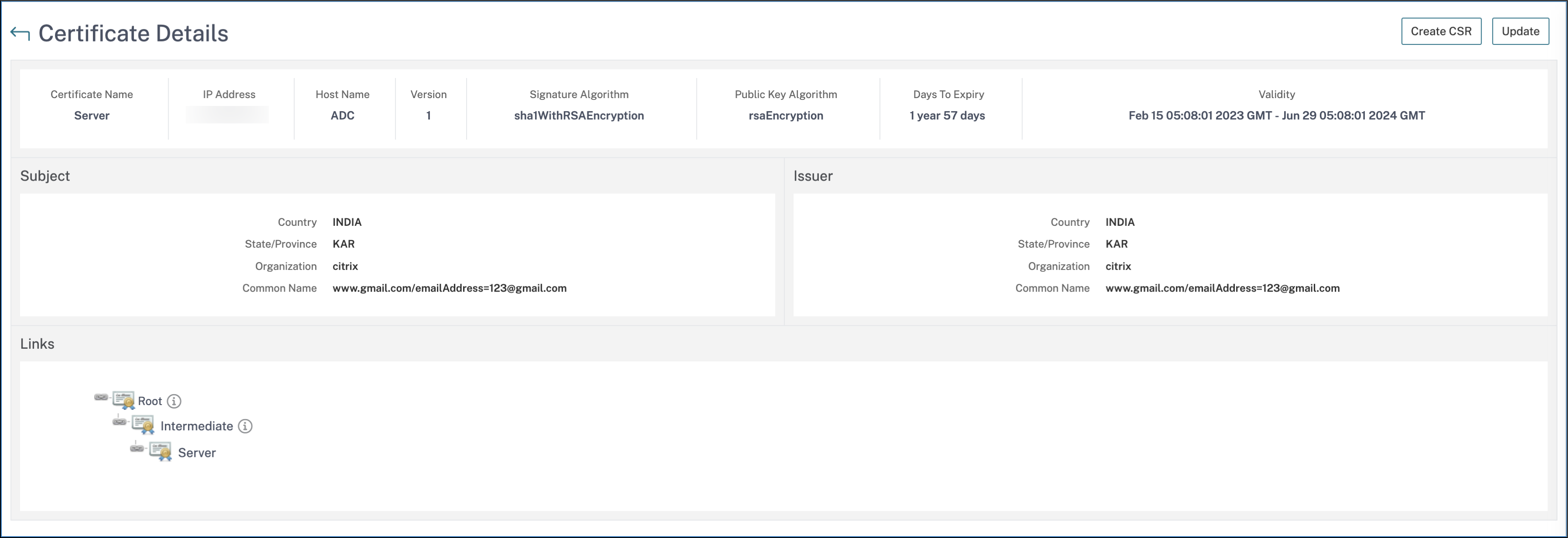
In the SSL Certificates page, select a certificate and click Details. The certificate chain is displayed under Links.