
Manage database custom certificates and ciphers in a high-availability deployment
NetScaler Console allows you to replace the default inbuilt database certificates with your own certificates from a trusted certificate authority. You can also configure your own cipher suites in the NetScaler Console database. This feature provides greater flexibility and security for your certificate management needs, and secures all communication between your HA nodes with trusted SSL certificates.
Related information
Install your database certificates on NetScaler Console
To install your certificates in an HA setup:
-
Navigate to Settings > HA Deployment and click Database Certificates.
-
Click the Installed Certificate tab and click Install New Certificate.
-
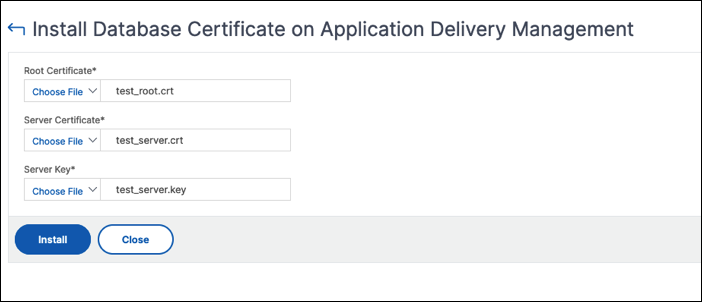
In the Install Database Certificate on Application Delivery Management page, upload a root certificate, server certificate, and server key. You can do one of the following:
-
Choose File > Local to upload a certificate or key file from your local machine.
-
Choose File > Appliance to upload a certificate or key file that is present on NetScaler Console.
-
-
Click Install.
Note:
If there are multiple chain certificates, you must combine them into a single file. Make sure that the order of concatenation is correct, with the intermediate certificates first, followed by the root certificate. This order is essential for the certificate chain to be recognized correctly.
For example, the following command appends the content of each certificate file (intermediate_certificate1.crt, intermediate_certificate2.crt, and root_certificate.crt) to the file named combined_certs.crt:
cat intermediate_certificate1.crt >> combined_certs.crt
cat intermediate_certificate2.crt >> combined_certs.crt
cat root_certificate.crt >> combined_certs.crt
Manage your installed database certificates
To view, download, and delete your installed certificates:
-
Navigate to Settings > HA Deployment and click Database Certificates.
-
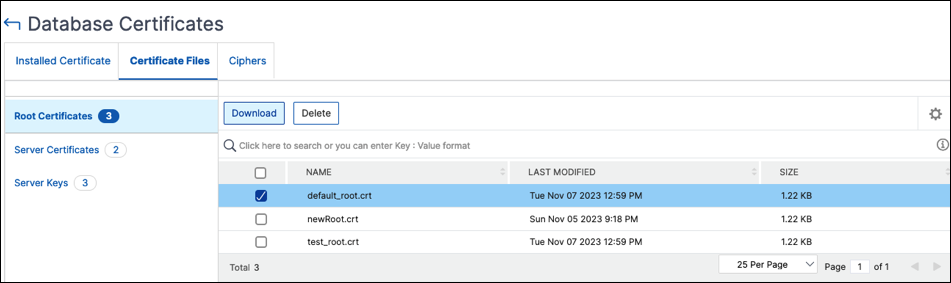
Click the Certificate Files tab and select Root Certificates, Server Certificates, or Server Keys to see the corresponding files.
-
To download a file to your local machine, click Download.
-
To delete a certificate file, select the file and click Delete. In the confirmation dialog box that appears, click OK.
Configure database cipher suites
To configure cipher suites for an HA deployment:
-
Navigate to Settings > HA Deployment and click Database Certificates.
-
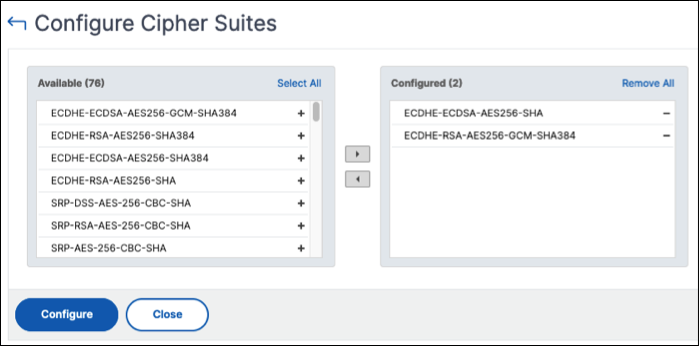
Click the Ciphers tab and then click Configure Cipher.
-
In the Configure Cipher Suites page, select one or more ciphers from the available list of ciphers.
-
Click Configure. In the confirmation dialog box that appears, click Yes to change the cipher settings.
Note:
Changing the cipher settings restarts the NetScaler Console secondary and disaster recovery nodes.