
Upgrade NetScaler Console
Important:
File-based licensing will be EOL from April 15, 2026. All NetScaler (ADC, SVM) instances must be upgraded to LAS-compliant versions and transitioned to use LAS-based licensing before this date. The minimum required NetScaler versions that are LAS compatible are:
-
NetScaler ADCs: 14.1–51.80, 13.1-60.29, 13.1-37.247 (FIPS), 14.1-66.68 (FIPS)
-
NetScaler SVM: 14.1–51.83, 13.1-60.30
After April 15, 2026, in NetScaler ADC and SVM release 14.1-66.x and later, an upgrade related check will be triggered before NetScaler upgrade. This check validates if your NetScaler (ADC, SVM) is still using file-based licensing, and if true, the upgrade would be blocked with an error “NetScaler Upgrade Blocked: File-based licensing in use”. This precaution avoids your NetScaler instances from proceeding with the upgrade and becoming unlicensed after April 15, 2026. Contact Citrix Support or your ATS representative to understand how you can unblock the upgrade and the risks involved with it.
Related information
Pre-upgrade checks
Before triggering an upgrade from the NetScaler Console, the system automatically performs a pre-upgrade check to validate system readiness and upgrade image integrity. This check ensures that the upgrade proceeds smoothly and reduces the likelihood of encountering failures during the upgrade process.
Note:
The pre-upgrade check feature is available from NetScaler Console 14.1 release build 56.x. The check runs automatically before every upgrade initiated through the NetScaler Console on-premises.
If the check detects any issues, the NetScaler Console displays detailed information about the discrepancies and prompts you to address them before continuing with the upgrade.
The pre-upgrade check includes the following validations:
-
Memory availability check – Verifies that the NetScaler Console has sufficient available RAM to perform the upgrade safely.
-
Disk space check – Ensures that the required free disk space is available for extracting and installing the upgrade image.
-
Image file requirements check – Confirms that all mandatory image files required for the upgrade are available.
-
Image file integrity check – Validates the checksum of the upgrade image to ensure that the file is complete and not corrupted.
-
LAS transition check - Verifies whether NetScaler Console is still using file‑based licensing for pooled or flexed license types post April 15, 2026.Note:LAS transition check becomes effective on April 15, 2026 and is applicable to pooled and flexed license type. From this date onwards, if you are trying to upgrade to NetScaler Console 14.1‑66.x or later with file‑based licenses still in use, you will not be allowed to upgrade. This check is done to avoid your NetScaler Console on-prem from proceeding with the upgrade after April 15, 2026, and NetScaler instances becoming unlicensed after the upgrade. If you encounter this restriction, you must contact Citrix Support or your ATS representative for guidance.The following error is displayed when the LAS pre‑upgrade check fails:

In addition to resource and file validations, NetScaler Console verifies the health and connectivity of the system to ensure a safe upgrade. The verification includes the following checks:
-
Database integrity check – Detects missing or corrupted database files to prevent upgrade failures.
-
Database streaming channel status – Confirms that the streaming channel is active and operational.
-
Secondary node connectivity – Ensures proper communication with the secondary node for redundancy.
-
Password-less SSH verification – Confirms that password-less SSH login to the secondary node is working.
The pre-upgrade check feature provides the following benefits:
-
Performing these validations before the upgrade helps prevent failures caused by insufficient resources or corrupted image files.
-
By identifying potential issues in advance, the pre-upgrade check improves upgrade reliability and minimizes downtime due to recovery or reinstallation efforts.
To upgrade NetScaler Console:
-
Navigate to Settings > Administration. Under System Maintenance, click Upgrade NetScaler Console.
-
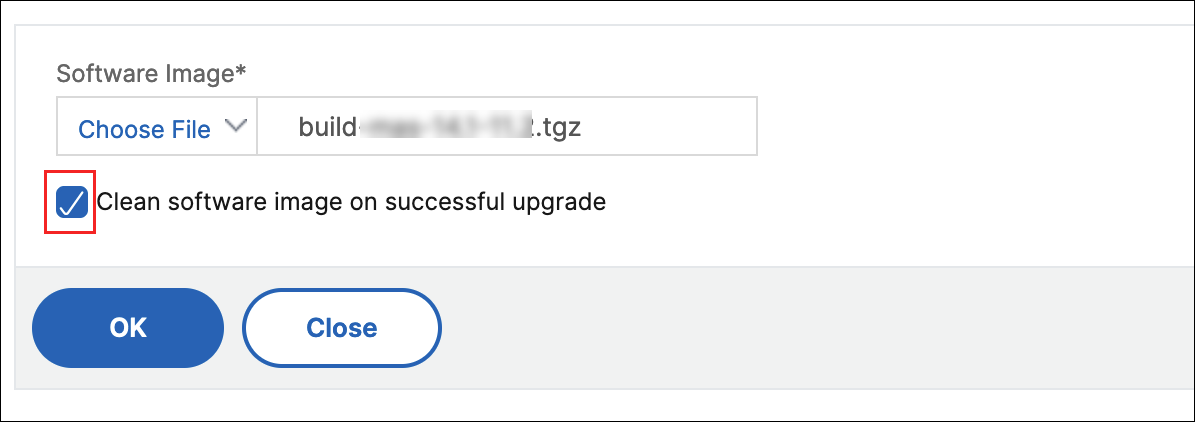
On the Upgrade NetScaler Console page, upload a new image file by selecting either Local (your local computer) or Appliance.NoteWhen you select Appliance, ensure that the upgrade image is available at
/var/mps/mps_imagesin NetScaler Console.By default, the software image is cleaned up after a successful upgrade. -
Click OK.
Unblocking NetScaler Console upgrade when the LAS pre-upgrade check fails
Use this option only if you must proceed with NetScaler Console upgrade immediately and you understand and accept the licensing impact described below. If your goal is to remain licensed after the upgrade, contact Citrix Support or your ATS representative.
Prerequisites: You must have shell access to NetScaler Console or VM and sufficient privileges to create files under
/var/tmp.
To unblock the upgrade:
-
Log in to the NetScaler Console shell.
-
Create the bypass flag file.
touch /var/tmp/skip_las_checks -
Re-run the upgrade. NetScaler Console detects the
skip_las_checksflag and skips LAS validation, allowing the upgrade workflow to continue.
Important:
If you bypass the LAS pre-upgrade check and proceed while file-based Pooled or Flexed licensing is still in use, all managed NetScaler instances are expected to become unlicensed after the NetScaler Console upgrade.
After NetScaler Console on-prem upgrade, complete the LAS transition for Pooled or Flexed licensing and confirm that each NetScaler instance is correctly licensed.
If you need an alternative approach or assistance with the transition sequence, contact Citrix Support or your ATS representative.