
Recover inaccessible NetScaler® ADM servers
NetScaler Application Delivery Management (ADM) now provides a database maintenance tool to perform cleanup of the system database. You can now launch the NetScaler ADM utility tool to connect to the file system, delete a few components, and make the database accessible. NetScaler ADM recovery script is a tool that helps to recover space in the file system by clearing old or unused database tables and files. The tool assists you to navigate through the database tables and files in successive steps and shows the current space occupied on the filesystem by respective items. Once you have selected the database tables and files to be deleted, the tool deletes those from the filesystem after confirmation.
Related information
How to Use NetScaler ADM Database Recovery Script for a NetScaler ADM Standalone Deployment
Use the following procedure in a single server NetScaler ADM deployment to connect to the file system, delete a few components, and make the database accessible, and then perform the recovery operations.
-
Using an SSH client or your hypervisor’s console, logon to NetScaler ADM and type the following command:

-
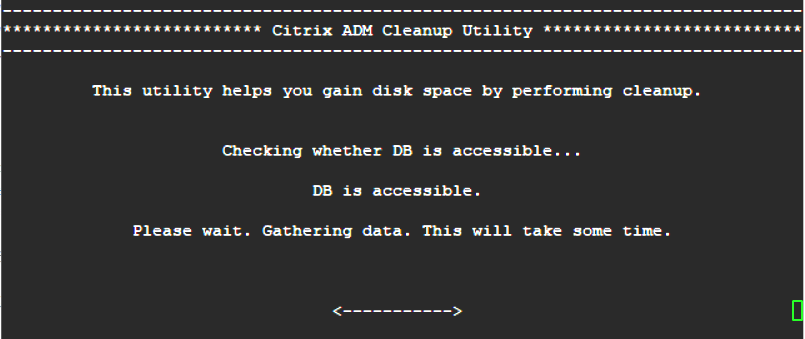
When the screen displays a caution message for stopping a few NetScaler ADM processes, type "y" and press the Enter key.The following screen appears while the system determines which components of the database you can delete without affecting the system’s core files.
-
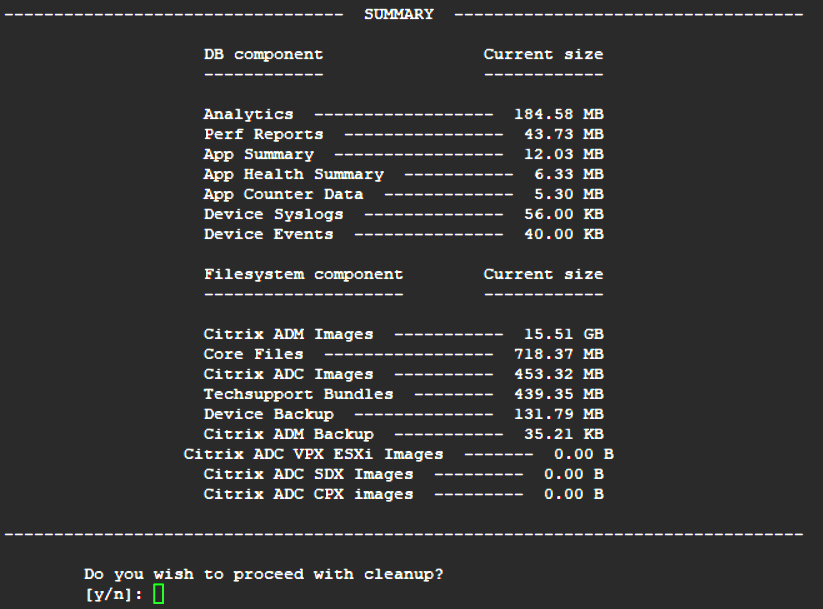
The screen displays the list of files in the database. Type "y" and press the Enter key to begin the cleanup process.
-
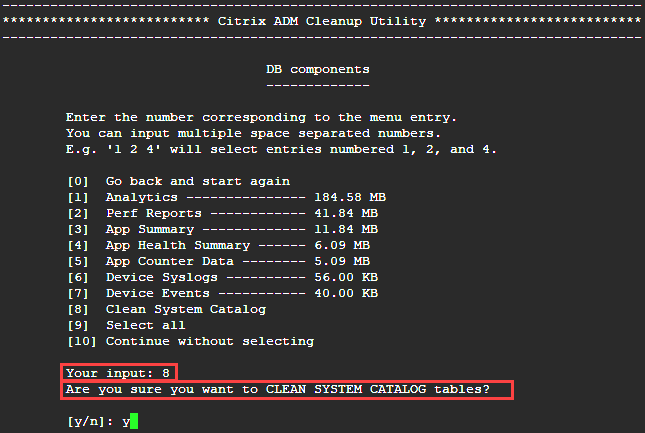
You can select the specific database component that needs to be cleaned and type the corresponding number. Press the Enter key.For example, to perform System Catalog cleanup, select option 8 in the DB component selection menu and type "y" and press the Enter key to continue with the system catalog clean up.NoteNetScaler ADM includes user tables known as system catalog. The system catalog is a location in the NetScaler ADM database where a relational database management system stores schema metadata, such as information about tables and columns and internal records. The tables in the system catalog are like regular tables that can accumulate inflated and dead rows over time and therefore, need periodic cleanup for optimal performance. It is a good practice to regularly maintain these tables. The activity not only frees up disk space but also improves the overall performance of the database and therefore of the NetScaler ADM.
 The cleanup utility gives you an option to clean database components and file components. You can select any file component by typing a number between "1" and "9," or type "11" and press the Enter key to clean the database component.NoteThe number "11" indicates that you have not selected any file component to be cleaned and you are going ahead with cleaning up the earlier database component that you had earlier selected. In this example, it is "system catalog."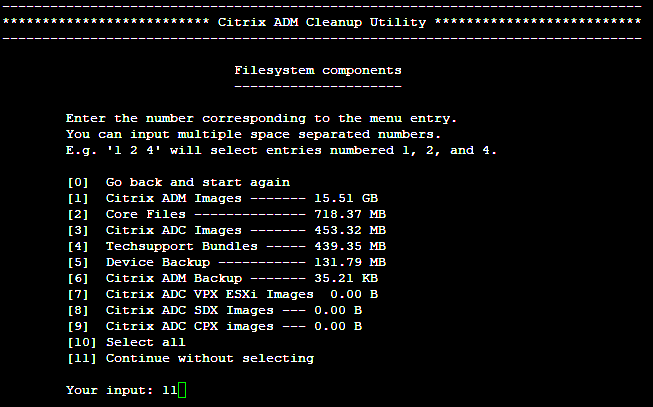
-
Type "y" and press the Enter key again in the final confirmation screen.
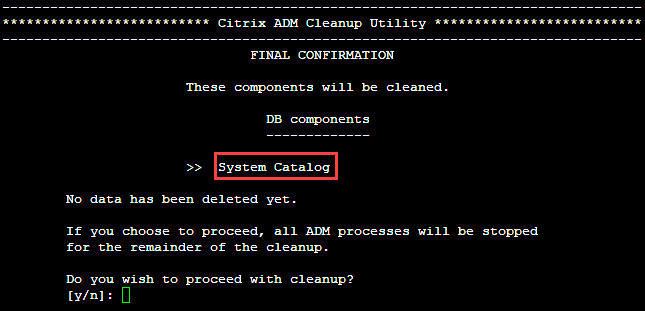 The System Catalog is cleaned up, which may take time depending on the size of the table in the System Catalog. After the process is complete, a summary screen is shown.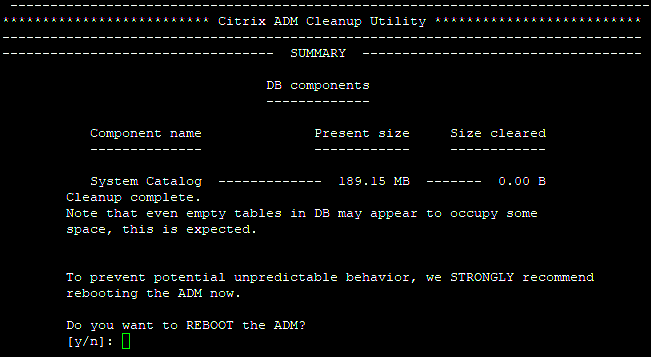
-
Type "y" and press the Enter key to restart NetScaler ADM.Ensure you restart NetScaler ADM after system clean up. Wait for about 30 minutes for internal database operations to complete after NetScaler ADM has restarted. You should then be able to connect to NetScaler ADM database. If not, run the recovery script again to free up more space. When NetScaler ADM is up and running, it should work as expected.NoteThe current size of the system catalog table is never equal to Zero after clean up. This is because only empty rows are removed from the table and the table might have some valid entries even after they are cleaned up.
How to use NetScaler ADM database recovery script for a NetScaler ADM high availability deployment
The database system for NetScaler ADM servers in a high availability deployment is in continuous synchronization mode. While using the new database recovery tool, you do not need to replicate the procedure on both the NetScaler ADM servers.
-
Using an SSH client or hypervisor's console, log on to the primary node.
-
Run the following command:
/mps/mas_recovery/mas_recovery.py -
Follow the procedure from step 2 available for NetScaler ADM Standalone Deployment Recovery Script