
Create and edit a configuration pack
In NetScaler® Application Delivery Management (ADM), you can create a configuration pack from a StyleBook. And, the configuration pack is tied to the StyleBook from which it is created. The updates to the configuration pack are made through the StyleBook to which it is tied.
Related information
Create a configuration pack
Perform the following to create a configuration pack from a StyleBook:
-
Navigate to Applications > StyleBooks > Configurations.
-
Click Add.
-
In Choose StyleBooks, select the required StyleBooks from which you want to create a configuration pack.This page categorizes StyleBooks into default and custom StyleBooks. Select the respective tabs to find the required StyleBooks.
-
Specify the required details such as application name, IP address, port, or protocol type.The GUI fields differ from one StyleBook to another StyleBook.
-
In Target Instances, select instances or instance groups where you want to run the configuration.NoteYou can deploy the configuration on more than one NetScaler, by specifying as many target instances as needed.
-
Click Dry Run.The Objects page displays the objects that get created, modified, or removed from the NetScaler instances.
-
Click CreateThe configuration pack appears in the StyleBook > Configurations page.
If you want to edit the existing configuration packs, select the configuration pack and click Edit.
Change the StyleBook of a configuration pack
Sometimes, you need to update the StyleBook to add functionality or fix an issue. If you already have created configuration packs using the old StyleBook, you might want to update them to use the new updated StyleBook. To use a new StyleBook, change the existing StyleBook of the configuration pack.
Consider an example StyleBook example-lb that deploys a basic load balancer configuration on an ADC instance. And, you create a configuration pack CP1 from this StyleBook.
When you want to configure monitors with the basic load balancer configuration, you need a new StyleBook. Therefore, create example-lb-mon StyleBook that includes the ability to configure monitors along with the basic load balancer configuration.
After you create a StyleBook, update the existing configuration pack CP1 to add some monitors. To do so, perform the following:
-
Navigate to Applications > StyleBooks > Configurations.
-
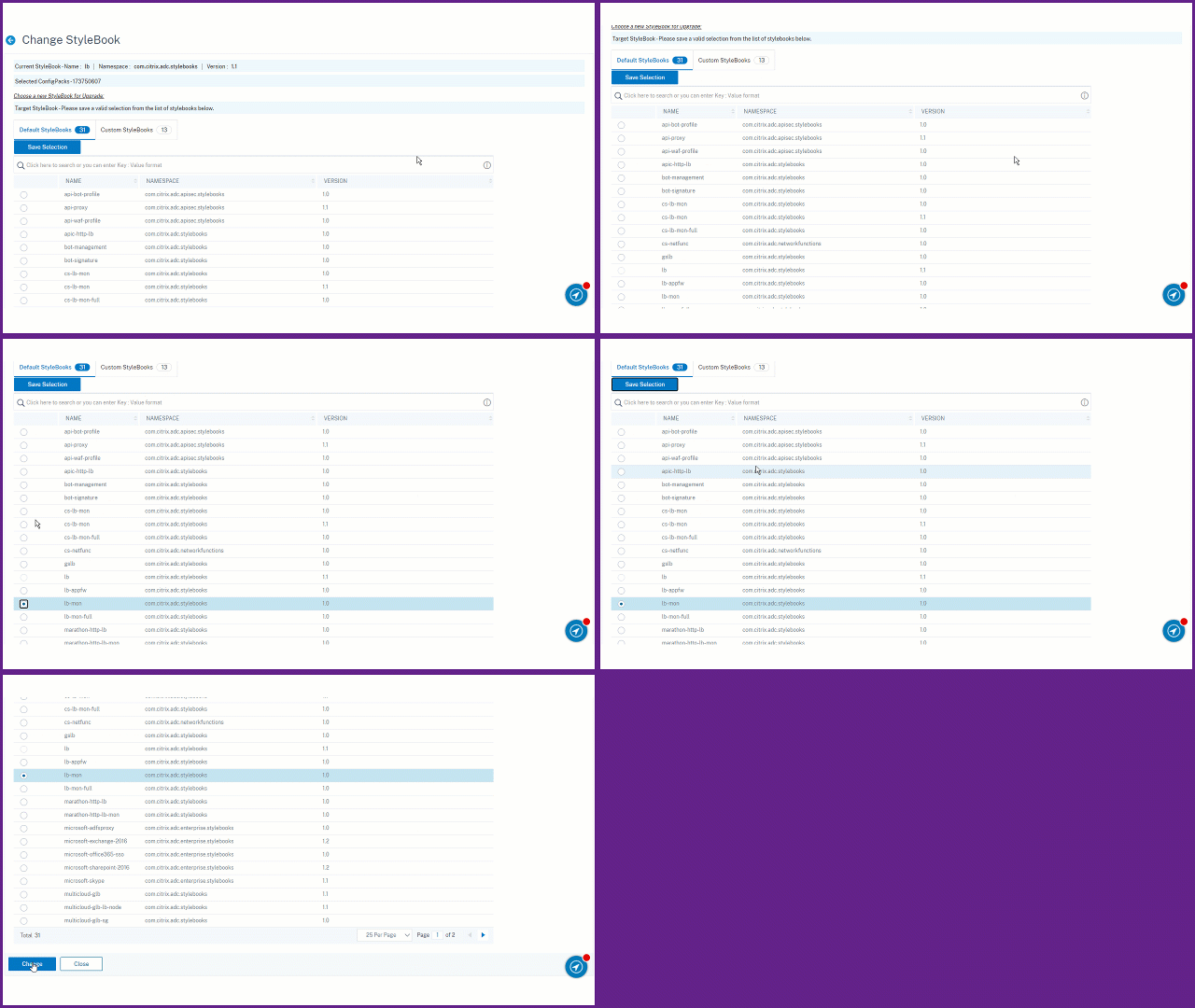
Select the configuration pack for which you want to change the StyleBook.In this example, select CP1 from the list.
-
Click Change StyleBook.
-
Select the required StyleBook from the list. Then, click Save Selection.
-
Click Change.In this example, select example-lb-mon from the list.When you change the StyleBook of a configuration pack, the parameters in the new StyleBook might have a different structure than the existing StyleBook. If the parameter structure is similar to the previous StyleBook, the parameters' values are automatically retained in their respective fields. Otherwise, only parameters that have the same structure between the two StyleBooks are transferred. For example, the same parameter name, type, parameter parent, and more.
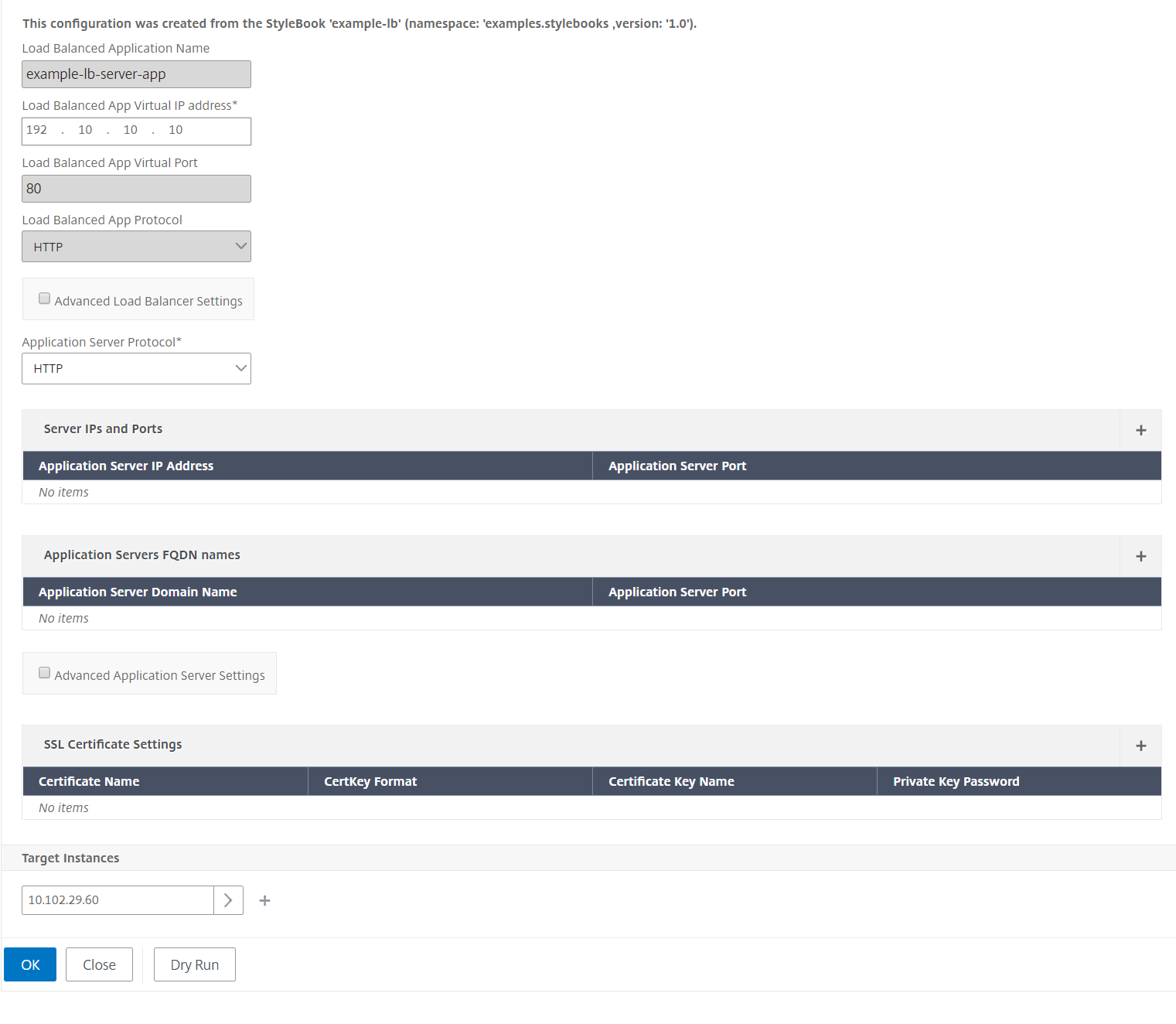
 If new required parameters are added in the new StyleBook, after changing the StyleBook, you have to manually specify the values for such parameters.In this example, the parameters that appear on the configuration page for the example-lb StyleBook are as follows:
 The parameters that appear on the configuration page for the new example-lb-mon StyleBook are as follows:
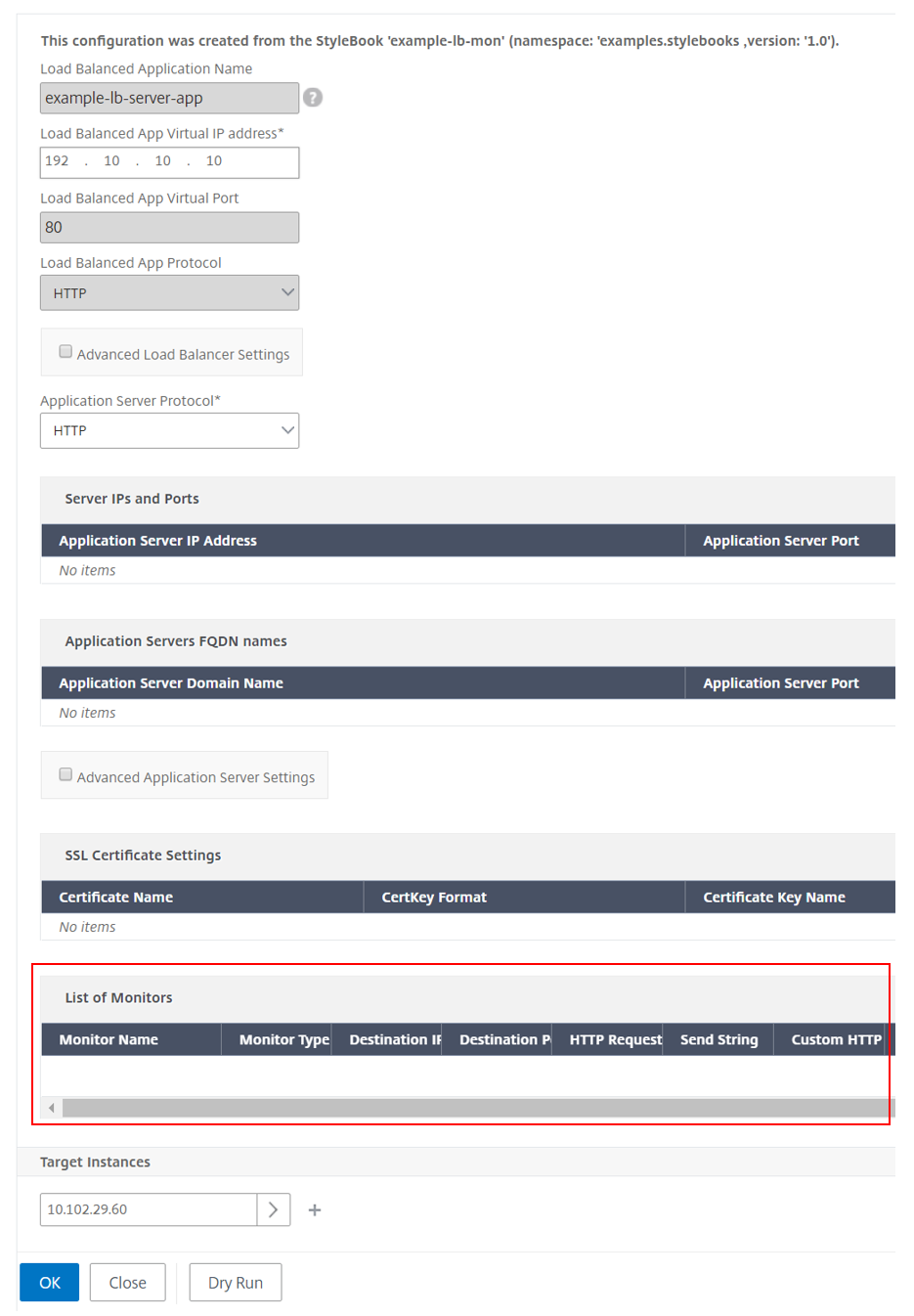 In this case, the StyleBooks retain the older values for the basic load balancer configuration because the new StyleBook hasn’t changed existing parameters. And, it adds only the new parameters. For monitor parameters, manually specify the required values.
 -
In Target Instances, review the selected instances and update the list if necessary.
-
Click Dry Run.The Objects page displays the objects that get created, modified, or removed from the NetScaler instances.
-
Click OK.In the StyleBook > Configurations page, the StyleBook Name column displays the new StyleBook name for the selected configuration pack. In this case, it displays example-lb-mon.
Change the StyleBook that has multiple configuration packs
When you change an existing StyleBook that has multiple configuration packs, do the following:
-
Import a new StyleBook to ADM.Typically, the new StyleBook has the same name and namespace with a higher version than the existing StyleBook. However, you can skip this step if the name, namespace, or version are different.
-
Change the StyleBook for the configuration packs that are associated with the existing StyleBook.You can select Change StyleBook only when the selected configuration packs are associated with the same StyleBook.
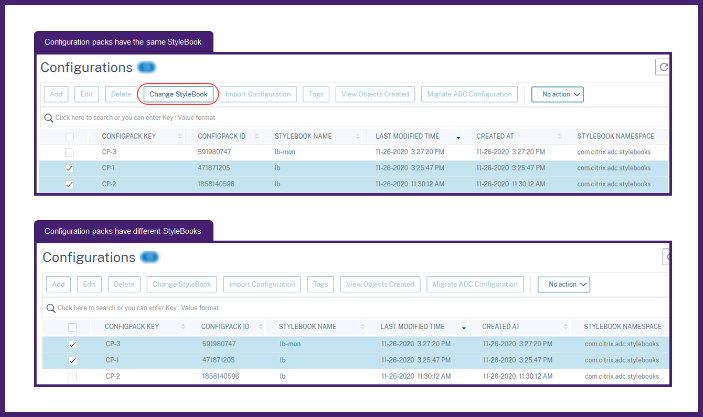 For the selected configuration packs, the ADM successfully changes the StyleBook when the following conditions are met:
-
All the configuration parameters of the existing StyleBook must present in the selected StyleBook.
-
The new parameters from the selected StyleBook are optional.
To see the progress of the selected configuration packs, select Configurations in Progress/Failed in the Configurations page.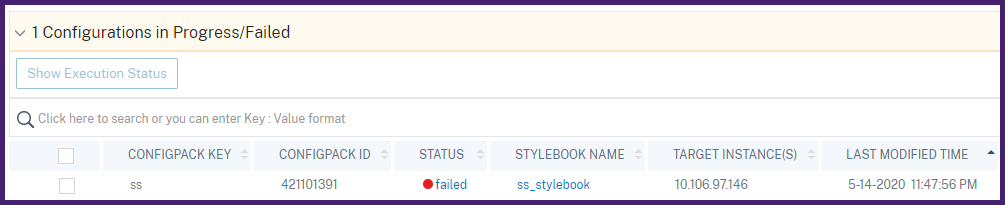
-
-
Remove the old StyleBook from ADM once all configuration packs are tied to the new StyleBook.
Export or import configuration packs
You can export or import a configuration pack like StyleBooks. With this feature, you can readily share the StyleBook configuration to another ADM server. When you export a configuration pack, a
tgz or zip bundle downloads to your local computer. This bundle includes a JSON file with all the parameters defined in a configuration pack.
Export configuration
Do the following to export a configuration pack:
-
Navigate to Applications > StyleBooks > Configurations.
-
Select a configuration pack that you want to export.
-
In Select Action, select Export Configuration.
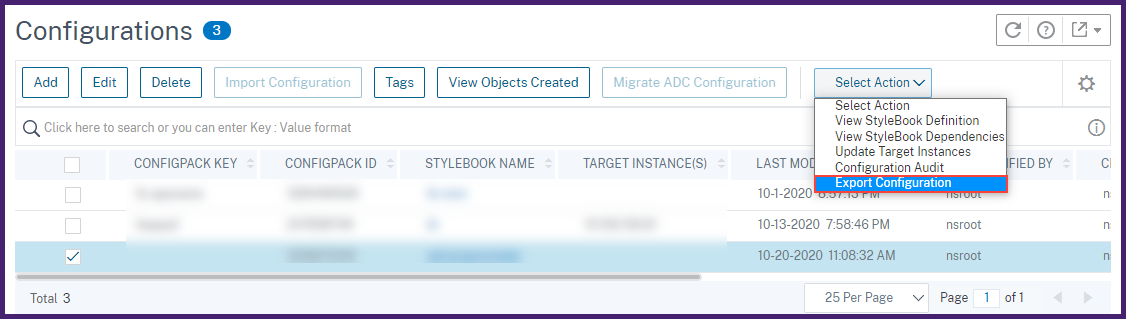
-
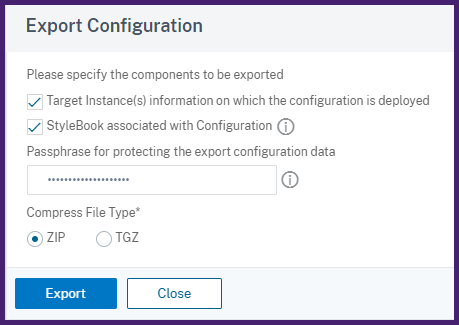
In the Export Configuration pane, specify the following:
-
Target instance(s) information on which the configuration is deployed: Select this option to include target instances' information with the export bundle.
-
StyleBook associated with Configuration: Select this option to include the StyleBook in the export bundle.
-
Passphrase for protecting the export configuration data: Specify a passphrase to encrypt the export bundle. This passphrase secures the sensitive data of a configuration pack.
-
Compress file type: Select either ZIP or TGZ file type.
-
-
Click Export.Save the export bundle on your local computer.
Import configuration
You can import a configuration pack from your local computer to a different ADM server. To import a configuration pack, do the following:
-
Navigate to Applications > StyleBooks > Configurations.
-
Select Import Configuration.
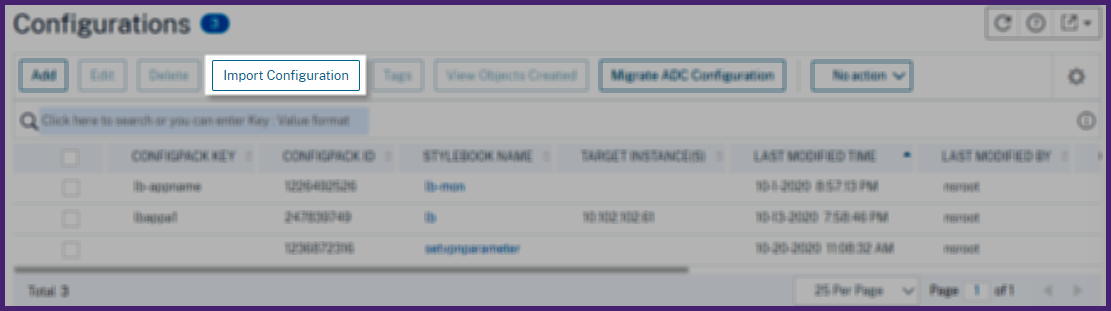
-
Choose the import file bundle from your computer.
-
Use the passphrase that you have specified during export.
-
Optional, in Advanced Options, select Only allow creation of new configuration if all config objects already exist on ADC.This option does not alter the objects that are already created on the ADC instance.Consider that you added the same ADC instance in two ADM servers. And, you want to migrate a configuration pack from one ADM server to another server. Use this option to import a configuration pack without altering its configuration objects on an ADC instance.ImportantTo use this option, ensure that the specified configuration bundle has the target instances information. See, Export configuration.This option only migrates the configuration if all the objects are present on the target instance.
-
Click Import.
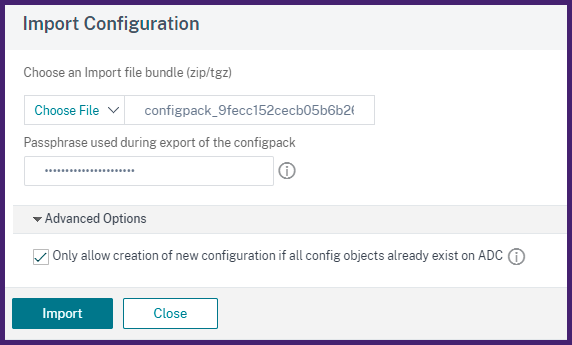
When you import a configuration pack, the ADM verifies the following:
-
Associated StyleBook: If the associated StyleBook is not in the ADM, it imports the StyleBook along with the configuration pack.
-
Target instances: Check for target instances and deploys the configuration on the specified target instances. If the mentioned ADC instances are absent in the ADM, the configuration pack is imported without target instances.
-
Source ADM: If you are importing a configuration pack on the same ADM server, the selected bundle updates the existing configuration pack.
Detach a target instance from a configuration pack
To detach a target instance from a configuration pack, do the following:
-
Navigate to Applications > Configuration > Config Packs.
-
Select the configuration pack with a target instance that you want to remove.
-
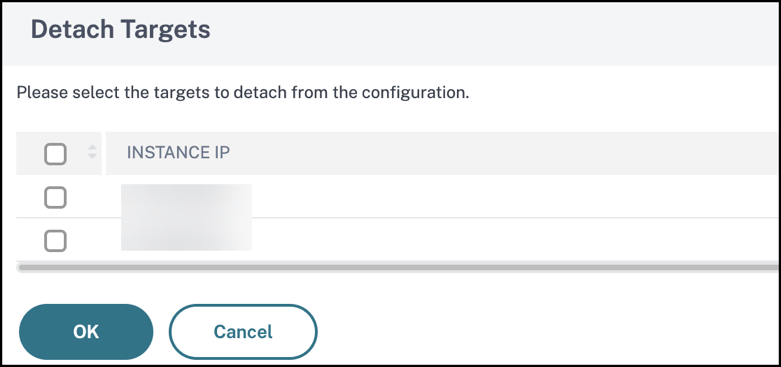
In Select Action, select Detach Targets.
-
In the Detach Targets pane, select the target instance you want to remove from the configuration pack.
-
Click OK.
A message displays, confirming the creation of a duplicate configuration pack with the target instance now removed.
Build your StyleBooks
The full content of example-lb StyleBook is provided for your reference as follows:
name: example-lb
 namespace: examples.stylebooks
 version: "1.0"
 display-name: Basic Load Balancer App
 description: This is an example StyleBook that creates a load balancer application
 schema-version: "1.0"
 import-stylebooks:
   -
     namespace: com.citrix.adc.stylebooks
     prefix: stlb
     version: "1.0"
 parameters-default-sources:
   - stlb::lb
 components:
   -
     name: lb-comp
     type: stlb::lb
     description: Uses the default lb StyleBook to build the typical lb configuration objects
     properties-default-sources:
       - $parameters
The full content of example-lb-mon StyleBook is provided for your reference as follows:
name: example-lb-mon
 namespace: examples.stylebooks
 version: "1.0"
 description: This is an example StyleBook that creates a load balancer application with monitors
 display-name: Basic Load Balancer App with Monitors
 schema-version: "1.0"
 import-stylebooks:
   -
     namespace: netscaler.nitro.config
     prefix: ns
     version: "10.5"
   -
     namespace: com.citrix.adc.stylebooks
     prefix: stlb
     version: "1.0"
   -
     namespace: com.citrix.adc.commontypes
     prefix: cmtypes
     version: "1.0"
 parameters-default-sources:
   - stlb::lb
 parameters:
   -
     name: monitors
     label: "List of Monitors"
     description: "List of Monitors to monitor Application Servers"
     type: cmtypes::monitor[]
 substitutions:
   mon-name(appname, monname): $appname + "-mon-" + $monname
 components:
   -
     name: lb-comp
     type: stlb::lb
     description: Uses the default lb StyleBook to build the typical lb configuration objects
     properties-default-sources:
       - $parameters
   -
     name: monitors-comp
     type: cmtypes::monitor
     condition: $parameters.monitors
     repeat: $parameters.monitors
     repeat-item: mon
     repeat-index: ndx
     description: Builds a list of NetScaler monitor objects and binds them to the servicegroup of this LB config
     properties-default-sources:
       - $mon
     properties:
         monitorname: $substitutions.mon-name($parameters.lb-appname, $mon.monitorname)
     components:
       -
         name: monitor-svcg-binding-comp
         condition:  $parameters.svc-servers
         type: ns::servicegroup_lbmonitor_binding
         properties:
           servicegroupname: $components.lb-comp.outputs.servicegroup.properties.servicegroupname
           monitor_name: $parent.properties.monitorname