
Licensing
NetScaler Application Delivery Management (ADM) requires a verified NetScaler license to manage and monitor the NetScaler instances, when the instances are discovered through the
https protocol.
NetScaler® ADM supports the following license editions. Contact your NetScaler sales representative or partner to purchase an ADM license.
Express edition – You can manage and monitor any number of instances with the Express edition license. By default, the Express edition license is applied.
Advanced edition - It allows to manage the discovered applications and view analytics for the purchased virtual servers along with the free virtual servers.
Points to note:
-
For build 13.1-9.x or earlier, you can manage up to 30 discovered applications or virtual servers and view analytics. Beyond the 30 discovered applications or the 30 virtual servers, you must buy and apply an Advanced license. For example, if you buy 100 virtual server licenses, then you are entitled to you use up to 130 virtual server licenses.
-
For build 13.1-12.x or later, you can manage up to two discovered applications or virtual servers and view analytics. Beyond the two discovered applications or the two virtual servers, you must buy and apply an Advanced license. For example, if you buy 100 virtual server licenses, then you are entitled to you use up to 102 virtual server licenses.
Post upgrade to build 13.1-12.x:
-
All the Express default free virtual servers remain functional for 30 days. You can select the 2 virtual servers and apply the 2 default licenses within the 30 days grace period. If no user action is taken 30 days post upgrade, ADM randomly applies license to 2 virtual servers and unlicenses the remaining virtual servers. You must buy and apply new Advanced licenses to enable these virtual servers.
-
Post upgrade, the following are the changes in the ADM behavior:
-
ADM enforces a 30-day grace period.
-
Within the 30-day grace period, the allocation of new virtual servers for the 30 express free virtual servers is blocked.
-
For example, if the number of available virtual server licenses before you upgraded to 12.x was 30 and only 20 licensed virtual servers were used, you are only allowed to use the 20 virtual servers and not allowed to license the remaining 10 virtual servers in the 30-day grace period.
-
-
However, within the 30-day grace period, as an administrator, you can still apply Advanced ADM licenses and allocate new virtual servers.
-
| Features | Options | Express edition | Advance edition | NetScaler License |
|---|---|---|---|---|
| Applications | Application Dashboard | Up to two virtual servers. | Entitled for all purchased virtual server licenses and extra two virtual servers. | NetScaler Web App Firewall related information on App Dashboard needs Premium (or) Advanced with App Firewall license. |
| Web Insight | Up to two virtual servers. | Entitled for all purchased virtual server licenses and extra two virtual servers. | NA | |
| Service Graph | Up to two virtual servers. | Entitled for all purchased virtual server licenses and extra two virtual servers. | NA | |
| Configuration > StyleBooks | Unlimited | Unlimited | NA | |
| Security | Security Dashboard | Up to two virtual servers. | Entitled for all purchased virtual server licenses and extra two virtual servers. | NetScaler Web App Firewall related information on Security Dashboard needs Premium (or) Advanced with App Firewall license. |
| Security Violations | Up to two virtual servers. | Entitled for all purchased virtual server licenses and extra two virtual servers. | Premium (or) Advanced with App Firewall license | |
| Users and endpoints | Up to two virtual servers. | Entitled for all purchased virtual server licenses and extra two virtual servers. | NA | |
| Gateway | HDX Insight | Up to two virtual servers. | Entitled for all purchased virtual server licenses and extra two virtual servers. | Advanced (reporting < 1 hour) Premium (reporting = Unlimited) |
| Gateway Insight | Up to two virtual servers. | Entitled for all purchased virtual server licenses and extra two virtual servers. | Advanced (reporting < 1 hour) Premium (reporting = Unlimited) | |
| Infrastructre | Infrasturcture Analytics | Unlimited | Unlimited | NA |
| Instances | Unlimited | Unlimited | NA | |
| SSL Dashboard | Unlimited | Unlimited | NA | |
| Events | Unlimited | Unlimited | NA | |
| Network Functions | Unlimited | Unlimited | NA | |
| Network Reporting | Unlimited | Unlimited | NA | |
| Pooled licenses | Unlimited | Unlimited | NA | |
| Configuration > Configuration Jobs, Configuration Templates, and Configuration Advice | Unlimited | Unlimited | NA | |
| Upgrade Jobs | Unlimited | Unlimited | NA | |
| Orchestration | Unlimited | Unlimited | NA | |
| Settings | RBAC & External Authentication (instance level) | Unlimited | Unlimited | NA |
| RBAC & External Authentication | Unlimited | Unlimited | NA |
*For Citrix Director integration with NetScaler ADM support – Citrix Director must have Premium license.
Licenses for more virtual servers are available in virtual server packs of 10. You can obtain a valid license and add the licenses on the NetScaler ADM servers through the NetScaler ADM GUI.
High Availability
The NetScaler ADM server can contain VIP, CICO, and pooled capacity licenses. When the licenses are issued to an ADM server, the licenses are bound to the host ID of the server. And, assigning licenses to a different ADM server is restricted.
If you configure an ADM high-availability pair as a license server, the primary and secondary servers must have the same license files. Therefore, in the ADM high-availability deployment, NetScaler ADM supports you assign the same license files to both servers.
Note
-
If you have installed NetScaler ADM 12.1.49.x or earlier releases, you get a grace period of 30 days to maintain the licensing on the secondary node. After the grace period, you must contact Citrix to rehost the original license.
-
For 12.1.50.x or later releases, the NetScaler ADM license is automatically synchronized to the secondary node.
-
Pooled licenses are automatically synchronized to the secondary node from 12.1.50.x or later release.
How licenses are synchronized between ADM high-availability nodes?
Whenever a failover occurs, the secondary server assumes the role of the primary server. The real host ID of the primary server is configured as the virtual host ID of the new primary server. The license files recognize the new primary server using the virtual host ID.
-
Real Host ID - This ID is generated from a MAC Address of the ADM server. Each ADM standalone deployment has a unique host ID.
-
Virtual Host ID - This ID is auto generated during HA deployment. The real host ID of an ADM primary server is used as the virtual Host ID of a secondary server. This ID is stored in the ADM database in an encrypted format and modifications to this ID is restricted. The virtual Host ID is preferred over the real Host ID.
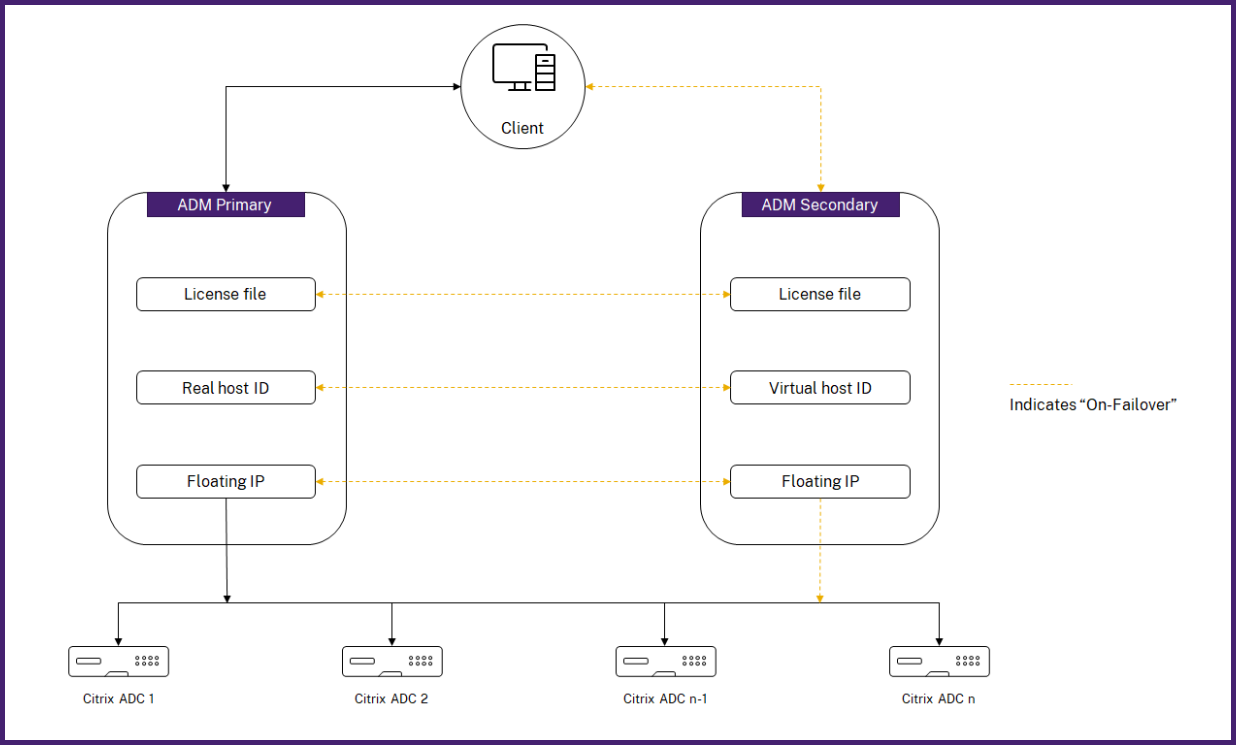
Assume Node-1 is the primary server and Node-2 is the secondary server. The virtual Host ID of Node-1 is synchronized with Node-2.
-
License files available in Node-1 are synchronized to Node-2.
-
Any new license files on Node-1 are synchronized to Node-2 periodically.
-
ADM ensures that the License Server is running only on Node-1 to avoid doubling of license capacity.
-
NetScaler instances check out licenses from Node-1 using the floating IP address.
Licenses are locked to ADC instances. To check out licenses from a NetScaler ADM HA, instances require the specific appliance's IP address. When you apply licenses on a primary server that will be in charge of licensing, and it applies all future licenses on that instance. You can delete licenses only from the server on which you have installed the licenses.
Orchestration
The Orchestration module is independent of licensing and is always available.
Upgrade the virtual server licenses
You can upgrade the licensing on NetScaler ADM to monitor and manage more virtual servers hosted on the NetScaler appliances.
To upgrade your appliance licenses:
-
Log on to NetScaler ADM using the administrator credentials.
-
Navigate to Infrastructure > Pooled Licensing.
-
Go to License Files, and select one of the following options:
-
Upload license files from a local computer. If a license is already present on your local computer, click Browse and select the license file (.lic) that you want to use to allocate your licenses. Click Finish.
-
Use License Activation Code. Citrix emails the license access code for the license that you purchased. Enter the license access code in the text box and then click Get Licenses.
NoteIf you select this option, the NetScaler ADM must be connected to the Internet, or a proxy server must be available.
-
-
You can add more licenses from the License Settings page at any time.
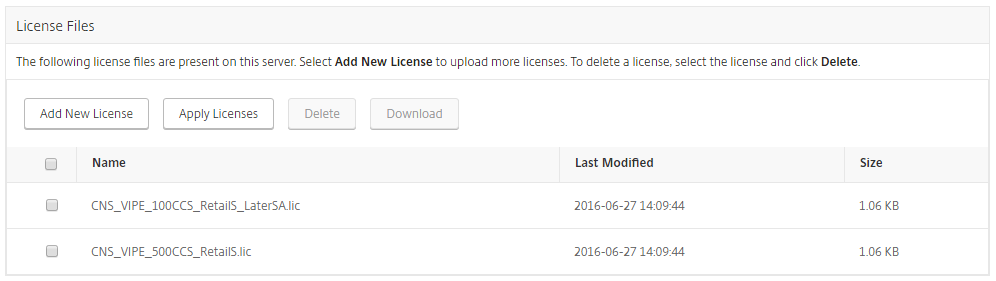
Verification
You can verify the licenses installed on your NetScaler ADM by navigating to Settings > Licensing & Analytics Configuration.

Manage virtual servers
You can select the virtual servers or third-party virtual servers you want to manage and monitor through NetScaler ADM.
Points to note
-
By default, NetScaler ADM automatically licenses the virtual servers randomly after each virtual server poll cycle.
-
If the total number of virtual servers discovered in your NetScaler ADM is lower than the number of installed virtual server licenses, NetScaler ADM, by default, licenses all the virtual servers.
To select the virtual servers manually, or to restrict licensing to limited virtual servers, you have to first disable auto licensing the virtual servers, and then select the virtual servers you want to manage.
Disable auto-licensing virtual servers
-
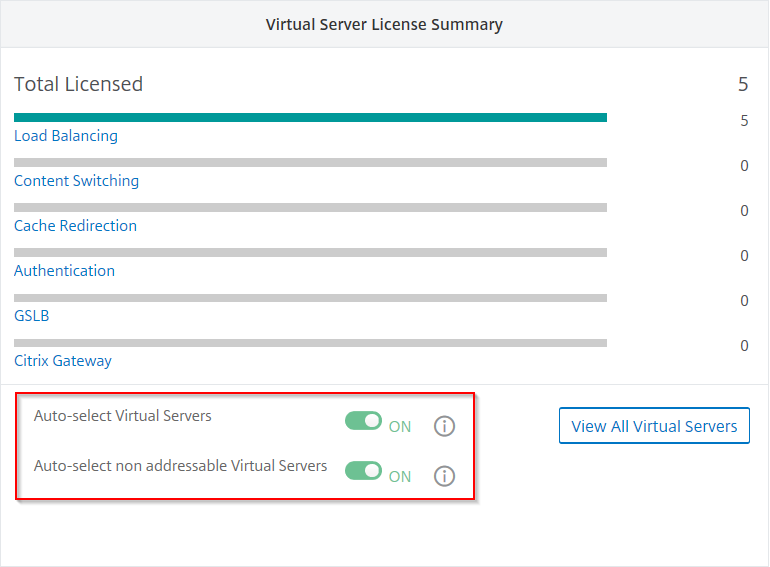
Navigate to Settings > Licensing & Analytics Configuration.The dashboard displays the virtual server licenses available, the managed virtual servers along with the virtual server type, and license expiry information.
-
In Virtual Server License Allocation, disable Auto Licensed Virtual Servers and Auto-select non addressable Virtual Servers.
Select third-party virtual servers for licensing
-
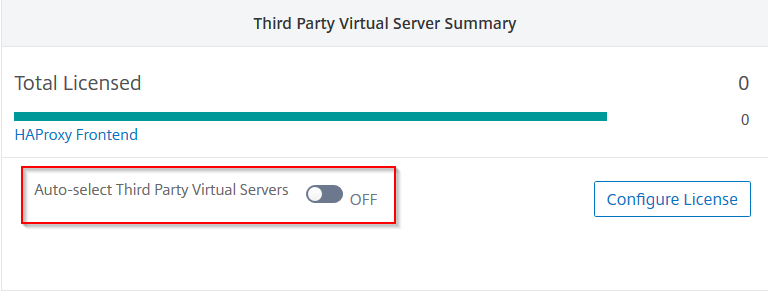
Navigate to Settings > Licensing & Analytics Configuration.The dashboard displays the virtual server licenses available, the managed virtual servers along with the virtual server type, and license expiry information.
-
In Third Party Virtual Server Summary, disable Auto-select Third Party Virtual Servers.
Apply virtual server licenses manually
You can manually apply licenses to an individual virtual server.
-
In Virtual Server License Allocation, select Configure Licenses.The All Vitrual Servers page is displayed.
-
Filter unlicensed virtual servers using the property:
Licensed: No. -
Select the virtual server that you want to license.
-
Click License.
Configure policy based virtual server licensing
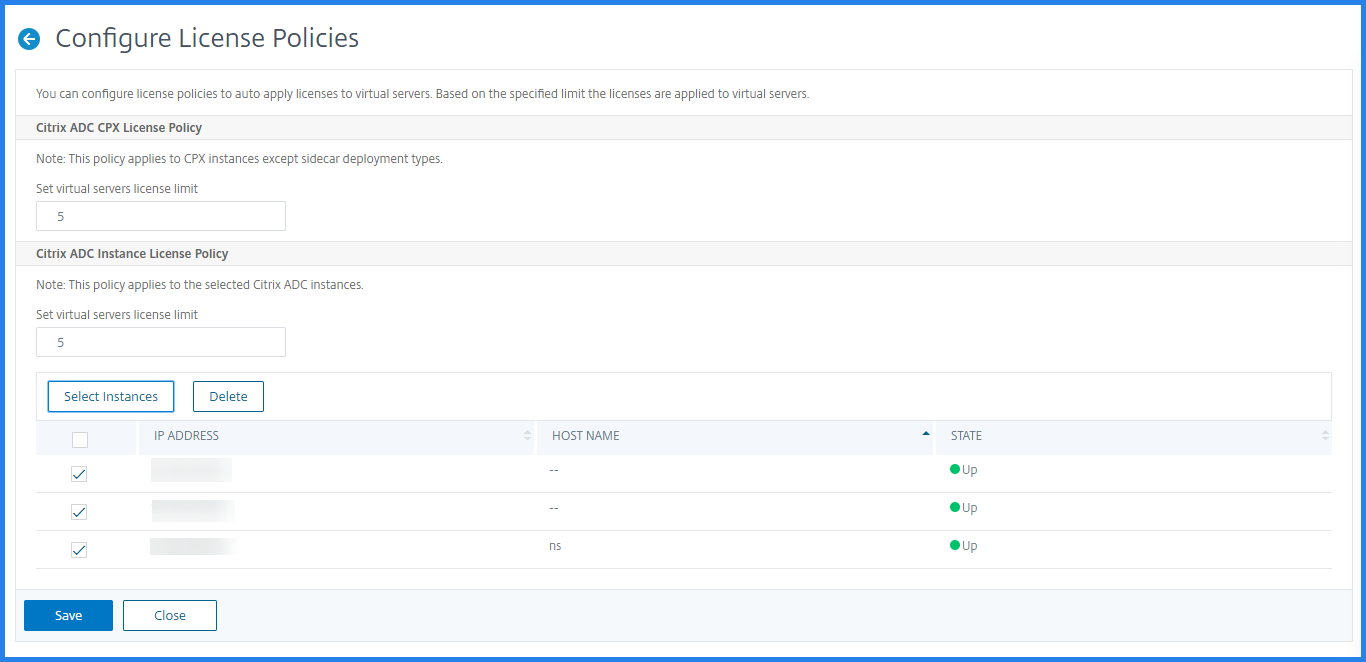
You can configure a policy to apply license to virtual servers. This policy controls the number of virtual servers that you want to auto-license. It also applies licenses to selected instances’ virtual servers only.
Click Edit Policies and you can specify the following:
-
Set virtual servers limit on CPX instances separately to apply licenses. The ADM applies license to virtual servers on CPX instances up to a specified limit.ImportantThis limit applies to CPX instances except sidecar deployment types.To view CPX instances of sidecar deployment types, filter the virtual servers using the property:
License Type: Freely Managed. -
Set virtual servers limit on selected ADC instances (MPX/VPX/BLX) to apply licenses. The ADM applies licenses to virtual servers on ADC instances up to a specified limit.
-
Select the priority ADC instances to apply virtual server licenses. Therefore, the ADM can apply license to selected instances’ virtual servers only.
View the licensed virtual servers
After the licenses are applied to the virtual servers, you can view the licensed virtual servers or third-party virtual servers.
-
Navigate to Settings > Licensing & Analytics Configuration.
-
Click the virtual server type in the Total Licensed section in the Virtual Servers License Summary.
Configure auto license support for non-addressable virtual servers
NetScaler ADM, by default, does not automatically apply licenses to non-addressable virtual servers. For licensing non-addressable virtual servers, you must disable the auto-license option and manually select the non-addressable virtual servers. This increases your effort to manually select the non-addressable servers initially when you apply the licenses. You also need to manually select the new non-addressable virtual servers whenever they are added to your network.
NetScaler ADM provides an option in NetScaler ADM under Virtual Server License Allocation. If you enable the Auto-select non addressable Virtual Servers option, automatically apply licenses non-addressable virtual servers.
Note
-
NetScaler ADM, by default, still does not automatically select non-addressable virtual servers for licensing.
-
Application analytics (App Dashboard) is the only analytics supported currently on licensed non-addressable virtual servers.
Expiry Checks for virtual server licenses
You can now view the status of and set alerts for virtual server license expiry in NetScaler ADM.
To view the status of the licenses:
-
Navigate to Infrastructure > Pooled Licensing > System Licenses.
-
In the License Expiry Information section, you can find the details of the licenses that are going to expire:
-
Feature: Type of license that is going to expire.
-
Count: Number of virtual servers or instances that are affected.
-
Days to expiry: Number of days remaining before expiry.
-
To configure the notification settings of licenses:
-
Navigate to Infrastructure > Pooled Licensing > Settings.
-
In the Notification Settings section, click the pencil icon and edit the parameters.
-
Email profile: Email profile or distribution list for sending notifications when licenses reach the threshold, or going to expire.
-
SMS (Text Message): SMS profile or distribution list for sending notifications when licenses reach the threshold, or going to expire.
-
Slack - Specify Slack profile details.
-
PagerDuty alerts - Specify a PagerDuty profile. Based on the notification settings configured in your PagerDuty portal, a notification is sent when your certificates are about to expire.
-
Notify me: Set the percentage of pooled licenses to notify administrators by Email or SMS.
-
License Expiry Threshold: Number of days before the number of licenses determined by Alert Threshold expire.
-
Expiry of licenses: Number of days remaining before expiry.
-