
Configure notification settings
You can select a notification type to receive notifications for the following features:
-
Events – List of events that are generated for NetScaler instances. For more information, see Add event rule actions.
-
Licenses – List of licenses that are currently active, about to expire, and so on. For more information, see The NetScaler ADM license expiry.
-
SSL Certificates – List of SSL certificates that are added to NetScaler instances. For more information, see The SSL certificate expiry
ADM supports the following notification types:
-
Email
-
SMS
-
Slack
-
PagerDuty
-
ServiceNow
For each notification type, the ADM GUI displays the configured distribution list or profile. The ADM sends notifications to the selected distribution list or profile.
Related information
Create an email distribution list
To receive email notifications for ADM functions, you must add an email server and a distribution list.
Perform the following steps to create an email distribution list:
-
Navigate to Settings > Notifications.
-
In Email, click Add.
-
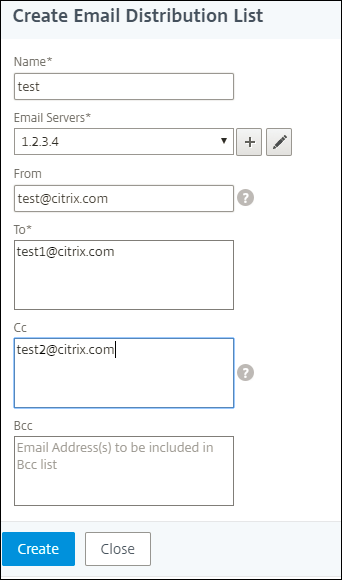
In Create Email Distribution List, specify the following details:
-
Name - Specify the distribution list name.
-
Email Server - Select the email server that sends email notification. If you want to add an email server, click Add.
-
From - Specify the email address from which ADM has to send messages.
-
To - Specify the email addresses to which ADM has to send messages.
-
Cc - Specify the email addresses to which ADM has to send message copies.
-
Bcc - Specify the email addresses to which ADM has to send message copies without displaying the addresses.
-
-
Click Create.
Repeat this procedure to create multiple email distribution lists. The Email tab displays all the email distribution lists present in ADM.
Create an SMS distribution list
To receive SMS notifications for ADM functions, you must add an SMS server and phone numbers.
Perform the following steps to configure SMS notification settings:
-
Navigate to Settings > Notifications.
-
In SMS, click Add.
-
In Create SMS Distribution List, specify the following details:
-
Name - Specify the distribution list name.
-
SMS Server - Select the SMS server that sends SMS notification.
-
To - Specify the phone number to which ADM has to send messages.
-
-
Click Create.
Repeat this procedure to create multiple SMS distribution lists. The SMS tab displays all the SMS distribution lists present in ADM.
Create a Slack profile
To receive Slack notifications for ADM functions, you must create a slack profile.
Perform the following steps to create a Slack profile:
-
Navigate to Settings > Notifications.
-
In Slack, click Add.
-
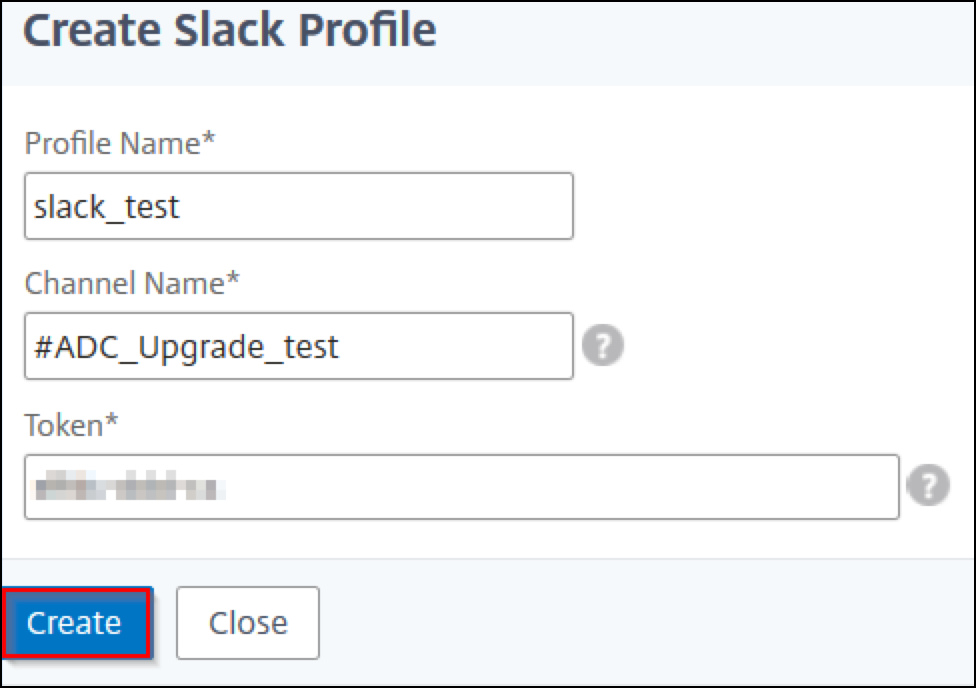
In Create Slack Profile, specify the following details:
-
Profile Name - Specify the profile name. This name appears in the Slack profile list.
-
Channel Name - Specify the Slack channel name to which ADM has to send notifications.
-
Webhook URL - Specify the Webhook URL of the channel. Incoming Webhooks are a simple way to post messages from external sources into Slack. The URL is internally linked to the channel name. And, all event notifications are sent to this URL are posted on the designated Slack channel. An example of webhook is as follows:
<https://hooks.slack.com/services/T0******E/B9X55DUMQ/c4tewWAiGVTT51Fl6oEOVirK>
-
-
Click Create.
Repeat this procedure to create multiple Slack profiles. The Slack tab displays all the Slack profiles present in ADM.
Create a PagerDuty profile
You can add a PagerDuty profile to monitor the incident notifications based on the PagerDuty configurations. PagerDuty enables you to configure notifications through email, SMS, push notification, and phone call on a registered number.
Before you add a PagerDuty profile in NetScaler ADM, ensure you have completed the required configurations in PagerDuty. To get started with PagerDuty, see PagerDuty documentation.
Perform the following steps to create a PagerDuty profile:
-
Navigate to Settings > Notifications.
-
In PagerDuty, click Add.
-
In Create PagerDuty Profile, specify the following details:
-
Profile Name - Specify a profile name of your choice.
-
Integration Key - Specify the integration key. You can obtain this key from your PagerDuty portal. When creating a service in PagerDuty for integration, use the Generic Events API Integration option.
-
-
Click Create.
For more information, see Services and Integrations in the PagerDuty documentation.
Repeat this procedure to create multiple PagerDuty profiles. The PagerDuty tab displays all the PagerDuty profiles present in ADM.
View the ServiceNow profile
When you want to enable ServiceNow notifications for NetScaler events and ADM events, you must integrate NetScaler ADM with the ServiceNow using ITSM connector. For more information, see Integrate NetScaler ADM with the ServiceNow instance.
Perform the following steps to view and verify the ServiceNow profile:
-
Navigate to Settings > Notifications.
-
In ServiceNow, select the Citrix_Workspace_SN profile from the list.
-
Click Test to auto-generate a ServiceNow ticket and verify the configuration.If you want to view ServiceNow tickets in the NetScaler® ADM GUI, select ServiceNow Tickets.