Microsoft SharePoint StyleBook
Microsoft SharePoint 2016 is a key enterprise application that primarily provides a document management and storage system, which is highly configurable and supported by all major browsers.
You can use the Microsoft SharePoint 2016 StyleBook to deploy a NetScaler configuration that optimizes and secures the Microsoft SharePoint 2016 enterprise application in your network.
Related information
Prerequisites
-
Microsoft SharePoint 2016
-
NetScaler ADM, version 12.0 and later
-
NetScaler, version 10.5 and later
NetScaler features configured by the Microsoft SharePoint 2016 StyleBook
You can use the Microsoft SharePoint 2016 StyleBook to enable and configure the following NetScaler features for Microsoft SharePoint 2016:
-
Load balancing
-
Content Switching
-
Responder
-
Rewrite
-
Compression
-
Integrated Caching
Load balancing
NetScaler load balancing evenly distributes requests to backend SharePoint servers. Intelligent monitoring of backend servers prevents requests from being sent to malfunctioning servers.
The SharePoint StyleBook configures 12 load balancing virtual servers, each dedicated to load balancing requests for a certain type of content, such as documents, images, audio, video, and other file types.
The SharePoint StyleBook now supports SSL Mode of SharePoint application by configuring SSL based LB virtual servers. Make sure SSL is selected as the front-end protocol. Note that the virtual port is set to 443 by default. You can also select SSL to bind service groups (SharePoint application servers) to the target load balancing virtual servers. Note that the backend protocol by default is set to HTTP.
Content switching
The content switching feature is used to distribute client requests across multiple load balancing virtual servers on the basis of specific types of requested SharePoint content (for example, documents, images, and audio or video files). The content switching module directs incoming traffic to an optimal matching load balancing virtual server that can process that type of content. You can therefore apply different optimization policies to different types of traffic. For example, you might want to use different compression or caching policies for video than for text documents.
Responder
The responder functionality of a NetScaler instance can be used to seamlessly redirect users from HTTP to HTTPS. Responder can also be configured to provide customized error pages. The Responder policy determines the requests (traffic) on which an action has to be taken, and binds each policy to a load balancing virtual server. The SharePoint StyleBook includes a configuration that redirects users from HTTP to HTTPS URLs.
Rewrite
The rewrite module is used to modify request/response headers, URLs, or content on the fly. This module works in-line with traffic processing and can therefore change the traffic flow as appropriate for particular use cases. For example, rewriting can provide access to the requested content without exposing unnecessary details about the website's server.
In the SharePoint StyleBook, the rewrite feature is used to removed unnecessary headers from user requests.
Compression
The NetScaler compression engine identifies and compresses content that is compressible. This process improves data transmission time and reduces network bandwidth requirements for the clients, while saving CPU cycles on SharePoint content servers. A NetScaler instance can compress both static and dynamically generated data. It applies the GZIP or the DEFLATE compression algorithm to remove extraneous and repetitive information from the server responses and represent the original information in a more compact and efficient format. The client browser's ability to decompress the data depends on which algorithm or algorithms it supports: GZIP, DEFLATE, or both of these.
A NetScaler instance is configured to compress the text in HTML, XML, plain text, Cascading Style Sheet (CSS), and Microsoft Office documents, but does not compress images in GIF or JPG format. The major benefits of compressed traffic include reduced bandwidth costs, WAN latency reduction, and better server performance.
Integrated caching
The NetScaler in-memory cache can store SharePoint objects in order to quickly deliver frequently requested content to users. Cached content includes downloaded documents and audio, video, and image files.
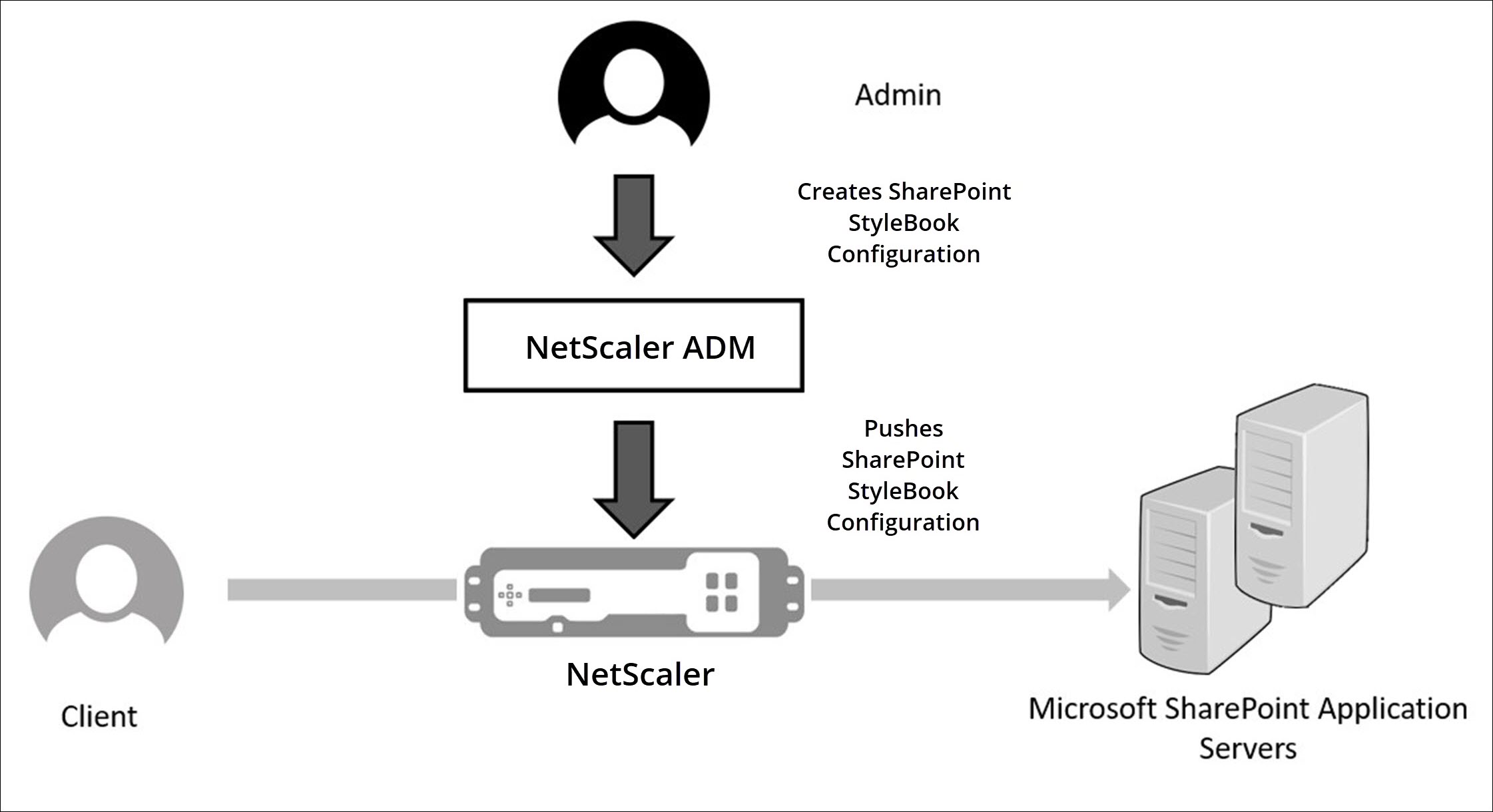
The following figure diagrammatically represents the deployment of SharePoint servers in a network front-ended by a NetScaler instance on which NetScaler ADM is used to deploy a SharePoint StyleBook configuration.
Deploying SharePoint StyleBook configurations
The following task will assist you in deploying the Microsoft SharePoint 2016 StyleBook in your business network.
To deploy Microsoft SharePoint 2016 StyleBook:
-
In NetScaler® ADM, navigate to Applications > Administration > Configuration, and click Create New.The Choose StyleBook page displays all the StyleBooks available for your use in NetScaler ADM.
-
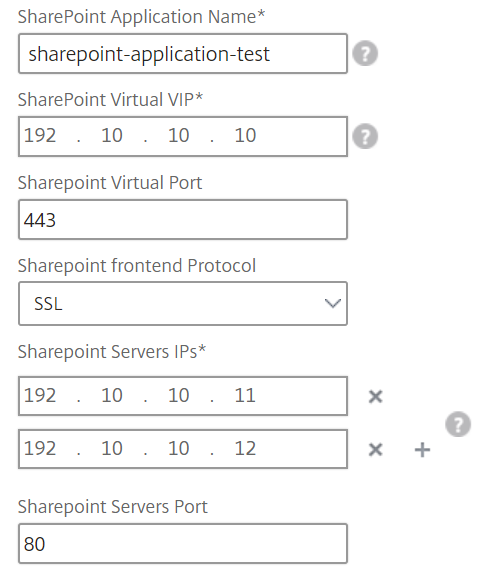
Scroll down and select Microsoft SharePoint 2016 StyleBook.NoteIn NetScaler ADM, navigate to Applications > Configurations > StyleBooks. Scroll down to find the Microsoft SharePoint 2016 StyleBook, and click Create Configuration.The StyleBook opens as a user interface form on which you can enter the values for all the parameters defined in this StyleBook.Enter values for the following parameters:
-
SharePoint Application Name. Name of the SharePoint configuration to deploy in your network.
-
SharePoint Virtual IP. Virtual IP address at which the NetScaler instance receives client requests for the Microsoft SharePoint application.
-
SharePoint Virtual Port. The TCP Port to be used by the Users in accessing the SharePoint application
-
SharePoint frontend Protocol. Select the SharePoint frontend protocol from the drop-down list. The options available are HTTP or SSL.NoteIf you select SSL, make sure that the Rewrite Configuration parameter is enabled in the SharePoint Advanced Settings section in this StyleBook.
-
SharePoint Server IPs. IP addresses of all the SharePoint servers in the network.
-
SharePoint Servers Port. TCP port number used by the SharePoint servers. By default, this is 80. You can edit this value if required, but make sure that this port is accessible on Microsoft SharePoint 2016 servers.
-
-
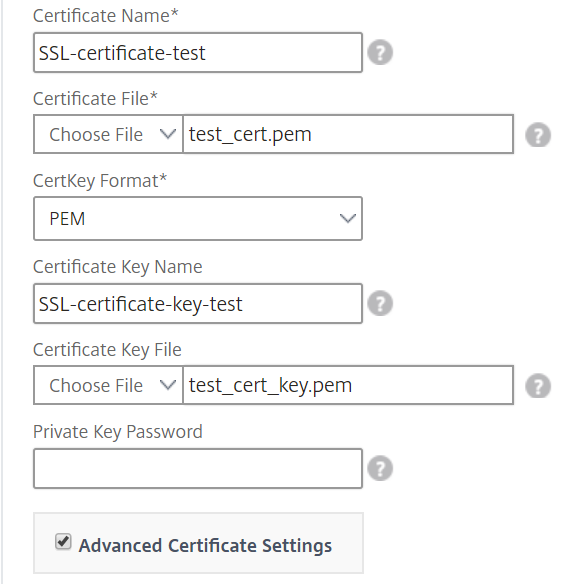
In the SSL Certificates settings section, click + to enter the name of the SSL certificate, the certificate key, and select the respective files from your local storage folder.
-
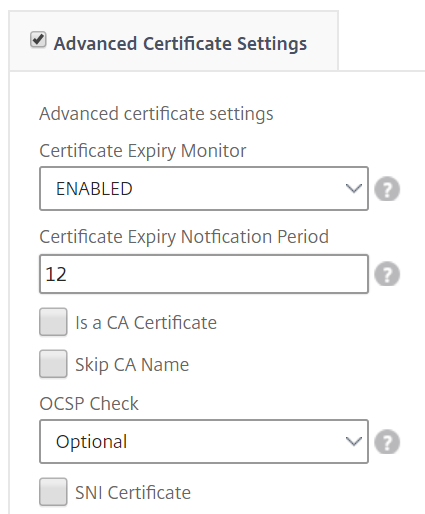
Optionally click Advanced Certificate Settings to enable or disable SSL certificate expiry monitoring. If you enable the certificate expiry monitoring, set the number of days so that NetScaler ADM issues an alarm after these many days when the certificate is about to expire. You also have an option to make the OCSP checking as an optional feature or a mandatory feature.
-
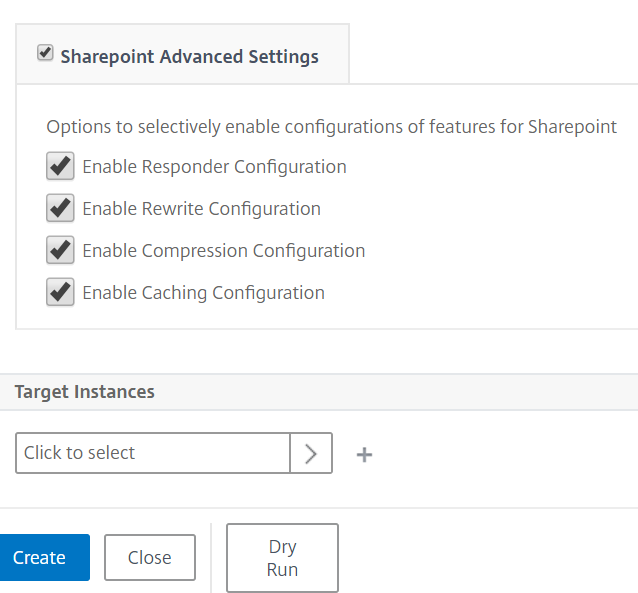
The SharePoint Advanced Settings section allows you to enable the NetScaler features that will be configured on the NetScaler instances. While the load balancing and content switching features are configured on the instances by default, you can choose the other features, that is, responder configuration, rewrite configuration, compression configuration, and integrated caching configuration, that you want to be configured on the instance.
-
Click Target Instances and select the NetScaler instance on which to deploy this SharePoint configuration. Click Create to create the configuration and deploy the configuration on the selected NetScaler instance.NoteYou can also click the refresh icon to add recently discovered NetScaler instances in NetScaler ADM to the available list of instances in this window.
Note
Citrix recommends that before executing the actual configuration, you select Dry Run to check the configuration objects that will be created on the target instance.
When the configuration is created and successfully deployed, the SharePoint StyleBook creates one content switching virtual server and 12 load balancing virtual servers. It also creates policies and service groups and binds them to the load balancing virtual servers. Which policies are created depends on the features selected in the StyleBook during creation of the configuration pack.
Viewing the objects defined on the NetScaler instance
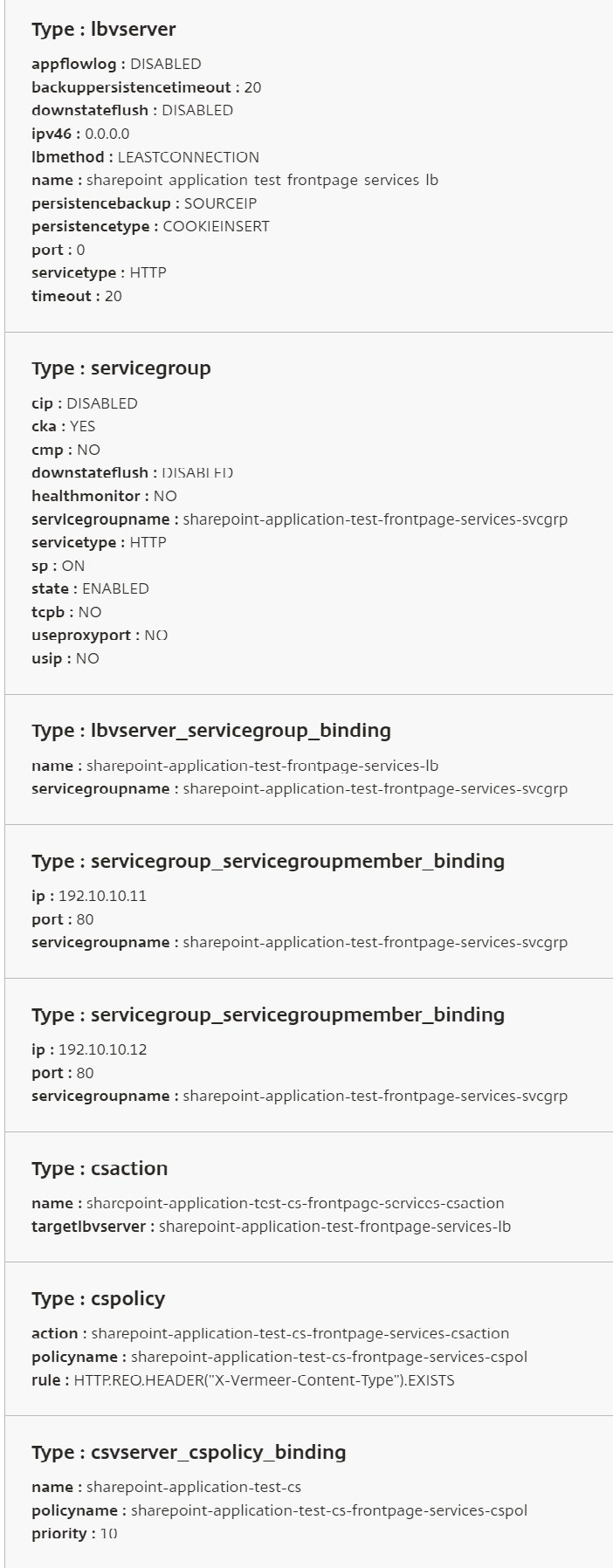
After the configuration pack is created on NetScaler ADM, you can view all the objects created on the NetScaler instance for the SharePoint StyleBook. Navigate to Applications > Administration > Configuration, and click View Objects Created. The following figure shows some of the created objects, with the IP addresses specified in the example shown in "Deploying SharePoint StyleBook Configurations from NetScaler ADM."