
Microsoft Exchange StyleBook
You can use the Microsoft Exchange 2016 StyleBook to deploy a NetScaler configuration that optimizes and secures a Microsoft Exchange 2016 enterprise application in your network. Microsoft Exchange 2016 is a key enterprise application for providing email, personal information management, and messaging services to your employees and other stakeholders.
Related information
NetScaler features configured by using Microsoft Exchange StyleBook
The Microsoft Exchange 2016 StyleBook enables and configures the following NetScaler features for Microsoft Exchange 2016 servers:
-
Load balancing - Basic load balancing that enables load balancing of multiple Exchange servers
-
Content switching - Content switching that enables single-IP access and redirection of queries to the correct load balancing virtual servers
-
Rewrite - Redirects users to secure pages
-
SSL offload - Offloads SSL processing to the NetScaler, therefore reducing the load on the Exchange server
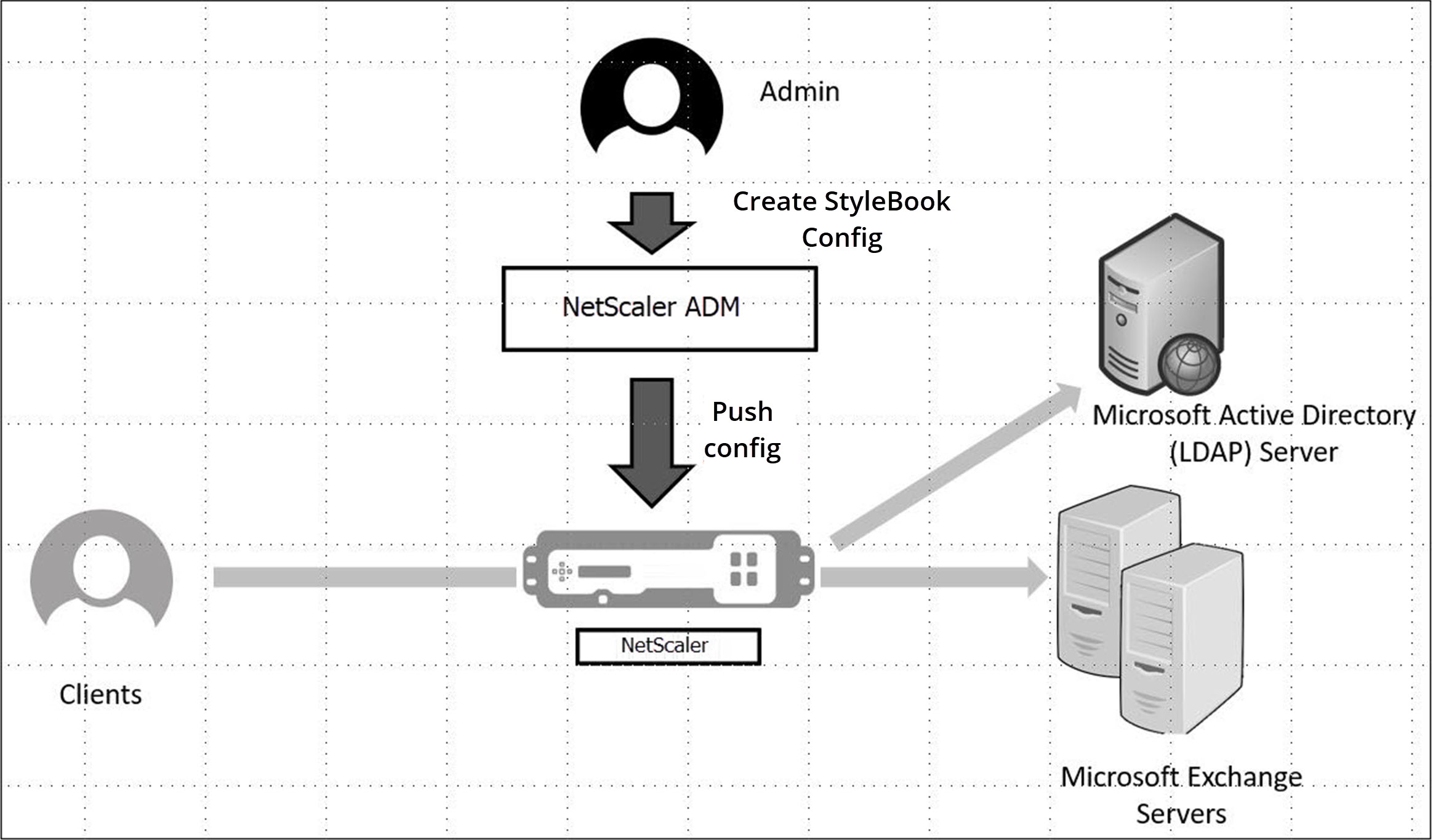
The following figure diagrammatically represents the deployment of Exchange servers in the network:
Prerequisites
-
For certificate-based authentication, all addressable hosts that are part of the network setup must have resolvable domain names and not just IP addresses.
-
Ensure that the SIP ports are accessible in the Microsoft Exchange 2016 server.
Configuring a Microsoft Exchange StyleBook
Configure the Microsoft Exchange StyleBook in your business enterprise to deploy the NetScaler configuration.
To configure a Microsoft Exchange application in NetScaler® ADM
-
In NetScaler ADM, navigate to Applications > StyleBooks.
-
Search for Microsoft Exchange 2016 StyleBook and click Create Configuration.The StyleBook appears as a user interface form on which you can enter the values for all the parameters defined in this StyleBook.

-
Enter the details for the following parameters:
-
Exchange Application Name - Name of the Microsoft Exchange Application in your network
-
Exchange VIP - Virtual IP address on NetScaler that receives client requests for the Microsoft Exchange application
-
Exchange Server IPs - IP addresses of all the Exchange servers in the network.If you want to add more IP addresses, click the plus (+) icon. Usually, two Exchange servers are configured in the network.
-
-
In the Exchange Certificates section, upload exchange certificates to NetScaler ADM. Enter the names of both the certificate and the key files and upload from the local storage. You can also provide a private key password to encrypt the key file.NoteEnsure that the certificate files are of ".pem" or ".der" format. NetScaler ADM rejects the files of other formats.If you want to specify certificate expiration details or any advanced settings, select Advanced Certificate Settings.
-
In the Exchange Active Directory Authentication config section, configure the AD Settings by entering the data.
-
Active Directory Authentication VIP - The virtual IP address used to create and configure the AD (LDAP) virtual server on a NetScaler appliance.
-
Active Directory Server IP - The IP address of your Active Directory domain controller.
-
Active Directory Base String - The LDAP Base String in Active Directory. For example, CN=Users,DC=CTXNSSFB,DC=COM.
-
Active Directory LDAP Bind Distinguished Name (DN) - LDAP Bind Distinguished Name (DN) is used to bind this object to the LDAP server (AD). For example "cn=Administrator,cn=Users,dc=acme,dc=com"
-
Active Directory LDAP Bind Distinguished Name (DN) Password - LDAP Bind Distinguished Name (DN) is the password for AD Authentication
-
Active Directory User Name Attribute - AD attribute for the user name. The NetScaler uses the LDAP attribute to query external Active Directory Servers. For example, "sAMAccountName"
-
Active Directory group Attribute Name - the LDAP group attribute names configured on the LDAP server. For example, "memberOf" for the group attribute in LDAP.
-
Active Directory Sub-Attribute Name - the LDAP subattribute names configured on the LDAP server. For example, "cn" for the subattribute in LDAP.
-
Active Directory Authentication Domain - The AD/LDAP domain name used for authentication. For example, ctxnssfb.com.
-
-
In the Target Instances section, select the NetScaler instance on which to deploy this Exchange configuration.NoteIf you want to view the recently discovered NetScaler instances, click the refresh icon.
-
Click Create to create the configuration file and run the configuration on the selected NetScaler instance.Citrix recommends that you first select Dry Run to check the configuration objects that are created on the target instance before running the actual configuration on the instance.
When the configuration has been created successfully, the StyleBook has created a content switching virtual server, five load balancing virtual servers, and one LDAP policy bound to one LDAP authentication virtual server. Also, the corresponding service groups created and bound to the load balancing virtual servers.