
複数ファイアウォール環境
マルチファイアウォール環境では、NetScalerアプライアンスは、パブリックインターネットに接続する外部セットと内部のプライベートネットワークに接続する内部セットの2つのファイアウォールの間に配置されます。外部セットは通常、出力トラフィックを処理します。これらのファイアウォールは主に、外部リソースへのアクセスを許可または拒否するアクセス制御リストを実装します。通常、内部セットが入力トラフィックを処理します。これらのファイアウォールは、侵入トラフィックの負荷分散とは別に、イントラネットを悪意のある攻撃から保護するセキュリティを実装しています。複数のファイアウォール環境では、別のファイアウォールからのトラフィックを負荷分散できます。デフォルトでは、ファイアウォールからのトラフィックは、NetScalerアプライアンスを介して他のファイアウォールで負荷分散されません。NetScalerの両側でファイアウォールの負荷分散を有効にすると、出力方向と入力方向の両方のトラフィックフローが改善され、トラフィックの処理が速くなります。
次の図は、複数のファイアウォールの負荷分散環境を示しています
図1:ファイアウォール負荷分散 (マルチファイアウォール)
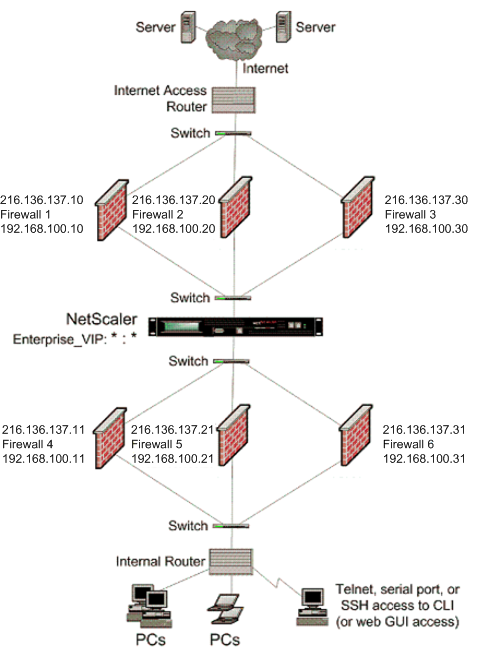
図1のような構成では、外部ファイアウォールによって負荷分散されている場合でも、内部ファイアウォールを介してトラフィックの負荷分散を行うようにNetScalerを構成できます。たとえば、この機能を設定すると、外部ファイアウォール(ファイアウォール 1、2、3)からのトラフィックは、内部ファイアウォール(ファイアウォール 4、5、6)で負荷分散され、その逆も同様です。
ファイアウォールの負荷分散は、MAC モードの LB 仮想サーバーでのみサポートされます。
サービスタイプANYは、すべてのトラフィックを受け入れるようにNetScaler ADCを構成します。
HTTP と TCP に関連する利点を利用するには、サービスと仮想サーバーを HTTP または TCP タイプに設定します。FTP が機能するには、FTP タイプでサービスを構成します。
Related information
マルチファイアウォール環境でのNetScalerの構成
複数のファイアウォール環境でNetScalerアプライアンスを構成するには、負荷分散機能を有効にし、外部ファイアウォールを介して出力トラフィックの負荷分散を行うように仮想サーバーを構成し、内部ファイアウォールを介して入力トラフィックの負荷分散を行うように仮想サーバーを構成し、NetScalerアプライアンスでファイアウォールの負荷分散を有効にする必要があります。複数のファイアウォール環境でファイアウォールを介してトラフィックの負荷を分散するように仮想サーバーを構成するには、次のことが必要です。
-
ファイアウォールごとにワイルドカードサービスを構成する
-
ワイルドカードサービスごとにモニターを設定する
-
ワイルドカード仮想サーバーを構成して、ファイアウォールに送信されるトラフィックの負荷を分散します。
-
仮想サーバーをMAC書き換えモードで構成する
-
ファイアウォールサービスをワイルドカード仮想サーバーにバインドする
負荷分散機能を有効にする
サービスや仮想サーバーなどの負荷分散エンティティを構成して実装するには、NetScalerデバイスで負荷分散機能を有効にする必要があります。
CLI を使用して負荷分散を有効にするには:
コマンドプロンプトで次のコマンドを入力して負荷分散を有効にし、構成を確認します。
enable ns feature <featureName>
 show ns feature
例:
enable ns feature LoadBalancing
 Done
 show ns feature
 Feature Acronym Status
 ------- ------- ------
 1) Web Logging WL OFF
 2) Surge Protection SP ON
 3) Load Balancing LB ON
 .
 .
 .
 24) NetScaler Push push OFF
 Done
GUI を使用して負荷分散を有効にするには:
-
ナビゲーションペインで、[System] を展開し、[Settings] をクリックします。
-
「基本機能の設定」ダイアログで、「負荷分散」チェックボックスを選択し、「OK」をクリックします。
各ファイアウォールのワイルドカードサービスの設定
すべてのプロトコルからのトラフィックを受け入れるには、すべてのプロトコルとポートのサポートを指定して、ファイアウォールごとにワイルドカードサービスを設定する必要があります。
CLIを使用して各ファイアウォールのワイルドカードサービスを設定するには:
コマンドプロンプトで次のコマンドを入力して、すべてのプロトコルとポートのサポートを設定します。
add service <name>@ <serverName> <serviceType> <port_number>
例:
add service fw-svc1 10.102.29.5 ANY *
GUI を使用して各ファイアウォールのワイルドカードサービスを設定するには:
-
[Traffic Management] > [Load Balancing] > [Services] の順に移動します。
-
詳細ペインで、[Add] をクリックします。
-
「サービスの作成」ダイアログ・ボックスで、次に示すように次のパラメータの値を指定します。
-
サービス名—名前
-
サーバー—サーバー名
-* 必須パラメータ -
各サービスのモニターの設定
PING モニターは、デフォルトではサービスにバインドされています。個々のファイアウォールを介して信頼側のホストを監視するには、透過的なモニターを設定する必要があります。その後、透過モニターをサービスにバインドできます。デフォルトのPINGモニターは、NetScaler ADCアプライアンスと上流デバイス間の接続のみを監視します。透過モニタは、アプライアンスからモニタで指定された宛先 IP アドレスを所有するデバイスまでのパスに存在するすべてのデバイスを監視します。透過モニタが設定されておらず、ファイアウォールのステータスが UP であるが、そのファイアウォールのネクストホップデバイスの 1 つがダウンしている場合、アプライアンスは負荷分散の実行中にファイアウォールを組み込み、パケットをファイアウォールに転送します。ただし、ネクストホップデバイスの 1 つがダウンしているため、パケットは最終的な宛先に配信されません。透過モニターをバインドすると、デバイス(ファイアウォールを含む)のいずれかがダウンしている場合、サービスはダウンとしてマークされ、アプライアンスがファイアウォール負荷分散を実行するときにファイアウォールは含まれません。
透過モニターをバインドすると、PING モニターがオーバーライドされます。透過モニタに加えて PING モニタを設定するには、透過モニタを作成してバインドした後、PING モニタをサービスにバインドする必要があります。
CLI を使用してトランスペアレントモニターを設定するには:
コマンドプロンプトで、次のコマンドを入力して透過モニタを構成し、構成を確認します。
add lb monitor <monitorName> <type> [-destIP <ip_addr|ipv6_addr|*>] [-transparent (YES | NO )]
 bind lb monitor <monitorName> <serviceName>
例:
add monitor monitor-HTTP-1 HTTP -destip 10.10.10.11 -transparent YES
 bind monitor monitor-HTTP-1 fw-svc1
NetScalerアプライアンスは、サービスにバインドされたモニターからサーバーL2パラメーターを学習します。UDP-ECV モニターの場合は、受信文字列を設定して、アプライアンスがサーバーの L2 パラメーターを学習できるようにします。受信文字列が設定されておらず、サーバーが応答しない場合、アプライアンスは L2 パラメーターを学習しませんが、サービスは UP に設定されます。このサービスのトラフィックはブラックホール化されています。
CLI を使用して受信文字列を設定するには:
コマンドプロンプトで、次のコマンドを入力します。
add lb monitor <monitorName> <type> [-destIP <ip_addr|ipv6_addr|*>] [-transparent (YES | NO )] [-send <string>] [-recv <string>]
例:
add lb monitor monitor-udp-1 udp-ecv -destip 10.10.10.11 -transparent YES –send "test message" –recv "site_is_up"
GUI を使用してトランスペアレントモニターを作成してバインドするには:
-
詳細ペインで、[Add] をクリックします。
-
「モニターの作成」ダイアログ・ボックスで、次に示すように次のパラメータの値を指定します。
-
Name*
-
type*—type
-
接続先IP
-
透明
-* 必須パラメータ -
ファイアウォールに送信されるトラフィックの負荷分散を行うための仮想サーバーの設定
あらゆる種類のトラフィックの負荷を分散するには、プロトコルとポートを任意の値として指定するワイルドカード仮想サーバーを構成する必要があります。
CLIを使用してファイアウォールに送信されるトラフィックの負荷を分散するように仮想サーバーを設定するには:
コマンドプロンプトで、次のコマンドを入力します。
add lb vserver <name>@ <serviceType> <IPAddress> <port_number>
例:
add lb vserver Vserver-LB-1 ANY * *
GUI を使用してファイアウォールに送信されるトラフィックの負荷を分散するように仮想サーバーを設定するには:
-
[Traffic Management]>[Load Balancing]>[Virtual Servers]の順に選択します。
-
詳細ペインで、[Add] をクリックします。
仮想サーバーを MAC リライトモードに設定
着信トラフィックの転送に MAC アドレスを使用するように仮想サーバーを設定するには、MAC 書き換えモードを有効にする必要があります。
CLIを使用して仮想サーバをMACリライトモードに設定するには:
コマンドプロンプトで、次のコマンドを入力します。
set lb vserver <name>@ -m <RedirectionMode>
例:
set lb vserver Vserver-LB-1 -m MAC
GUI を使用して仮想サーバを MAC リライトモードに設定するには:
-
[Traffic Management]>[Load Balancing]>[Virtual Servers]の順に選択します。
-
「詳細設定」タブの「リダイレクトモード」モードで、「開く」をクリックします。
-
[OK] をクリックします。
ファイアウォールサービスの仮想サーバーへのバインディング
NetScalerアプライアンス上のサービスにアクセスするには、ワイルドカード仮想サーバーにバインドする必要があります。
CLIを使用してファイアウォールサービスを仮想サーバーにバインドするには:
コマンドプロンプトで、次のコマンドを入力します。
bind lb vserver <name>@ <serviceName>
例:
bind lb vserver Vserver-LB-1 Service-HTTP-1
GUI を使用してファイアウォールサービスを仮想サーバーにバインドするには:
-
[Traffic Management]>[Load Balancing]>[Virtual Servers]の順に選択します。
-
[OK] をクリックします。
NetScalerアプライアンスでのマルチファイアウォールの負荷分散の構成
ファイアウォールの負荷分散を使用してNetScalerの両側でトラフィックの負荷分散を行うには、vServerSpecificMacパラメーターを使用してマルチファイアウォールの負荷分散を有効にする必要があります。
CLI を使用してマルチファイアウォールの負荷分散を設定するには:
コマンドプロンプトで、次のコマンドを入力します。
set lb parameter -vServerSpecificMac <status>
例:
set lb parameter -vServerSpecificMac ENABLED
GUI を使用してマルチファイアウォールのロードバランシングを設定するには:
-
[Traffic Management]>[Load Balancing]>[Virtual Servers]の順に選択します。
-
詳細ペインで、リダイレクションモードを構成する仮想サーバーを選択します (たとえば、負荷分散パラメーターの構成)。
-
[OK] をクリックします。
設定の保存と検証
構成タスクが完了したら、必ず構成を保存してください。また、設定が正しいことを確認する必要があります。
CLI を使用して設定を保存して確認するには:
コマンドプロンプトで、次のコマンドを入力して透過モニタを構成し、構成を確認します。
-
save ns config
-
show vserver
例:
save config
 show lb vserver FWLBVIP2
         FWLBVIP2 (\*:\*) - ANY    Type: ADDRESS
         State: UP
         Last state change was at Mon Jun 14 07:22:54 2010
         Time since last state change: 0 days, 00:00:32.760
         Effective State: UP
         Client Idle Timeout: 120 sec
         Down state flush: ENABLED
         Disable Primary Vserver On Down : DISABLED
         No. of Bound Services :  2 (Total)       2 (Active)
         Configured Method: LEASTCONNECTION
         Current Method: Round Robin, Reason: A new service is bound
         Mode: MAC
         Persistence: NONE
         Connection Failover: DISABLED

 1) fw-int-svc1 (10.102.29.5: *) - ANY State: UP Weight: 1
 2) fw-int-svc2 (10.102.29.9: \*) - ANY State: UP Weight: 1
  Done
 show service fw-int-svc1
         fw-int-svc1 (10.102.29.5:\*) - ANY
         State: DOWN
         Last state change was at Thu Jul  8 14:44:51 2010
         Time since last state change: 0 days, 00:01:50.240
         Server Name: 10.102.29.5
         Server ID : 0   Monitor Threshold : 0
         Max Conn: 0     Max Req: 0      Max Bandwidth: 0 kbits
         Use Source IP: NO
         Client Keepalive(CKA): NO
         Access Down Service: NO
         TCP Buffering(TCPB): NO
         HTTP Compression(CMP): NO
         Idle timeout: Client: 120 sec   Server: 120 sec
         Client IP: DISABLED
         Cacheable: NO
         SC: OFF
         SP: OFF
         Down state flush: ENABLED

 1)      Monitor Name: monitor-HTTP-1
                 State: DOWN     Weight: 1
                 Probes: 9       Failed [Total: 9 Current: 9]
                 Last response: Failure - Time out during TCP connection establishment stage
                 Response Time: 2000.0 millisec
 2)      Monitor Name: ping
                 State: UP       Weight: 1
                 Probes: 3       Failed [Total: 0 Current: 0]
                 Last response: Success - ICMP echo reply received.
                 Response Time: 1.275 millisec
  Done
GUI を使用して設定を保存して確認するには:
-
「 設定を保存 」ダイアログで、「 はい」をクリックします。
-
[Traffic Management]>[Load Balancing]>[Virtual Servers]の順に選択します。
-
[Traffic Management] > [Load Balancing] > [Services] の順に移動します。
マルチファイアウォール環境におけるファイアウォールの負荷分散設定の監視
構成が起動して実行されたら、各サービスと仮想サーバーの統計情報を表示して、考えられる問題がないかどうかを確認する必要があります。
仮想サーバーの統計情報を表示する
仮想サーバーのパフォーマンスを評価したり、問題をトラブルシューティングしたりするために、NetScaler ADCアプライアンスに構成されている仮想サーバーの詳細を表示できます。すべての仮想サーバーの統計情報の概要を表示することも、仮想サーバーの名前を指定して、その仮想サーバーの統計情報のみを表示することもできます。次の詳細を表示できます。
-
名前
-
IPアドレス
-
ポート
-
プロトコル
-
仮想サーバーの状態
-
受け取ったリクエストの割合
-
ヒット率
コマンドラインインターフェイスを使用して仮想サーバーの統計情報を表示するには
NetScaler ADCアプライアンスで現在構成されているすべての仮想サーバー、または単一の仮想サーバーの統計情報の概要を表示するには、コマンドプロンプトで次のように入力します。
stat lb vserver [-detail] [<name>]
例:
>stat lb vserver -detail
 Virtual Server(s) Summary
                       vsvrIP  port     Protocol        State    Req/s   Hits/s
 One                        *    80         HTTP           UP      5/s      0/s
 Two                        *     0          TCP         DOWN      0/s      0/s
 Three                      *  2598          TCP         DOWN      0/s      0/s
 dnsVirtualNS    10.102.29.90    53          DNS         DOWN      0/s      0/s
 BRVSERV            10.10.1.1    80         HTTP         DOWN      0/s      0/s
 LBVIP           10.102.29.66    80         HTTP           UP      0/s      0/s
  Done
GUI を使用して仮想サーバーの統計情報を表示するには: