
Configure NetScaler Gateway to support HDX Insight
HDX Insight provides end-to-end visibility for HDX traffic to virtual apps and desktops passing through NetScaler. It also enables administrators to view real-time client and network latency metrics, historical reports, end-to-end performance data, and troubleshoot performance issues.
To configure NetScaler Gateway to support HDX Insight using GUI
Note:
-
This section is applicable to NetScaler Gateway versions 14.1-51.x and earlier.
-
Starting from NetScaler Gateway release 14.1 build 56.x, HDX Insight data is transmitted to Citrix Director without requiring AppFlow policy configuration. Administrators only need to enable the Network telemetry policy on Delivery Controller or Citrix Studio to transmit HDX Insight data to Citrix Director. For details about enabling the policy, see Create policies.
-
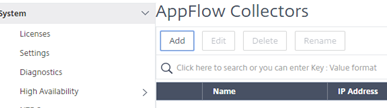
On the Configuration tab navigate to System> AppFlow®>Collectors, and click Add.
-
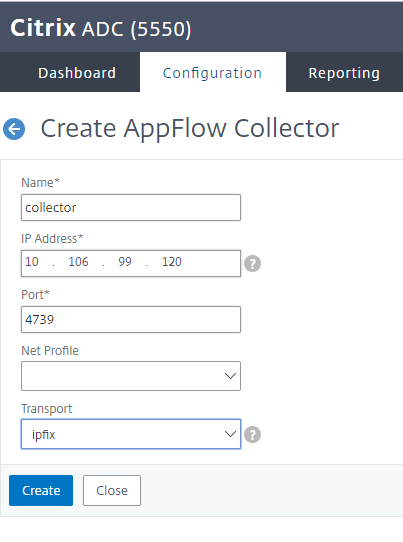
On the Create AppFlow Collector page, populate the following fields, and click Create.
-
Name: Name for the collector
-
IP address: IPv4 address of the collector
-
Port: Port on which the collector listens
-
Net Profile: Net profile to associate with the collector. The IP address defined in the profile is used as the source IP address for AppFlow traffic for this collector. If you do not set this parameter, the NetScaler IP (NSIP) address is used as the source IP address.
-
Transport: Transport type of collector.
-
-
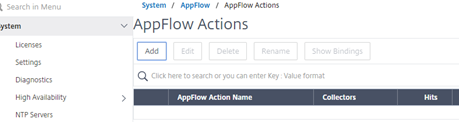
Navigate to System > AppFlow > Actions, click Add.
-
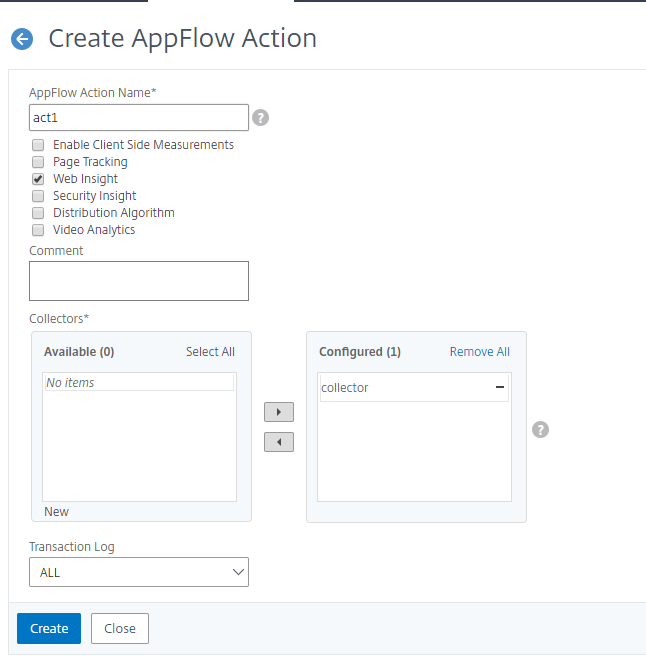
On the Create AppFlow Action page, populate the following fields, and click Create.
-
AppFlow Action Name: Name for the action
-
Comment: Any comment about the action
-
Collector: Select the names of collectors to be associated with the AppFlow action.
-
Transaction Log: Transactions type to be logged.
-
-
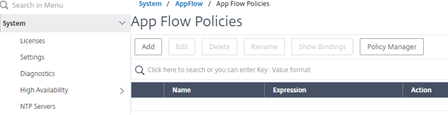
Navigate to System> AppFlow>Policies, click Add.
-
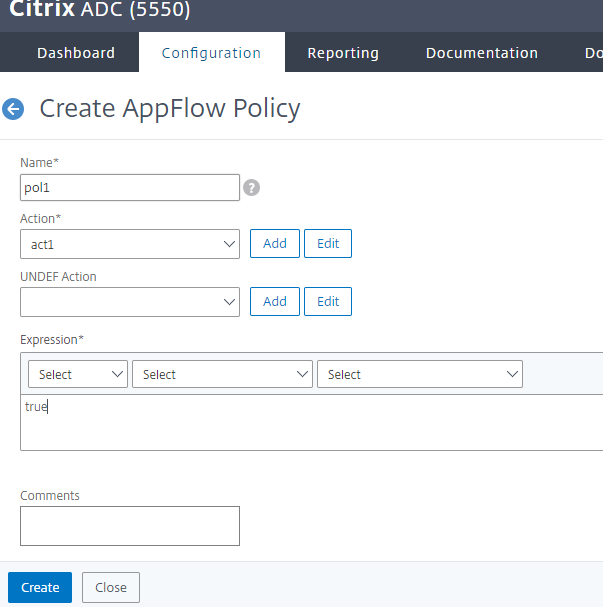
On the Create AppFlow Policy page, populate the following fields, and click Create.
-
Name: Name for the policy.
-
Action: Name of the action to be associated with the policy.
-
UNDEF: Name of the AppFlow action to be associated with this policy when an undefined event occurs.
-
Expression: Expression or other value against which the traffic is evaluated. Must be a Boolean expression.
-
Comments: Any comments about this policy.
-
-
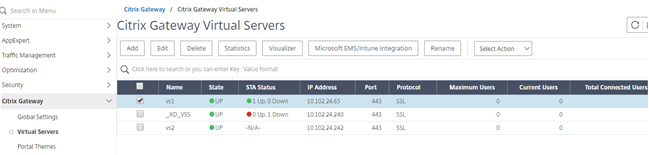
Navigate to NetScaler Gateway>Virtual Servers, select the virtual server, and click Edit.
-
Scroll down the VPN Virtual Server page and under the Policies section, click +.

-
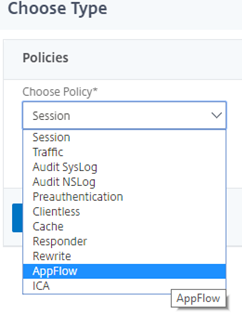
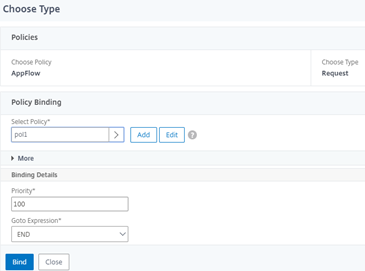
On the Choose Type screen, in the Choose Policy drop-down menu, select AppFlow. In the Choose Type drop-down menu, choose Request or ICA® Request and click Continue.
-
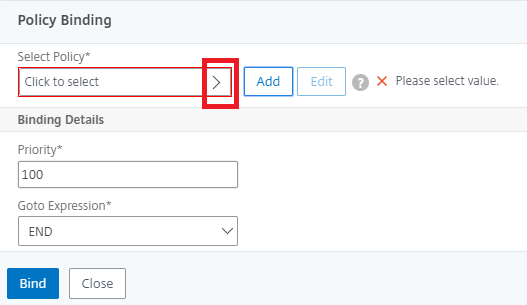
Click the highlighted arrow under Select Policy.
-
Select the AppFlow policy and click Select.

-
Finally click Bind.
To configure NetScaler Gateway to support HDX Insight using CLI
Note:
-
This section is applicable to NetScaler Gateway versions 14.1-51.x and earlier.
-
Starting from NetScaler Gateway release 14.1 build 56.x, HDX Insight data is transmitted to Citrix Director without the following
appflow policyconfiguration. Administrators must enable the Network telemetry policy on Delivery Controller or Citrix Studio to transmit HDX Insight data to Citrix Director. For details about enabling the policy, see Create policies.
At the command prompt, type:
add appflow collector col3 -IPAddress<ip_mas>
 add appflow action act1 <action_name>
 add appflow policy <policy_name> true <action_name>
 bind vpn Vserver <vserver_name>  -pol <policy_name> - priority101 END -type <ICA_Request>
Enhanced HDX Insight transmission without NetScaler Gateway configuration dependency
Starting from NetScaler Gateway release 14.1 build 56.x, HDX Insight data is transmitted to Citrix Director without requiring AppFlow policy configuration on NetScaler Gateway. Administrators only need to enable the Network telemetry policy on Delivery Controller or Citrix Studio to transmit HDX Insight data to Citrix Director. For details about enabling the policy, see Create policies.
Enabled by default, this feature simplifies troubleshooting, enhances flexibility, and streamlines network performance monitoring.
Previously, enabling HDX Insight over Common Gateway Protocol (CGP) required both a Network telemetry policy on Delivery Controller or Citrix Studio and an AppFlow policy for HDX Insight on NetScaler Gateway.
To disable the HDX Insight transmission by using the GUI
To enable HDX Insight transmission by configuring the AppFlow policy on NetScaler Gateway, disable this feature using the following steps:
-
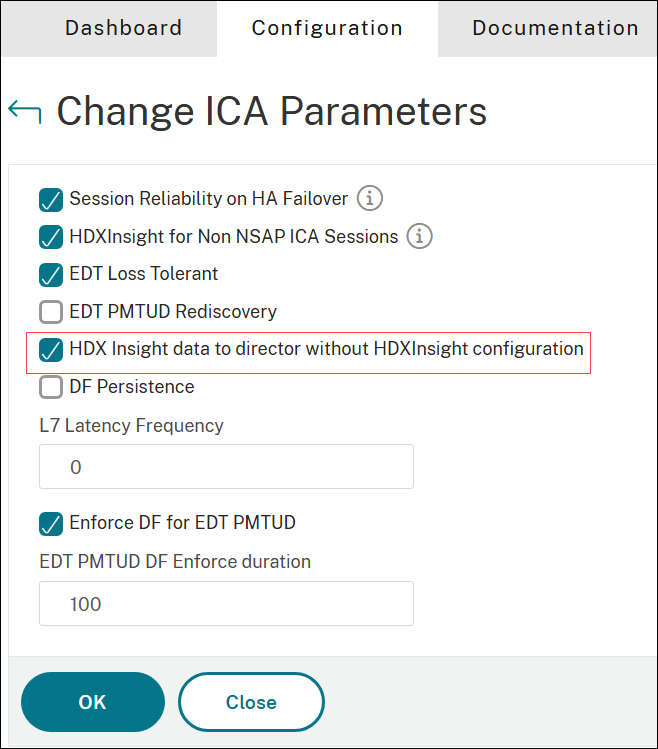
Navigate to Settings > Change ICA Parameters.
-
On the Change ICA Parameters page, clear the HDX Insight data to director without HDXInsight configuration option.
-
Click OK.
To disable the HDX Insight transmission by using the CLI
At the command prompt, type:
set ica param -InsightOnlyToDirector DISABLED
Disable HDX Insight for non-NetScaler® AppFlow (NSAP) HDX session
In a NetScaler appliance, you can now disable HDX Insight for the non-NSAP HDX sessions.
At the command prompt, type:
set ica parameter HDXInsightNonNSAP (YES | NO )
By default, HDX™ Insight for non-NSAP sessions is enabled.
HDX Insight support with Secure HDX
Secure HDX is an Application Level Encryption (ALE) solution that prevents network elements in the traffic path from inspecting the HDX traffic. Starting from version 14.1 build 47.x, HDX Insight over TCP is supported under Secure HDX. For HDX Insight over EDT, this feature is available with Secure HDX starting from NetScaler version 14.1 build 72.x. For more information on Secure HDX, see Secure HDX.
Administrators can monitor HDX Insight through Director, Monitor, and NetScaler Console. For more information on performance metrics with Secure HDX enabled, see Diagnose Session Performance issues in Director and Diagnose Session Performance issues in Monitor. HDX Insight on the NetScaler Console service functions without any changes. For more information, see HDX Insight.
Starting from release 14.1 build 60.x, NetScaler Gateway supports HDX Insight with Secure HDX enabled in VDA for Linux.
Key benefits
When Network telemetry is enabled in VDA:
-
Network latency for HDX Insight can be monitored in Director.
-
Data security is strengthened through a secure TLS/DTLS connection between NetScaler Gateway and the VDA.
System requirements
HDX Insight with Secure HDX is currently supported only on the following platforms:
-
Citrix Workspace™ app for Windows - version 2503 and later.
-
VDA for Windows - version 2503 and later.
-
VDA for Linux - version 2507 and later
-
Director - version 2503 and later.
For more information on the system requirements to access HDX Insight when Secure HDX is enabled, see System requirements.
Limitations
HDX Insight with Secure HDX is not supported for the following scenarios:
-
HDX Multi-stream ICA (MSI) connections
-
IPv6 protocol
-
Transparent mode and LAN proxy mode topologies
-
SOCKS protocol
HDX Insight for EDT connections requires DTLS 1.2 configuration.
Configure DTLS 1.2 by using the GUI
-
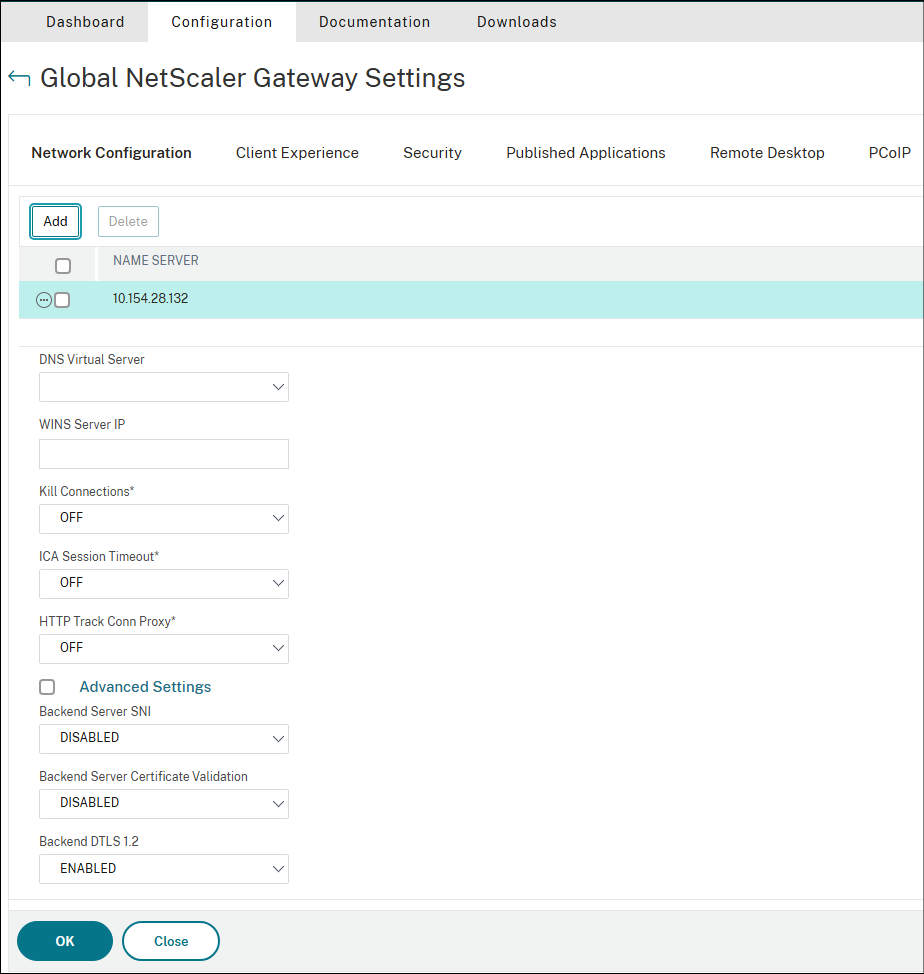
Navigate to NetScaler Gateway -> Global Settings -> Change Global Settings.
-
On the Global NetScaler Gateway Settings page, select ENABLED in Backend DTLS 1.2 and click OK.
Configure DTLS 1.2 by using the CLI
To enable DTLS 1.2 for the back-end connections, at the command prompt, type:
set vpn parameter -backenddtls12 ENABLED
Note:
DTLS 1.2 can be disabled using one of the following commands:
-
set vpn parameter -backenddtls12 DISABLED
-
unset vpn parameter -backendDtls12