
Simplified SaaS app configuration using a template
SaaS apps configuration with single sign-on on NetScaler Gateway is simplified by provisioning a template drop-down menu for popular SaaS apps. The SaaS app to be configured can be selected from the menu. The template pre-fills much of the information required for configuring applications. However, the information specific to the customer must still be provided.
Note:
To configure and publish SaaS apps, configure and publish on the NetScaler Gateway and then on the app server.
The steps in the next section help you configure and publish apps on NetScaler Gateway using a template. Then move on to the section that explains how to configure and publish on the app server.
Configuring and publishing apps using template - NetScaler Gateway specific configuration
The following configuration uses the AWS Console app as an example for how to configure and publish an app using a template.
Before you start, you need the following:
-
An admin account for the AWS Console
-
An admin account for NetScaler Gateway
The AWS Console configuration steps are as follows:
-
Configure the AWS Console with the App catalog.
-
Export AWS Console IdP metadata from NetScaler.
-
Configure IdP into AWS Console.
STEP 1: Configure AWS Console with App Catalog
-
Click Unified Gateway > Authentication.
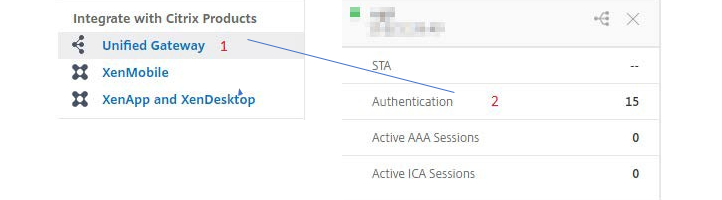 The Unified Gateway Configuration screen appears.
 -
On the Applications section, click the edit icon. Now, click the plus icon. The Application window appears.


-
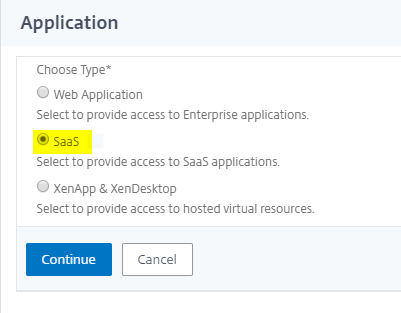
Select SaaS from the Application type.
-
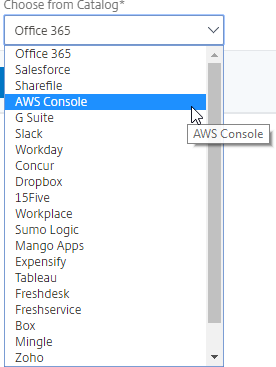
Select AWS Console from the drop-down list.
-
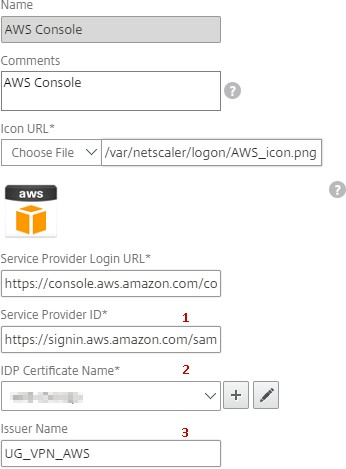
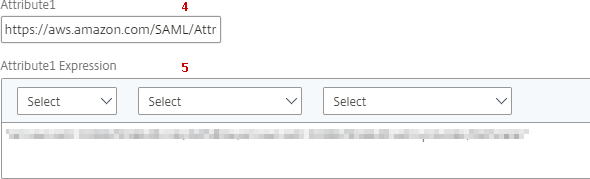
Fill the application template with appropriate values.
-
Enter the following SAML configuration details and click Continue.Service Provider ID –
<https://signin.aws.amazon.com/saml>Signing Certificate Name – IdP certificate must be selectedIssuer Name – Issuer name can be filled as per your choiceAttribute1 –https://aws.amazon.com/SAML/Attributes/RoleAttribute1 Expression– Role ARN, IdP ARN, as shown in step 3 -
Click Done.
STEP 2: Export AWS Console IdP metadata from NetScaler Gateway.
-
Click Unified Gateway > Authentication.
-
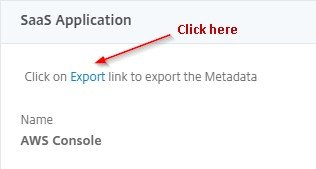
Scroll down and click AWS Console template. The SaaS Application window appears. Click Export link.
-
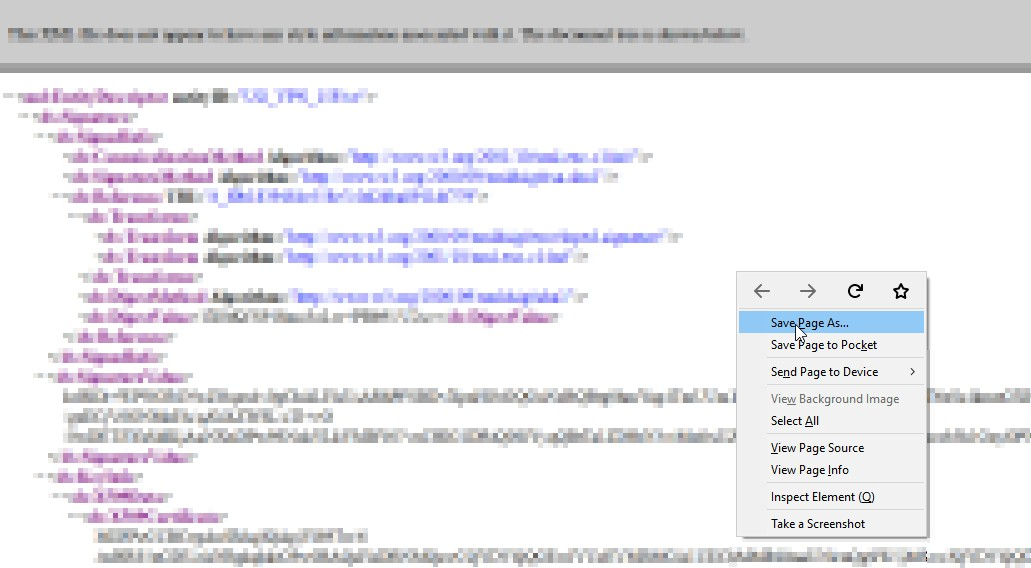
Metadata opens in a different window. Save the IdP Metadata file
STEP 3: Configure IdP into AWS Console.
Configuring and publishing apps using template - App server specific configuration
The following links open PDF documents that provide specific guidance for configuring and publishing popular SaaS apps using templates.